How to Disconnect Your iPad from iPhone | A Complete Guide
Need to separate your iPad and iPhone? This guide provides methods to unlink Apple IDs, stop call/text syncing, manage iCloud data, and fully erase devices. Includes tips for forgotten passwords.


Why Disconnect Your iPad and iPhone?
Does it feel like your iPad and iPhone are too connected? You might see calls on your iPad, get duplicate notifications, or find your photos syncing in ways you didn't expect. While Apple's ecosystem is designed for seamless integration, there are times you need clear separation—whether you're selling a device, creating distinct work/personal spaces, or troubleshooting issues.
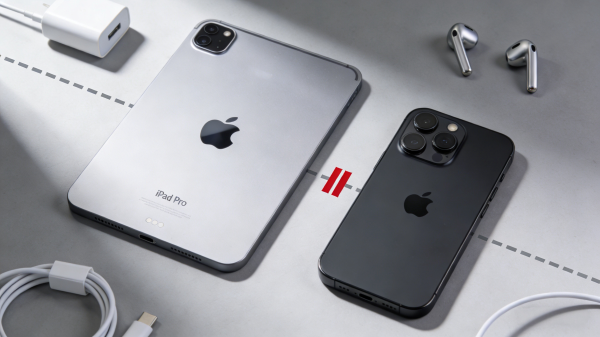
"Disconnecting" can mean different things depending on your goal. Before you start, identify what you want to achieve:
- Stop Sharing an Apple ID: This is the most complete separation. It gives each device a unique identity for iCloud, iMessage, FaceTime, and the App Store.
- Disable Specific Features: You might only want to stop calls/messages relaying, or prevent photos from syncing via iCloud.
- Prepare a Device for Sale: This requires removing your personal Apple ID entirely and turning off activation locks.
The table below helps you choose the right path.
|
💡Your Goal |
▶Primary Method to Use |
✔Key Outcome |
|
Sell or give away your iPad/iPhone |
Remove Apple ID & Erase Device |
The device is wiped and ready for a new owner |
|
Keep devices, but use different Apple IDs |
Sign out of Apple ID on one device |
App Store, iCloud, and Messages become separate |
|
Stop calls/texts syncing to iPad |
Turn off iPhone Cellular Calls & Messages |
Your iPad no longer functions as a phone handset |
|
Stop automatic photo/note syncing |
Disable specific iCloud features |
Data remains only on the device where it was created |
Method 1.Use a Different Apple ID for Complete Separation
This is the most definitive way to disconnect. Each device will have its own independent AppStore purchases, iCloud storage, and message history.
Step 1. Open the Settings app on your iPad.
Step 2. Tap your name/profile picture at the top to access your Apple ID settings.
Step 3. Scroll all the way down and tap "Sign Out”.
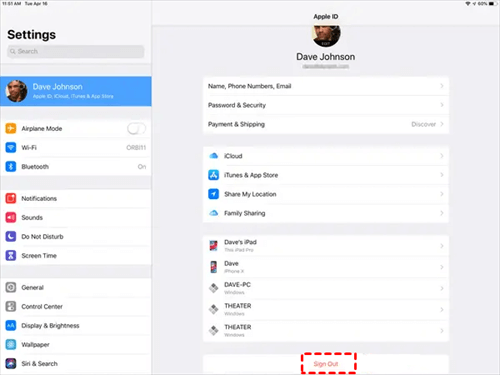
Step 4. You will be prompted to enter your Apple ID password to disable Find My and Activation Lock. This step is crucial.
Step 5. Choose which data (contacts, calendars, Safari data) you want to keep a copy of on the iPad. Tap "Sign Out" again to confirm.
- ★After signing out, you can:
- ✏ Stay Signed Out: Use the iPad without an Apple ID for basic functions.
- ✏ Sign in with a New ID: Enter a different Apple ID to create a completely separate ecosystem.
Method 2. Turn Off Specific Features (Calls, Messages, iCloud Sync)
If you want to keep using the same Apple ID but disable specific integrations, control them individually.
A. Disconnect Calls and Messages:
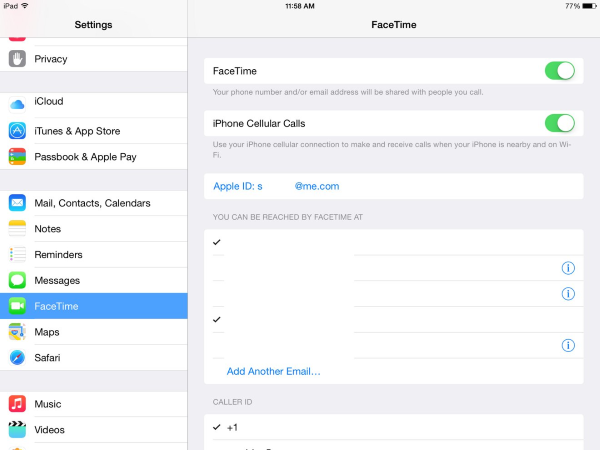
Step 1. On your iPad, go to“Settings“ > “FaceTime“.
Step 2. Toggle off "iPhone Cellular Calls". This stops phone calls from your iPhone from ringing on the iPad.
Step 3. Next, go to “Settings”> “Messages”.
Step 4. Toggle off "iMessage" to disable messaging on this device, or go to "Send & Receive" and remove your phone number, keeping only your email for iMessage.
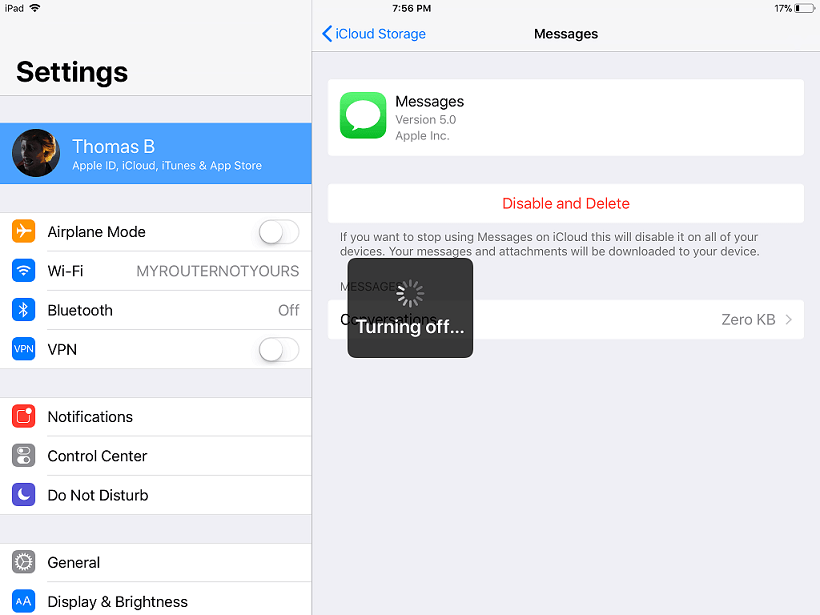
B. Control iCloud Data Syncing:
Step 1. On the device you want to stop syncing from, go to Settings > [Your Name] > iCloud.
Step 2. You will see a list of apps (Photos, Notes, Contacts, etc.). Toggle off any app you do not want to sync to other devices.
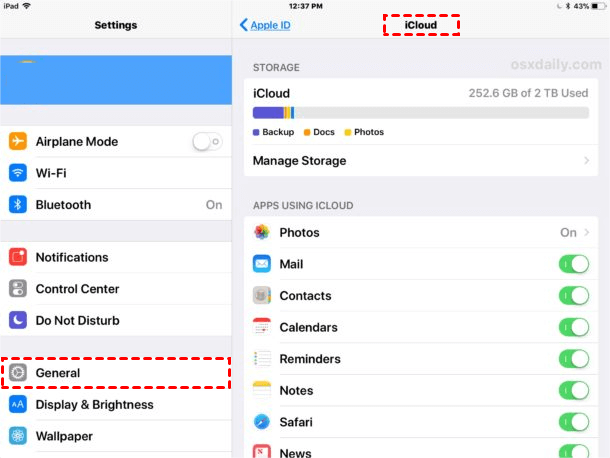
Step 3. For Photos, specifically, turning off "iCloud Photos" will keep your library local and separate.
Method 3. Fully Erase Your Device Before Selling or Giving Away
Before selling or gifting a device, a full erase is mandatory after signing out.
Steps to Erase All Content and Settings:
Step 1. Ensure you have signed out of your Apple ID (see Method 1, Step 4 is critical).
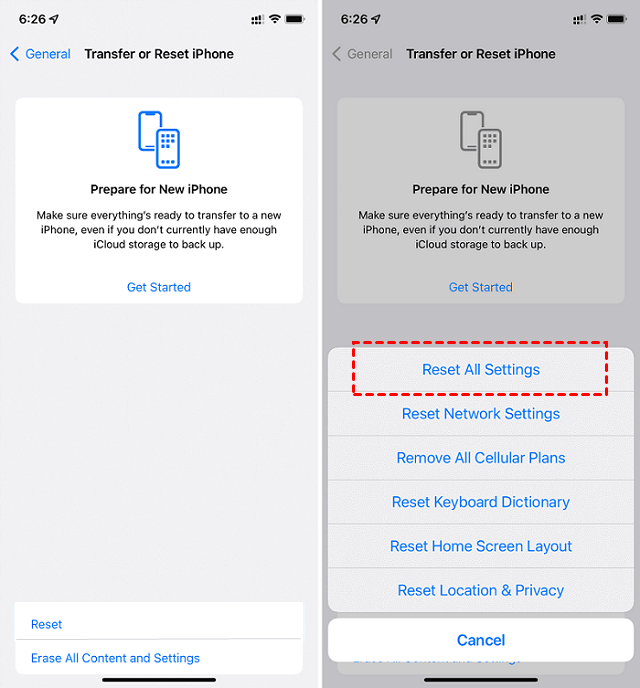
Step 2. Go to "Settings" > "General" > "Transfer or Reset [Device]".
Step 3. Tap "Erase All Content and Settings".
Step 4. Enter your device passcode and confirm. The iPad/iPhone will restart as a brand-new device.
What If You’re Locked Out?Regaining Access with FoneTool Unlocker
A common obstacle to disconnecting devices is being locked out of the Apple ID itself. If you've forgotten your Apple ID password and cannot sign out to sell your device, or if you purchased a used iPad still linked to a stranger's account, you face an Activation Lock.
This is where a professional tool like FoneTool Unlocker becomes relevant. It is designed to bypass Apple's security locks when you are legitimately the device owner but have lost access credentials.
✅ Removes the existing Apple ID and Activation Lock without the password
✅ Unlocks forgotten screen passcodes on a disabled device
✅ Provides a straightforward, guided process for non-experts
✅ High success rate in preparing a locked device for a fresh start
Step 1. Download and open FoneTool Unlocker on your computer and connect your iPhone using a USB cable.
Step 2. From the main menu, choose the “Remove iOS Screen Passcode” option to begin.

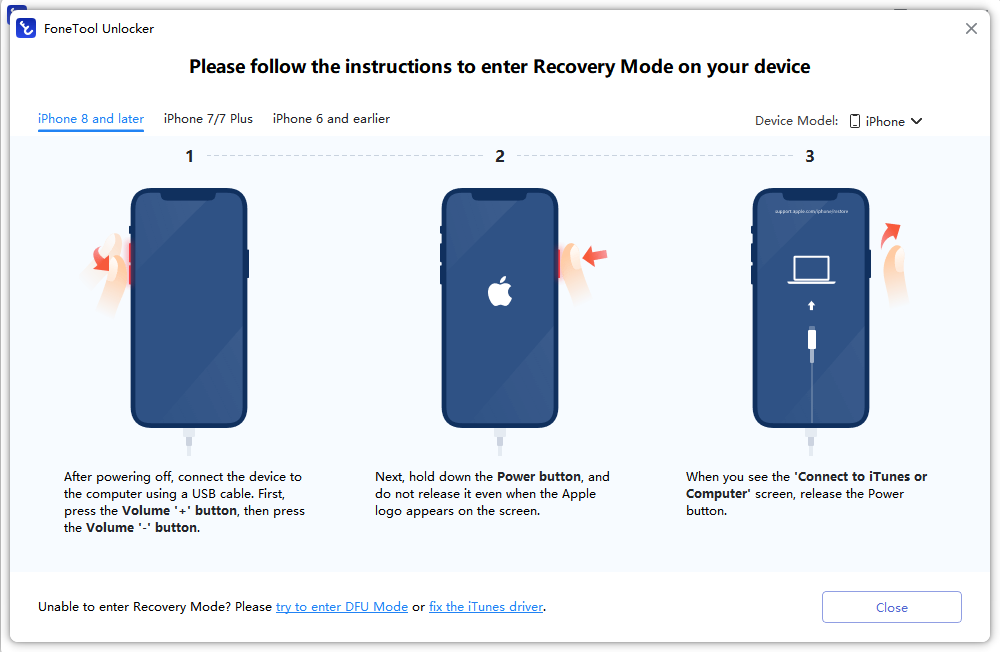
Step 3. The software will provide specific instructions. Follow them to put your iPhone into the required mode (like Recovery Mode).
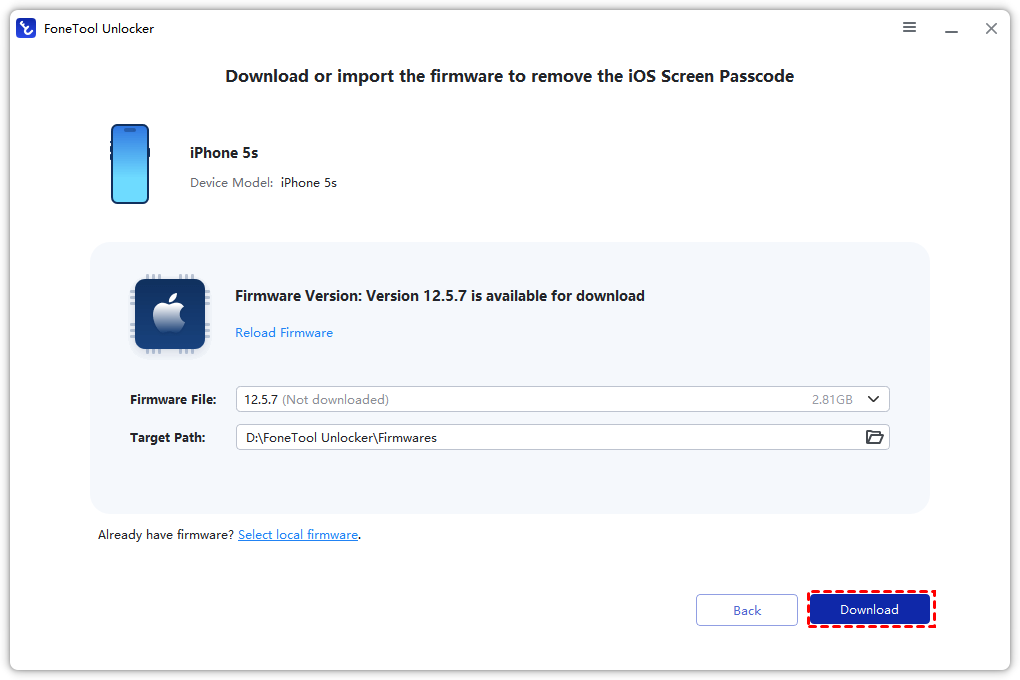
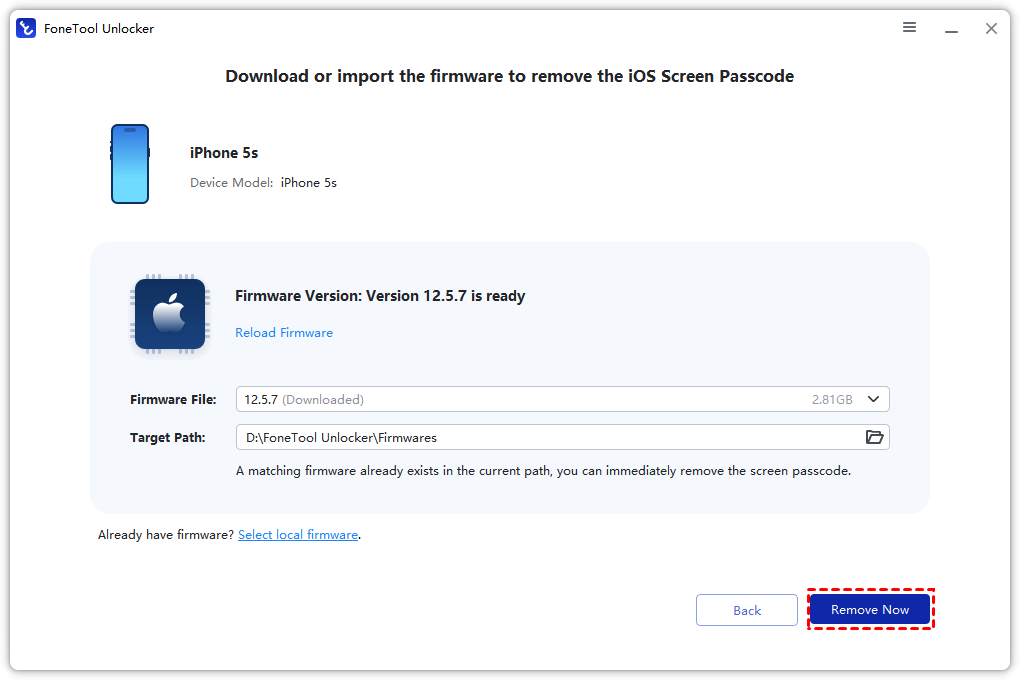
Step 4. The program will automatically match your device and prompt you to download the necessary firmware package. Click “Download”.
Step 5. Once the firmware is ready, click “Remove Now” to begin. The software will then remove the passcode or Apple ID and erase the device.
Frequently Asked Questions
Conclusion
Disconnecting your iPad from your iPhone is about taking control of your digital footprint. For a complete split, sign out of your Apple ID. To fine-tune the connection, manage individual settings for Calls, Messages, and iCloud syncing. Always remember to perform a full erase and remove the device from Find My before selling it.
If you find yourself blocked by a forgotten password or an unknown Activation Lock, tools like FoneTool Unlocker offer a proven path to reset your device. Assess your needs, follow the steps, and enjoy the perfect level of separation between your Apple devices.
FoneTool Unlocker - 1-Click iPhone Unlock Software
Easily unlock all passcodes and restrictions on your iPhone, iPad, and iPod Touch.
-
 iOS 27 Compatible
 iPhone 17 Supported
100% Secure

Kelsey is an English editor at FoneTool, passionate about helping users solve tech issues. She specializes in iPhone data management, backup, and recovery. In her free time, she enjoys learning IT skills and spending time with loved ones.
Read author info >>



 as a preferred
source on Google
as a preferred
source on Google