How to Erase iPhone Without Apple ID - 3 Effective Methods
Learn how to erase an iPhone without Apple ID credentials. We cover official iTunes/Finder methods, using third-party tools like FoneTool Unlocker, and accessing iCloud when locked out. Step-by-step instructions for each solution.


Being locked out of your iPhone because you've forgotten your Apple ID password is a common but frustrating situation. Whether you need to factory reset your iPhone to sell it, troubleshoot issues, or regain access after purchasing a second-hand device, you're likely searching for a way to erase iPhone without Apple ID.
This guide explains three practical methods to achieve this, each suited to different scenarios. We'll clarify a crucial point upfront: completely bypassing Apple's Activation Lock (the feature that ties the device to an Apple ID after a reset) without the original credentials is not possible with any standard tool and requires Apple's verification with proof of purchase. However, erasing the device's data to prepare it for a new setup is achievable. The right method depends on whether you know the device passcode, have access to iCloud, or are completely locked out.
Method 1. Erase iPhone Using iTunes/Finder
This is Apple's recommended method when you can't access settings on the device. It puts your iPhone into Recovery Mode and restores it via a computer.
Step 1. Connect your iPhone to a computer using a USB cable, and open iTunes or Finder.
Step 2. Force restart your iPhone to enter Recovery Mode:
- iPhone 8/SE (2nd/3rd gen) & later: Quickly press and release Volume Up, then Volume Down, then press and hold the Side button until you see the recovery mode screen.
- iPhone 7/7 Plus: Press and hold Volume Down and Sleep/Wake buttons together.
- iPhone 6s and earlier: Press and hold Home and Sleep/Wake buttons together.
Step 3. When you see the option to Restore or Update on your computer, choose "Restore”.
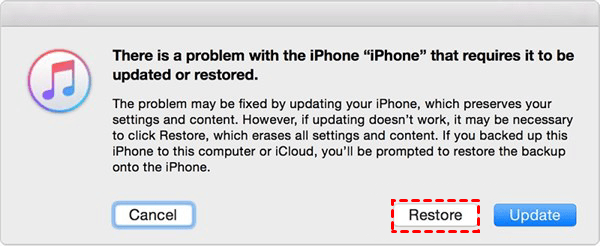
Step 4. iTunes/Finder will download firmware and completely erase your iPhone without Apple ID, installing a fresh copy of iOS.
After completion, you can set up the iPhone as new.
Method 2. Remote Erase via iCloud.com (If Find My iPhone is Enabled)
If Find My iPhone was enabled on the device and you have access to the iCloud account (or the account of a family member in a Family Sharing group), you can erase it remotely.
Step 1. On any computer or smartphone browser, go to icloud.com/find.
Step 2. Sign in with the Apple ID and password that is linked to the iPhone you want to erase.
Step 3. Click “All Devices” at the top and select the target iPhone.
Step 4. Click “Erase iPhone”. Confirm your choice.
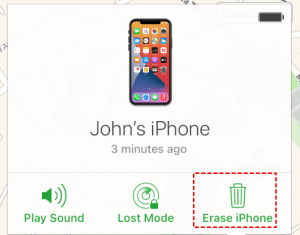
Step 5. This will remotely wipe all data from the device. For a more complete release, you can also click “Remove from Account” after erasing, which helps remove the device from your iCloud account.
- ★Important:
- This method requires the Apple ID password. It is perfect if you remember your iCloud credentials but have forgotten your device passcode, or if you need to erase a lost device.
Method 3. Use FoneTool Unlocker to Erase a Locked iPhone
This method is for the specific challenge of needing to erase a locked iPhone without the passcode, where you cannot access Settings or reliably enter Recovery Mode. FoneTool Unlocker is designed to remove the screen passcode barrier, facilitating a full erase and restore.
✅Removes Screen Lock: Efficiently deletes a forgotten device passcode.
✅No Password Needed: Works without the original Apple ID or device passcode.
✅Simple Process: Guided steps make it accessible for all users.
✅High Success Rate: Reliable performance across iPhone models.
Step 1. Download and install FoneTool Unlocker on a Windows computer. Connect the locked iPhone to your computer via USB cable.
Step 2. Launch the program and select "Remove Apple ID".
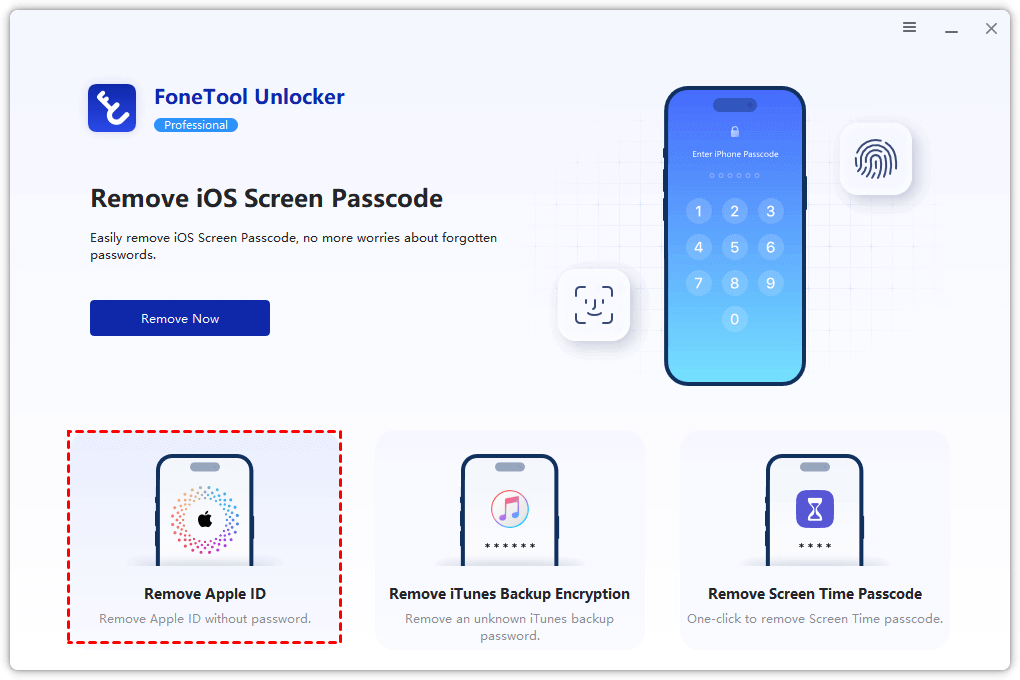
Step 3. Follow on-screen instructions to put your device into Recovery Mode.
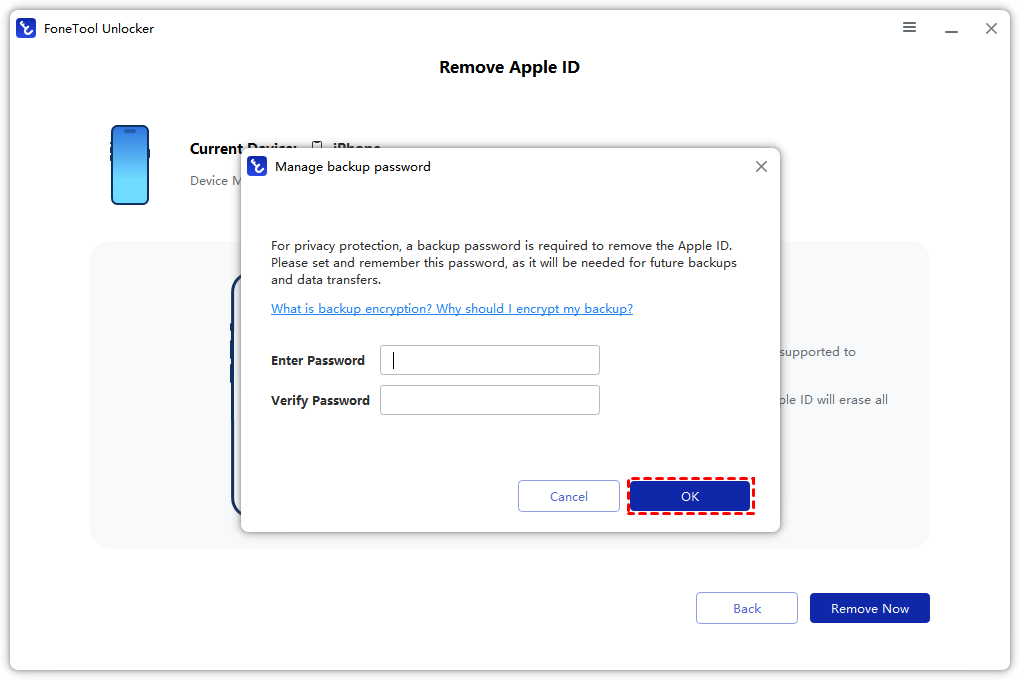
Step 4. After device detection, download the firmware as prompted, and click “Remove Now”. This will erase your iPhone completely.
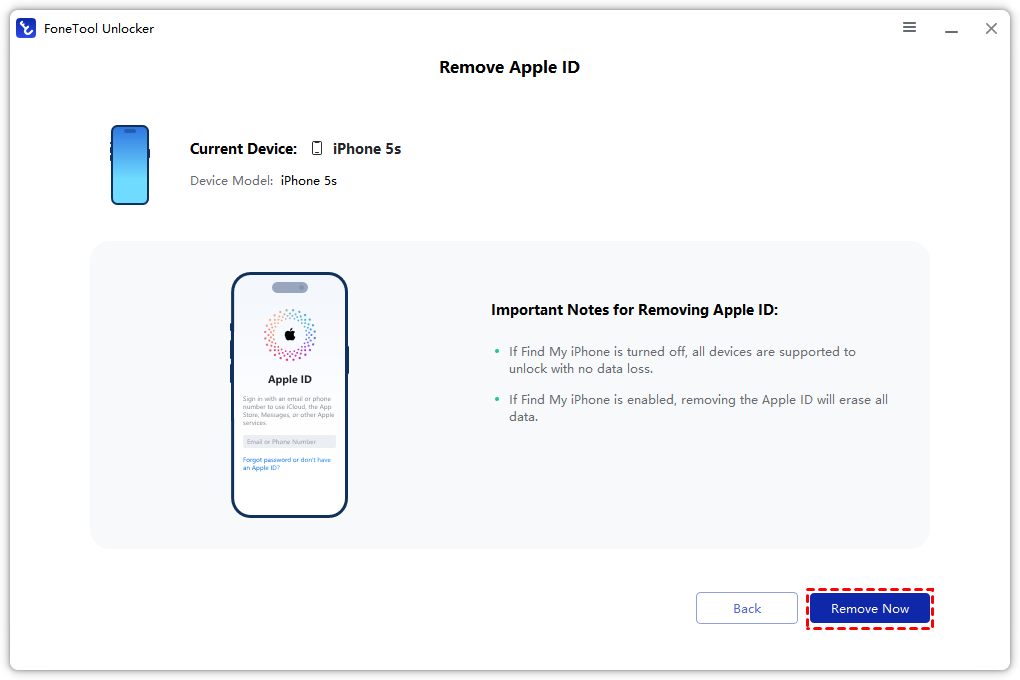
Once done, you can set up the iPhone as a new device without any Apple ID restrictions.
Frequently Asked Questions
Summary
In summary, how to erase iPhone without Apple ID involves choosing the right tool for your access level. Use iTunes/Finder Recovery Mode for a disabled iPhone with a computer. Use iCloud.com if you remember your iCloud password. For a guided solution to erase a device locked by a forgotten screen passcode, FoneTool Unlocker is effective. Remember, erasing the device is separate from Activation Lock, which is designed to protect ownership and typically requires the original account credentials.
FoneTool Unlocker - 1-Click iPhone Unlock Software
Easily unlock all passcodes and restrictions on your iPhone, iPad, and iPod Touch.
-
 iOS 27 Compatible
 iPhone 17 Supported
100% Secure

Kelsey is an English editor at FoneTool, passionate about helping users solve tech issues. She specializes in iPhone data management, backup, and recovery. In her free time, she enjoys learning IT skills and spending time with loved ones.
Read author info >>



 as a preferred
source on Google
as a preferred
source on Google