iCloud Keychain Passwords Missing: Why and How to Recover?
Your iCloud Keychain passwords shouldn't just vanish – but sometimes they do. This guide explains why and walks you through restoring them on your Apple devices.


Why Are My iCloud Keychain Passwords Missing?
Sometimes users may find that their iCloud Keychain passwords missing, with saved passwords no longer appearing on their iPhone, iPad, Mac, or Windows PC. In most cases, your passwords are not permanently deleted. The problem can be caused by the following reasons:
- iCloud Keychain Is Disabled
- You Are Using a Different Apple ID
- iCloud Keychain Sync Is Stuck
- Software Bugs or Outdated System Versions
- Passwords Were Deleted or Are Hidden
- You Restored Your Device Without Restoring Keychain Data
🌟 To check more scenarios about using iCloud Keychain, please refer to this complete guide on iCloud Keychain.
First Check If Your iCloud Keychain Passwords Are Really Missing
Before trying advanced fixes for the iCloud Keychain passwords missing issue, it is important to confirm whether your passwords are actually deleted or simply not showing in the expected place. Learn where are my iCloud Keychain passwords below:
Check Saved Passwords on iPhone and iPad
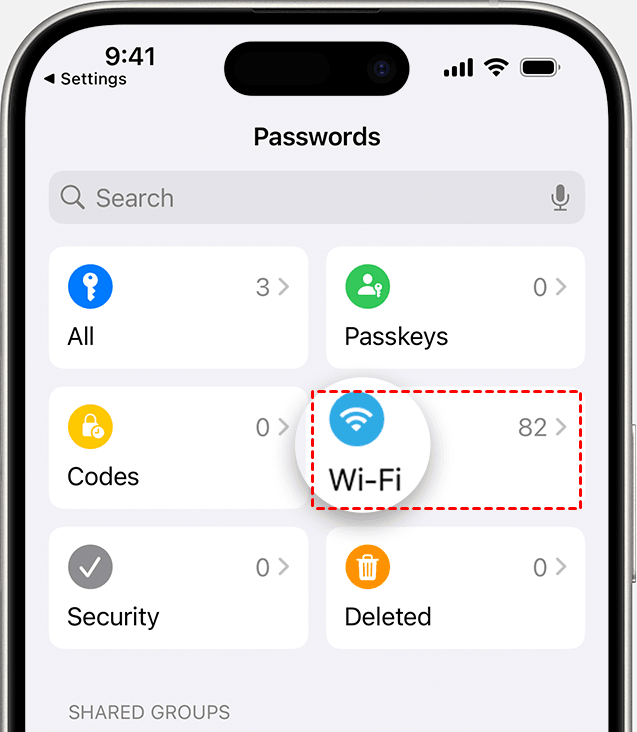
👉 For iOS 18 and Later
1. Open the Passwords app on your iPhone or iPad.
2. Authenticate with Face ID, Touch ID, or your device passcode.
3. Browse categories such as All, Passkeys, or Wi-Fi. Use the search bar to find a specific website or app password.
👉 For Earlier iOS Versions
1. Open Settings. Scroll down and tap Passwords.
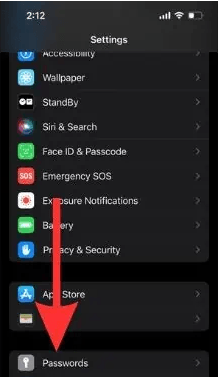
2. Verify your identity with Face ID, Touch ID, or your passcode.
3. Search for the account or website you need.
Check Saved Passwords on Mac
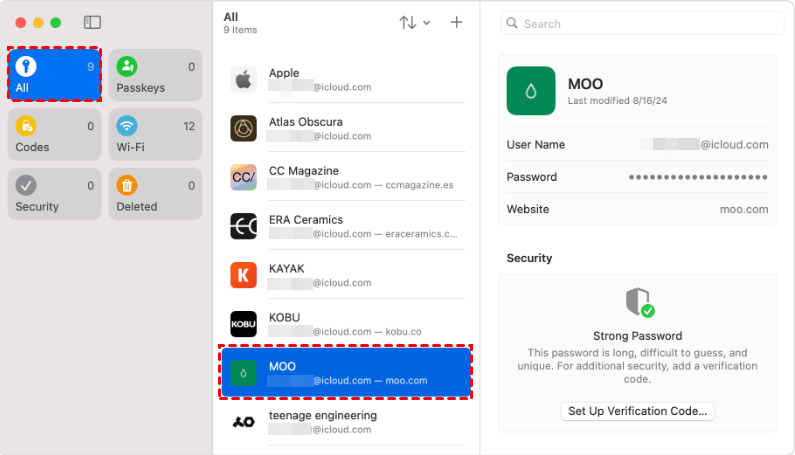
👉 On macOS Sequoia or later
1. Open the Passwords app.
2. Sign in with Touch ID, or enter your user account password.
3. Select an account to view its password.
👉 On macOS Sonoma or earlier
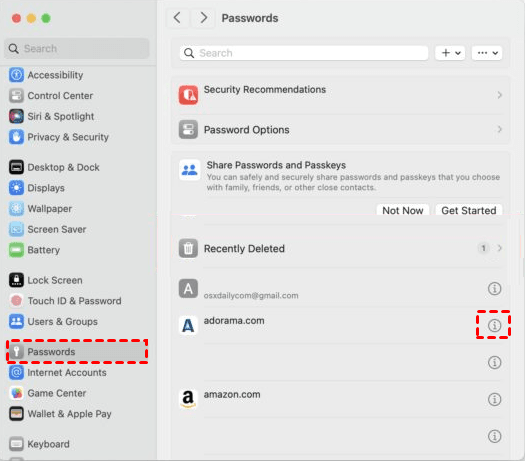
1. Open System Settings from the Apple menu. Then click Passwords in the sidebar.
2. Authenticate with Touch ID or enter your Mac password.
3. Select an account and click the Show Details button (the “i” icon) to view its saved username, password, passkey, or related details.
How to Recover Missing iCloud Keychain Passwords
If you can’t find your passwords with the above methods, don’t worry. Below are effective methods to help you recover missing iCloud Keychain passwords.
Method 1: Make Sure iCloud Keychain Is Enabled
One of the most common reasons for iCloud Keychain passwords missing is that iCloud Keychain has been turned off. Learn how to fix iCloud Passwords and Keychain not syncing below:
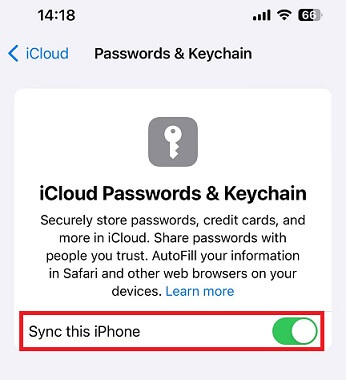
👉 On iPhone or iPad
1. Go to Settings > [Your Name] > iCloud.
2. Under Saved to iCloud, tap Passwords. In iOS 17 or earlier, tap Passwords and Keychain.
3. Make sure Sync this iPhone/iPad is enabled.
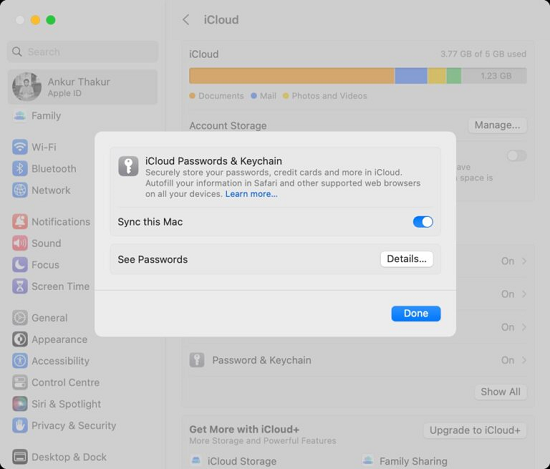
👉 On Mac
1. Go to System Settings > Apple ID > iCloud.
2. Click Passwords. In macOS Sonoma or earlier, click Passwords & Keychain.
3. Make sure Sync this Mac is enabled.
Method 2: Check Recently Deleted Passwords
If you recently removed saved passwords from your iPhone, iPad, or Mac, you can quickly recover them from the Deleted folder.
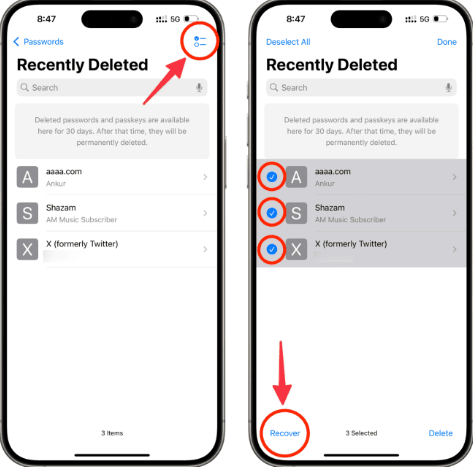
👉 On iPhone or iPad
1. Open the Passwords app on your iPhone or iPad.
2. Unlock it with Face ID, Touch ID, or your device passcode. Then tap Deleted or Recently Deleted.
3. If you see your missing passwords, tap the Select button in the top-right corner.
4. Select the passwords you want to restore and hit Recover in the bottom-left corner.
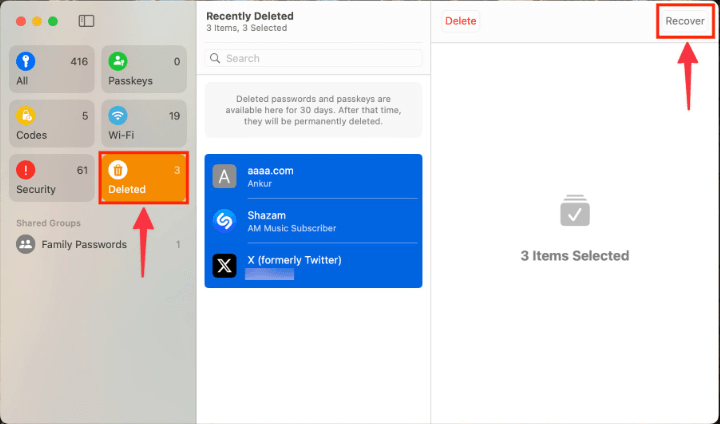
👉 On Mac
1. Open the Passwords app on your Mac.
2. Authenticate with Touch ID or your Mac login password. Then select Deleted from the sidebar.
3. Locate the account for the deleted password or passkey, then select the account.
4. Click Recover. You can recover more than one deleted password or passkey at a time.
Method 3: Restart Your Device
Sometimes, a simple restart can fix temporary iCloud Keychain synchronization issues.
👉 On iPhone
1. Force restart your iPhone depending on the model:
→iPhone 8 or Later
- Quickly press and release the Volume Up button.
- Quickly press and release the Volume Down button.
- Press and hold the Side button until the Apple logo appears.
→iPhone 7 or iPhone 7 Plus
- Press and hold the Power button and Volume Down button together.
- Release both buttons when the Apple logo appears.
→iPhone 6s or Earlier
- Press and hold the Power button and Home button together.
- Release the buttons when you see the Apple logo.
2. After restarting, unlock your device, connect to Wi-Fi, and check the Passwords app to see whether your missing passwords have returned.
👉 On Mac
1. Click the Apple menu in the top-left corner.
2. Select Restart. Wait for your Mac to reboot.
3. Open the Passwords app or Safari password settings to check your saved credentials.
Method 4: Update iPhone, iPad, or Mac to the Latest Version
If your iPhone, iPad, or Mac is using an older system version, it may prevent Keychain data from syncing correctly. Learn how to update your iPhone, iPad, or Mac below:
👉 Update iPhone or iPad
1. Go to Settings > General > Software Update.
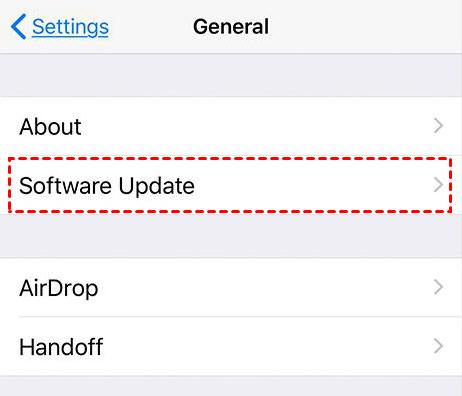
2. If an update is available, tap Download and Install.
3. Enter your device passcode if prompted. Wait for the update to complete and restart your device.
4. After updating, connect your device to Wi-Fi and check whether your saved passwords appear.
👉 Update Mac
1. Click the Apple menu in the top-left corner.
2. Select System Settings > General > Software Update.
3. Click Update Now or Upgrade Now if a new version is available. Follow the on-screen instructions to complete the installation.
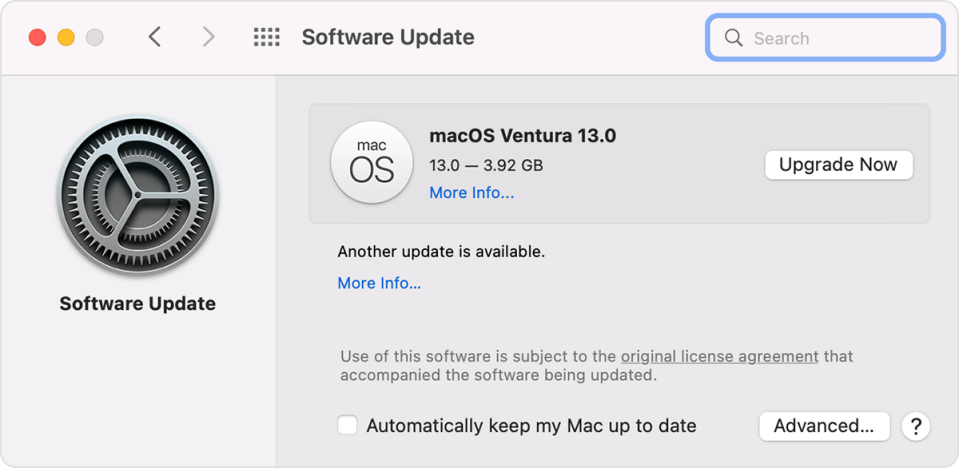
4. Once the update finishes, check if Keychain data is syncing properly now.
Method 5: Sign Out and Sign Back Into iCloud
When you sign out of iCloud, your device disconnects from your Apple ID temporarily. Signing back in forces iCloud to re-authenticate your account and can restart the Keychain synchronization process, allowing your saved passwords to appear again.
👉 Re-log to Your Apple Account on iPhone
1. Open Settings, tap your name, scroll down, and tap Sign Out > Sign Out But Don't Erase.
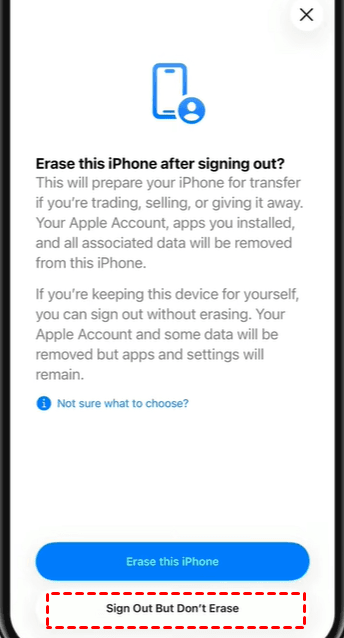
2. Follow the onscreen prompts to learn what information will remain on your device or be erased.
3. Enter the device passcode or Apple Account password when requested, then tap Confirm and Sign Out.
4. After signing out, restart your iPhone.
5. Open the Settings app and tap Apple Account at the top.
6. Choose Sign in Manually. Enter your Apple Account email address or phone number and your password.
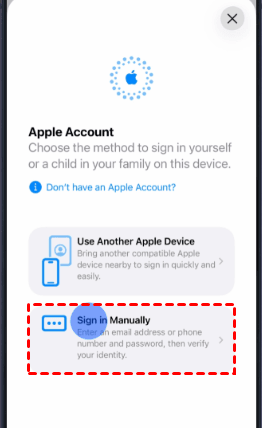
7. Enter the six-digit verification code sent to your trusted device or phone number to complete sign-in.
8. Enable iCloud Keychain again.
👉 Re-log to Your Apple Account on Mac
1. Choose Apple menu, then click System Settings.
2. Click your name, then click Sign Out.
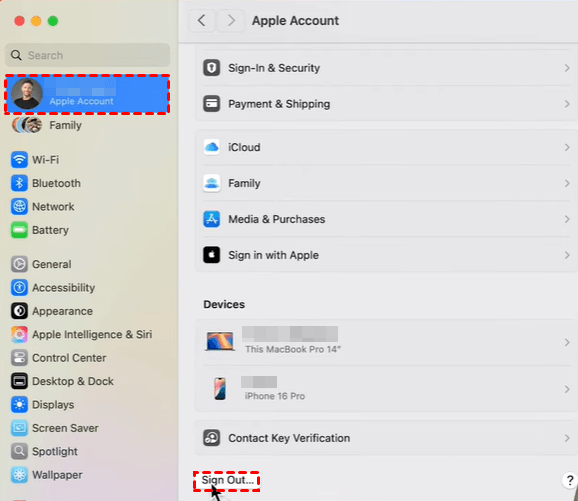
3. To a keep a copy of your iCloud data on your Mac before you sign out, make sure that you select the appropriate checkboxes. Then click Keep a Copy.
4. Click Sign Out. If you use Apple Pay, click Sign Out and Remove Cards.
5. After signing out, restart your Mac.
6. Choose Apple menu > System Settings. From the sidebar, click Sign in.
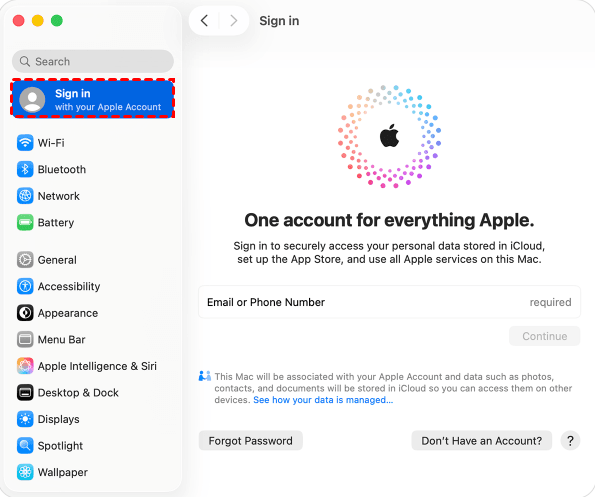
7. Enter your Apple Account email address or phone number and your password. If prompted, enter the six-digit verification code sent to your trusted device or phone number and complete sign in.
8. Enable iCloud Keychain again.
Bonus: Best Alternative to Manage iOS Passwords on Windows PC
If you're tired of wrestling with iCloud Keychain passwords missing issues and want a more flexible way to manage your iPhone passwords from a Windows PC, FoneTool Unlocker offers a practical alternative.
- Key Features:
- ⭐View all saved iPhone passwords in one place. You can find Apple ID password, Wi-Fi passwords, website and app account credentials, etc.
- ⭐Manage passwords offline after connecting your device via USB.
- ⭐Remove multiple locks, such as screen passcodes, Apple ID (under supported conditions), Screen Time passcodes, and iTunes backup encryption.
- ⭐Supports recent iOS versions and receives ongoing compatibility updates.
Learn how to access iPhone passwords with FoneTool Unlocker below:
Step 1. Connect your iPhone to the computer via USB and tap Trust in the “Trust This Computer?” prompt. Then unlock your device.
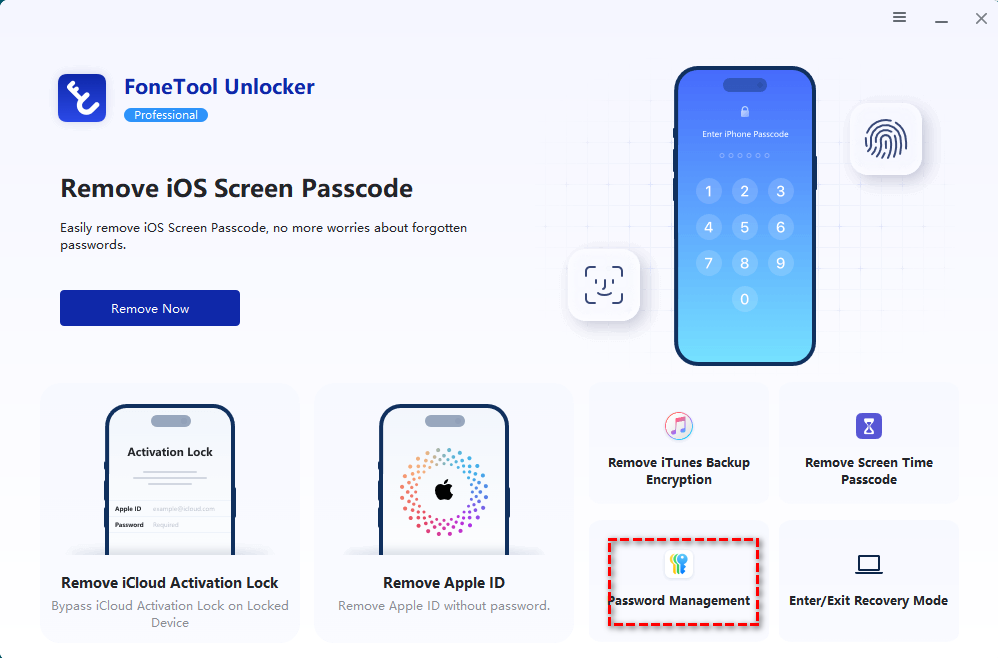
Step 2. Download, install, and open FoneTool Unlocker on your Windows PC. On the main screen, click Password Management in the bottom-right corner.
Step 3. In the pop-up window, click Start Scan.
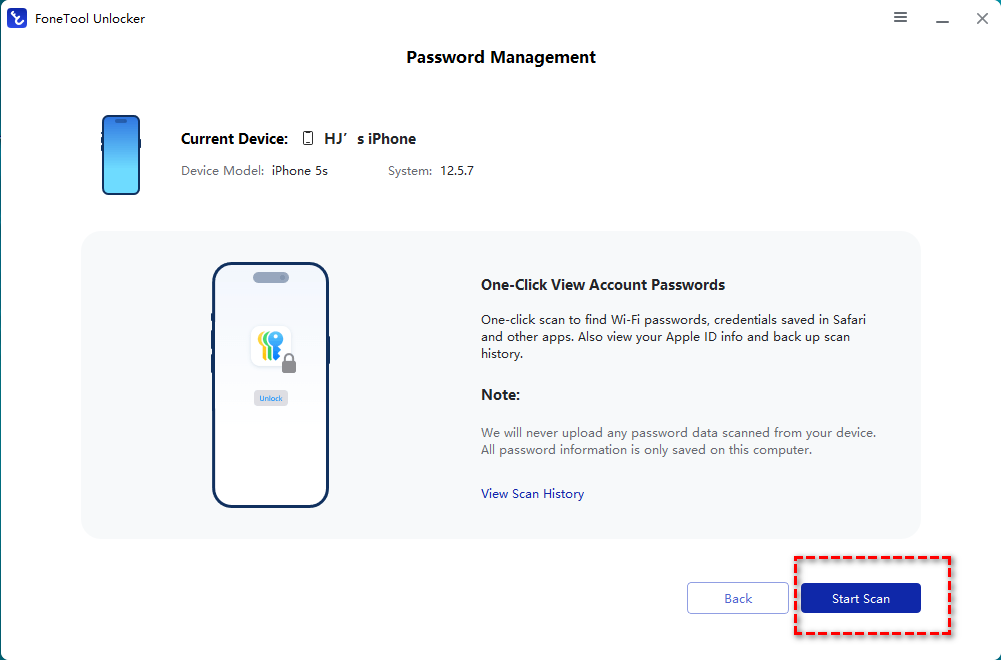
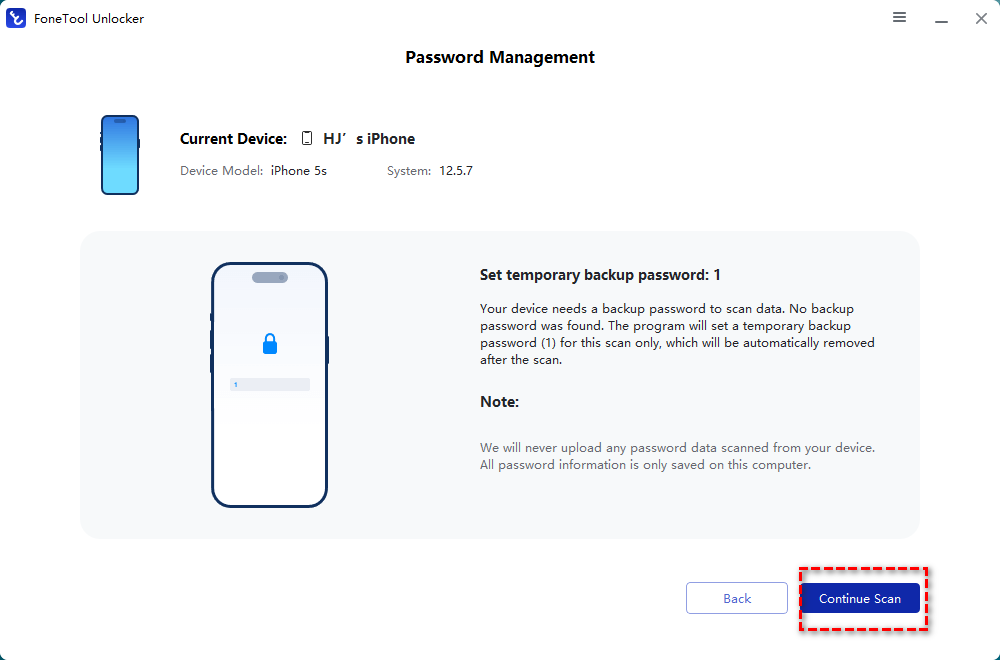
Step 4. Confirm the temporary backup password and click Continue Scan to begin scanning. The scan time depends on the number of passwords saved on your device, usually taking a few minutes.
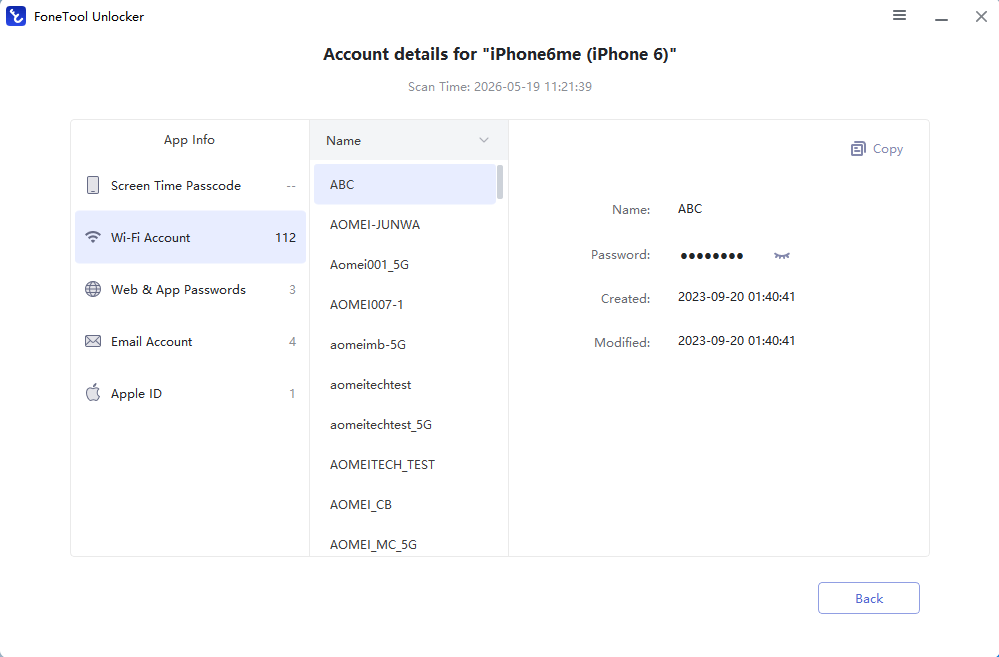
Step 5. Once the scan is complete, select View Password. In the next window, you can find the passwords you need.
Wrapping Things Up
If you encounter the iCloud Keychain passwords missing issue, you can follow this article to restore missing iCloud Keychain passwords on iPhone, iPad, and Mac. If you frequently manage iPhone data on a Windows machine, FoneTool Unlocker is a solid alternative that puts you in control of your passwords—without the headaches of iCloud sync limitations. Why not give it a shot?
FoneTool Unlocker - 1-Click iPhone Unlock Software
Easily unlock all passcodes and restrictions on your iPhone, iPad, and iPod Touch.
-
 iOS 27 Compatible
 iPhone 17 Supported
100% Secure

Lily Green is dedicated to helping users protect their valuable mobile data and addressing issues that arise on mobile devices. She consistently stays vigilant about the latest trends in technology, guaranteeing that the given information aligns with the ongoing advancements in the field.
Read author info >>



 as a preferred
source on Google
as a preferred
source on Google