How to Set Up and Manage iCloud Keychain | Full Guide
Master iCloud Keychain to save, sync, and manage passwords across all your Apple devices – and find the best replacement if iCloud Keychain fails you.


What Does iCloud Keychain Store?
iCloud Keychain securely stores and syncs a variety of sensitive information across your Apple devices, so you don't have to remember every password or enter the same details repeatedly. As long as you're signed in with the same Apple Account, your data is available on your trusted iPhone, iPad, Mac, and even Windows PCs through iCloud Passwords. Here's what iCloud Keychain can store:
- Website and app passwords: Save usernames and passwords for websites and apps, then autofill them when you sign in.
- Passkeys: Store passkeys for supported websites and apps, allowing you to log in without using traditional passwords.
- Wi-Fi passwords: Automatically sync saved Wi-Fi network credentials across your Apple devices, making it easy to connect without re-entering passwords.
- Credit and debit card information: Save your card numbers and expiration dates to autofill online purchases in Safari. (For security reasons, the card security code (CVV) is not stored.)
- Verification codes: Store and autofill two-factor authentication (2FA) verification codes for supported accounts.
- Security notes: Save additional information related to your accounts, such as recovery keys, backup codes, or custom notes.
How to Set Up iCloud Keychain
Setting up iCloud Keychain only takes a few minutes. Once enabled, your passwords, passkeys, Wi-Fi passwords, and payment information can sync securely across your Apple devices that are signed in with the same Apple Account.
Before you begin, make sure:
- You're signed in with the same Apple Account on all your devices.
- Two-factor authentication is enabled for your Apple Account.
- Your devices are running a recent version of iOS, iPadOS, or macOS.
Enable iCloud Keychain on iPhone and iPad
Step 1. Open the Settings app, tap your Apple Account name at the top, and choose iCloud.
Step 2. Under Saved to iCloud, tap Passwords. In iOS 17 or earlier, tap Passwords and Keychain.
Step 3. Turn on Sync this iPhone (or Sync this iPad) to enable iCloud Keychain. If prompted, enter your device passcode or Apple Account password to confirm the change.
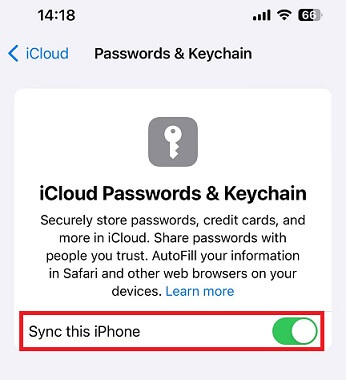
Step 4. After setup, your saved passwords, passkeys, Wi-Fi passwords, and other credentials will automatically sync with your other trusted Apple devices.
Enable iCloud Keychain on Mac
Step 1. Click the Apple menu and choose System Settings.
Step 2. Click your Apple Account name in the sidebar, then select iCloud.
Step 3. Click Passwords. In macOS Sonoma or earlier, click Passwords & Keychain.
Step 4. Turn on Sync this Mac, then click Done.
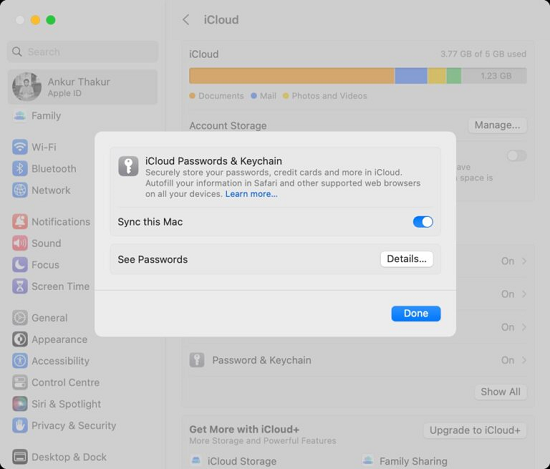
Step 5. If you choose to "Approve Later" when you sign in to your Apple Account, you need to approve with an old passcode or from another device when prompted. If you're unable to approve, reset your end-to-end encrypted data when prompted.
How to Find Saved Passwords in iCloud Keychain
iCloud Keychain stores your website and app passwords in the built-in Passwords app (or the Passwords section in Settings on older versions of iOS). You can easily view, search, edit, or copy your saved credentials after verifying your identity with Face ID, Touch ID, or your device passcode.
Find Saved Passwords on iPhone and iPad
👉 How to access iCloud Keychain on iOS 18 or later
Step 1. Open the Passwords app.
Step 2. Authenticate using Face ID, Touch ID, or your device passcode.
Step 3. To view a password or passkey, choose a category or Shared Group, then select a website or app.
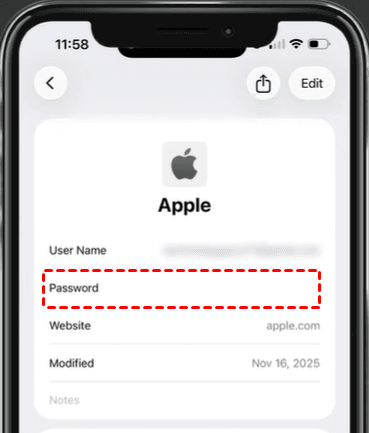
✨ How to edit saved passwords on iPhone?
◆ To update a password, tap Edit, then tap Change Password.
◆ To delete a password or passkey, tap Edit, then tap Delete.
👉 How to access iCloud Keychain on iOS 17 or earlier
Step 1. Tap Settings, then scroll down and tap Passwords.
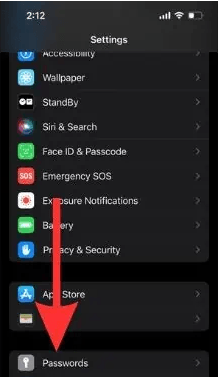
Step 2. Use Face ID or Touch ID when prompted, or enter your passcode.
Step 3. To view a password or passkey, select a website or app.
✨ How to edit saved passwords on iPhone?
◆ To update a password, tap Edit.
◆ To delete a password or passkey, tap Delete Password or Delete Passkey.
View Saved Passwords on Mac
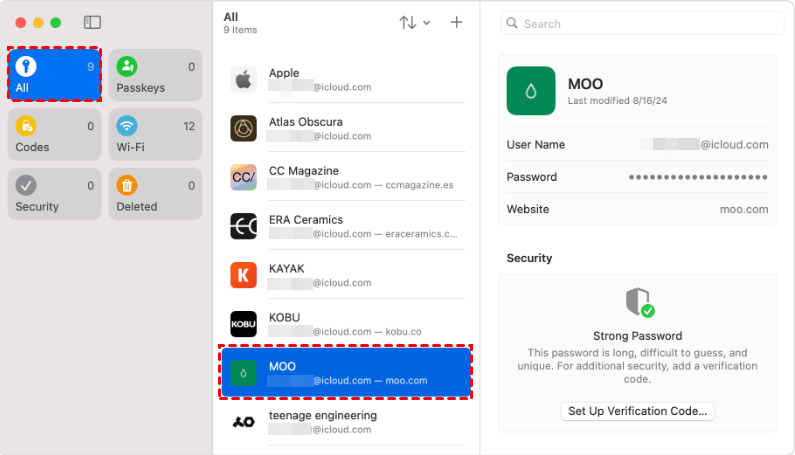
👉 On macOS Sequoia or later
Step 1. Open the Passwords app.
Step 2. Sign in with Touch ID, or enter your user account password.
Step 3. Select an account to view its password.
👉 On macOS Sonoma or earlier
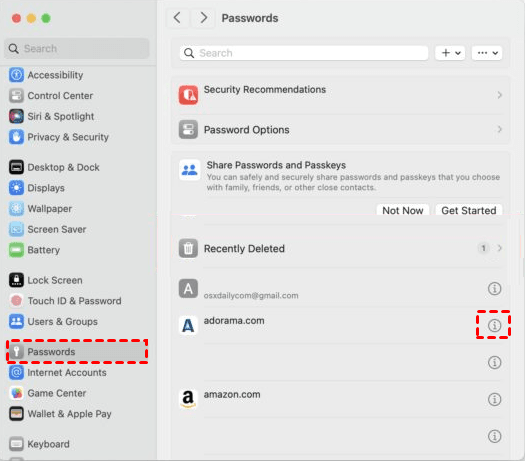
Step 1. Open System Settings from the Apple menu.
Step 2. Click Passwords in the sidebar.
Step 3. Authenticate with Touch ID or enter your Mac password.
Step 4. Select an account and click the Show Details button (the “i” icon) to view its saved username, password, passkey, or related details.
How to Import/Export Passwords in iCloud Keychain on Mac
iCloud Keychain makes it easy to store and sync passwords across Apple devices, but you may need to import or export passwords when switching from another password manager, moving to a new device, or creating a backup of your saved credentials. Follow the instructions below to import or export passwords in iCloud Keychain. These steps apply to macOS Sequoia or later.
Import Passwords to iCloud Keychain
Step 1. Export your passwords from your current password manager as a CSV file.
Step 2. Open the Passwords app on your Mac.
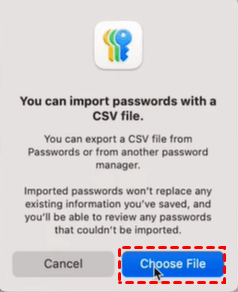
Step 3. Click File and choose Import Passwords from File.
Step 4. Click Choose File, then choose the CSV file containing your passwords.
Step 5. Click Import to complete the import process.
Export Passwords from iCloud Keychain
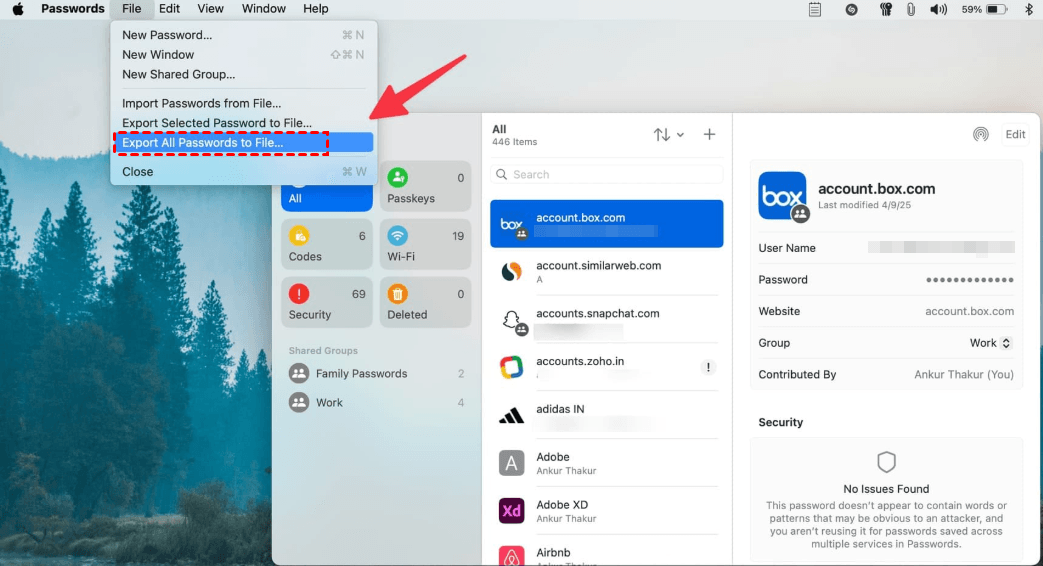
Step 1. Open the Passwords app on your Mac.
Step 2. Choose File > Export All Passwords to File.
Step 3. Click Export Passwords.
Step 4. Choose where to save the exported passwords file, then click Save.
◆ The exported CSV file is not encrypted. Anyone who gains access to this file can view your saved passwords, so store it securely and delete it after completing the transfer.
◆ You can’t export Wi-Fi passwords, passwords that you shared with a group (unless you created the group), or access to Sign in with Apple accounts.
Bonus: Best Alternative to iCloud Keychain
While iCloud Keychain is a convenient password manager for users in the Apple ecosystem, it may not meet everyone's needs. For users who frequently switch between different devices, forget iPhone passwords, or need more advanced iOS security management features, FoneTool Unlocker can be a reliable alternative to iCloud Keychain.
- Key Features:
- ⭐Extract and view saved passwords: Recover and display Wi-Fi passwords, Safari login credentials, and account passwords from other apps.
- ⭐Unlock iPhone/iPad without a password: Helps regain access when you forget your device passcode or cannot unlock your iPhone normally.
- ⭐Remove Apple ID-related locks: Provides solutions for certain Apple ID access issues when users cannot access their devices properly.
- ⭐Handle Screen Time passcode problems: Helps remove forgotten Screen Time restrictions.
- ⭐Support various iOS devices: Works with different iPhone and iPad models and iOS versions.
Follow the instructions below to check various passwords saved on iPhone using FoneTool Unlocker:
Step 1. Connect your iPhone to the computer using a USB cable and tap Trust in the “Trust This Computer?” prompt. Then unlock your iPhone.
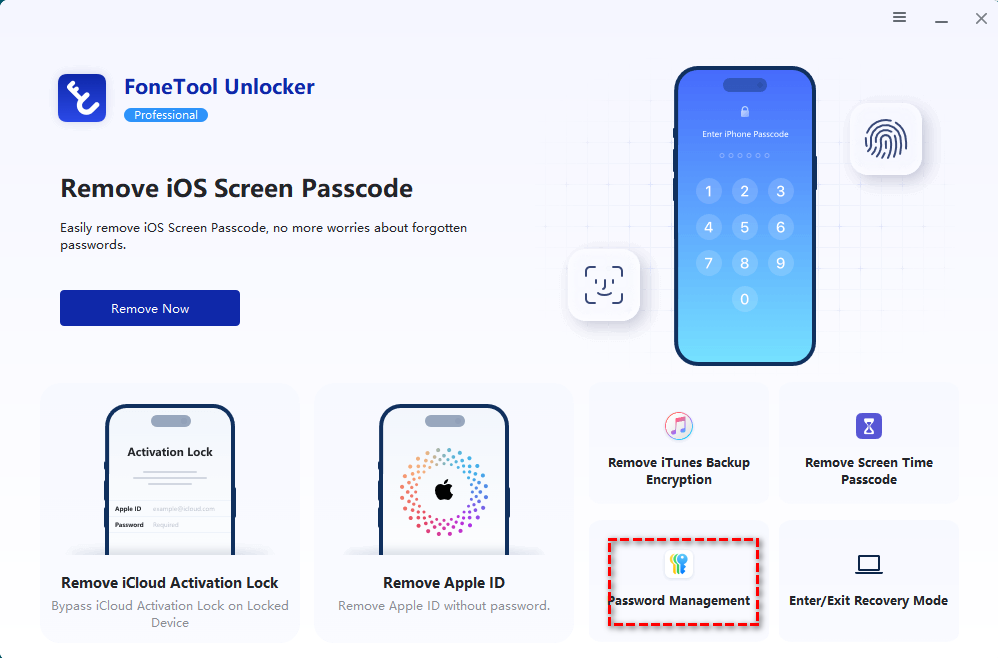
Step 2. Download, install, and launch FoneTool Unlocker on your Windows PC. On the main interface, click Password Management in the bottom-right corner.
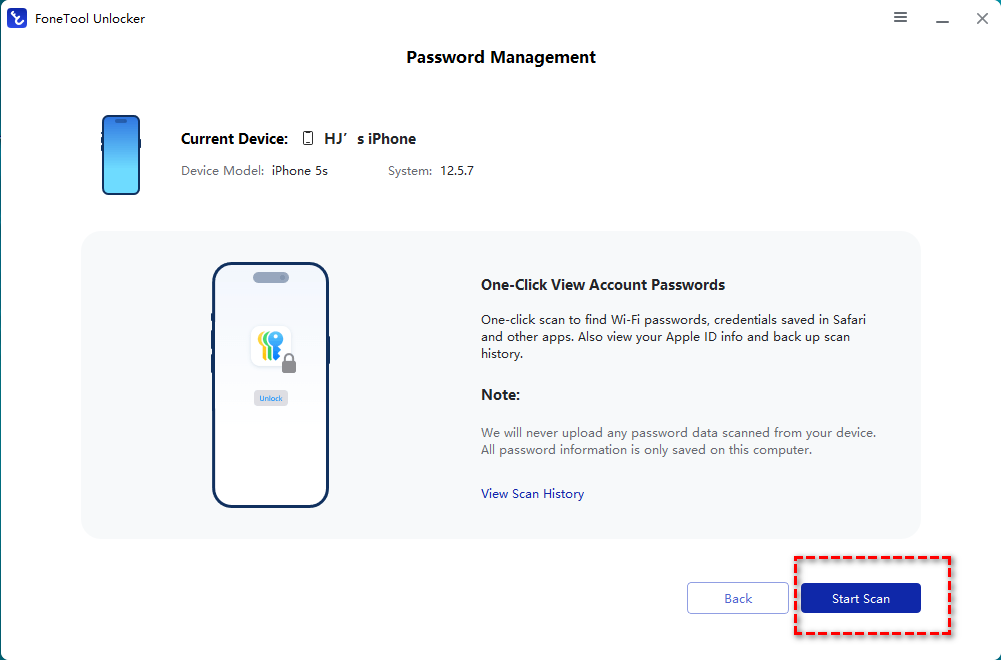
Step 3. In the pop-up window, click Start Scan.
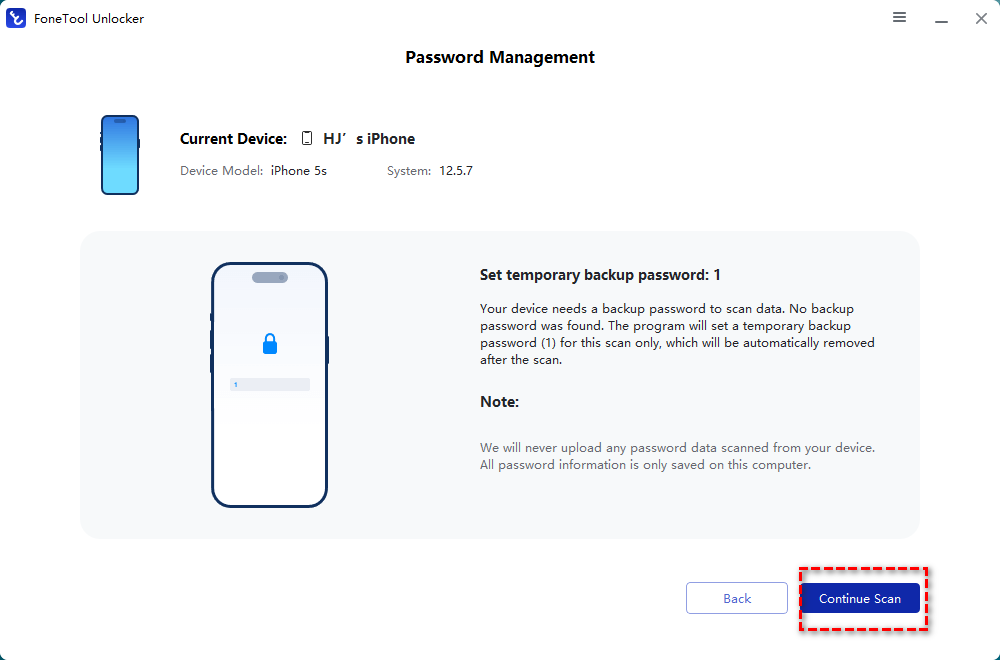
Step 4. Confirm the backup password and click Continue Scan to start the scanning process. The time this takes depends on how many passwords are saved on your device and usually only lasts a few minutes.
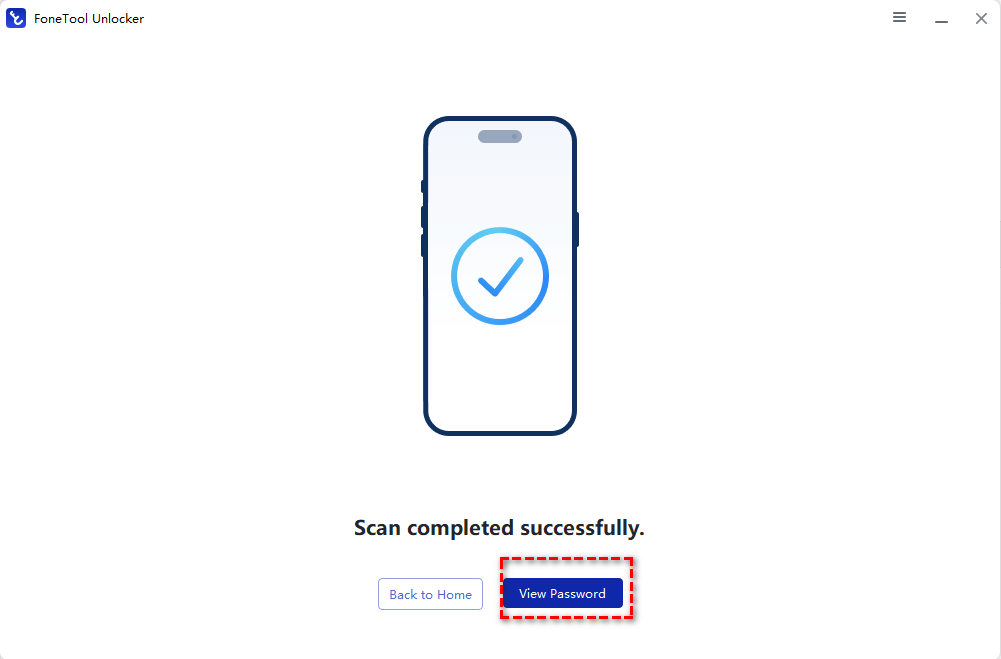
Step 5. After the scan finishes, select View Password to find the password you need.
Related Guides to iCloud Keychain
Users may encounter different situations when trying to access or use iCloud Keychain, such as managing passwords on Windows, fixing sync problems, or recovering missing credentials. Explore the following guides to find the right solution based on your needs.
🎯 Need to Use iCloud Keychain on a Windows PC?
Although iCloud Keychain is mainly designed for Apple devices, Windows users can still access saved passwords through iCloud Passwords. This guide explains how to set up and use iCloud Keychain on Windows, including the required tools and steps to view saved passwords on a PC.
Learn more: How to Access iCloud Keychain on Windows
🎯 Want to Use Apple Keychain on iPad?
iPad users can take advantage of Apple Keychain to save passwords, autofill login details, and sync credentials with other Apple devices. This guide walks you through how to enable, manage, and use iCloud Keychain on an iPad.
Learn more: Apple Keychain on iPad
🎯 iCloud Keychain Not Syncing Between Devices?
If your passwords or passkeys are not appearing across your iPhone, iPad, or Mac, iCloud Keychain may not be syncing properly. This guide covers common causes of syncing issues and provides troubleshooting methods to restore password synchronization.
Learn more: Keychain Not Syncing
🎯 Can't Find Your iCloud Keychain Passwords?
Missing iCloud Keychain passwords can happen due to disabled syncing, account issues, or device settings changes. This guide explains why your saved passwords may disappear and how to recover or restore missing iCloud Keychain credentials.
Learn more: iCloud Keychain Passwords Missing
FAQs about iCloud Keychain
1. Can I use iCloud Keychain without an internet connection?
Yes. You can still access passwords already stored on your device while offline. However, adding new passwords or syncing changes with your other Apple devices requires an internet connection.
2. How can I access Windows iCloud passwords?
You can access Windows iCloud passwords by installing iCloud for Windows from Apple and enabling the Passwords feature. After signing in with the same Apple Account used on your Apple devices, install the iCloud Passwords extension for your supported browser. This lets you view, save, and autofill passwords that are synced through iCloud Keychain on your Windows PC.
3. Does iCloud Keychain store Safari Keychain passwords?
Yes. Safari Keychain passwords are automatically saved in iCloud Keychain when you choose to save login credentials in Safari. These passwords are securely synced across your trusted Apple devices, allowing Safari to autofill usernames and passwords whenever you visit the same website. You can view or edit them anytime in the Passwords app on iPhone, iPad, or Mac.
4. Why is iCloud Keychain disabled?
If iCloud Keychain is disabled, it may be due to one of the following reasons:
- You're not signed in to your Apple Account.
- Two-factor authentication isn't enabled.
- iCloud password syncing has been turned off.
- Your device has restrictions or configuration profiles that prevent Keychain from being used.
- A temporary iCloud or network issue is preventing synchronization.
To fix the problem, sign in with your Apple Account, enable two-factor authentication, turn on iCloud Keychain in iCloud settings, and make sure your device is connected to the internet.
Summary
iCloud Keychain is a secure and convenient password manager that helps you save, sync, and autofill passwords, passkeys, Wi-Fi credentials, and payment information across your Apple devices. This article shows you how to set up iCloud Keychain for the first time, view saved passwords, and import/export credentials step by step.
If you want to manage passwords more efficiently or need additional iPhone security tools—such as unlocking iPhone without passcode, FoneTool Unlocker offers a practical complement to iCloud Keychain. Don’t hesitate to try it out!
FoneTool Unlocker - 1-Click iPhone Unlock Software
Easily unlock all passcodes and restrictions on your iPhone, iPad, and iPod Touch.
-
 iOS 27 Compatible
 iPhone 17 Supported
100% Secure

Lily Green is dedicated to helping users protect their valuable mobile data and addressing issues that arise on mobile devices. She consistently stays vigilant about the latest trends in technology, guaranteeing that the given information aligns with the ongoing advancements in the field.
Read author info >>



 as a preferred
source on Google
as a preferred
source on Google