How to Remove “This iPhone Is Supervised by Another Computer”
See “This iPhone is supervised by another computer”? This guide explains why and how to remove it. We cover deleting the management profile with a password, using FoneTool Unlocker without one, and a factory reset method to regain full control.


What Does “This iPhone Is Supervised”Mean?
If you see “This iPhone is supervised by another computer”on your screen, your device is under remote management by an organization, such as your employer, school, or a business. This is not an error, but a status indicating that an administrator has applied specific policies to your iPhone.
🔑Key Implications of Supervision:
- Restricted Features: The organization may disable functions like AirDrop, the App Store, or device erasure.
- Enforced Settings: Certain network, security, or app configurations are automatically applied and cannot be changed by you.
- Monitoring Capabilities: The administrator may have the ability to monitor device location and internet traffic for compliance.
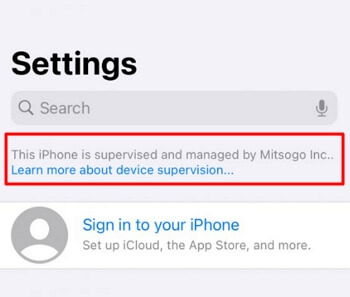
This supervision is enforced through a Device Management Profile. To regain full personal control, you need to remove this profile. Your ability to do so depends on whether you have the necessary authorization or password.
- 🔍How to Check
- Go to Settings > General > About. If your iPhone is supervised, you will see the explicit message there. The supervision is tied to a Management Profile, which you can find under Settings > General > VPN & Device Management.
Method 1. Remove the Supervision Profile via Settings (With Password)
This is the standard and simplest method if the supervising organization provided you with the management password upon your departure or purchase of the device.
Step 1. Unlock your iPhone and open the Settings app.
Step 2. Navigate to General > VPN & Device Management. If a supervision profile is installed, you will see it listed here.

Step 3. Tap on the Management Profile>Remove Management or Delete Profile at the bottom.
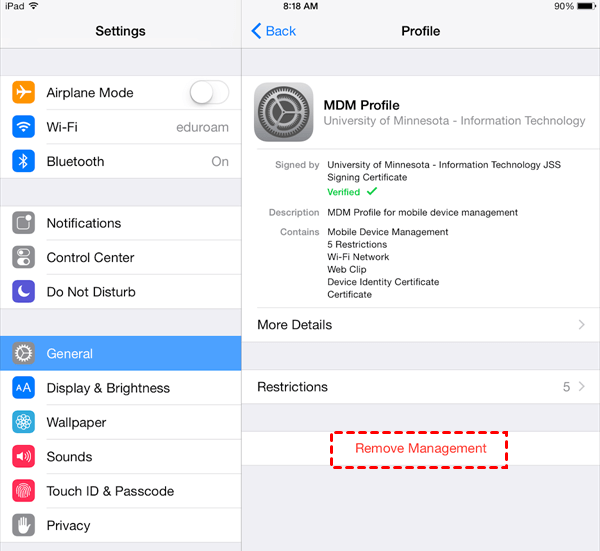
Step 4. You will be prompted to enter the management password. Enter the password provided by the organization.
Step 5. Once confirmed, the profile and all supervision restrictions will be removed. Your iPhone will restart and return to a standard, personal state.
Method 2. Use FoneTool Unlocker when You Don’t Have the Password
If you don’t have the management password a common issue with second-hand devices, professional software like FoneTool Unlocker provides a direct solution. It works by performing a deep system clean, removing the underlying management lock that enforces supervision.
- ★Key Features:
-
Removes device supervision and management profiles without requiring a password.
Also capable of unlocking forgotten screen passcodes, Apple ID, and Screen Time passcodes.
High success rate with a secure process that protects your device from damage.
Compatible with a wide range of iOS devices and versions, including the latest models.
Step 1. On a Windows PC, download FoneTool Unlocker, install it, and launch the software.
Step 2. Connect your supervised iPhone to the computer using a USB cable. Select the “Remove iOS Screen Passcode” function on the interface.

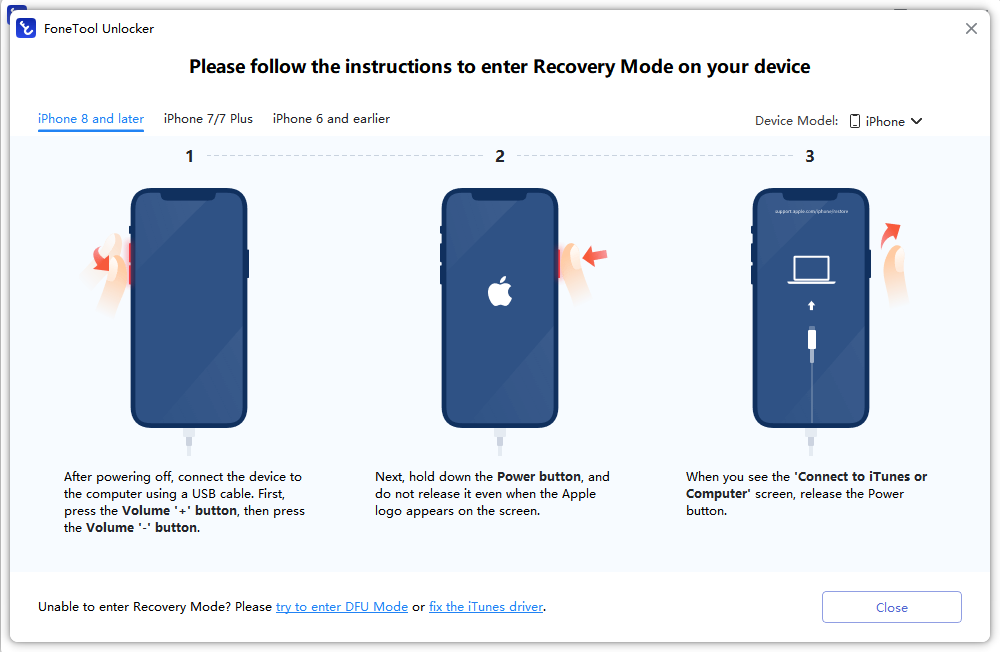
Step 3. FoneTool Unlocker will guide you to put your iPhone into Recovery Mode.
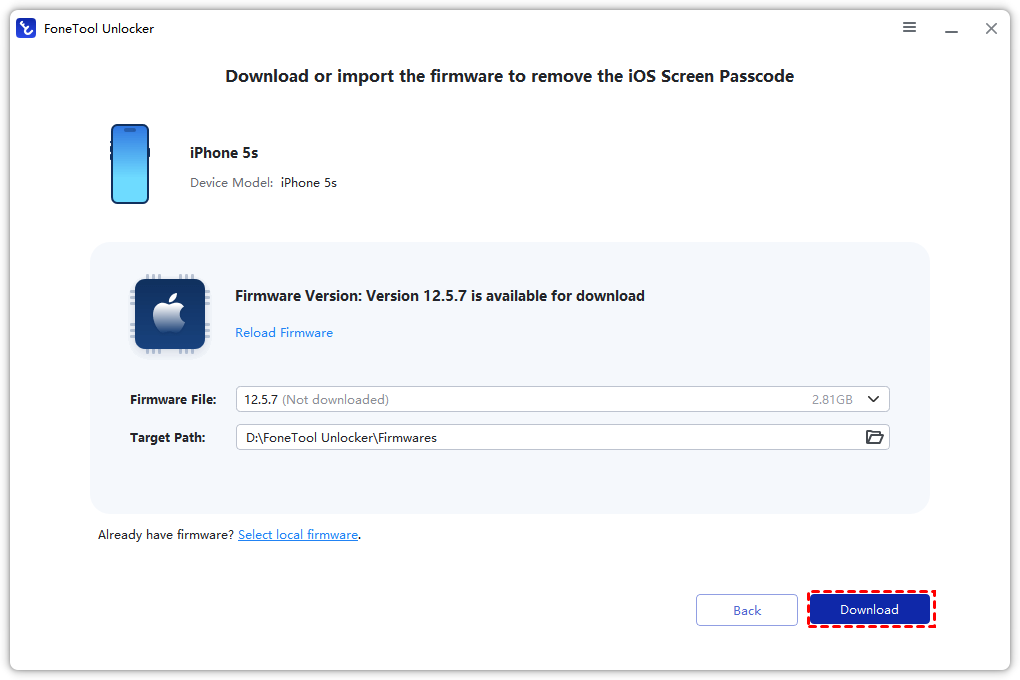
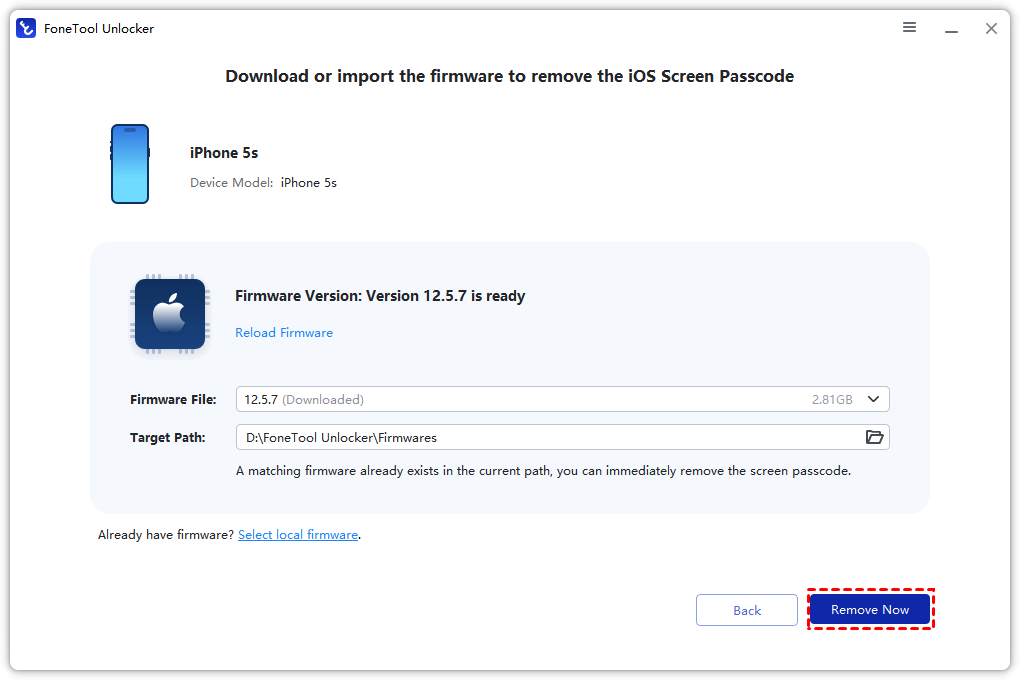
Step 4. The software will automatically detect your device model and download the necessary firmware package.
Step 5. Click “Remove Now” to begin the process. The software will erase the device, including the supervision profile.
Method 3.Factory Reset iPhone via Recovery Mode
If you cannot use the first method and prefer not to use third-party software, a factory reset via Recovery Mode is an alternative. Warning: This also erases all data and may not always remove a firmly embedded supervision profile. If the profile is set to re-install, it may reappear upon activation.
Step 1. Connect your iPhone to a computer and open iTunes (or Finder on Mac).
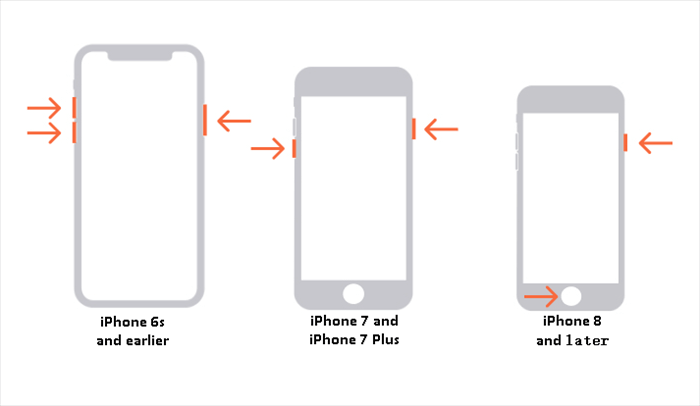
Step 2. Force restart your iPhone to enter Recovery Mode. The button sequence varies by model.
Step 3. On the computer, a prompt will appear offering options to Update or Restore. Choose Restore.
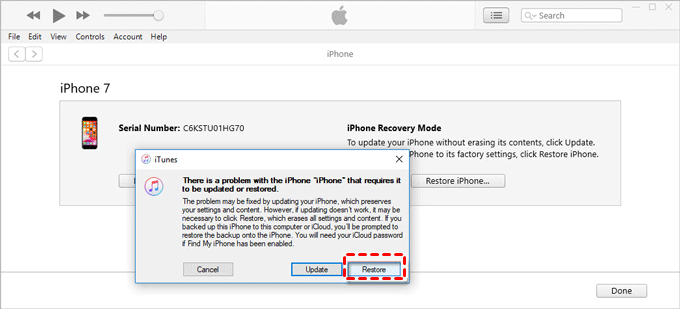
Step 4. iTunes/Finder will download software and erase the iPhone, restoring it to factory settings.
Step 5. After the process, set up the iPhone. Check Settings > General > About to see if the supervision message is gone.
Frequently Asked Questions
Wrapping Things Up
The message “This iPhone is supervised by another computer”indicates organizational control. To remove it:
- Use the Settings method if you have the management password.
- Use FoneTool Unlocker if you don’t have the password and need a reliable, guided solution.
- A factory reset is a basic alternative but may not be 100% effective against all supervision setups.
For a balance of effectiveness and ease, especially when passwords are unknown, FoneTool Unlocker provides a direct path to regain full control of your iPhone. Download the software today and start the process of freeing your device from restrictions.
FoneTool Unlocker - 1-Click iPhone Unlock Software
Easily unlock all passcodes and restrictions on your iPhone, iPad, and iPod Touch.
-
 iOS 27 Compatible
 iPhone 17 Supported
100% Secure

Kelsey is an English editor at FoneTool, passionate about helping users solve tech issues. She specializes in iPhone data management, backup, and recovery. In her free time, she enjoys learning IT skills and spending time with loved ones.
Read author info >>



 as a preferred
source on Google
as a preferred
source on Google