Keychain Not Syncing? Quick Fixes to Get It Working Again
Passwords not syncing across your devices? iCloud Keychain can be finicky. This guide explains the causes and offers proven fixes for iPhone, iPad, Mac, and Windows.


Why Is My Keychain Not Syncing?
iCloud Keychain keeps passwords, credit cards, Wi-Fi credentials, and more updated across your Apple devices using the same Apple ID. If sync fails, new passwords or changes may not appear on your iPhone, iPad, or Mac. Here are some common reasons why your keychain is not syncing:
- iCloud Keychain Is Disabled on One of Your Devices
- You Are Using Different Apple IDs
- Poor Internet Connection Prevents Syncing
- Two-Factor Authentication Is Not Enabled
- Your Device Software Is Outdated
- iCloud Services Are Temporarily Unavailable
- Incorrect Date and Time Settings
- iCloud Storage or Account Issues
🌟 To check more scenarios about using iCloud Keychain, please refer to this complete guide on iCloud Keychain.
Basic Checks Before Fixing Apple Keychain Not Syncing
Before trying advanced troubleshooting methods, it is recommended to perform a few basic checks.
Check 1. Make Sure iCloud Keychain Is Enabled
The first thing to check is whether iCloud Keychain is turned on.
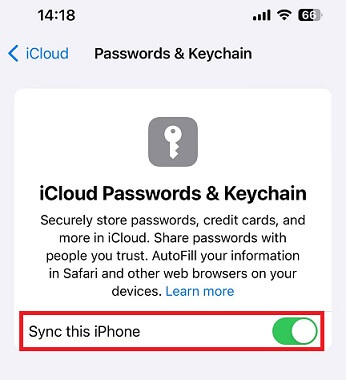
- On iPhone or iPad, go to Settings > [Your Name] > iCloud > Passwords. Then make sure Sync this iPhone/iPad is enabled.
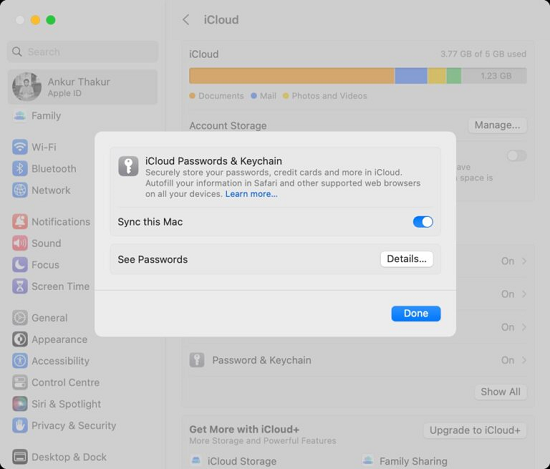
- On Mac, go to System Settings > Apple ID > iCloud > Passwords. Then make sure Sync this Mac is enabled.
Check 2. Confirm You Are Using the Same Apple ID
To check your Apple ID:
- On iPhone or iPad, go to Settings > [Your Name].
- On Mac, go to System Settings > Apple ID.
Check 3. Check Apple System Status
If iCloud Keychain services are experiencing an outage, your device may not be able to sync passwords until Apple resolves the issue. Visit Apple’s System Status page and look for any reported problems related to iCloud services.
Check 4. Make Sure Two-Factor Authentication Is Enabled
To check this setting on your iPhone or iPad:
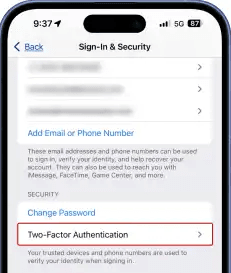
- Open Settings, tap your name, and select Sign-In & Security.
- Confirm that Two-Factor Authentication is enabled. If it is disabled, enable it and try turning on iCloud Keychain again.
Check 5. Check Date and Time Settings
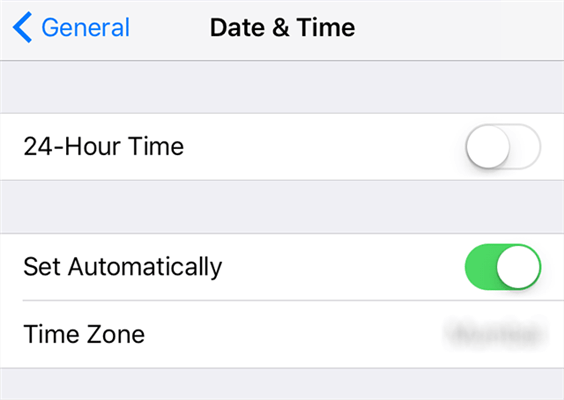
Incorrect date and time settings can interfere with secure iCloud connections and prevent Keychain data from syncing. To enable automatic time settings:
- On iPhone/iPad, go to Settings > General > Date & Time. Then turn on Set Automatically.
- On Mac, go to System Settings > General > Date & Time. Then enable automatic date and time.
How to Fix iCloud Keychain Not Syncing
If you have completed the basic checks and your iCloud Keychain not syncing issue still exists, please try the following advanced fixes.
Fix 1. Turn iCloud Keychain Off and Back On
Refreshing iCloud Keychain is one of the easiest ways to restart the sync process. Follow the instructions below:
👉 On iPhone or iPad:
1. Go to Settings > [Your Name] > iCloud > Passwords.
2. Turn off Sync this iPhone/iPad.
3. Restart your device. Then return to the same settings page and turn Keychain syncing back on.
👉 On Mac:
1. Go to System Settings > Apple ID > iCloud > Passwords.
2. Turn off Sync this Mac.
3. Restart your Mac and enable Keychain syncing again.
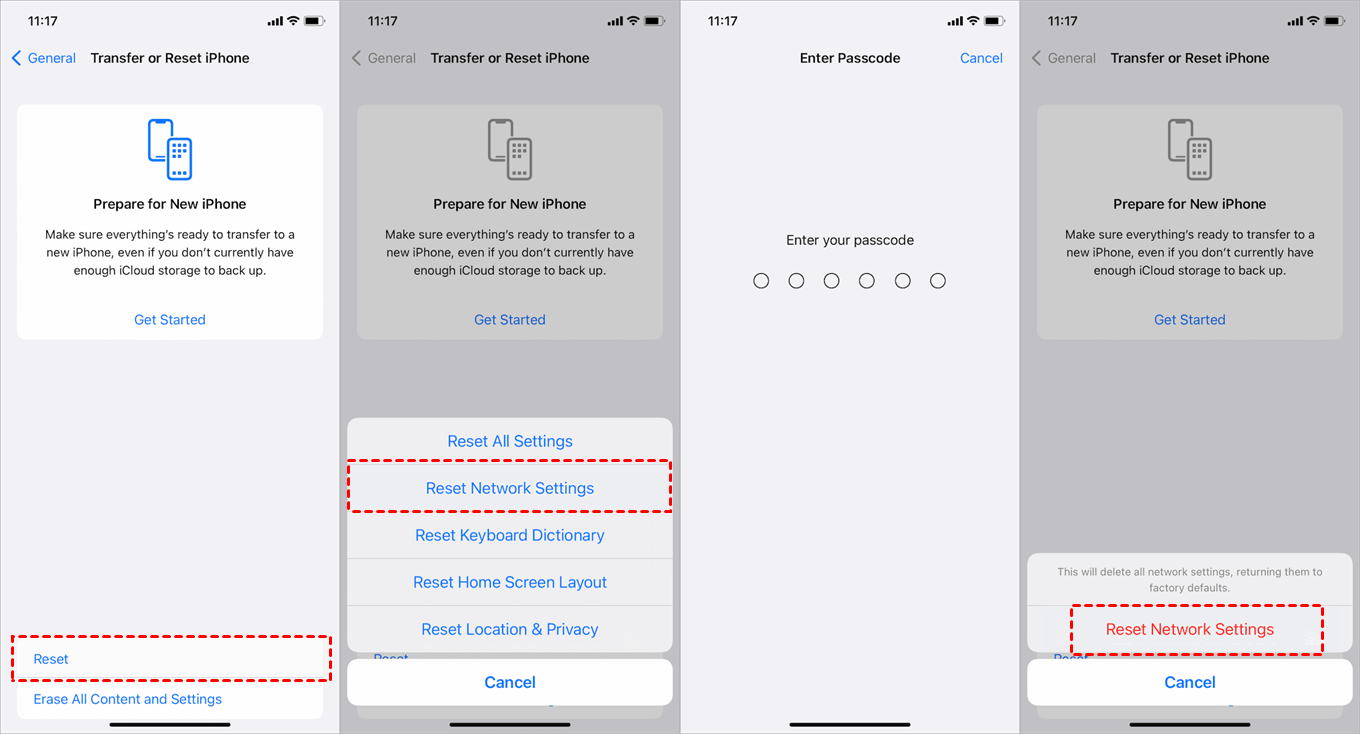
Fix 2. Reset Network Settings
Network problems can prevent your device from communicating properly with iCloud servers. Resetting network settings can fix hidden connection issues. Here’s how to do it on iPhone or iPad:
1. Go to Settings > General > Transfer or Reset iPhone/iPad.
2. Select Reset > Reset Network Settings.
3. Enter your device passcode and confirm the reset.
Fix 3. Disable VPN or Security Apps Temporarily
VPNs, firewall apps, and certain security tools may interfere with iCloud communication. If iCloud Keychain cannot connect to Apple's servers, password syncing may fail. Try:
1. Disable your VPN temporarily.
2. Turn off third-party security software.
3. Connect to a different Wi-Fi network.
4. Check whether Keychain starts syncing.
Fix 4. Update to the Latest iOS, iPadOS, or macOS
If your iPhone, iPad, or Mac is using an older system version, it may prevent Keychain data from syncing correctly. Learn how to update your iPhone, iPad, or Mac below:
👉 Update iPhone or iPad
1. Go to Settings > General > Software Update.
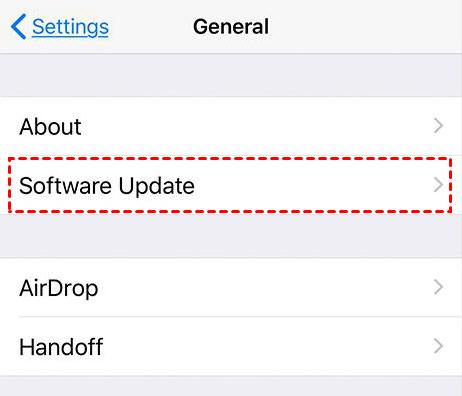
2. If an update is available, tap Download and Install.
3. Enter your device passcode if prompted. Wait for the update to complete and restart your device.
4. After updating, connect your device to Wi-Fi and check whether your saved passwords appear.
👉 Update Mac
1. Click the Apple menu in the top-left corner.
2. Select System Settings > General > Software Update.
3. Click Update Now or Upgrade Now if a new version is available. Follow the on-screen instructions to complete the installation.
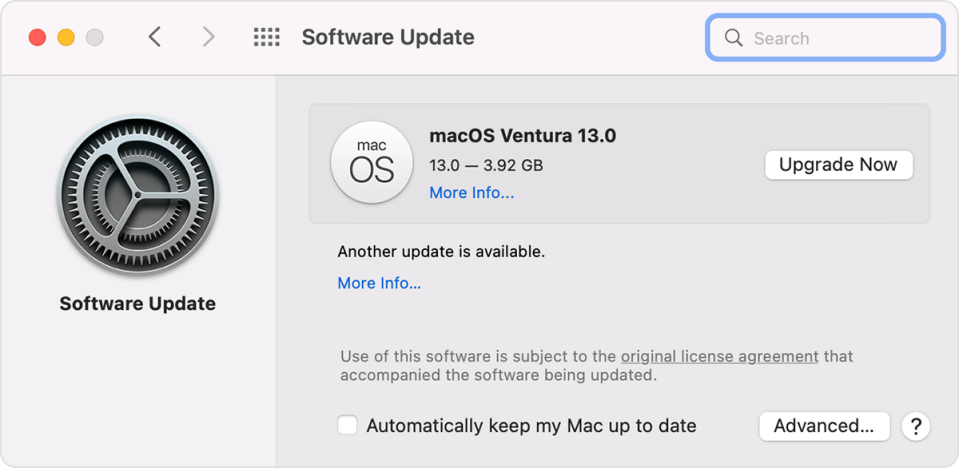
4. Once the update finishes, check if Keychain data is syncing properly now.
How to Fix iCloud Passwords Not Syncing on Windows
If you are using iCloud for Windows and encounter the iCloud Passwords not syncing problem, try the solutions below.
Fix 1. Check iCloud Passwords Is Enabled
The first step is to make sure iCloud Passwords is enabled. Follow the steps below:
1. Open the iCloud for Windows app on your PC.
2. Sign in with the same Apple ID used on your iPhone or Mac.
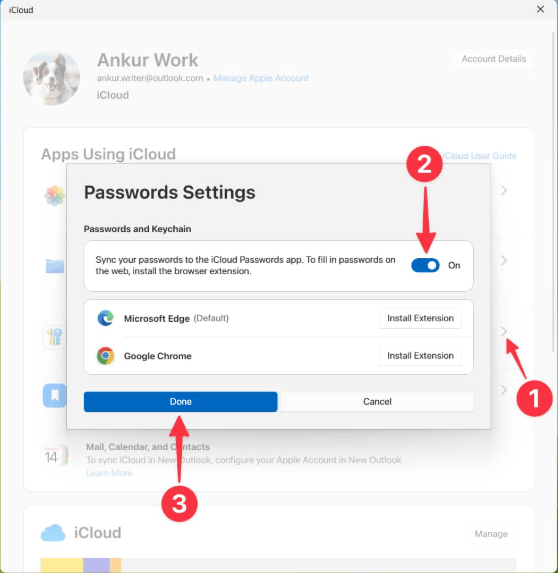
3. Find Passwords and Keychain and click the arrow (>) next to it.
4. Check if the switch for “Sync your passwords to the iCloud Passwords app” is on. If not, turn on the switch and click Done.
Fix 2. Check the iCloud Passwords Browser Extension
To autofill passwords in browsers such as Chrome or Edge, iCloud Passwords requires a browser extension. Check if the extension works correctly as follows:
1. Open your browser and go to the extensions or add-ons page.
2. Find iCloud Passwords and check if it is added to your browser.
3. Click the iCloud Passwords extension icon in the browser’s toolbar and enable password autofill if it hasn’t been enabled.
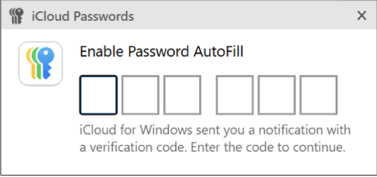
Fix 3. Sign Out and Sign Back Into iCloud for Windows
Authentication problems with your Apple ID can prevent Windows from receiving updated password data. Signing out and back in can refresh your iCloud connection. Follow the steps below:
1. Open iCloud for Windows.
2. Click Account Details > Sign Out, then follow the onscreen instructions.
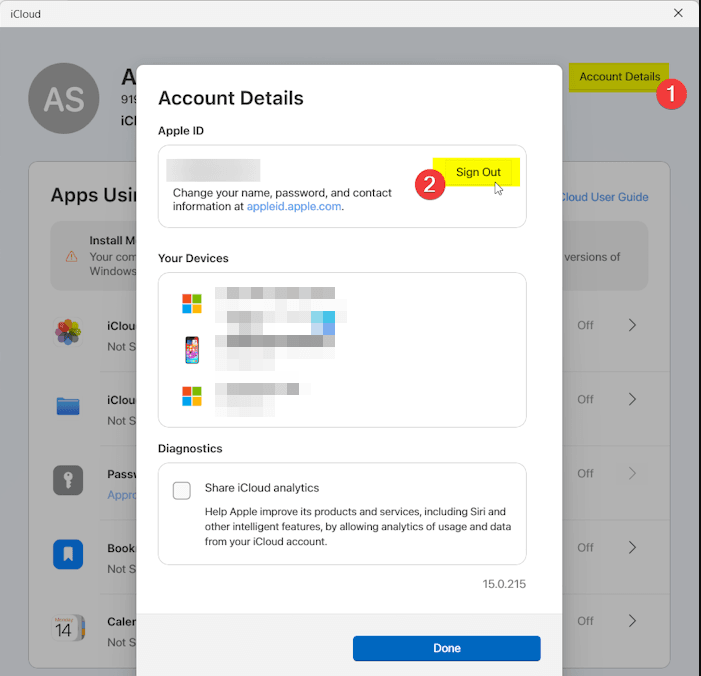
3. Restart your PC. Open iCloud for Windows again.
4. Sign in with your Apple ID and enable Passwords and Keychain. Wait a few minutes for your password data to synchronize.
Fix 4. Update iCloud for Windows
An outdated version of iCloud for Windows may cause synchronization problems with iCloud Keychain data. To update iCloud for Windows:
1. Open the Microsoft Store and select Library.
2. Look for iCloud in the list of your apps. Click Update if there is a new version available.
3. After updating, restart your computer and try accessing your iCloud passwords again.
Bonus: Best Alternative to Manage iPhone Passwords on Windows
If you are tired of troubleshooting the iCloud Keychain not syncing problem and want a more flexible way to manage iPhone password data on a Windows computer, FoneTool Unlocker is a practical alternative.
- Key Features:
- ⭐View all saved iPhone passwords in one place. You can find Apple ID password, Wi-Fi passwords, website and app account credentials, etc.
- ⭐Manage passwords offline after connecting your device via USB.
- ⭐Remove multiple locks, such as screen passcodes, Apple ID (under supported conditions), Screen Time passcodes, and iTunes backup encryption.
- ⭐Supports recent iOS versions and receives ongoing compatibility updates.
Learn how to access iPhone passwords with FoneTool Unlocker below:
Step 1. Connect your iPhone to the computer via USB and tap Trust in the “Trust This Computer?” prompt. Then unlock your device.
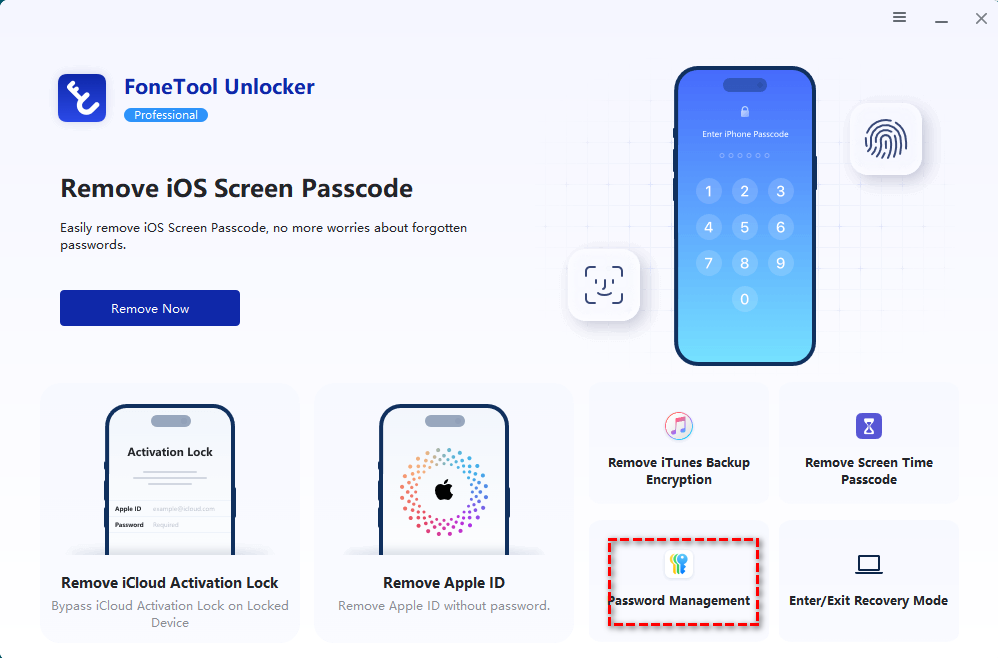
Step 2. Download, install, and open FoneTool Unlocker on your Windows PC. On the main screen, click Password Management in the bottom-right corner.
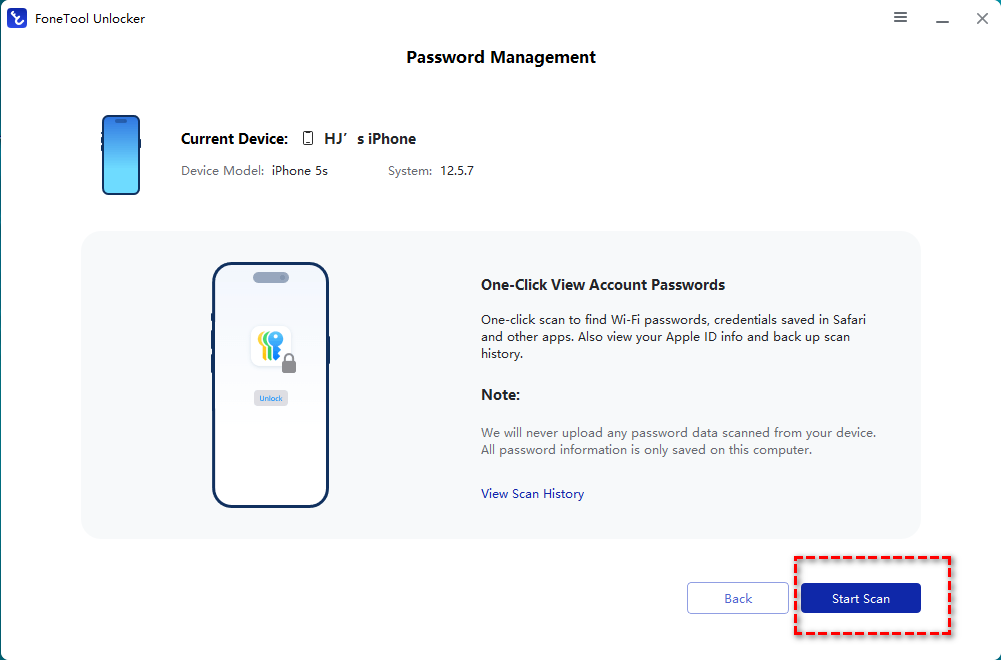
Step 3. In the pop-up window, click Start Scan.
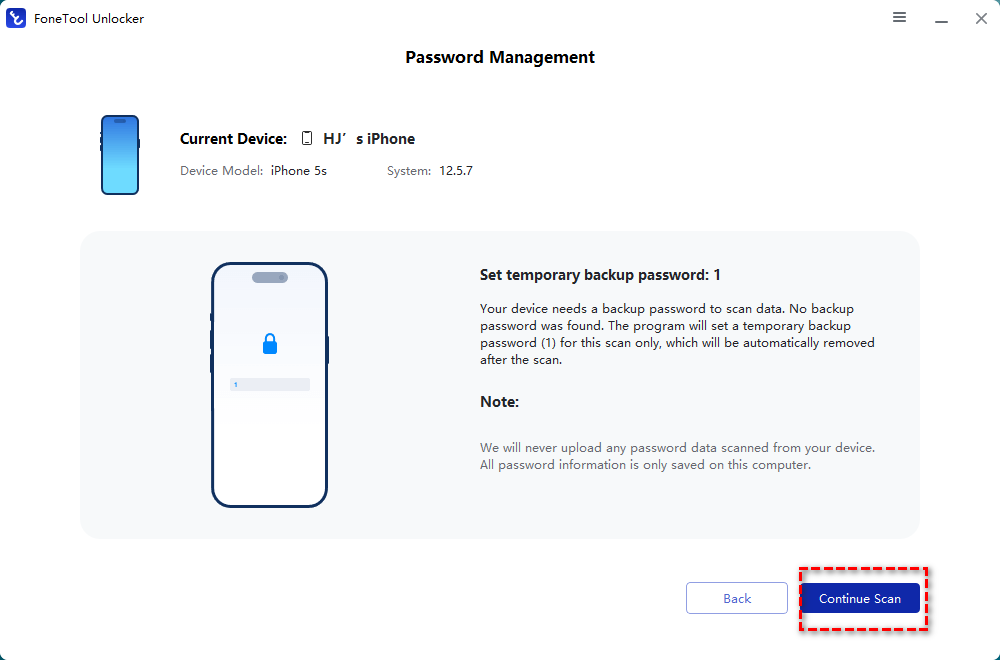
Step 4. Confirm the temporary backup password and click Continue Scan to begin scanning. The scan time depends on the number of passwords saved on your device, usually taking a few minutes.
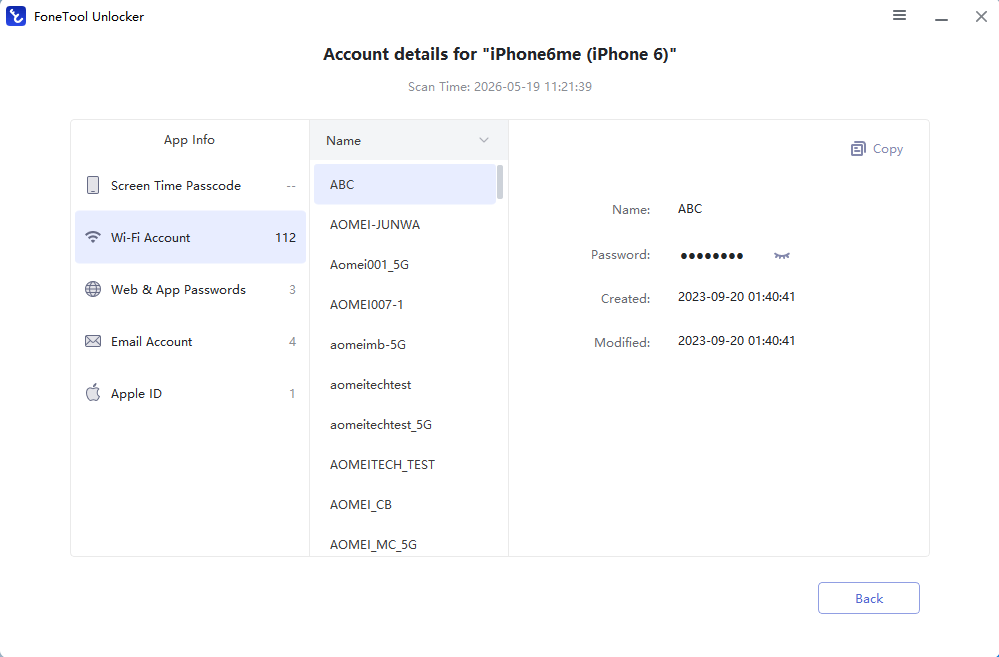
Step 5. Once the scan is complete, select View Password. In the next window, you can find the passwords you need.
To Sum Up
If you encounter keychain not syncing issues, don’t worry. Start by checking basic settings, including whether iCloud Keychain is enabled and all devices use the same Apple ID. If the problem continues, try advanced fixes such as updating iOS, iPadOS, or macOS, refreshing Keychain sync, signing out of Apple ID, and resetting network settings.
For users who frequently manage iPhone data on a Windows PC, FoneTool Unlocker provides an alternative way to manage iPhone passwords and avoid issues caused by iCloud synchronization limitations. Just give it a shot!
FoneTool Unlocker - 1-Click iPhone Unlock Software
Easily unlock all passcodes and restrictions on your iPhone, iPad, and iPod Touch.
-
 iOS 27 Compatible
 iPhone 17 Supported
100% Secure

Lily Green is dedicated to helping users protect their valuable mobile data and addressing issues that arise on mobile devices. She consistently stays vigilant about the latest trends in technology, guaranteeing that the given information aligns with the ongoing advancements in the field.
Read author info >>



 as a preferred
source on Google
as a preferred
source on Google