How to Use Apple Keychain on iPad (Full Guide)
Want to use Apple Keychain on your iPad to view and sync passwords – and fix sync problems? This article shows you how, plus a reliable third-party alternative.


Does iPad have Keychain Access?
Unfortunately, there is no iPad Keychain Access. Keychain Access is a macOS utility that lets users view and manage a wide range of stored credentials, certificates, encryption keys, and secure notes. Apple has never included this app on iPadOS or iOS.
Instead, iPads use the Passwords app (on iPadOS 18 and later) or the Passwords section in Settings (on earlier versions) to manage login credentials stored in iCloud Keychain.
🌟 To check more scenarios about using iCloud Keychain, please refer to this complete guide on iCloud Keychain.
How to Access Apple Keychain on iPad
To find saved passwords on iPad, you can use different methods depending on your iPadOS version.
Method 1: The New "Passwords" App (iPadOS 18 and later)
If your iPad is updated to iPadOS 18, Apple moved Keychain passwords into a dedicated app – Passwords. Learn how to use it below:
Step 1. Find and open the Passwords app on your Home Screen.
Step 2. Unlock it using Face ID, Touch ID, or your iPad passcode.
Step 3. You will see a list of all your saved credentials. Find a password by searching or sorting.
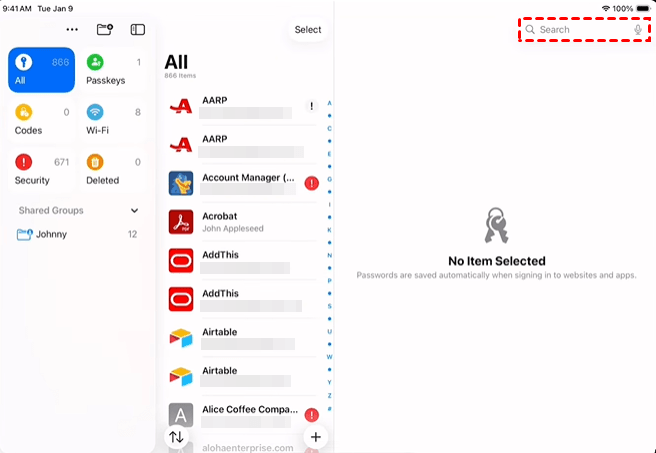
Step 4. Click Edit to reveal the password, or to change or delete the password.
Method 2: The Older "Settings" Method (iPadOS 17 and earlier)
If your iPad is running an older version of iPadOS, follow these steps to check saved passwords on iPad:
Step 1. Open the Settings app. Scroll down and tap Passwords (in older versions, it may say Accounts & Passwords > App & Website Passwords).
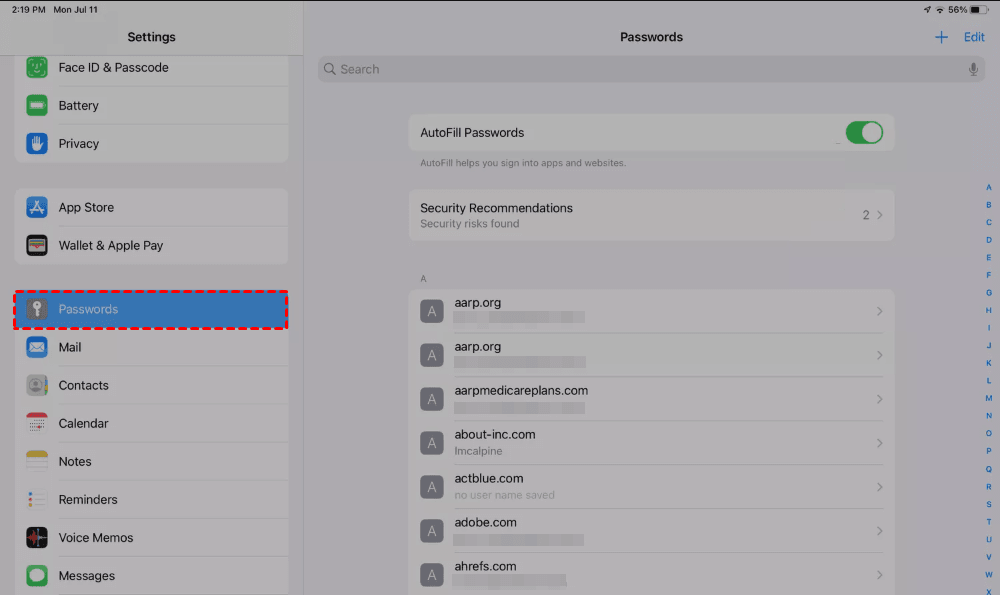
Step 2. Unlock using Face ID, Touch ID, or your iPad passcode.
Step 3. Tap any entry on the list to view the full password.
How to Enable iCloud Keychain on iPad
To enable iCloud Keychain on your iPad, you'll turn on a sync setting in your Apple ID menu. This keeps your passwords, credit card info, and Wi-Fi networks updated across all your Apple devices. Before you start, please ensure two-factor authentication is turned on for your Apple Account. Now follow the instructions below:
Step 1. Open the Settings app. Tap on [Your Name] at the top, then tap iCloud.
Step 2. Find the "Saved to iCloud" section and tap Passwords.
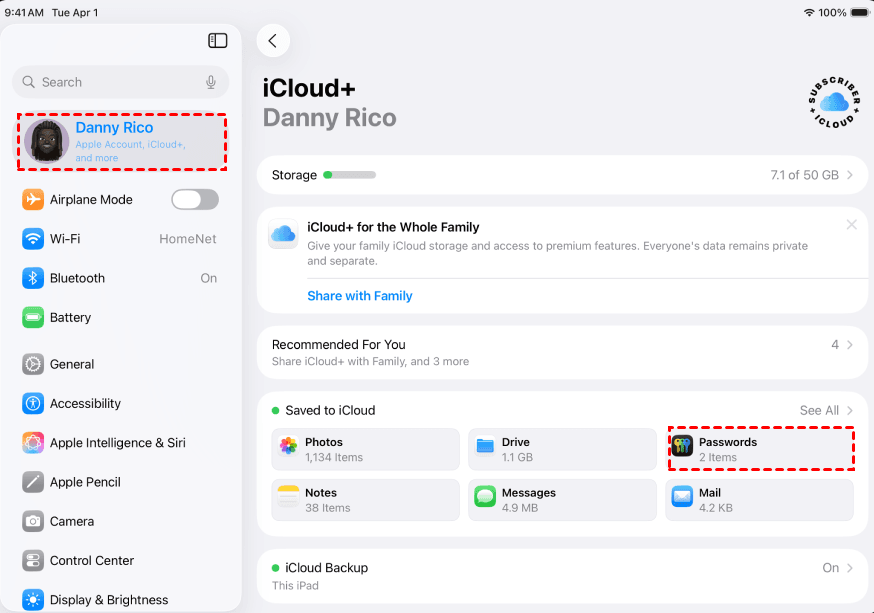
Step 3. Turn on the toggle for Sync this iPad (or iCloud Keychain on older versions).
Step 4. Follow any on-screen instructions, entering your iPad passcode or Apple Account password when prompted.
Troubleshoot: iPad Keychain Not Syncing
If your iPad's Keychain isn't syncing, it can be frustrating, but it's usually fixable. Here’s a step-by-step troubleshooting guide, starting with the most common solutions.
First Things to Try
1. Check the Basics: Ensure the "Sync this iPad" toggle is ON (Settings > [Your Name] > iCloud > Passwords). Also, check Apple's System Status page to see if there's a known iCloud outage.
2. The "Off and On Again" Fix: Toggle off Sync this iPad, restart your iPad, and then toggle it back on. This often resolves temporary sync glitches.
3. Wait it Out: Sometimes, syncing can take time. Wait at least an hour or so to ensure your devices and the internet have time to catch up.
4. Check Device Settings: Confirm that all your devices have:
- Two-Factor Authentication turned on for your Apple Account.
- The same Region set under Settings > General > Language & Region; mismatches can block sync.
More Advanced Fixes
If the basic steps don't work, try these more specific solutions.
1. The iCloud Security Code Issue
If you see a message like "Security Code Incorrectly Entered Too Many Times," your iCloud Keychain on that device might be disabled.
- If you have another trusted Apple device (iPhone or Mac) that uses your Keychain, use it to generate a new Security Code. On that device, go to Settings > [Your Name] > iCloud > Passwords > Advanced > Change Security Code.
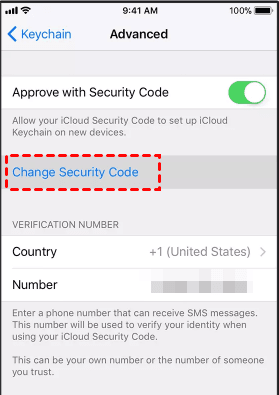
- If you don't have another device, you will likely need to tap "Forgot Code" and then Reset iCloud Keychain. Note that this will replace your keychain in iCloud with the data from this iPad.
2. Device-Specific or Account Conflicts
- After a Restore: iCloud Keychain items are not part of an iCloud backup because they sync separately. After a restore, just confirm that the "Sync this iPad" toggle is ON to pull your data back down.
- If You Turned Off Keychain: If you previously turned off iCloud Keychain on all your devices, your keychain is removed from the cloud. You'll need to set it up again by turning on the sync toggle.
- Enterprise or Managed Devices: If your iPad is managed by an organization, they may have a policy disabling iCloud Keychain sync, which you can't change.
Bonus: Best Password Manager for iPad and iPhone
If you own a Windows PC and want to manage your iOS keychain passwords from it, FoneTool Unlocker can be a practical companion.
- Key Features:
- ⭐View all saved iPhone/iPad passwords in one place. You can see Wi-Fi passwords, website and app accounts, Mail accounts, and Apple ID credentials.
- ⭐Manage passwords offline after connecting your device via USB.
- ⭐Remove multiple locks, such as screen passcodes, Apple ID (under supported conditions), Screen Time passcodes, and iTunes backup encryption.
- ⭐Supports recent iOS and iPadOS versions and receives ongoing compatibility updates.
Learn how to access iPad passwords with FoneTool Unlocker below:
Step 1. Connect your iPad to the computer via USB and tap Trust in the “Trust This Computer?” prompt. Then unlock your device.
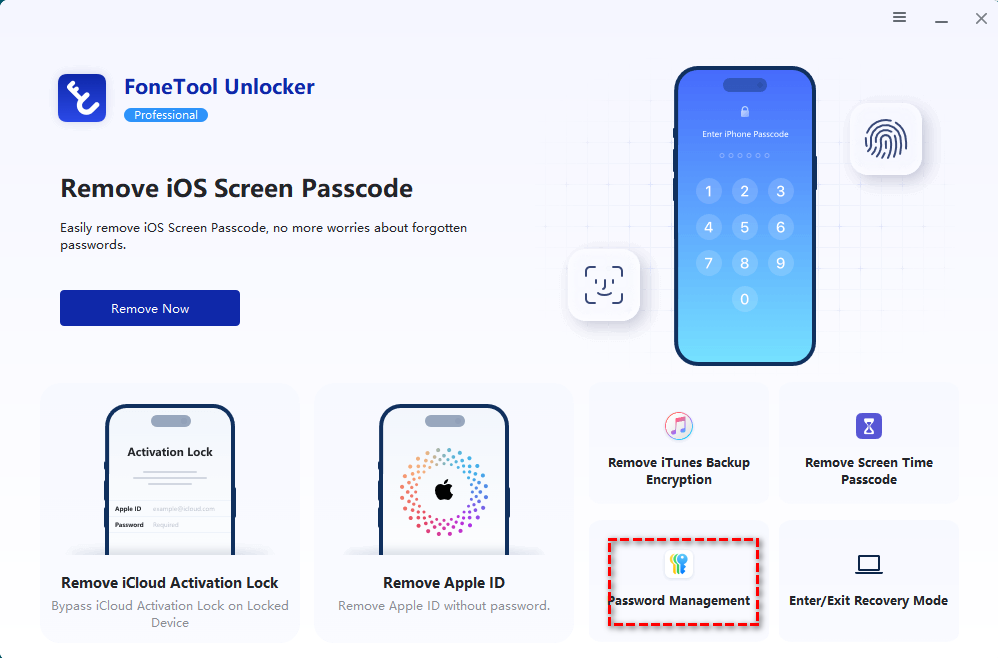
Step 2. Download, install, and open FoneTool Unlocker on your Windows PC. On the main screen, click Password Management in the bottom-right corner.
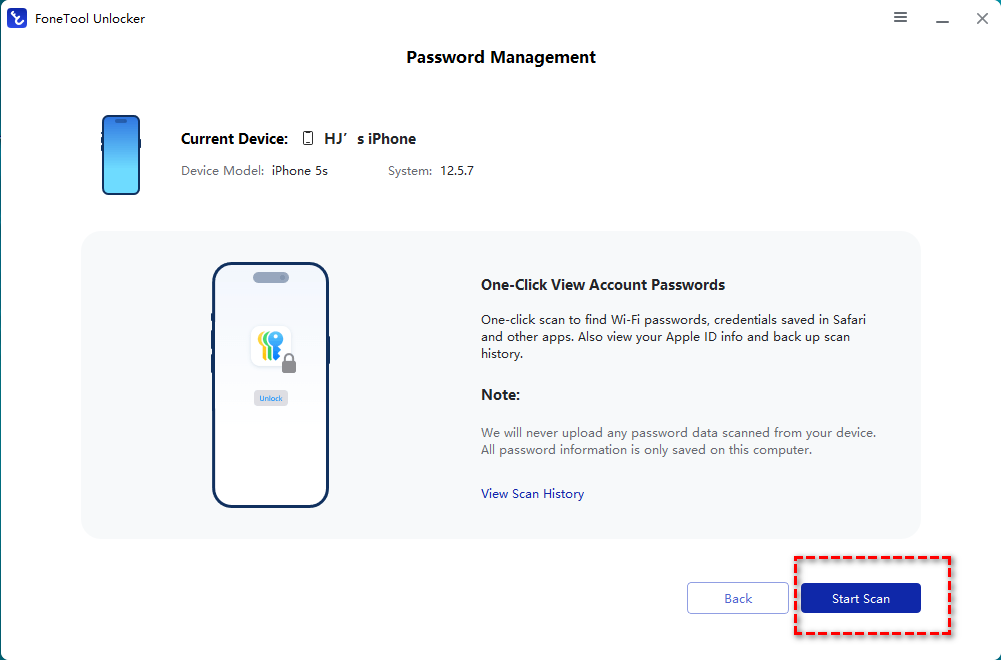
Step 3. In the next window, click Start Scan.
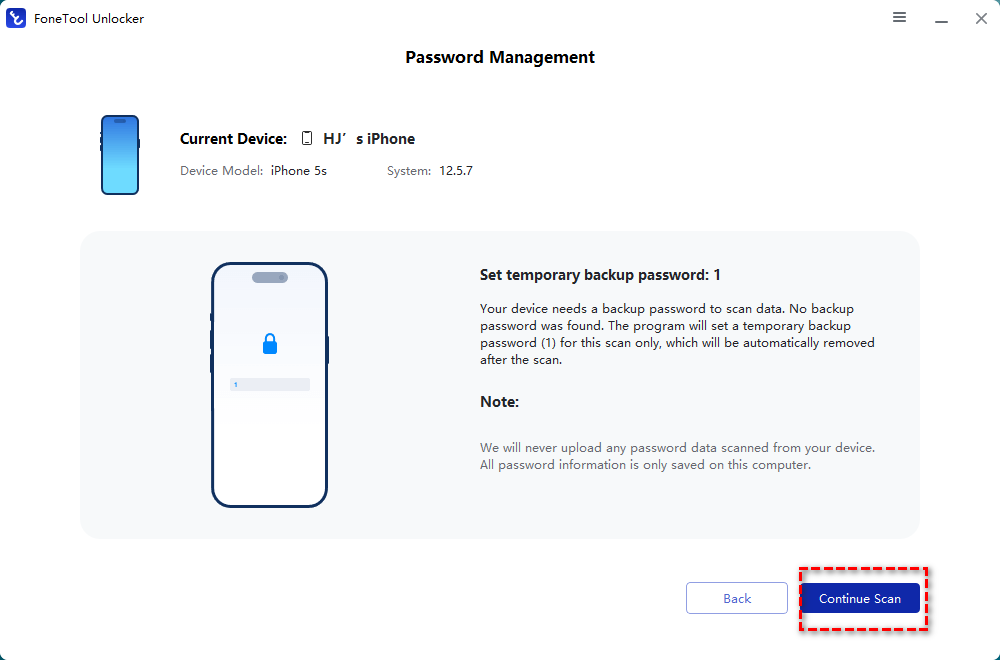
Step 4. Confirm the temporary backup password and click Continue Scan to begin scanning. The scan time depends on the number of passwords saved on your device, usually taking a few minutes.
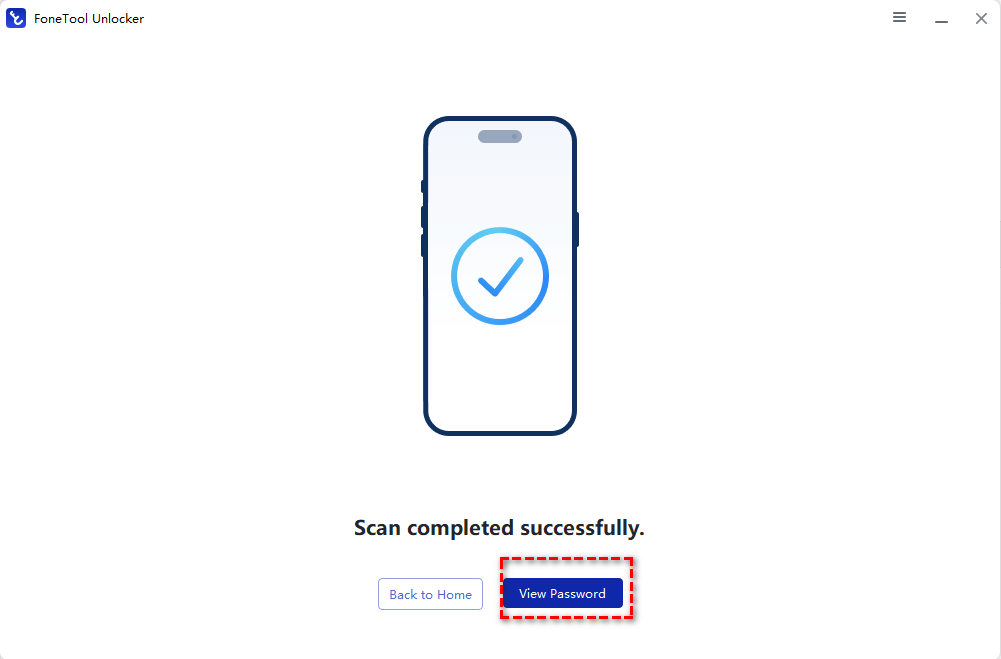
Step 5. Once the scan is complete, select View Password.
FAQs about Apple Keychain iPad
1. Does iPad have Apple Keychain?
Yes. Every iPad includes Apple Keychain, now integrated with the Passwords app in iPadOS. It securely stores your passwords, passkeys, Wi-Fi passwords, credit card information, and verification codes, then syncs them across your Apple devices through iCloud when iCloud Keychain is enabled.
2. Is Apple Keychain safe to use on iPad?
Yes. Apple Keychain uses end-to-end encryption, meaning only your trusted devices can access your saved passwords and sensitive information. It also supports Face ID, Touch ID, and two-factor authentication for additional protection.
3. Can I export passwords from Apple Keychain on iPad?
No. Apple doesn't allow you to export passwords directly from an iPad. If you need to export your saved passwords, you'll need to use a Mac, where you can export passwords from the Passwords app (or System Settings on older macOS versions) as a CSV file.
Verdict
Now you know how to use Apple Keychain on iPad to view passwords, sync across devices, and fix sync issues. For Windows users seeking iOS password management capabilities, FoneTool Unlocker offers a practical and reliable solution. It enables you to check various credentials saved on iPhone/iPad, such as finding Apple ID password. Try it out by yourself!
FoneTool Unlocker - 1-Click iPhone Unlock Software
Easily unlock all passcodes and restrictions on your iPhone, iPad, and iPod Touch.
-
 iOS 27 Compatible
 iPhone 17 Supported
100% Secure

Lily Green is dedicated to helping users protect their valuable mobile data and addressing issues that arise on mobile devices. She consistently stays vigilant about the latest trends in technology, guaranteeing that the given information aligns with the ongoing advancements in the field.
Read author info >>



 as a preferred
source on Google
as a preferred
source on Google