How to Access iCloud Keychain on Windows: Beginner’s Guide
Want to use iCloud Keychain on your Windows PC? Learn how to access it via the iCloud for Windows app and browser extensions for Chrome – and autofill passwords securely across your PC.


If you're a Windows user who also owns an iPhone, iPad, or Mac, you've probably faced this headache: you need a password stored in iCloud Keychain, but you're sitting at your PC with no way to retrieve it. Copying passwords manually from your phone is tedious, and typing long, complex strings risks errors.
The good news? Apple has officially solved this problem. With the iCloud for Windows app and browser extensions for Chrome, Edge, and Firefox, you can now access and autofill your iCloud passwords directly on your Windows computer. In this guide, I'll walk you through exactly how to access iCloud Keychain on Windows.
🌟 To check more scenarios about using iCloud Keychain, please refer to this complete guide on iCloud Keychain.
Requirements to set up iCloud Keychain on Windows
Before you can access iCloud Keychain passwords on a Windows PC, make sure you meet the following requirements:
- Two-factor authentication must be enabled on your Apple Account.
- Your trusted Apple device needs iOS 14, iPadOS 14, macOS 11, or later.
- Either Advanced Data Protection for iCloud must be turned on or your Apple device must be within Bluetooth range of your Windows PC.
- You need to have iCloud Keychain already activated on at least one of your Apple devices (iPhone, iPad, or Mac).
How to set up iCloud Keychain on Windows
Setting up iCloud Keychain on Windows only takes a few minutes. Follow these steps to sync your Apple passwords on your PC.
Step 1. Download and install iCloud for Windows from the Microsoft Store.
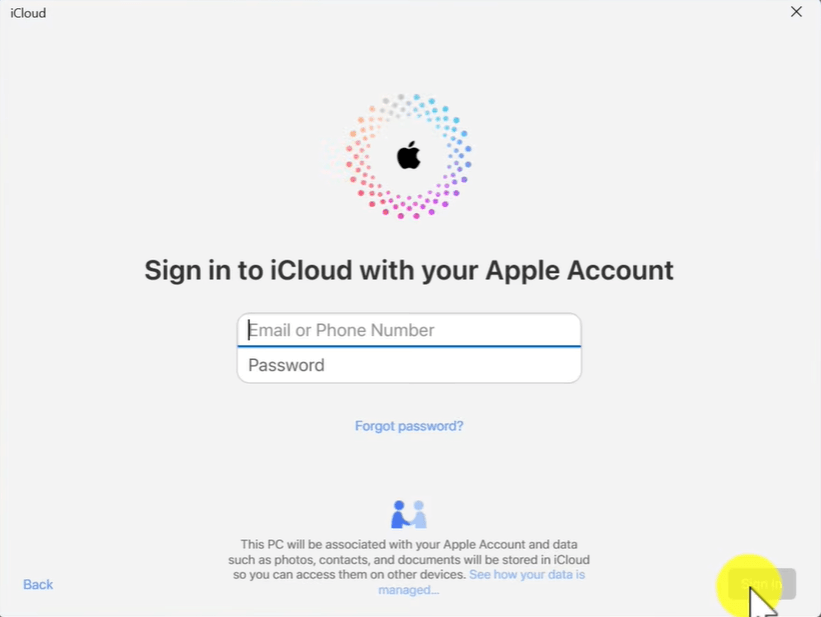
Step 2. Launch the app and sign in using your Apple ID. Complete the two-factor authentication verification if prompted.
Step 3. On the Sync iCloud Photos to Microsoft Photos page, click Not Now.
Step 4. On the Sync iCloud Drive to File Explorer page, click Not Now.
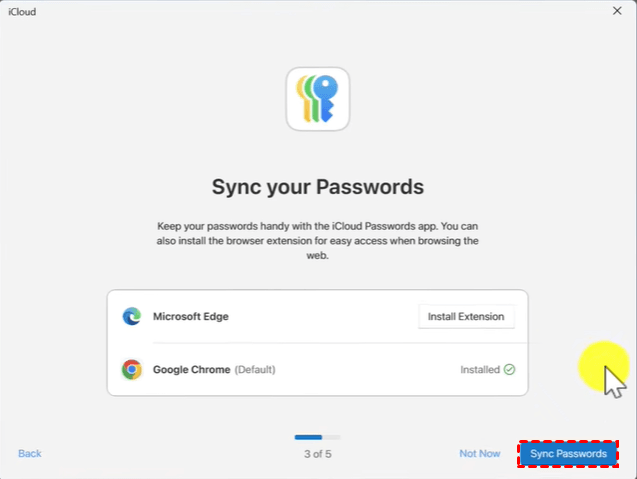
Step 5. On the Sync your Passwords page, you can install iCloud Passwords extensions (Here I click Install Extension next to Google Chrome). Then click the Sync Passwords button.
Step 6. On the Sync your Bookmarks page, click Not Now.
Step 7. On the Sync Calendars and Contacts page, click Not Now.
Step 8. Click Finish Setup.
How to access iCloud Keychain passwords on Windows
After setting up iCloud Keychain on Windows, you can access your saved passwords in different ways. Here’s how to do it.
Method 1. View Passwords in the iCloud Passwords App
The easiest way to access iCloud Keychain passwords on Windows is through the iCloud Passwords app.
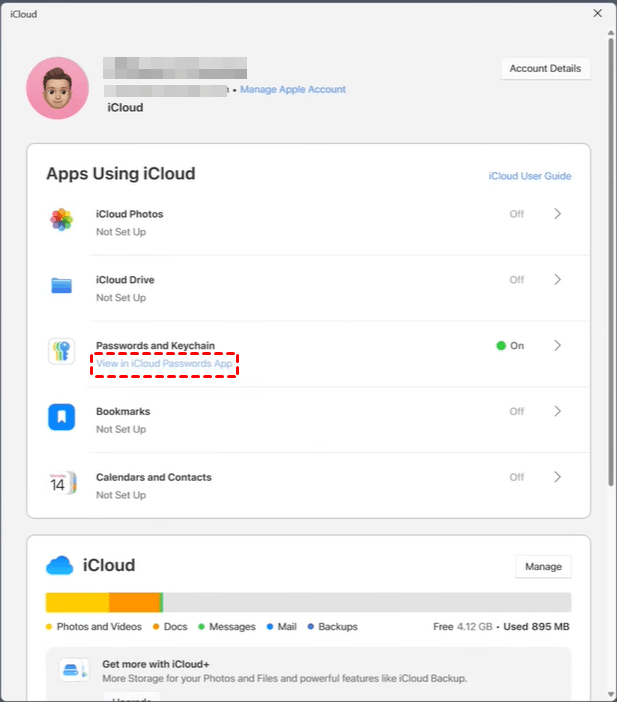
Step 1. Open iCloud for Windows and click View in iCloud Passwords App under Passwords and Keychain.
Step 2. Click Sign in to sign in with Windows Hello.
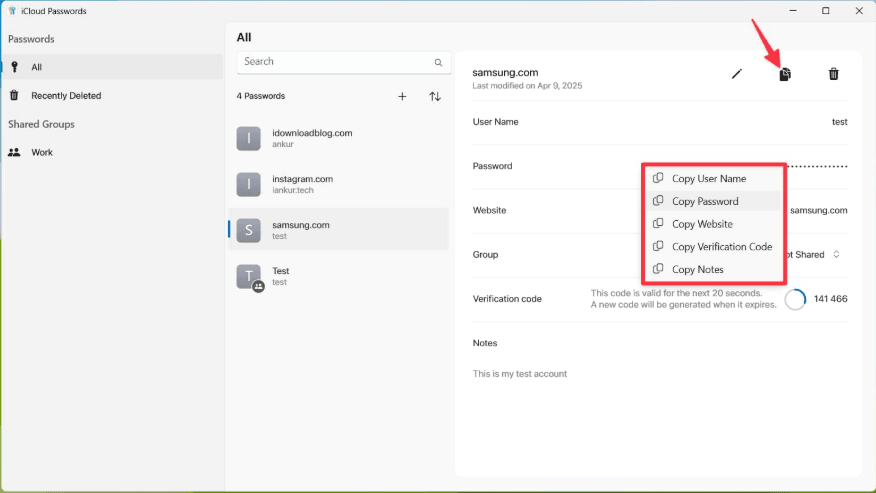
Step 3. Select an account to view its details. Do either of the following to copy the user name, password, website, verification code, or note.
- Click thedual-paper icon and select one copy option.
- Right-click on one of the fields and select Copy [item].
Method 2. Use the iCloud Passwords Browser Extension
If you use Google Chrome, Microsoft Edge, or Mozilla Firefox, the iCloud Passwords extension can automatically fill in your saved credentials. Learn how to use iCloud Keychain on Windows Chrome below. These steps also apply to Edge and Firefox.
Step 1. Open Chrome and click the iCloud Passwords extension icon in the browser’s toolbar.
Step 2. A six-digit verification code is generated and appears in a pop-up window. Enter the six‑digit verification code in the dialogue to enable password autofill.
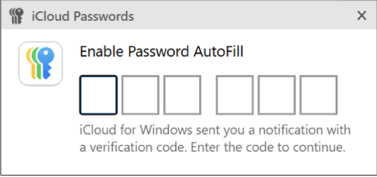
Step 3. Go to a website where you have saved a password. Do one of the following:
- Click in the user name field, then choose the account.
- Click the iCloudPasswords icon in the browser’s toolbar, then choose the account.
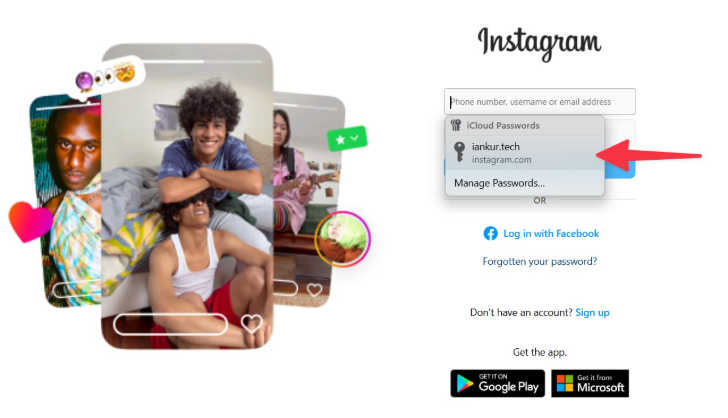
Step 4. The username and password are filled in automatically on the website and you can sign in. If you set up verification codes for the website, the verification code is also filled in automatically.
Bonus: Alternative way to manage iPhone passwords on Windows PC
While iCloud Keychain works well for users in the Apple ecosystem, some features depend on iCloud for Windows and two-factor authentication. If you want a simpler way to view and manage passwords stored on your iPhone, FoneTool Unlocker is a great alternative.
- Key Features:
- ⭐View all saved iPhone passwords in one place. You can see Wi-Fi passwords, website and app accounts, Mail accounts, and Apple ID credentials.
- ⭐Manage passwords offline after connecting your iPhone via USB.
- ⭐Easy-to-use interface suitable for both beginners and advanced users.
- ⭐Supports the latest iPhone models and iOS versions, with regular updates for compatibility.
Learn how to access iPhone passwords with FoneTool Unlocker below:
Step 1. Connect your iPhone to the computer using a USB cable and tap Trust in the “Trust This Computer?” prompt. Then unlock your iPhone.
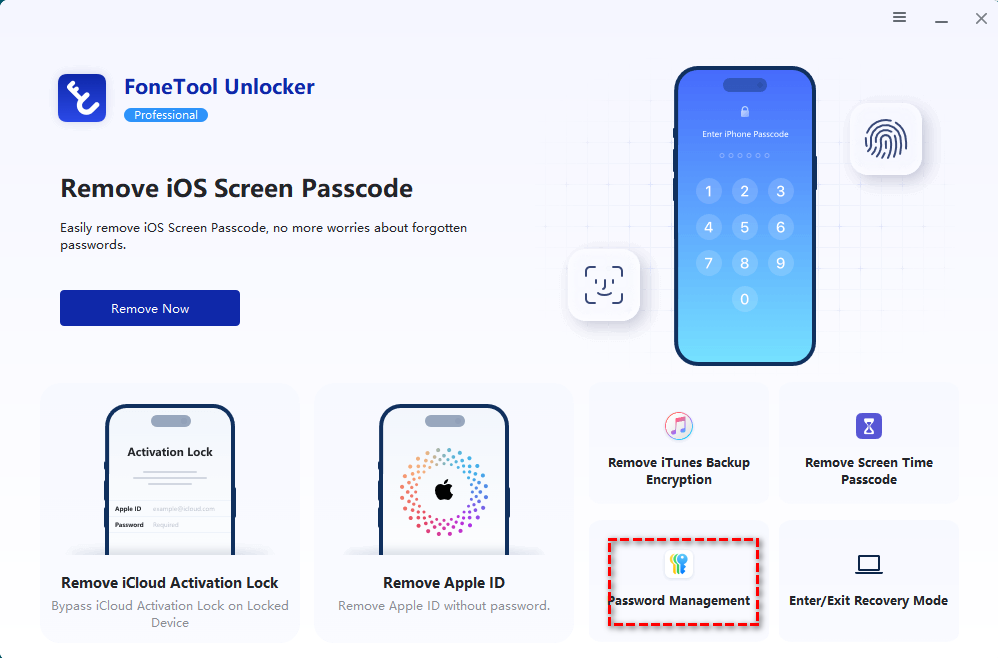
Step 2. Download, install, and launch FoneTool Unlocker on your Windows PC. On the main interface, click Password Management in the bottom-right corner.
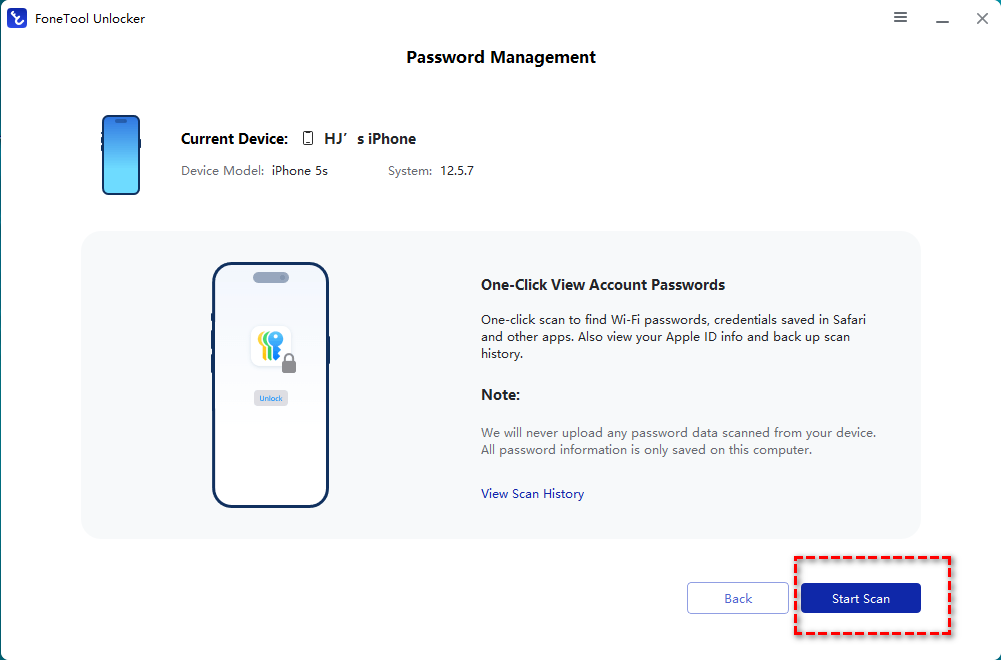
Step 3. In the pop-up window, click Start Scan.
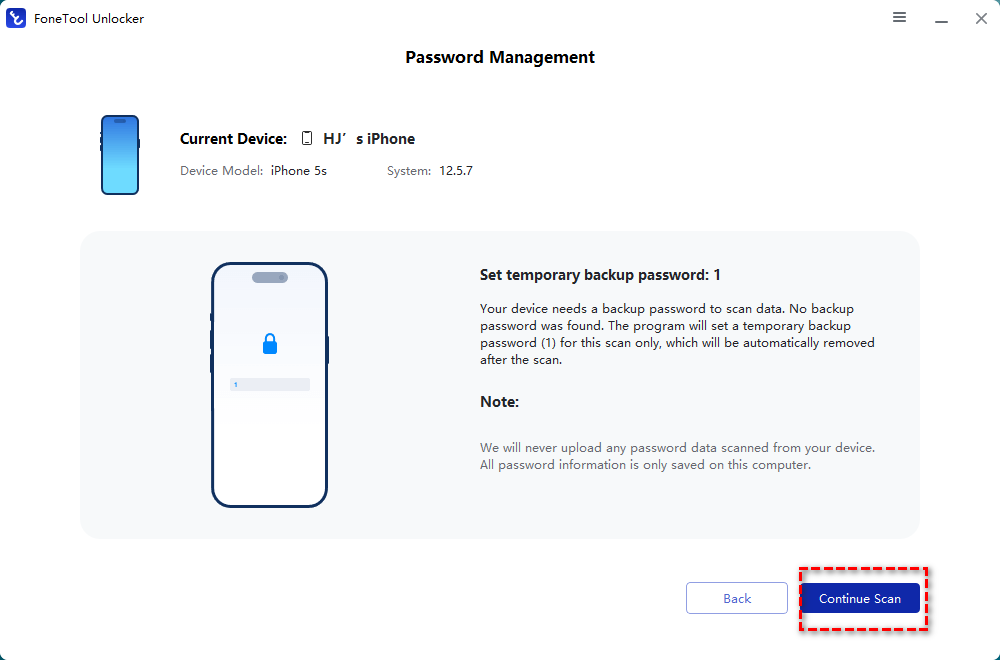
Step 4. Confirm the backup password and click Continue Scan to start the scanning process. The time this takes depends on how many passwords are saved on your device and usually only lasts a few minutes.
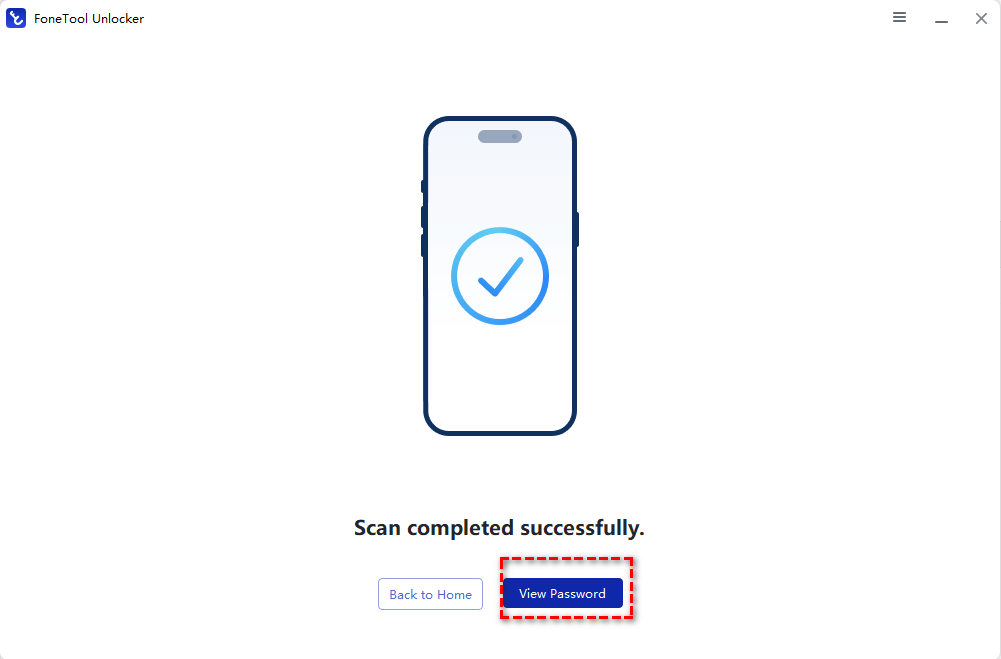
Step 5. After the scan finishes, select View Password to find the password you need.
FAQs about iCloud Keychain on Windows
1. Can I use iCloud Keychain on Windows?
Yes. Apple allows you to use iCloud Keychain on Windows through iCloud for Windows. After enabling the Passwords option and installing the iCloud Passwords extension for Google Chrome or Microsoft Edge, you can sync, view, and autofill your saved passwords on your Windows PC.
2. How do I find my iCloud Keychain passwords on Windows?
You can access your passwords by opening the iCloud Passwords app installed with iCloud for Windows. After verifying your identity with Windows Hello or two-factor authentication, you can browse, search, and copy your saved login credentials.
3. Why are my iCloud Keychain passwords not syncing to Windows?
If your passwords aren't syncing, check the following:
- You're signed in to the same Apple ID on all devices.
- iCloud Keychain is enabled on your iPhone, iPad, or Mac.
- The Passwords option is turned on in iCloud for Windows.
- Your PC has an active internet connection.
- iCloud for Windows and the iCloud Passwords extension are updated to the latest version.
Restarting your PC or signing out and back into iCloud can also help resolve syncing issues.
Conclusion
Now you know how to access iCloud Keychain on Windows. By installing iCloud for Windows, enabling the Passwords feature, and using the iCloud Passwords extension, you can securely access and autofill your saved credentials on Windows.
If you want to manage passwords more efficiently or need additional iPhone security tools—such as removing screen locks, FoneTool Unlocker provides a convenient alternative. Why not give it a shot?
FoneTool Unlocker - 1-Click iPhone Unlock Software
Easily unlock all passcodes and restrictions on your iPhone, iPad, and iPod Touch.
-
 iOS 27 Compatible
 iPhone 17 Supported
100% Secure

Lily Green is dedicated to helping users protect their valuable mobile data and addressing issues that arise on mobile devices. She consistently stays vigilant about the latest trends in technology, guaranteeing that the given information aligns with the ongoing advancements in the field.
Read author info >>



 as a preferred
source on Google
as a preferred
source on Google