Best Password Manager on iPad: Top Picks & Setup Guide (2026)
Need a password manager on iPad? This guide compares top options, from AutoFill reliability to pricing, security features, etc., to find which tool fits your needs best today.


A password manager on iPad securely stores and autofills your passwords so you don’t have to remember multiple logins or reuse weak credentials. With Face ID or Touch ID, you can quickly access accounts through Safari and apps, making sign-ins faster and more secure.
Most users start using one after facing issues like forgotten passwords, weak security habits, or difficulty logging in across devices. On iPad, you can use Apple Passwords or third-party tools like Bitwarden,1Password, FoneTool Uncloker, etc., depending on your needs.
🔥 Quick Recommendations:
- Apple Passwords: Best for Apple-only users (simplicity + zero setup + free)
- Bitwarden Free: Best free cross-platform option (without sacrificing core features)
- Bitwarden Premium: Best for privacy-focused users
- 1Password Individual: Best overall experience
- 1Password Families: Best for households
- Dashlane Premium: Best for security monitoring
- Dashlane Business: Best for teams
Best Password Manager for iPad
When choosing a password manager on iPad, there are five key factors to consider: security, ease of use, AutoFill reliability, cross-device support, and cost-effectiveness. Each recommendation below reflects how well it performs across these criteria. Scroll down to explore more. These also apply to the best password manager for iPhone.
Apple Passwords (Free) - Best for Apple-Only Users
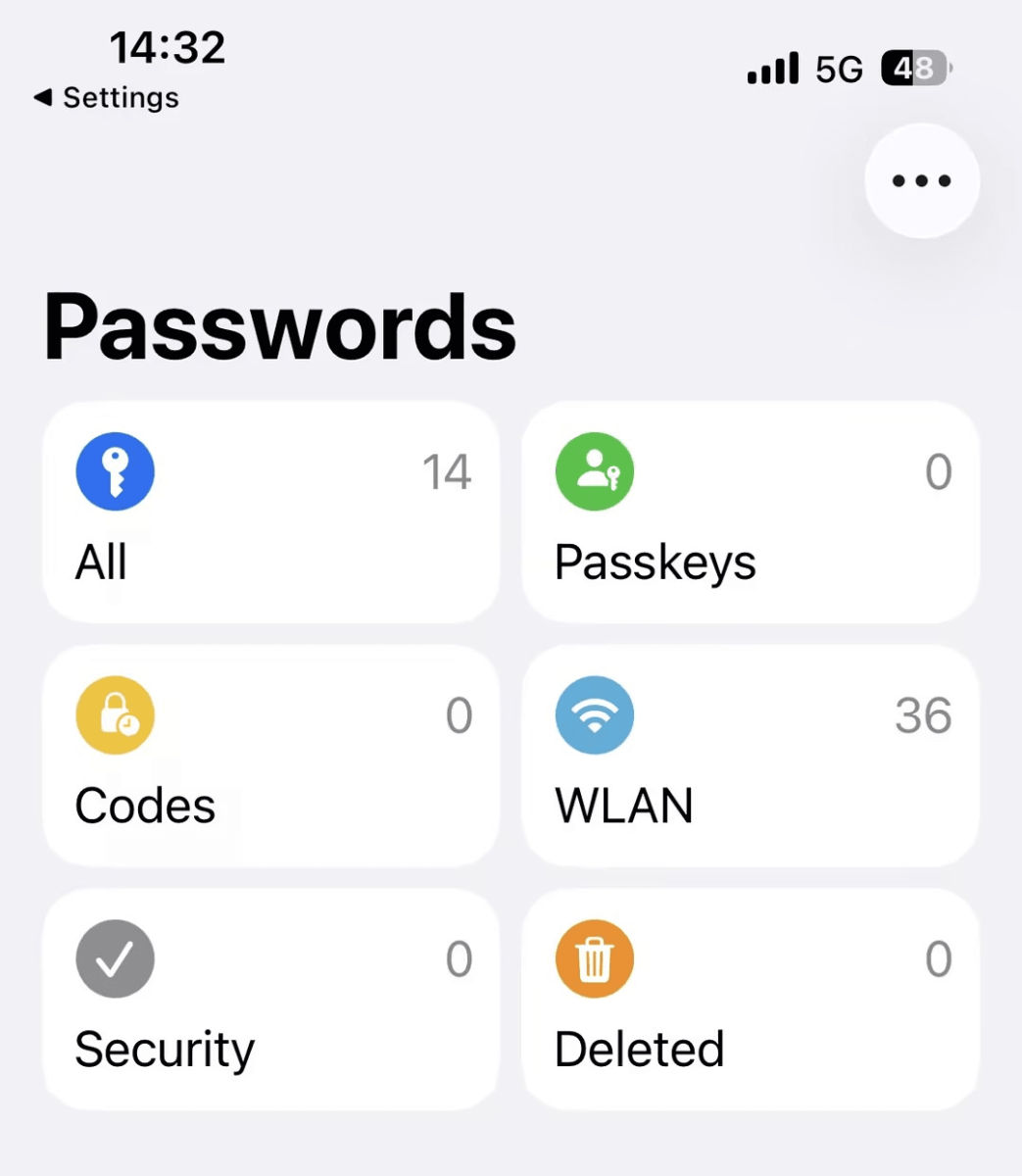
Apple Passwords is Apple’s built-in password management system on iPadOS, designed to store and autofill login credentials securely across Safari and apps. It is tightly integrated into the Apple ecosystem, meaning it works automatically with iCloud Keychain, Face ID, and system-level AutoFill without requiring setup.
📌 5 key factors:
- Ease of use: ⭐⭐⭐⭐⭐ (no setup required)
- Security: Strong (Apple encryption + Face ID / Touch ID)
- AutoFill reliability: Excellent in Safari and apps
- Cross-device support: Limited to Apple ecosystem
- Pricing & value: Excellent
👍 Best for: Users fully inside the Apple ecosystem.
💰 Price: Free (built into iPadOS)
✅ Pros:
- Native iPadOS integration
- Seamless Safari + app AutoFill
- Supports passkeys
- Fast biometric login
❌ Cons:
- Weak cross-platform support
- Limited advanced security features
- Not ideal for mixed-device users
Bitwarden Free - Best For Cross -Platform
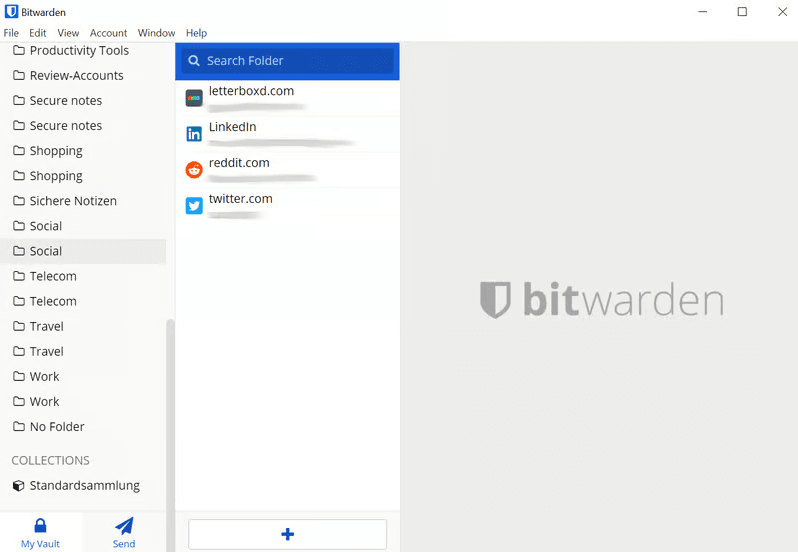
Bitwarden Free is a trusted password manager that offers strong security without a subscription, popular among users who use multiple devices like iPad, Windows PCs, Android phones, and desktop browsers. Unlike many free password managers for iOS, Bitwarden does not heavily restrict core features, making it a practical long-term option for everyday password management.
It is built on an open-source, zero-knowledge architecture, meaning your data is encrypted locally on your device before it is ever synced, and even Bitwarden cannot access your stored passwords. On iPad, it works smoothly with AutoFill and Face ID, allowing fast and secure logins in Safari and apps.
📌5 key factors:
- Ease of use: Good
- Security: Excellent (open-source + zero-knowledge architecture+10 email aliases)
- AutoFill reliability: Good
- Cross-device support: Excellent (iPad, Android, Windows, browsers)
- Pricing & value: Outstanding
👍 Best for: Budget users and cross-device flexibility
💰 Price: Free
✅ Pros:
- Unlimited passwords and devices
- 10 email aliases
- Open-source transparency and strong trust model
- Strong encryption architecture
- Supports self-hosting
❌ Cons:
- UI less polished than premium competitors
- Premium features require an upgrade
Bitwarden Premium - Best for Privacy-Focused Users
Bitwarden Premium is an upgraded version of Bitwarden Free, designed for users who want stronger privacy controls and more advanced security features. It is ideal for individuals managing sensitive accounts across multiple devices who need deeper insights into password health and better recovery options. While still affordable, it adds meaningful tools that go beyond basic password storage, making it a strong choice for privacy-focused users.
📌5 key factors:
- Security: Excellent
- Ease of use: Moderate
- Cross-device support: Excellent
- Advanced features: Strong
- Pricing & value: Very high
👍 Best for:Users who want stronger security control
💰 Price: Low-cost subscription (~$1.65/month)
✅ Pros:
- Security reports (weak/reused passwords)
- Emergency access
- Encrypted file attachments
- Strong privacy architecture
- Sharing vault items with one other user
❌ Cons:
- Less polished UI than competitors
- Requires setup knowledge
1Password Individual - Best Overall Upgrade
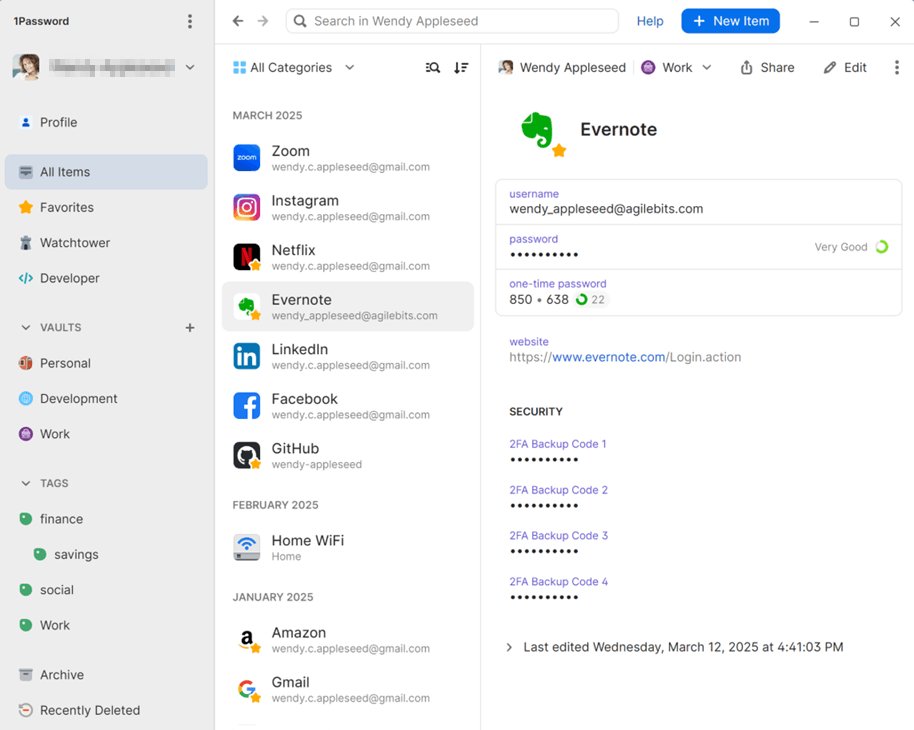
1Password Individual is one of the most polished and user-friendly password managers for iPad, combining strong security with a smooth, intuitive experience. It is designed for users who want a reliable all-in-one solution that works seamlessly across Apple devices and other platforms, offering excellent AutoFill performance, strong encryption, and well-designed vault management without compromising ease of use.
📌5 key factors:
- Ease of use: Excellent (best iPad UX)
- Security: Excellent (strong encryption + recovery tools)
- AutoFill reliability: Outstanding
- Cross-device support: Excellent
- Pricing & value: High
👍 Best for: Most users seeking a balance of usability and security
💰 Price: ~$2.99/month
✅ Pros:
- Best-in-class iPad experience
- Very reliable AutoFill across apps and Safari
- Secure storage for passwords, documents, and sensitive data
- Travel Mode for enhanced privacy protection
- Share items securely with anyone
❌ Cons:
- Paid-only service(limited 14-day trial)
- Slight learning curve for new users
1Password Families - Best for Household Sharing
1Password Families is a password management plan built for households that need a simple and secure way to share important accounts. It allows family members to store and share passwords, payment details, and sensitive information in shared vaults while still keeping personal data private. With strong security controls and an easy setup process, it helps families manage digital access without confusion or risk.
📌5 key factors:
- Ease of use: Excellent for families
- Security: Strong with recovery options
- Sharing control: Excellent
- Cross-device support: Excellent
- Pricing & value: Good for households
👍 Best for: Families managing shared accounts
💰 Price: ~$4.99/month
✅ Pros:
- Clean and intuitive interface
- Shared unlimited vaults
- Support up to 5 family members
- Manage access with simple admin controls
❌Cons:
- Not cost-effective for individual users
Dashlane Premium - Best for Security Monitoring
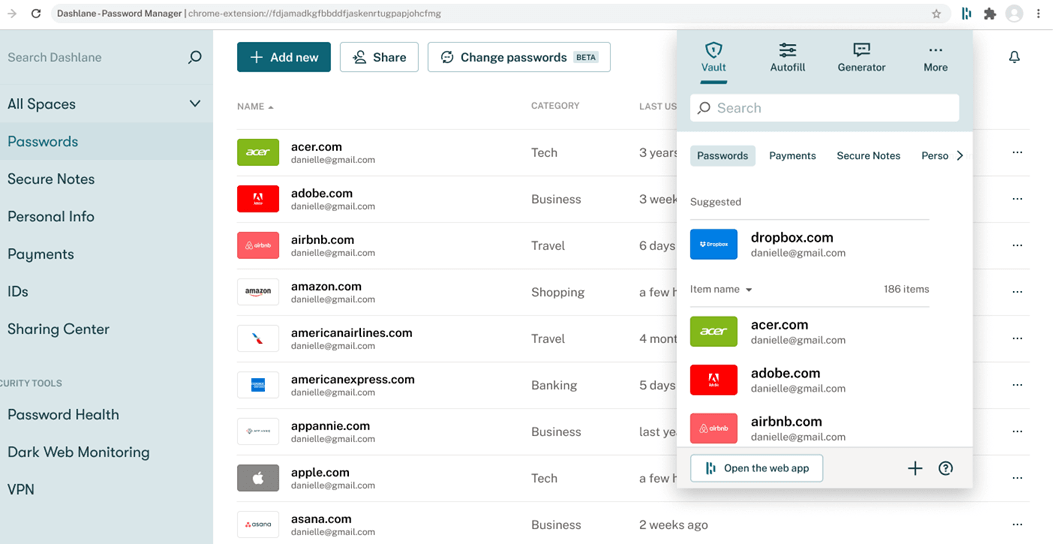
Dashlane Premium is a premium password manager designed for users who want more than just secure password storage. It focuses heavily on proactive security, offering tools that continuously monitor your credentials, detect breaches, and help you improve overall password hygiene.
With built-in protection features and cross-device syncing, it’s positioned as an all-in-one security-focused solution for individuals who prioritize account safety.
📌5 key factors:
- Security monitoring: Excellent
- Ease of use: Good
- AutoFill reliability: Good
- Cross-device support: Strong
- Pricing & value: Medium
👍 Best for: Users who want proactive protection
💰 Price: ~$5.42/month
✅ Pros:
- Dark web monitoring
- Password health scoring
- VPN for WiFi protection
- Automated password fixing
- Scam Protection
- 1GB encrypted document storage
❌Cons:
- Heavier app experience
- Less lightweight than competitors
Apple Passwords vs Bitwarden vs 1Password vs Dashlane
If you're comparing top tools, here’s how major password managers perform across key and unique features.
|
Feature |
Apple Passwords |
Bitwarden Premium |
1Password Individual |
Dashlane Premium |
|
Price |
Free |
$1.65/mo |
$2.99/mo |
$5.42/mo |
|
Face ID / Touch ID Unlock |
Yes |
Yes |
Yes |
Yes |
|
Safari AutoFill |
Yes |
Yes |
Yes |
Yes |
|
Cross-platform Apps |
No |
Yes |
Yes |
Yes |
|
Passkey Support |
Yes |
Yes |
Yes |
Yes |
|
Offline Access |
Limited |
Yes |
Yes |
Yes |
|
Password Sharing |
Limited |
Yes |
Yes |
Yes |
|
Built-in 2FA (TOTP) Generator |
Basic |
Yes |
No |
No |
|
Security Alerts (Weak/Reused Passwords) |
Basic |
Partial |
Yes |
Yes |
|
Dark Web Monitoring |
No |
No |
No |
Yes |
|
VPN Included |
No |
No |
No |
Yes |
|
Self-hosting Option |
No |
Yes |
No |
No |
|
Travel Mode |
No |
No |
Yes |
No |
|
Secure Notes & Vault Organization |
Basic |
Yes |
Advanced |
Advanced |
|
Automatic Password Changer |
No |
No |
No |
Yes |
|
👍 Best for |
Apple ecosystem users |
Privacy-focused users |
Power users |
All-in-one security suite |
How to Open and Find Saved Passwords on iPad
Learn how to quickly access, search, and manage your saved passwords on iPadOS using the built-in Passwords settings and Safari.
Way 1: Find Saved Passwords using Built-in Passwords
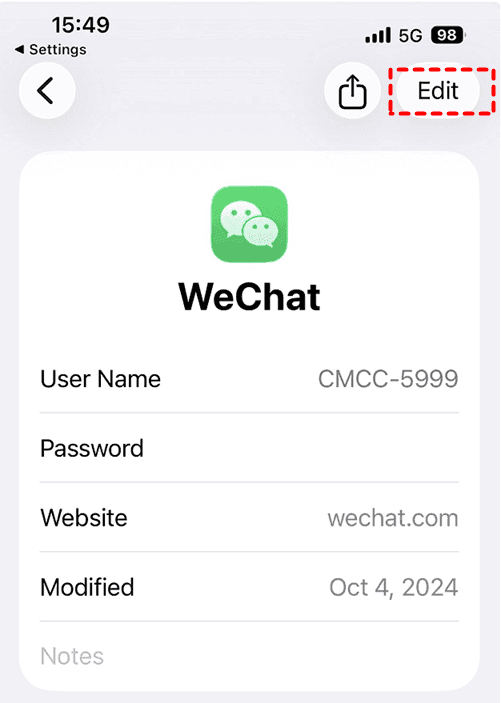
Step 1. Open Settings on your iPad. Scroll down and tap Passwords, then authenticate using Face ID / Touch ID (or passcode).
Step 2. View your saved passwords list. Or directly search a specific website or app name.
Step 3. Tap the matching result to view saved logins. You can tap Edit or Copy Password if needed.
Way 2: Find Safari Saved Passwords
Step 1. Open Safari and create a new account or log in.
Step 2. Tap the password field and allow the iPad to suggest a strong password automatically.
Step 3. Tap Use Strong Password to save it. The credential is automatically stored in your iCloud Keychain for future use.
How to Set Up a Default Password Manager on iPad
Learn how to configure a default password manager on iPadOS and enable AutoFill so you can securely sign in to websites and apps without manually entering credentials.
Step 1. Install the best password manager on iPad (from the App Store ) first. Then, open it and sign in to your account.
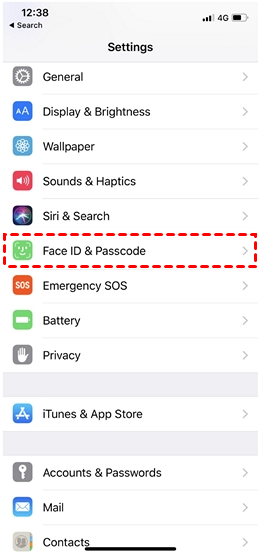
Step 2. Go to Settings >Face ID & Passcode and enable Face ID / Touch ID.
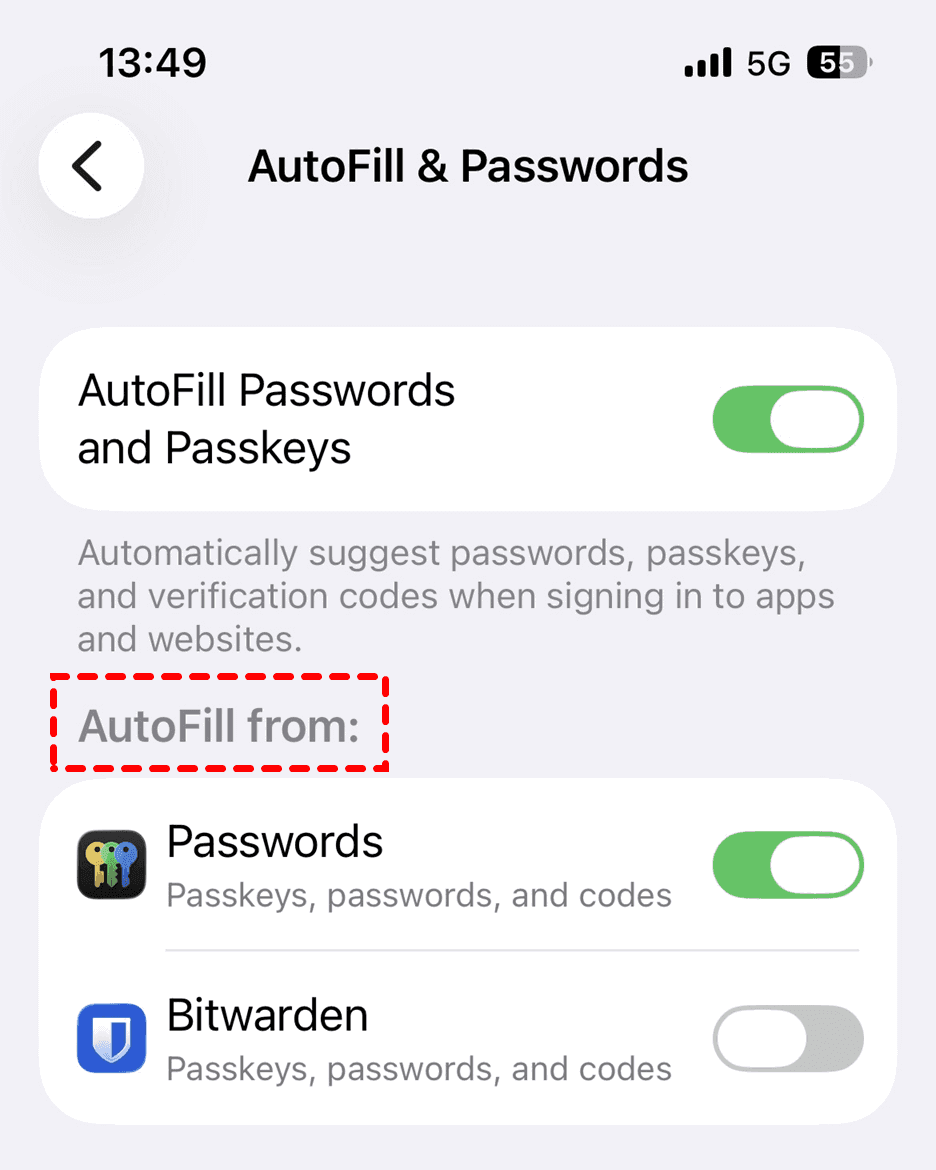
Step 3. Go to Settings > General > AutoFill & Passwords > AutoFill Passwords and Passkeys > Switch ON.
Step 4. Under AutoFill From, select your preferred password manager as the default provider
Step 5. Open Safari. Sign in or register on a website and see if AutoFill or passkeys are available.
Notes:
- Make sure iCloud Keychain is enabled (optional but recommended) and iPadOS is updated.
- Keep only one password manager active to avoid software conflicts.
What If You're Locked Out of Your iPad?
Password managers are designed to store and autofill login credentials, while iPad lock systems protect the entire device at the system level. However, FoneTool Unlocker can go beyond unlocking and also deep scan your iPad to retrieve saved passwords and credentials. It’s especially in situations such as:
- Scan and view saved Wi-Fi passwords, Safari and app credentials, as well as currently logged inApple ID infostored on iPad or iOS.
- Remove screen passcode(4digit/6digit), Touch ID, and Face ID when you forget your iPad password.
- Remove apple ID/ iCloud activation lock.
- Remove Screen Time restrictions if the passcode is lost or forgotten.
In this sense, it functions not only as an unlock tool, but also as a lightweight password manager for iOS.
Step 1. Download, install, and launch FoneTool Unlocker on your Windows PC. On the main interface, click Password Management.

Step 2. Click Start Scan to find Wi-Fi passwords, credentials saved in Safari and other apps, check Apple ID info, and back up scan history.
Step 3. For a smooth scan, connect your iPhone, unlock it, and click Trust This Computer and confirm this on FoneTool Unlocker.
Step 4. Click Continue Scan and wait for the process to be complete.
Step 5. Click View Password when scan completed successfully.
Step 6. Click Screen Time Passcode, Wi-Fi account, Web & App Passwords, etc., to check all passwords and credentials it finds.
Quick comparison: Password Manager vs FoneTool Unlocker
|
Features |
Password Manager |
FoneTool Unlocker |
|
Store passwords |
Yes |
No |
|
AutoFill login |
Yes |
No |
|
View saved Wi-Fi passwords |
No |
Yes |
|
View app/Safari passwords |
No |
Yes |
|
View Apple ID/ iCloud activation lock |
No |
Yes |
|
Unlock iPad |
No |
Yes |
|
Remove Screen Time |
No |
Yes |
Conclusion
The best password manager on iPad depends on your needs:
- Apple Passwords is the best choice for users who live entirely within the Apple ecosystem and want a free, built-in solution.
- Bitwarden is the best option for users seeking strong security, transparency, and excellent value at a low cost.
- 1Passwordoffers the best overall user experience with a polished interface, powerful features, and seamless cross-platform support.
- Dashlane stands out for its advanced security monitoring, dark web alerts, and business-focused features.
- FoneTool Unlocker is not a traditional password manager. Instead, it serves as an iOS recovery tool that can retrieve saved passwords from devices and help unlock iPads when access is lost.
Whichever solution you choose, be sure to enable AutoFill, use strong, unique passwords, and review your password security regularly to keep your accounts protected and easy to access across all your devices.
FoneTool Unlocker - 1-Click iPhone Unlock Software
Easily unlock all passcodes and restrictions on your iPhone, iPad, and iPod Touch.
-
 iOS 27 Compatible
 iPhone 17 Supported
100% Secure

Ivey is passionate about teaching users how to easily protect mobile device data. With the FoneTool series of iPhone management, unlocking, and repair software, even beginners can perform data backup, iPhone unlocking, and troubleshooting like a pro.
Read author info >>



 as a preferred
source on Google
as a preferred
source on Google