Unlock iPhone 7 Plus Free | 4 Legit Methods & What Works
A complete guide to unlocking iPhone 7 Plus for free. Covers carrier unlocks, erasing a forgotten passcode via Recovery Mode, and handling Apple ID locks. Includes when free methods fail and what to do next.


Is your iPhone 7 Plus locked, and you're searching for a safe, free way to unlock it? You're not alone. Many users face this issue, whether it's a forgotten passcode, a device still tied to an old carrier, or a stuck Apple ID. The good news is that genuine free unlocking methods do exist for common scenarios.
This definitive guide cuts through the confusion. We’ll walk you through verified, cost-free solutions for different lock types, tell you exactly when they work, and advise on what to do when a free method isn't possible. Our goal is to help you regain access to your device without unnecessary risks or expenses.
First, Identify Your Lock Type
Not all "locks" are the same. Choosing the right solution starts with knowing what you're dealing with. Here’s a quick breakdown:
- Carrier/Network Lock: Your phone only works with one carrier's SIM card (e.g., AT&T, Verizon). The message "SIM Not Supported" appears with a new SIM.
- Screen Passcode Lock: You've forgotten your 4-digit/6-digit passcode or pattern, and your iPhone is now disabled.
- Apple ID/Activation Lock: The device is linked to a previous owner's Apple ID (common with used phones). You see "Activation Lock" during setup, preventing use.
Method 1. Free Carrier Unlock for iPhone 7 Plus
If your iPhone 7 Plus is locked to a specific network (like AT&T or T-Mobile), the first and best step is always to contact that carrier directly.
📝Typical required qualifications:
- The iPhone must be fully paid off (no outstanding installments).
- Your account must be in good standing.
- The device must not be reported as lost or stolen.
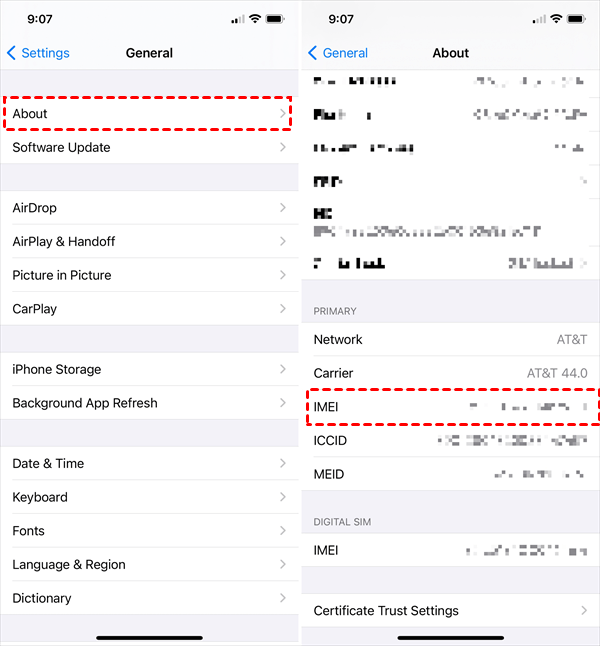
Step 1. Go to Settings > General > About and note your 15-digit IMEI number.
Step 2. Reach out to your carrier's customer support via phone, online chat, or in-store.
Step 3. Provide your account details and the IMEI. Request a "carrier unlock".
Step 4. Carriers often process this within 1-3 business days. They will confirm when done.
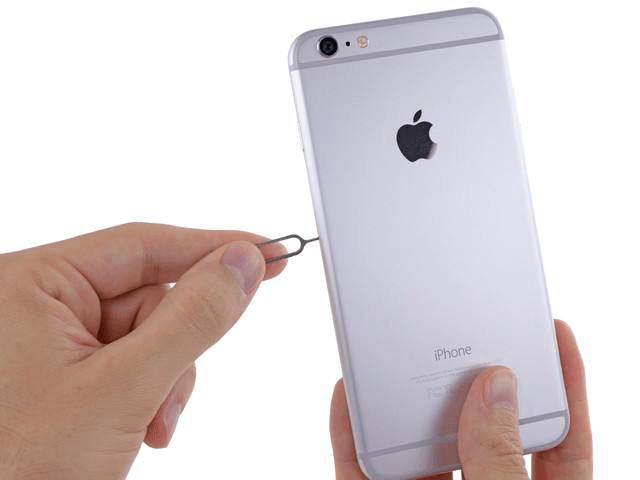
Step 5. Insert a new SIM card from a different carrier. The unlock is usually automatic.
- ★Why This is Free:
- The FCC requires carriers to unlock devices that meet their eligibility criteria. You should not pay for this service if you are the rightful owner.
Method 2. Free Screen Passcode Removal via Recovery Mode
Forgot your passcode? Apple provides a free method using Recovery Mode, but it comes with a major trade-off.
❗Crucial Warning: This process will completely erase your iPhone and all its data, including photos, messages, and apps. Only proceed if you have a backup or accept the data loss.
Step 1. Plug your disabled iPhone 7 Plus into a computer and open iTunes (or Finder on Macs with macOS Catalina or later).
Step 2. Put your iPhone into Recovery Mode:
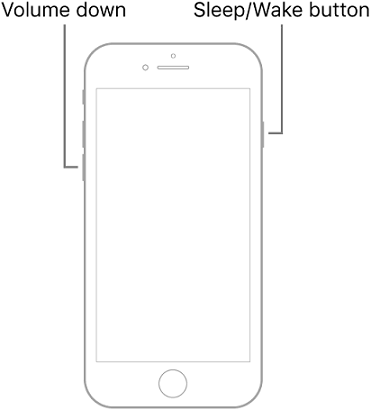
- Quickly press and release the Volume Down button.
- Then, immediately press and hold the Side button.
- Keep holding until you see the Recovery Mode screen (showing a cable and a computer icon), then release.
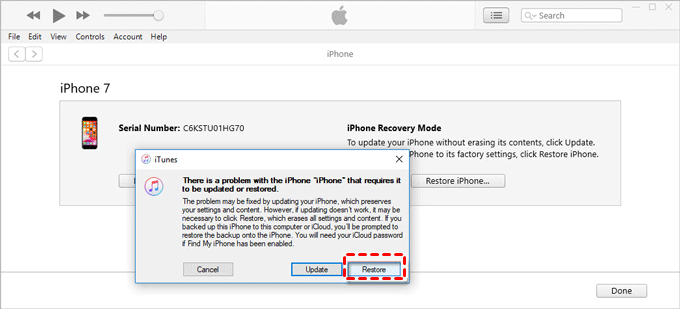
Step 3. On your computer, a pop-up will appear. Choose "Restore”.
Step 4. Your computer will download software and erase/restore your iPhone. This may take some time.
Step 5. After it restarts, you can set it up as new or restore from a backup.
Method 3. Addressing Apple ID & Activation Lock for Free
This is the most restrictive lock. A truly free solution only exists if you can prove ownership.
- If You Forgot Your Apple ID Password: Go to iforgot.apple.com. You can reset your password for free using your trusted email or phone number, then sign out normally in Settings.
- If You Bought a Used iPhone 7 Plus with a Previous Owner's ID: There is no legitimate free method. The only official way is to contact the seller and ask them to remove the device from their iCloud account remotely. If that's impossible, you face a different challenge.
Method 4. Easiest Way to Unlock iPhone 7 Plus without Passcode
What happens when you hit a wall? For example, you purchased a second-hand iPhone 7 Plus, the seller is unreachable, and the device is stuck on their Apple ID or a forgotten passcode. In these cases, professional software like FoneTool Unlocker becomes a viable solution, allowing you to unlock the iPhone 7 series with just a few simple steps, without the need for a password.
Directly removes unknown Apple ID and screen passcode locks.
Remove a forgotten screen passcode without needing to access iCloud.
User-friendly process with step-by-step guidance.
High success rate for iPhone 7 Plus and other models.
Step 1. Download and install FoneTool Unlocker on your PC. Select Remove iOS Screen Passcode.

Step 2. Connect your iPhone and follow the on-screen instructions, and click Next.
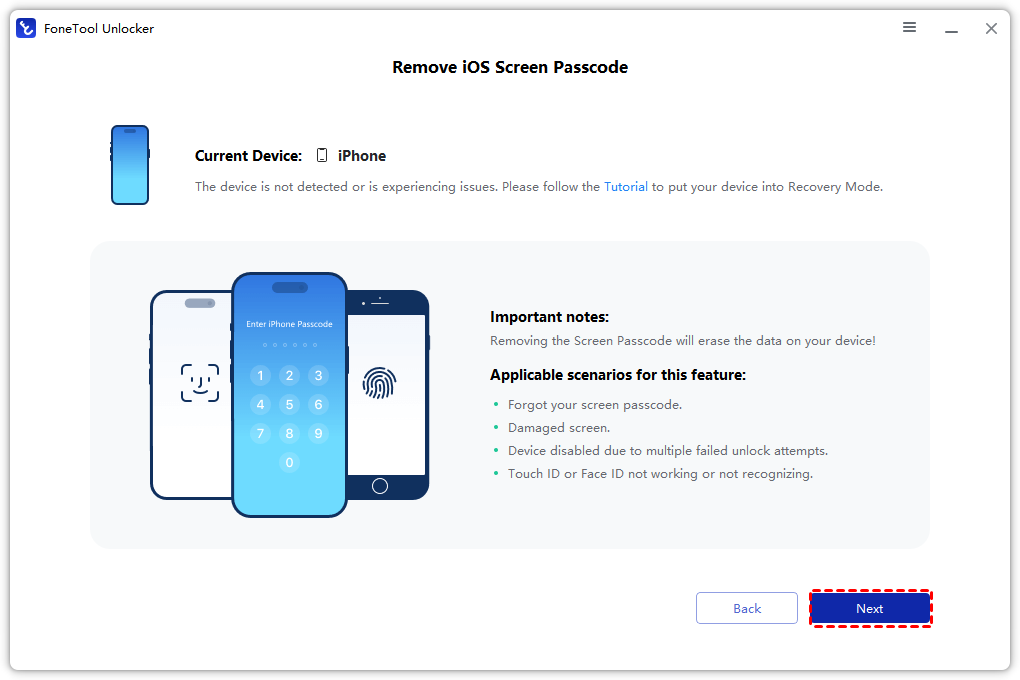
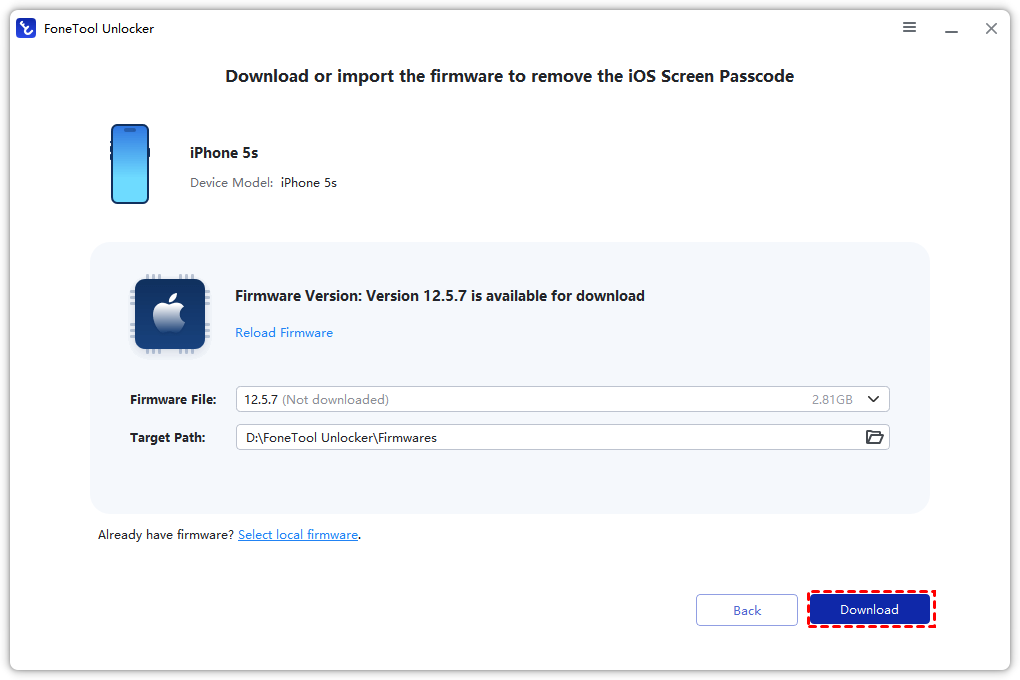
Step 3. Download the firmware package when prompted.
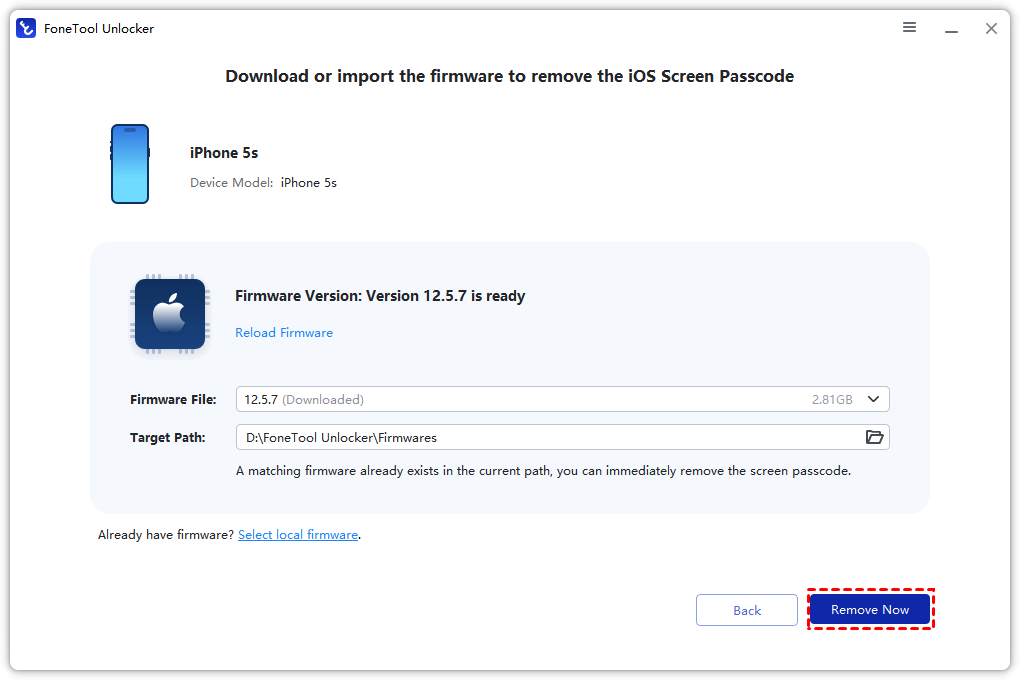
Step 4. Click Remove Now to remove the passcode and associated restrictions.
Frequently Asked Questions
Conclusion
Unlocking your iPhone 7 Plus for free is possible, but it depends on the type of lock and your circumstances.
- For a carrier lock, always ask your carrier first—it's often your free legal right.
- For a forgotten passcode, use Apple's free Recovery Mode, accepting the data loss.
- For an Apple ID lock, a free solution exists only with proof of purchase or the original owner's help.
When you've exhausted all free avenues, consider a reliable software tool like FoneTool Unlocker as a legitimate and affordable last resort to regain control of your device.
FoneTool Unlocker - 1-Click iPhone Unlock Software
Easily unlock all passcodes and restrictions on your iPhone, iPad, and iPod Touch.
-
 iOS 27 Compatible
 iPhone 17 Supported
100% Secure

Kelsey is an English editor at FoneTool, passionate about helping users solve tech issues. She specializes in iPhone data management, backup, and recovery. In her free time, she enjoys learning IT skills and spending time with loved ones.
Read author info >>



 as a preferred
source on Google
as a preferred
source on Google