Unlock iPhone with Apple Watch | Setup, Troubleshooting & Fixes
Unlock iPhone with Apple Watch effortlessly. This guide covers setup, why it fails, and professional solutions like FoneTool Unlocker for when you’re locked out completely.


Unlocking your iPhone with Apple Watch is one of the most convenient features Apple offers, when it works. This guide explains exactly how to set it up, why it sometimes fails, and what to do when you’re locked out of both devices.
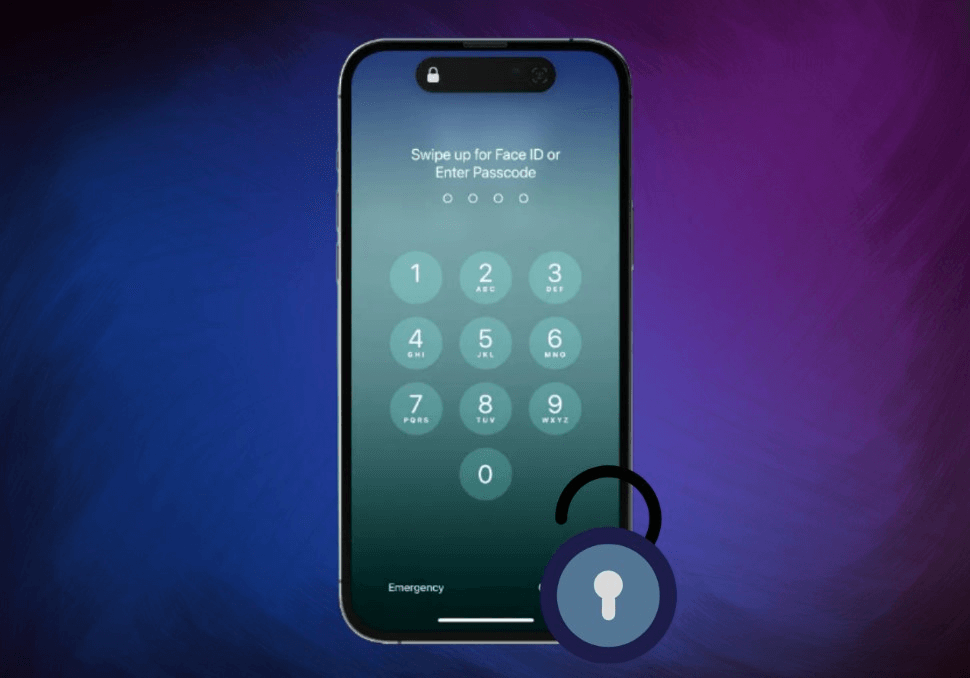
How to Unlock iPhonewith Apple Watch Works
This feature allows you to unlock your iPhone (Face ID models) simply by wearing your unlocked Apple Watch. When your iPhone detects a masked face (or when Face ID fails), it checks if your Apple Watch is nearby, unlocked, and on your wrist, then unlocks automatically. This is often called iPhone masked face unlock, and it’s a lifesaver when wearing a mask or sunglasses. Understanding the mechanics helps you unlock iPhone with Apple Watch reliably every time.
| Requirement | Status |
|---|---|
| iPhone Model with Face ID |
iPhone X and later |
| Apple Watch Series 3+ |
Must be worn & unlocked |
| iOS & watchOS versions |
iOS 14.5+ / watchOS 7.4+ |
| Wi-Fi and Bluetooth |
Both must be ON |
| Apple ID Two-Factor Authentication |
Enabled |
| Watch settings |
Wrist Detection ON / Passcode set |
Part 1. How to Set Up Unlock with Apple Watch
Setting up the feature takes less than a minute. Follow these steps to ensure you can setup Face ID with Apple Watch without hassle. Once configured, you’ll be able to unlock iPhone with Apple Watch whenever Face ID is obstructed.
Step 1. On your iPhone, go to Settings > Face ID & Passcode.
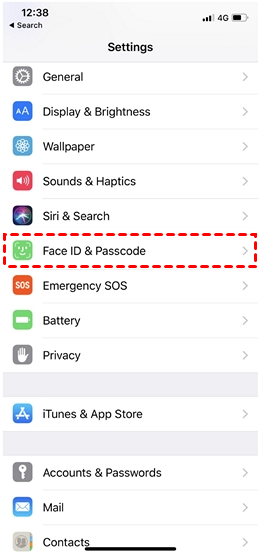
Step 2. Enter your iPhone passcode.
Step 3. Scroll down to “Unlock with Apple Watch”.
Step 4. Toggle the switch for your Apple Watch name.
Step 5. You’ll see a confirmation message. Your watch is now ready to unlock your iPhone.
Once set up, whenever you’re wearing your unlocked Apple Watch and raise your iPhone, it will unlock automatically without requiring Face ID or passcode entry.
Part 2. Professional Solution for Any Locked iOS Devices
If you forget your iPhone's passcode and your Apple Watch isn't paired or can't unlock the device (for example, after a restart, the watch needs to enter its own passcode), regular options like Face ID and Apple Watch Unlock won't work. You need a tool that works directly with your device to bypass passwords entirely. FoneTool Unlocker provides a reliable way to unlock your iPhone by directly removing the screen passcode, allowing you to regain access.
- Unlocks a disabled iPhone in under 5 minutes - No computer science degree required.
- Works when you've forgotten your passcode completely - 4-digit, 6-digit, Face ID, Touch ID, all gone.
- Removes Apple ID/iCloud Activation lock from used phones - Bought a second-hand iPhone that's still locked? This handles it.
- No Apple Watch dependency - Because let's face it, if you're reading this, your watch already failed you.
Step 1. Download and install FoneTool Unlocker on a Windows computer.Connect your locked iPhone via USB cable.
Step 2. Select the Remove iOS Screen Passcode feature from the main menu.

Step 3. Follow the on-screen instructions, and put your iPhone into Recovery Mode.
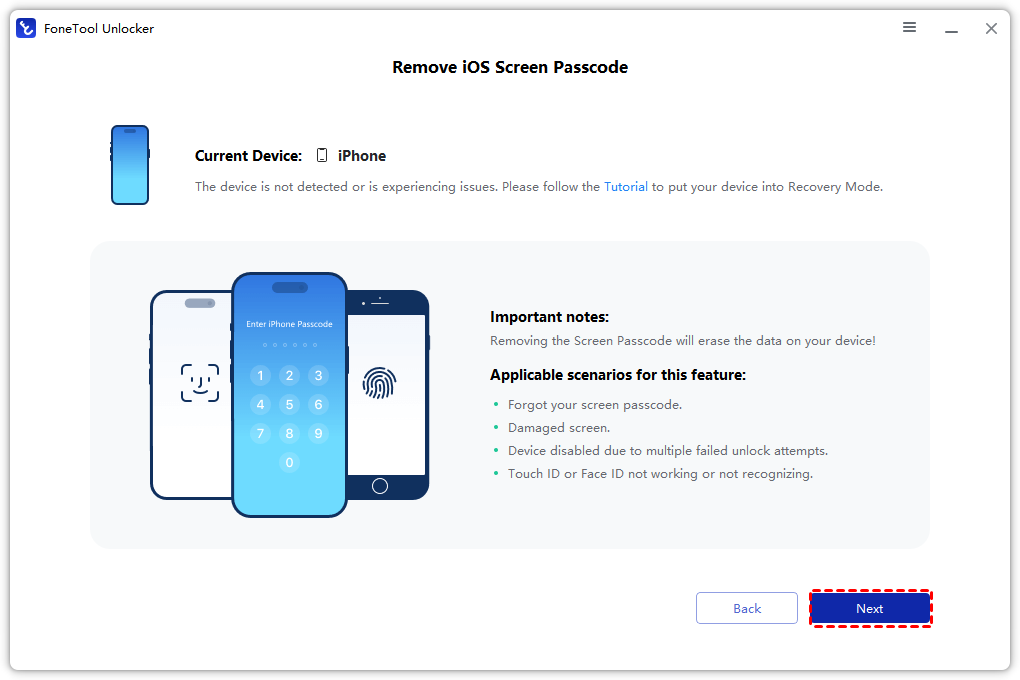
- ★Tip:
- You can also directly use the Enter/Exit Recovery Mode on FoneTool Unlocker tool to do it easily in one click.
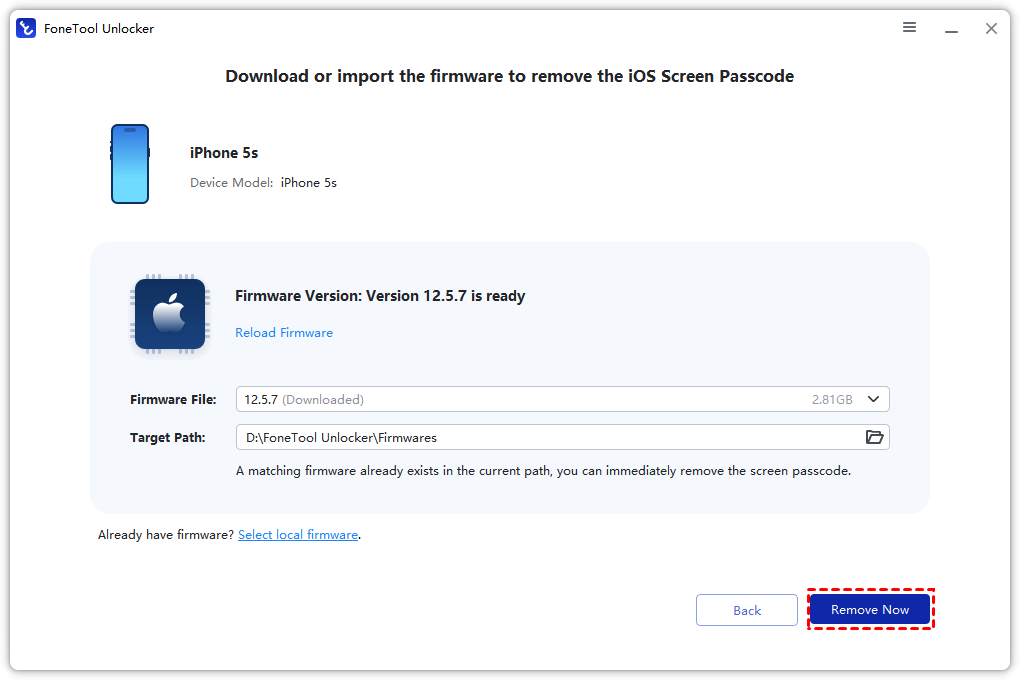
Step 4. Tap Remove Now, and the software will unlock iPhone without password. Your iPhone will restart, ready for setup.
Part 3. Troubleshooting – Why Is Apple Watch Unlock iPhone Not Working?
Even with correct setup, the feature may fail. Here are the most common reasons and fixes to help you resolve Apple Watch unlock iPhone not working issues.
| ⛔Issue | 📌Likely Cause | ✅Fix |
|---|---|---|
|
iPhone doesn’t unlock |
Watch not on wrist |
Ensure Watch is worn and unlocked. |
|
Feature option missing |
Settings not enabled |
Go to Face ID & Passcode > toggle ON. |
|
Watch too far |
Bluetooth range exceeded |
Keep devices within a few feet. |
|
iOS/watchOS mismatch |
Software outdated |
Update both devices to latest versions. |
|
Airplane Mode active |
Connectivity disabled |
Turn off Airplane Mode on both devices. |
|
Face ID is disabled after 5 failed attempts |
Security lockout |
Enter iPhone passcode manually once to reset. |
When these fixes don’t work, you may need a different approach to unlock iPhone with Apple Watch or bypass the lock entirely. Sometimes you might want to disable unlock with Apple Watch temporarily for privacy reasons, simply toggle it off in the same Face ID & Passcode settings.
- 🔍You can learn: How to Unlock Apple Watch Without Passcode | Full Guide
Part 4. When Apple Watch Can’t Help – The Device Lock Dilemma
There are scenarios where unlocking with Apple Watch won’t solve your problem. Knowing these limits helps you decide when to look beyond Apple Watch to unlock iPhone with Apple Watch alternatives.
- You’ve forgotten your iPhone passcode entirely.
- Your Apple Watch is not paired, bricked, or lost.
- The iPhone is in Recovery Mode or disabled (“iPhone Unavailable”).
- You’re setting up a second-hand iPhone still linked to a previous owner’s Apple ID.
In these cases, Apple Watch can’t assist because the feature requires the iPhone to already be functional and the Watch to be paired. You need an iPhone disabled fix without computer? Actually, most solutions require a computer, but professional tools can help. You may also search for Apple Watch bypass passcode techniques, but they are limited.
Frequently Asked Questions
Conclusion
Being able to unlock iPhone with Apple Watch is one of the best quality-of-life features in the Apple ecosystem, especially for those who wear masks or protective gear.
- For daily use: Enable the setting in Face ID & Passcode.
- For emergencies: If you are locked out because you forgot the passcode, do not panic. Use FoneTool Unlocker to regain access to your device instantly.
- By combining Apple’s native wireless security with professional tools for password recovery, you ensure your iPhone is never a brick in your pocket.
FoneTool Unlocker - 1-Click iPhone Unlock Software
Easily unlock all passcodes and restrictions on your iPhone, iPad, and iPod Touch.
-
 iOS 27 Compatible
 iPhone 17 Supported
100% Secure

Kelsey is an English editor at FoneTool, passionate about helping users solve tech issues. She specializes in iPhone data management, backup, and recovery. In her free time, she enjoys learning IT skills and spending time with loved ones.
Read author info >>



 as a preferred
source on Google
as a preferred
source on Google