How to Transfer Photos from One iCloud to Another [2026]
To sync photos between iCloud accounts, 5 ways are listed here to help you. You can make it on iPhone/iPad directly or on computer as you like.


When you switch to a new iPhone, you may need to create a new Apple ID. Or sometimes you want to make a data sharing between iCloud accounts. Then you may need a way to transfer pictures from one iCloud account to another.
For photography enthusiasts, transferring photos is essential. Can you merge photos from two iCloud accounts? Of course, you can! This guide will offer useful ways to help you finish the process from iPhone/iPad or computer.
| Method | Best For | Key Advantage |
| FoneTool | Mass, one-click transfer of entire libraries or large batches. | Fast, direct, selective |
| iCloud.com | Full control over selection; users are comfortable with web interfaces. | No extra software needed. |
| Shared Albums | Selectively sharing a subset of photos between accounts. | Built-in, live album that stays updated. |
| Sign Out/Sign In on iPhone | Transferring photos when you have physical possession of one device. | Uses the device as a transfer bridge. |
| AirDrop | Quickly sending a few photos between Apple devices. | Instant, wireless, and simple. |
Way 1. Transfer iCloud photos to another iCloud account from PC [One click]
How do I mass transfer photos from iCloud? For Windows users, you can get a much easier way - a professional iCloud manager named FoneToolto finish the process.
Best iCloud Data Transfer & ManagementSoftware
- Merge two iCloud accountsfrom PC in one click.
- Transfer photos, videos, contacts, notes or iCloud Drive between accounts.
- Upload, download or delete iCloud (Drive) data as you like.
- Use SSL encryption to ensure iCloud data security.
- FoneTool will never access any information on your iCloud.
Now you can download FoneTool on your Windows PC and learn from the steps to get how to transfer data from one iCloud to another.
Step 1. Launch FoneTool > Go to My iCloud > Log in with your source Apple ID > Go to iCloud Sync.
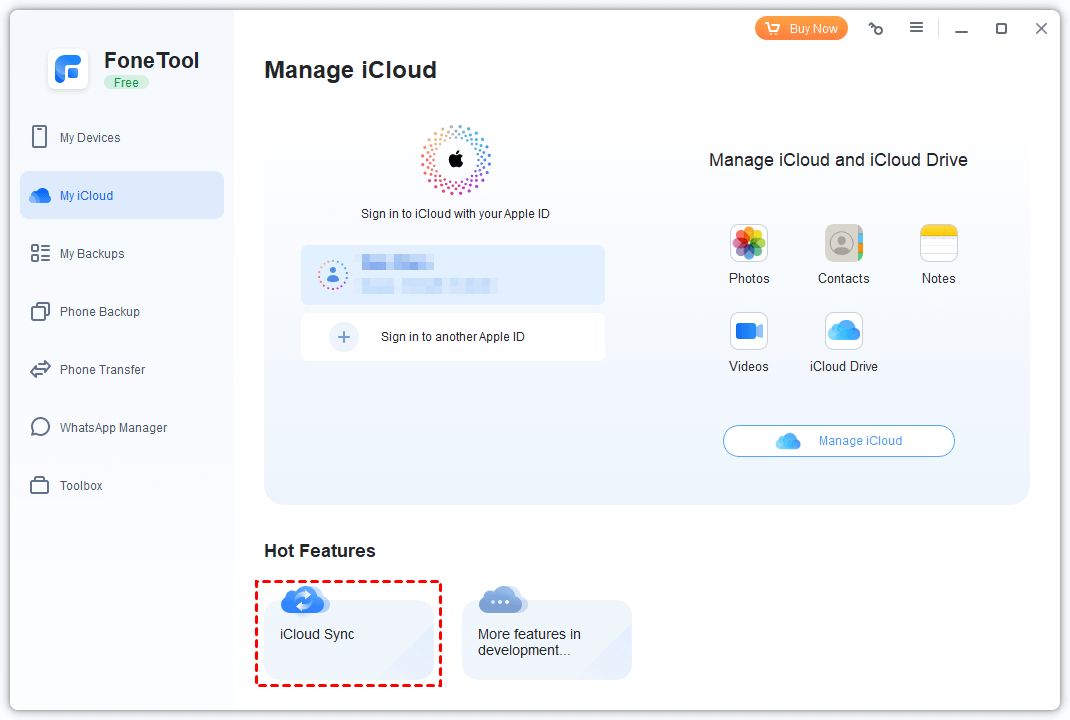
- Tip:
- To manage iCloud storage, you can go to Manage iCloud from this interface to upload, download or delete iCloud (Drive) data.
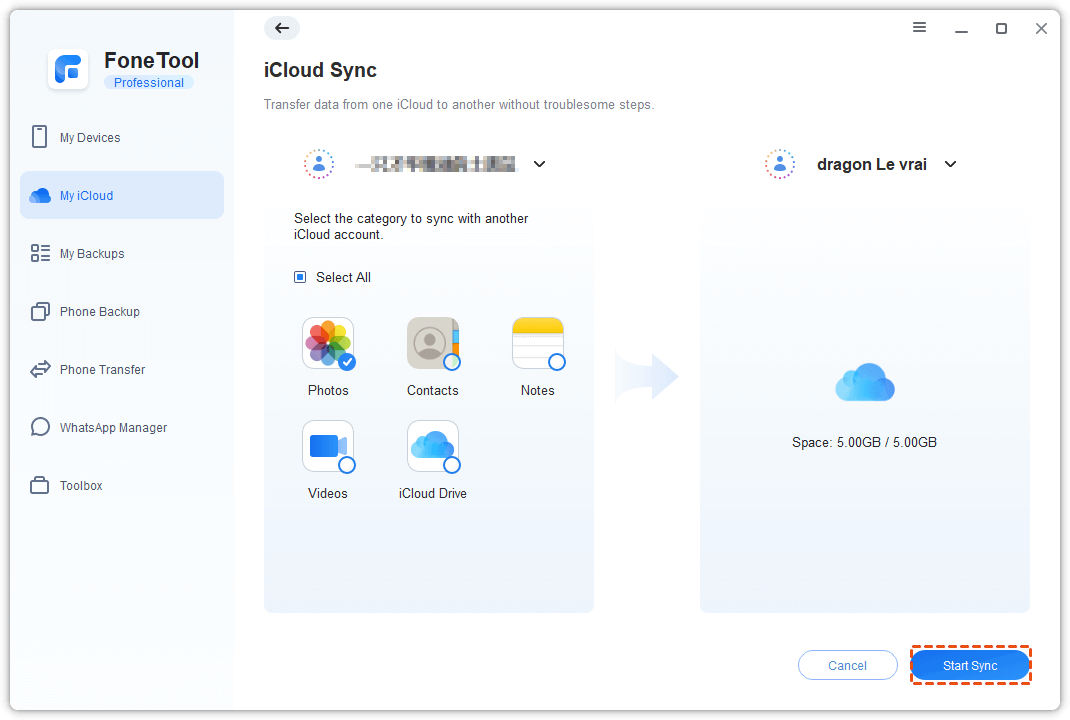
Step 2. Check the Photos option > Sign in to another Apple ID and click Start Sync to begin the task.
Way 2. Transfer photos from one iCloud to another on iPhone/iPad
You can transfer photos from iCloud to iCloud on your iPhone/iPad directly. This method requires you to log out of your source account and then log in to your target account on iPhone or iPad to merge accounts.
· The time required to sync iCloud Photos depends on the amount of existing data.
· Make sure your iPhone/iPad has sufficient storage space to accommodate the data you want to transfer (Go to Settings > General > [Device] Storage to check it).
· If you encounter issues like "iCloud authentication failed" during the process, turn to another way to finish the transfer.
And here are the steps to make it.
Step 1. Go to Settings on iPhone/iPad > Tap [your name] > Sign out of your source Apple ID.
Step 2. Key in the password of your Apple ID from the pop-up window > Click Turn off to disable the Find My iPhone feature.
Step 3. Choose the photos you need to keep on your iPhone/iPad > Click Sign out to continue.
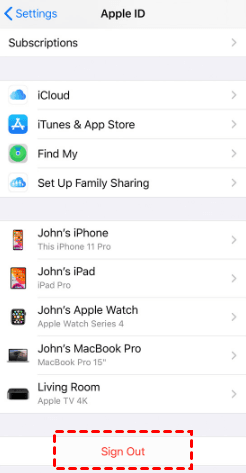
Step 4. Sign in to another Apple ID and click Merge > Go to iCloud and click Photos to sync photos from your old iCloud account to the new one.
Way 3. Transfer photos between iCloud accounts via Shared Albums
Or you can rely on the Shared Albums feature in Photos to move iCloud photos to another iCloud account. This way allows you to choose the photos you need to share and then invite people with another iCloud account to contribute to the album. Other people in this album can also view and download photos here.
The detailed steps are listed below:
Step 1. Go to Settings on your device > Click [your name] > Choose iCloud > Photos and enable Shared Albums.
Step 2. Launch the Photos app and choose the photos you need to share > Click Add to Shared Albums. You can add them to an exciting shared album or create a new shared album.

Way 4. AirDrop photos from one Apple ID to another Apple ID
As an official built-in feature, AirDrop allows you to easily transfer photos between Apple devices even if they are using different Apple IDs.
Step 1. Launch the Photos app from the source device and locate Share or the Share button. You can swipe left or right to select multiple photos.
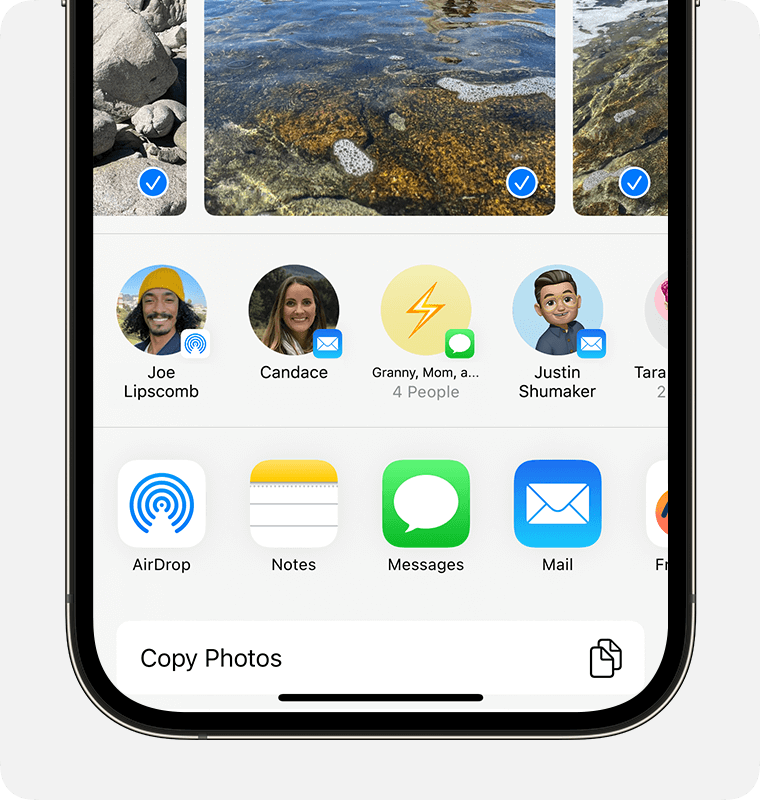
Step 2. Tap on the AirDrop button from the pop-up window > Choose the AirDrop user from the list to receive your photos > Tap Done to send files.
- Tip:
- For more Airdrop details, go to this how to transfer data from iPhone to iPhone using AirDrop guide.
Way 5. Move photos from one iCloud to another on Mac/PC
Except for operating from iPhone/iPad, you can also manually download and upload photos between your iCloud accounts from computer.
Step 1. Go to the iCloud website from your computer > Log in to your source iCloud account > Click the Photos option to view all your iCloud photos.
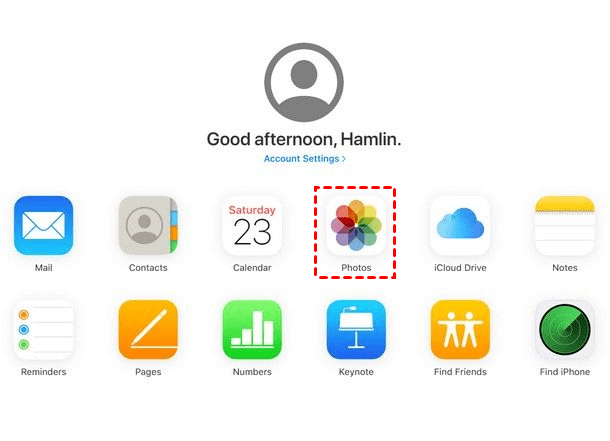
Step 2. Choose all the photos you need to transfer and download them to your Mac.
Step 3. Once all photos are saved to your computer, now you can log in to your new iCloud account to upload them.
Conclusion
This guide gives you 5 ways about how to transfer photos from one iCloud to another. You can accomplish the task on your iPhone/iPad directly, or make it from Mac/PC.
To mass transfer iCloud photos to another account, you can use the professional iCloud manager - FoneTool to help you speed up the process. With its powerful features, you can sync iCloud data in one click.
FoneTool - All-in-one iPhone Data Manager
Transfer, backup and manage data on iPhone, iPad and iPod touch in an easy way.
-
 iOS 27 Compatible
 iPhone 17 Supported
Windows 11/10/8/8.1/7

100% Secure

Kelsey is an English editor at FoneTool, passionate about helping users solve tech issues. She specializes in iPhone data management, backup, and recovery. In her free time, she enjoys learning IT skills and spending time with loved ones.
Read author info >>



 as a preferred
source on Google
as a preferred
source on Google