How to Backup Text Messages on iPhone Without iCloud Easily
If you need a way to back up text messages on iPhone without iCloud, this guide will help you a lot. You can choose FoneTool, iTunes or Gmail to make it in simple clicks. And FoneTool mentioned in Method 1 might be the best way!


Why backup iPhone text messages without iCloud?
Important text messages often accumulate on iPhones, requiring reliable backup solutions for data protection and storage management. Given iCloud's storage limitations and internet dependency, alternative backup methods provide more control and flexibility.
This guide presents three effective methods for backing up iPhone text messages without iCloud, including offline solutions that don't require internet connectivity.

1. How to backup text messages on iPhone without iCloud [Professional]
FoneTool provides the most comprehensive solution for selective text message backup from iPhone to PC, developed by a team with 15 years of data security experience.
Best & Recommended iPhone Data Backup Software
- Selectively backup text message to PC
- Preview and choose specific messages
- Backup 100 messages within 1 minute
- Customizable storage locations to save messages
- Directly check the backed-up messages from the backup
- Also allows backing up photos, videos, contacts, etc
Windows 11/10/8/8.1/7
100% Secure
Step 1. Install FoneTool > Connect iPhone via USB > Tap Trust.
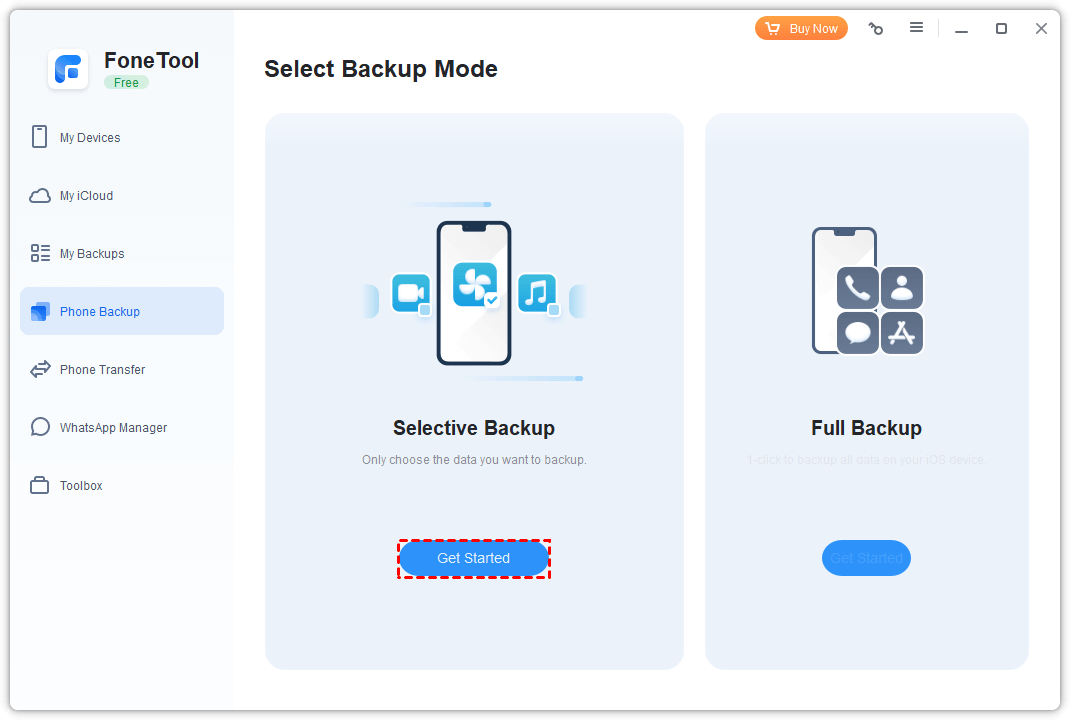
Step 2. Go to Phone Backup > Selective Backup > Get Started.
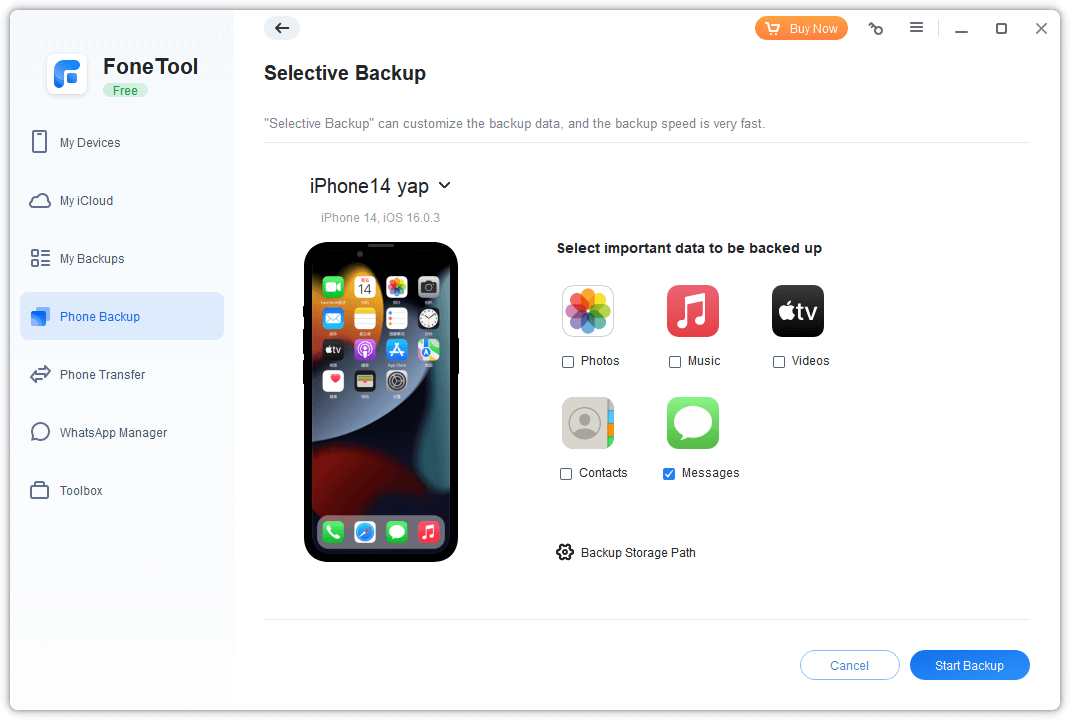
Step 3. Check Messages > Choose specific conversations > Tap OK.
Sep 4. Change the Backup Storage Path to save them as you like > Click Start Backup.
- ★Tips:
- Use Full Backup for a complete iPhone data backup without iCloud
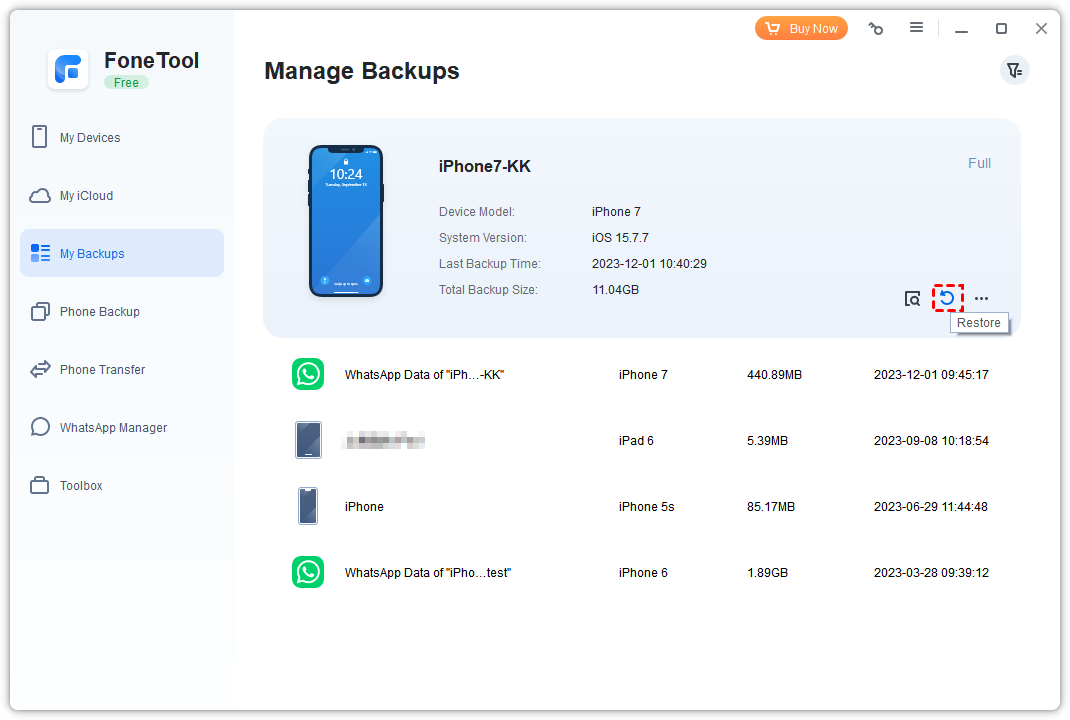
- Access My Backups to restore messages to any iOS device
- Perfect for transferring messages between devices without iCloud
2. How to backup iPhone text messages to computer with iTunes
iTunes provides official full-device backup capability, suitable for Windows and older macOS systems.
Step 1. onnect iPhone to computer via USB > Launch iTunes your PC or Mac.
Step 2. Click device icon > Click the Summary tab.
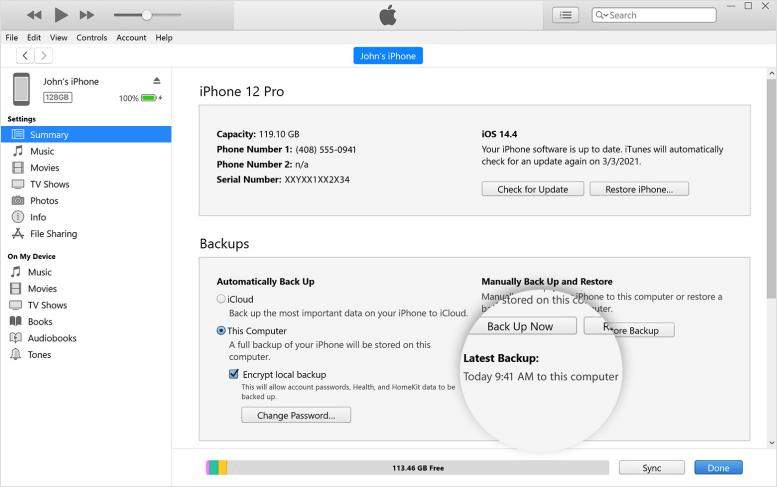
Step 3. Select This Computer under Backup (Optional: check the Encrypt iPhone Backup).
Step 4. Click Back Up Now to begin the task.
-
No selective message backup - entire device backup required
-
Backup files are inaccessible until restoration
-
No individual file preview or extraction
3. How to back up messages on iPhone with Gmail
Gmail offers simple text message forwarding for small-scale backups without computer requirements.
Step 1. Open Settings on iPhone > Scroll down to tap Messages.
Step 2. Choose the Text Message Forwarding option.
Step 3. Add Gmail account or linked device
FAQs about how to save text messages on iPhone
Conclusion
This guide demonstrates three effective methods for backing up iPhone text messages without iCloud dependency. For selective backup control, rapid transfer speeds, and immediate access to backed-up messages, FoneTool provides the optimal solution. Its additional capabilities for photos, videos, WhatsApp, and complete device backups make it the most versatile choice for comprehensive iPhone data management.
FoneTool - All-in-one iPhone Data Manager
Transfer, backup and manage data on iPhone, iPad and iPod touch in an easy way.
-
 iOS 27 Compatible
 iPhone 17 Supported
Windows 11/10/8/8.1/7

100% Secure

Kelsey is an English editor at FoneTool, passionate about helping users solve tech issues. She specializes in iPhone data management, backup, and recovery. In her free time, she enjoys learning IT skills and spending time with loved ones.
Read author info >>



 as a preferred
source on Google
as a preferred
source on Google