[3 Free Ways] Transfer Text Messages from iPhone to Computer
Learn how to transfer text messages from iPhone to computer for free using 3 proven methods: FoneTool (selective transfer), iTunes (full backup), and iMessages (Mac sync).


Why You Should Transfer iPhone Messages to Computer?
The Messages app contains valuable conversations, photos, videos, and attachments. Learning how to transfer text messages from iPhone to computer for free helps preserve memories, maintain important conversation records, and free up device storage space.
Whether you use Windows PC or Mac, this guide provides free methods to save your iPhone messages effectively.
| Method | Speed | Ease of Use | Compatible Devices | Features |
|---|---|---|---|---|
| 👍🏻FoneTool | Fast | Very Easy | Windows PC | Selective transfer, direct message viewing, no data loss |
| iTunes | Slow | Medium | Windows PC, Mac | Full device backup only, cannot view messages directly |
| iMessages | Medium | Easy | Mac | Automatic sync for Mac users, requires iCloud |
Way 1. How to Transfer Text Messages from iPhone to PC for Free
FoneTool provides the most efficient way to transfer text messages from iPhone to computer for free. This tool enables quick, secure message transfers with selective backup options. Unlike iTunes, FoneTool allows you to select messages and save only the ones you want, and then you can view iPhone messages on computer directly.
- Selective Transfer: Preview and choose specific messages without full device backup.
- Simple Interface: Easy navigation for all user levels.
- Quick Process: Complete transfers in few clicks.
- No Data Loss: No overwriting of existing messages.
- Wide Compatibility: Supports various Windows and iOS versions.
Windows 11/10/8/8.1/7

100% Secure
Now, download FoneTool and follow the easy guide to learn how to download text messages from iPhone to computer free.
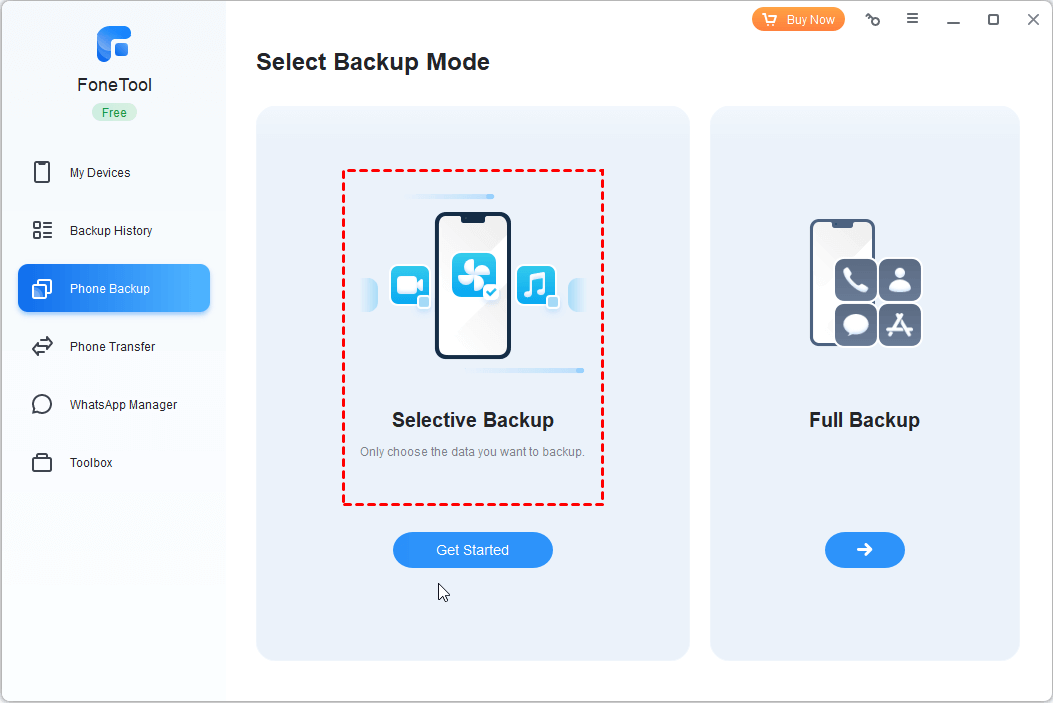
Step 1. Connect iPhone to computer via USB > Launch FoneTool > Navigate to Phone Backup > Select Selective Backup > Tap Get Start.
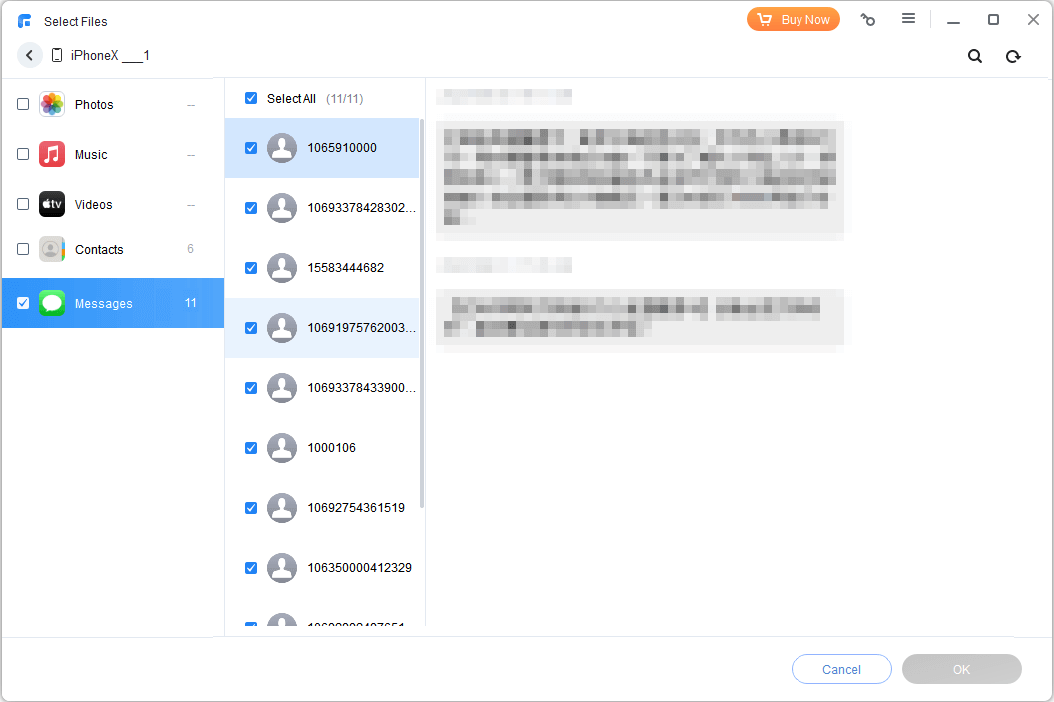
Step 2. Click Messages icon > Preview and select specific conversations > Use Select All for complete transfer > Tap OK to confirm.
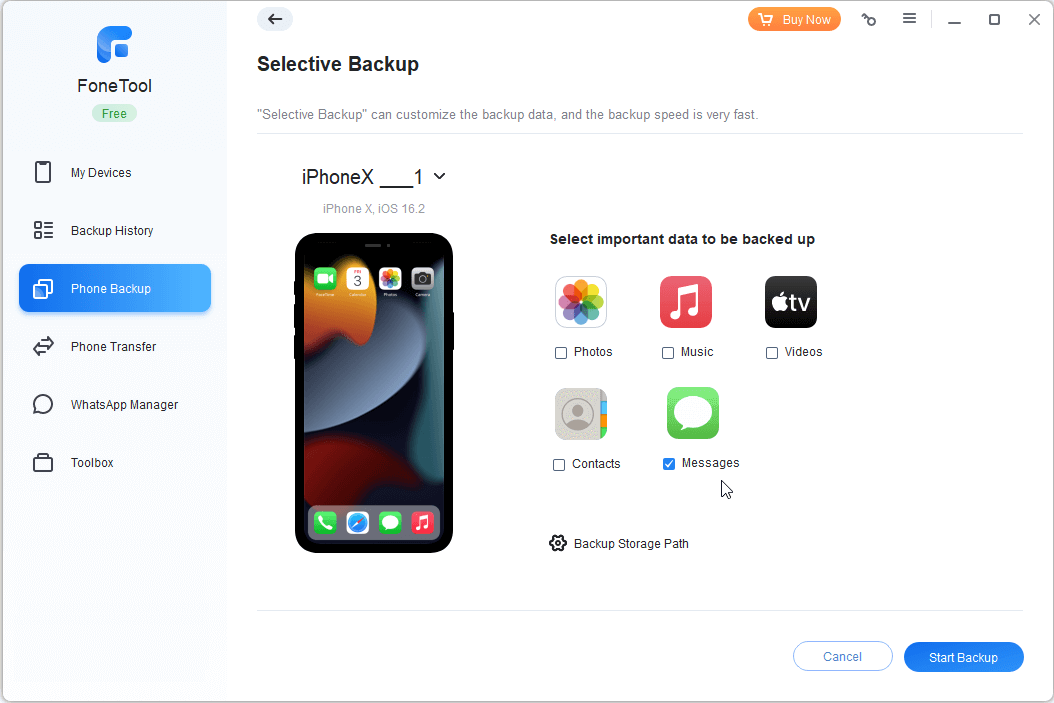
Tip: FoneTool aslo support you backup photos, music, videos, contacts from iPhone to PC.Step 3. Choose storage location on computer > Tap Start Backup to begin transfer process.
Restore Messages to iPhone:
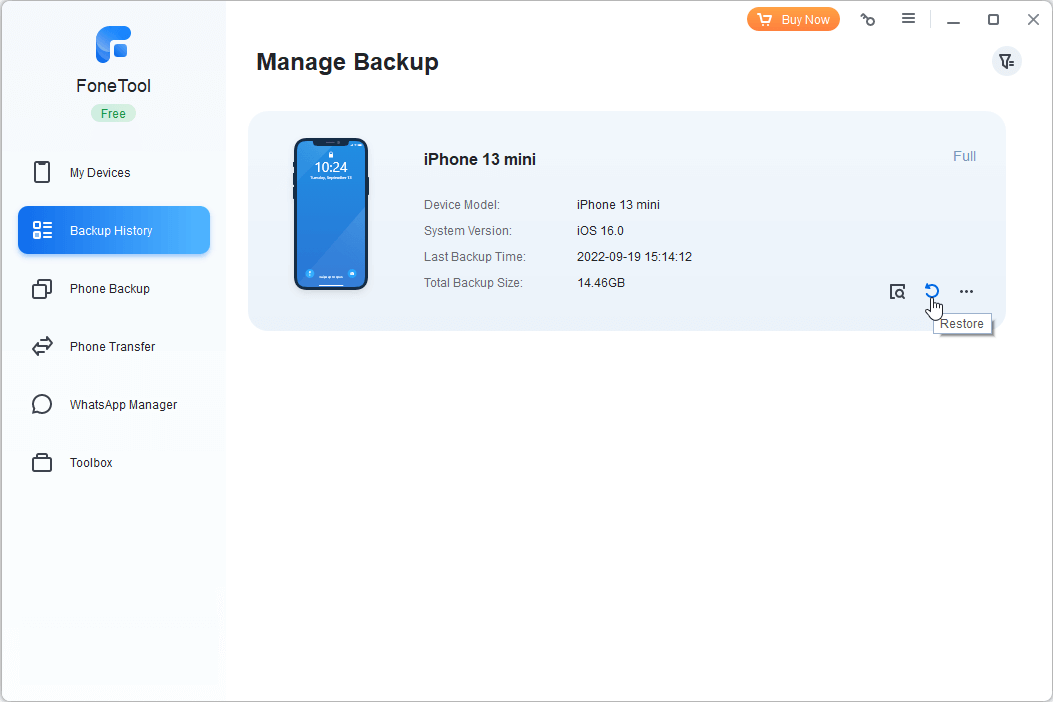
When you need to transfer messages to iPhone, connect iPhone > Go to My Backups > Select Restore > Choose Messages icon to restore previous conversations without data loss.
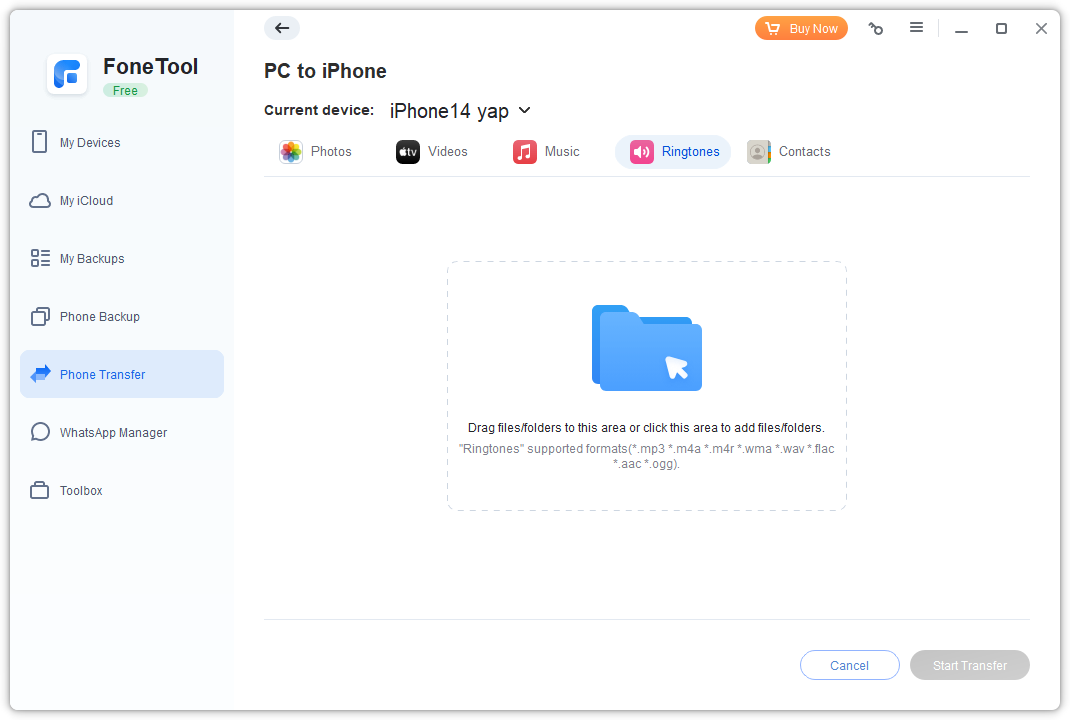
By the way, as a professional iOS data management tool, FoneTool not only has the backup function, but also supports you to transfer iPhone data to iPhone/iPad/PC and vice versa. For example, you can transfer ringtones from computer to iPhone with ease!
Way 2. How to Transfer Messages from iPhone to Computer via iTunes
iTunes creates complete iPhone backups containing messages, but doesn't allow selective transfers or direct message viewing on computer. Here is the guide to learn how to transfer messages from iPhone to computer for free:
Step 1. Connect iPhone to computer > Launch iTunes > Tap Trust on iPhone when prompted.
Step 2. Click Device tab > Summary > This Computer > Select Back Up Now.
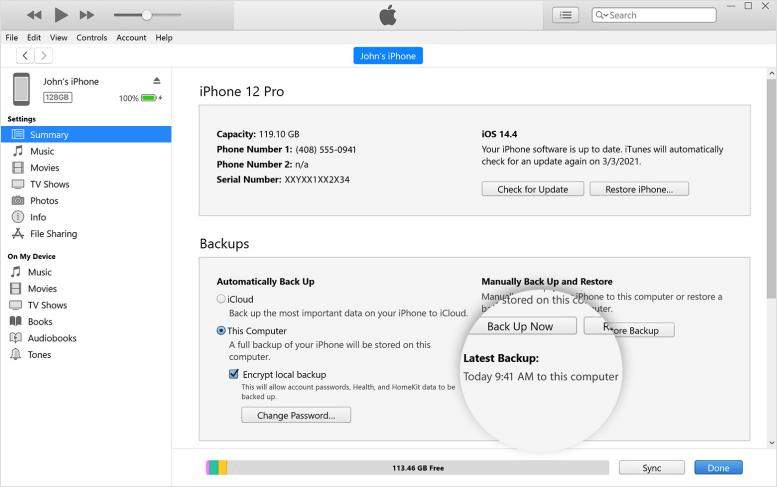
Step 3.Wait for backup completion > Messages are now stored within the backup file.
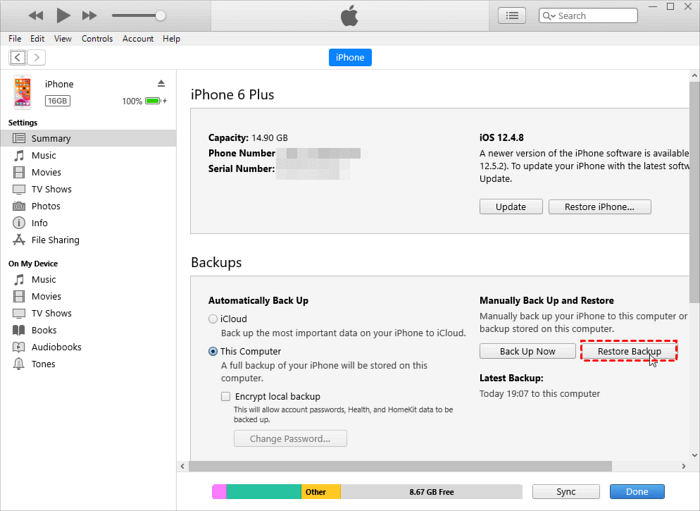
Tip: Need to locate iPhone backup on PC? Check our separate guide for detailed file location information.Way 3. How to Export iPhone Messages to Computer by iMessages (Mac)
For Mac users, iMessage sync provides automatic message transfer through iCloud.
- Notes:✎...
-
Synced messages delete from both devices if removed from iPhone
-
Recommended for message synchronization, not permanent backups
-
Use FoneTool or iTunes for proper message backups
Check the guide to learn how to copy text messages from iPhone to computer:
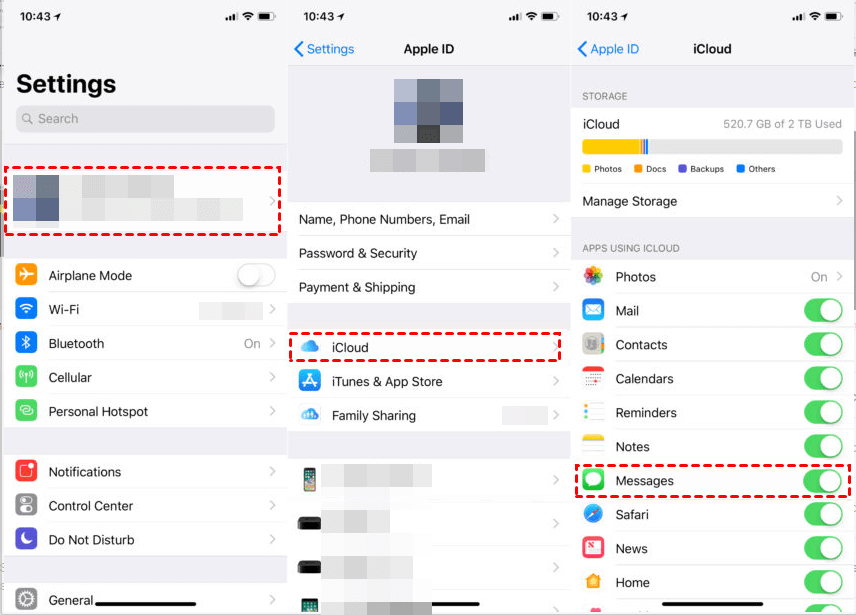
Step 1. On iPhone: Settings > Apple ID > iCloud > Enable Messages toggle.
Step 2. On Mac: Open Messages app > Sign in with same Apple ID used on iPhone.
Step 3. Messages automatically sync between devices via iCloud.
Conclusion
That’s all about how to transfer text messages from iPhone to computer for free.
-
FoneTool: Most versatile option with selective transfers and direct viewing
-
iTunes: Reliable for complete backups but lacks selective functionality
-
iMessages: Convenient for Mac users but not ideal for large-scale transfers
Select the method that best fits your needs. For optimal flexibility and control, download FoneTool to experience seamless message transfers.
FoneTool - All-in-one iPhone Data Manager
Transfer, backup and manage data on iPhone, iPad and iPod touch in an easy way.
-
 iOS 27 Compatible
 iPhone 17 Supported
Windows 11/10/8/8.1/7

100% Secure

Kelsey is an English editor at FoneTool, passionate about helping users solve tech issues. She specializes in iPhone data management, backup, and recovery. In her free time, she enjoys learning IT skills and spending time with loved ones.
Read author info >>



 as a preferred
source on Google
as a preferred
source on Google