How to Change iTunes Backup Location on Windows/Mac (3 Methods)
Running out of storage on your main drive? This guide will show you exactly how to change iTunes backup location on both Windows and Mac. Plus, discover FoneTool - an easier way to manage iPhone backups with custom locations.


Why Change iTunes Backup Location?
If your primary drive is running low on free space, it might be wise to learn how to change iTunes backup location. So can you move iTunes backup to another drive? Whether you use a PC or a Mac, you can move iTunes backups to a custom location to optimize storage.
This guide provides detailed steps to findiTunes backup on Windows and Mac systems, and explains how to set custom iTunes backup locations. Additionally, it offers a superior alternative for comprehensive iPhone backup management.
Method 1. Change iTunes Backup Location on Windows PC
On your Windows, just follow a few simple steps to learn how to change backup location of iTunes. iTunes backs up your data to a default directory, so you can move this backup to another drive or folder to change it.
Where Is iTunes Backup on Windows 11/Windows 10?
Where is iPhone backup stored on PC? By default, iTunes stores backups in this directory:
Windows 11/10: C:\Users\[your username]\AppData\Roaming\Apple Computer\MobileSync\Backup
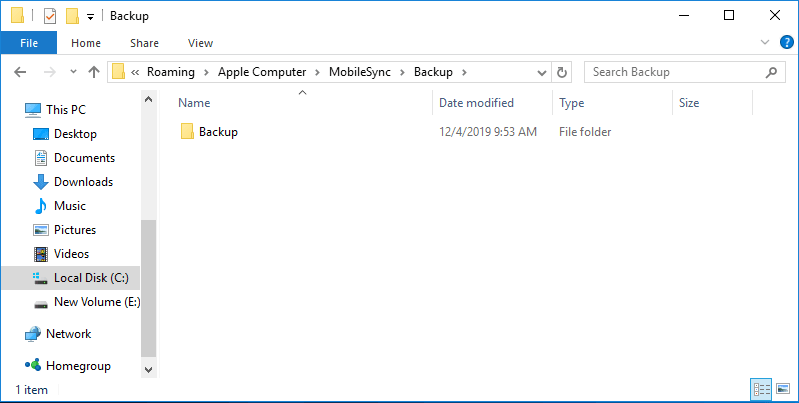
Access this location via Start Menu Search or directly through File Explorer.
Simple Steps to Change the Location of iTunes Backup on Windows
Follow the steps below to learn how to change the iTunes backup location.
📝Note:
- Before making any changes, ensure that iTunes is closed.
Step 1. Create a new folder on your desired drive (e.g., "D:\iTunes Backup").
Step 2. Open Command Prompt as Administrator (Win + X).
Step 3. Type the following command to create a symbolic link that points the iTunes backup folder to the new location.
mklink /J "C:\Users\[Your Username]\AppData\Roaming\Apple Computer\MobileSync\Backup" "D:\iTunes Backup"
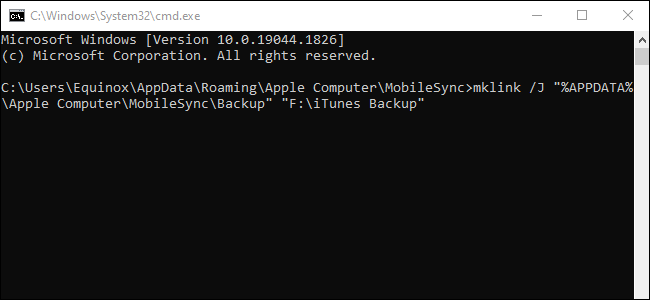
Stpe 4. Replace the second path with your new folder location.
Step 4. Restart computer - future backups will save to the new location.
Method 2. Move iTunes Backup Location on Mac
On a Mac, you can also move the iTunes backup location to move your backups to another drive.
Where is iPhone Backup on Mac?
On macOS, iTunes (or Finder on macOS Catalina and later) stores backups in the following directory:
/Users/[Your Username]/Library/Application Support/MobileSync/Backup
Steps to Change iTunes Backup Location on Mac
Now, learn how to move iTunes backup location to another drive or folder to manage your space more efficiently.
📝Note:
- Before you proceed with changing your backup location, make sure that iTunes or Finder are not running.
Step 1. Create a new folder on your external drive (e.g., "iTunes Backups").
Step 2. Open Terminal (Finder > Applications > Utilities > Terminal).
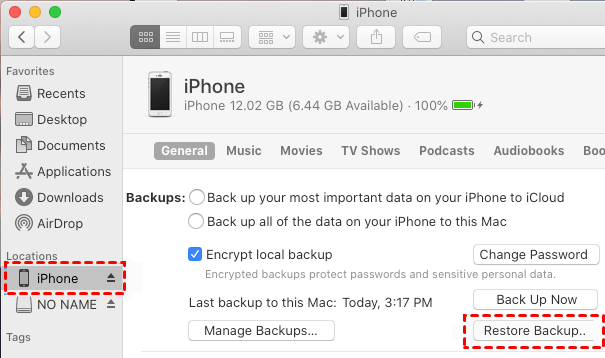
Step 3. Then enter the following command to the window. It can redirect iTunes backup files to the new folder.
ln -s /Volumes/[External Drive]/iTunes \ Backup /Users/[Username]/Library/Application\Support/MobileSync/Backup
Step 4. Press Enter and provide admin password if prompted.
Step 5. Restart Mac - backups will now save to the new location.
Method 3. Better Alternative for Flexible iPhone to PC Backups
While changing iTunes backup locations requires technical steps, FoneTool provides a user-friendly alternative with enhanced backup management.
Powerful iPhone data management tool to backup iPhone without iTunes or icloud
- Custom Location Support: Backup to external drives, SSD, USB, or NAS
- Easy Path Modification: Change locations without complex procedures
- Selective Backup: Choose specific data types instead of full device backup
- No Storage Limits: Backup complete iPhone data without restrictions
- User-Friendly Interface: Simple clicks to manage backups

100% Secure
Step 1. Download and launch FoneTool > Connect iPhone via USB cable.
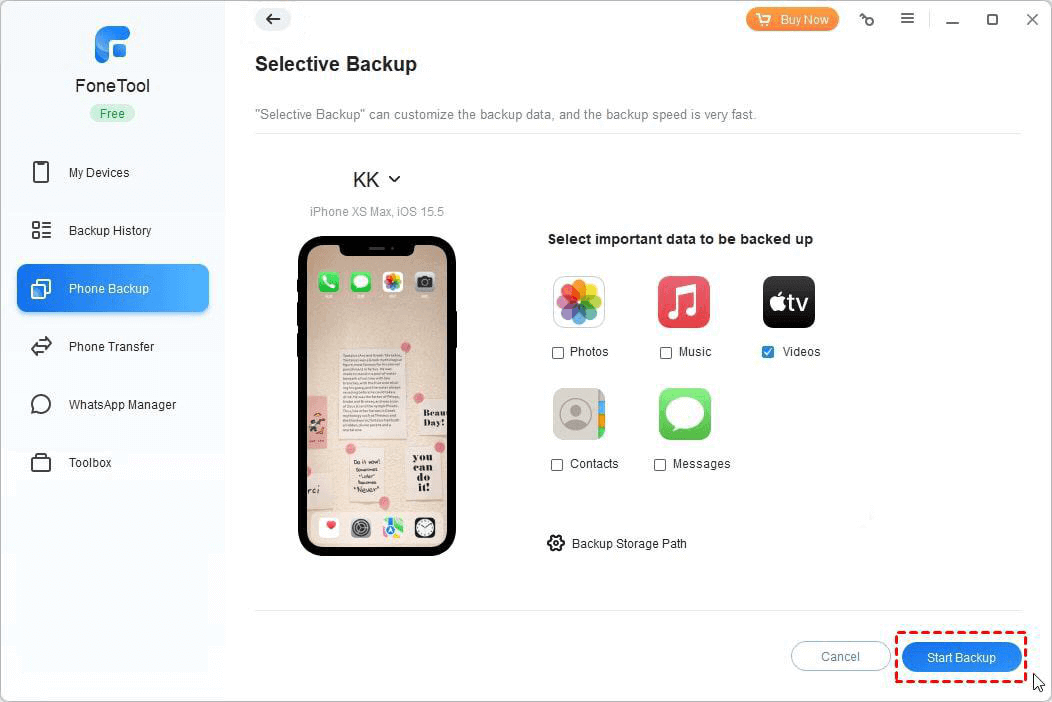
Step 2. Navigate to Phone Backup > Choose Selective Backup (or Full Backup).
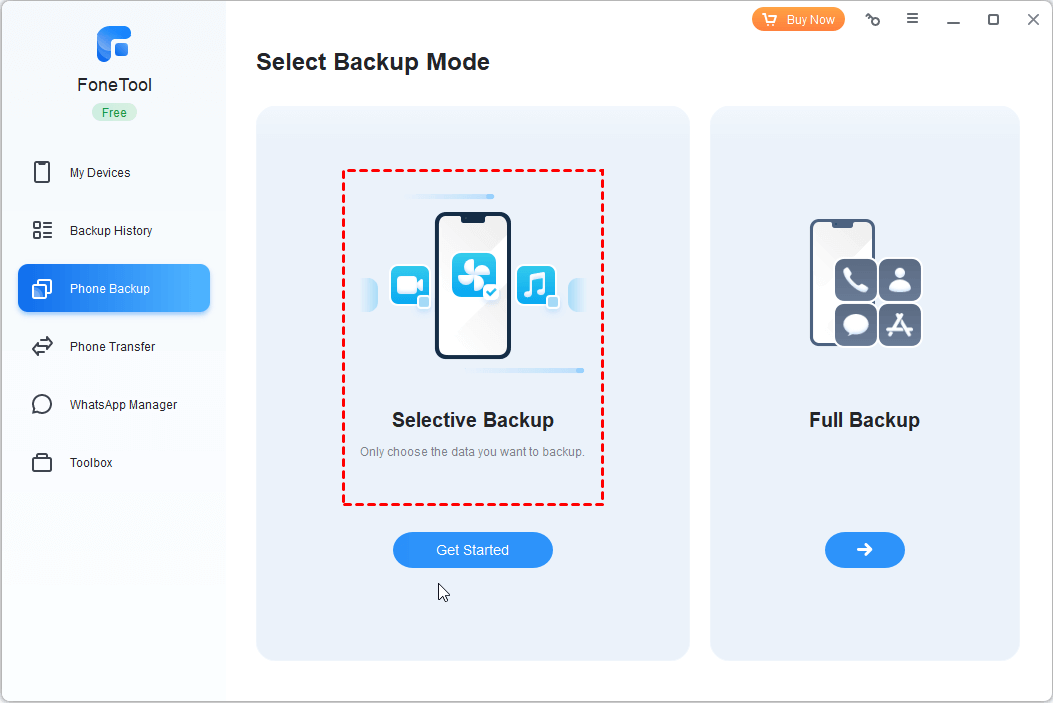
Step 3. Click file icons to preview and select specific data types.
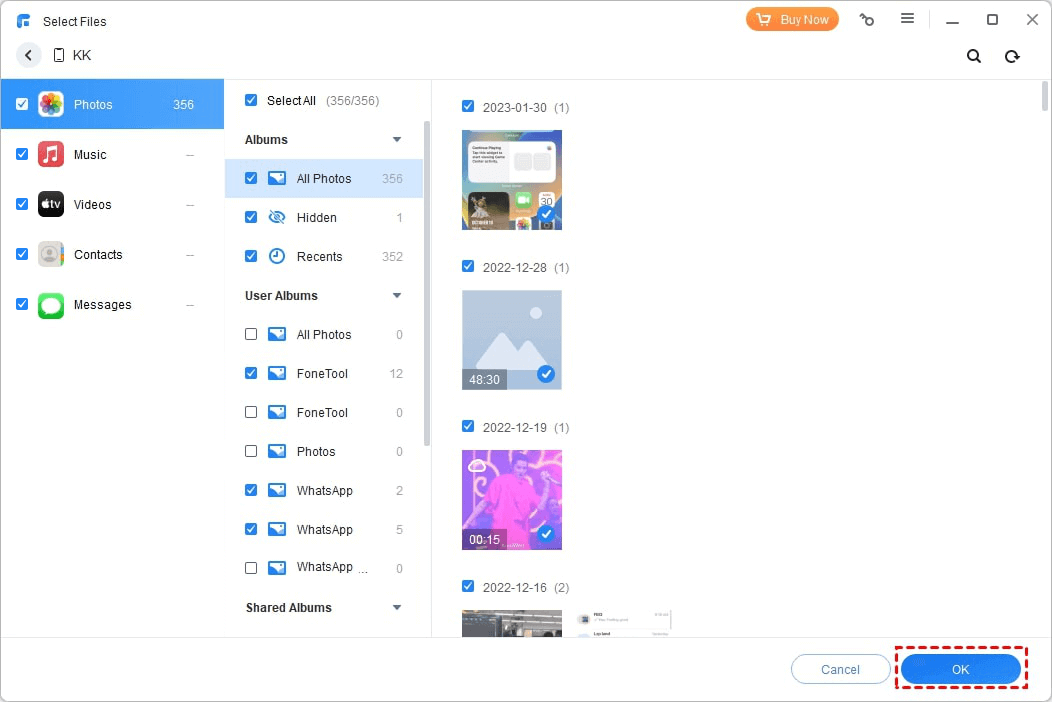
Step 4. Click Backup Storage Path to set custom location > Click Start Backup.
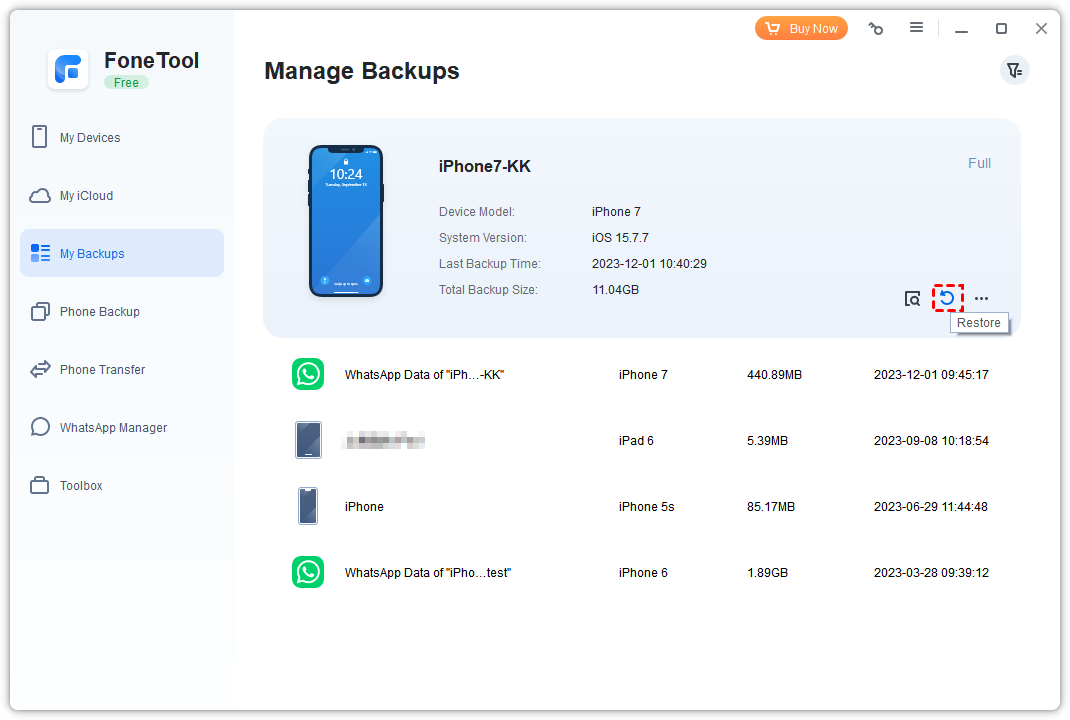
Performance Note: FoneTool backs up 100+ photos in approximately 3 seconds. Access all backups via My Backups section for viewing or restoration.
FAQs on iTunes Backup
Conclusion
Changing iTunes backup location on Windows or Mac requires technical steps like creating symbolic links through Command Prompt or Terminal. For a more user-friendly solution, FoneTool provides superior backup management with customizable locations, selective backup options, and intuitive operation.
Beyond iPhone selective backup, FoneTool enables complete iPhone data transfer between devices and computers. Download FoneTool today for streamlined iPhone data management.
FoneTool - All-in-one iPhone Data Manager
Transfer, backup and manage data on iPhone, iPad and iPod touch in an easy way.
-
 iOS 27 Compatible
 iPhone 17 Supported
Windows 11/10/8/8.1/7

100% Secure

Kelsey is an English editor at FoneTool, passionate about helping users solve tech issues. She specializes in iPhone data management, backup, and recovery. In her free time, she enjoys learning IT skills and spending time with loved ones.
Read author info >>



 as a preferred
source on Google
as a preferred
source on Google