5 Fast Ways to Transfer Data from iPhone to iPhone 16/17
Need transfer data from iPhone to iPhone 16/17? Explore 5 easy methods to transfer data to new iPhone with or with iCloud, using Quick Start, iTunes and AirDrop.


Preparing for Your iPhone 16/17 Upgrade
Recently, Apple released the latest iPhone 17. The new iPhone has been upgraded in terms of chips, lenses, buttons, AI, etc. If you plan to buy the latest iPhone 16, then you need to be prepared to transfer data from iPhone to iPhone 16/17.
- ★Tip:
- Is it worth to switch old iPhone to new iPhone 16? You can learn things about iPhone 16 features in this link.
This guide presents 5 effective methods for transferring all data or specific content like WhatsApp to your new iPhone, with comprehensive comparison of their advantages and limitations.
5 Ways to Convert Old iPhone to iPhone 16/17
| Methods | Transfer |
Network/Wi-Fi Requires |
Easy/Difficulty |  Pros Pros |
Cons |
| FoneTool | Fastest |
X |
Easy | Selective large file transfer, No network needed, One-click operation | Requires computer |
| iCloud | Slow |
√ |
Medium | Anytime access, Automatic syncing | Limited free storage, Network dependent |
| Quick Start | Fast |
√ |
Easy | Built-in functionality |
Requires device proximity, Compatibility dependent |
| iTunes | Medium |
X |
Medium | Large capacity support | Full backup only, Device proximity needed |
| AirDrop | Slow |
√ |
Easy | Intuitive operation | Small files only, Limited range |
How to Transfer Data from iPhone to iPhone 16/17 Without iCloud
FoneTool, a professional iPhone to iPhone transfer app, simplifies the process of transferring old iPhone to new iPhone. With just 3 simple steps, you can transfer all the data from your old phone to your new phone in one click, without iCloud dependency or network requirements.
√ User-Friendly Interface: Simple clicks complete transfers
√ One-Click Operation: Fastest transfer speed available
√ Selective Transfer: Choose specific data like WhatsApp, photos, messages
√Offline Capability: USB connection ensures stable, fast transfers
√ No Apple ID Limits: Transfer between different Apple IDs
√ All-in-One Features: Includes backup, data erasure, iCloud management
Now, you can free download FoneTool and learn how to transfer everything from iPhone to iPhone without iCloud.
Step 1. Open FoneTool > Connect both iPhones to computer via USB.
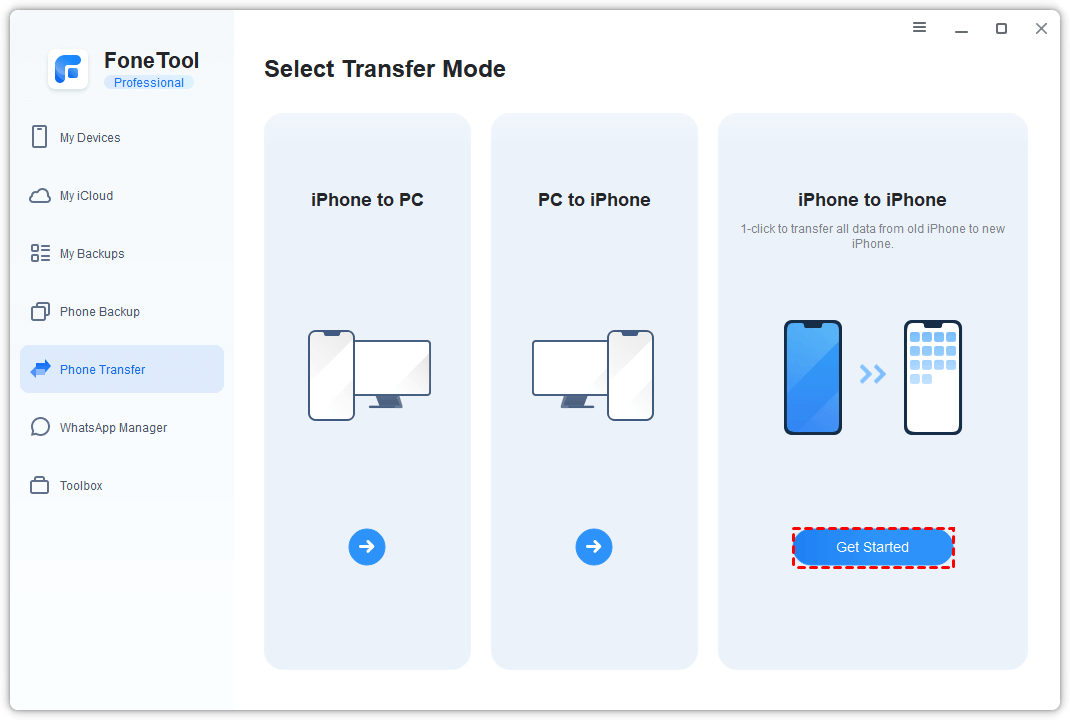
Step 2. Click Phone Transfer on the left panel > Go to iPhone to iPhone > Tap Get Started.
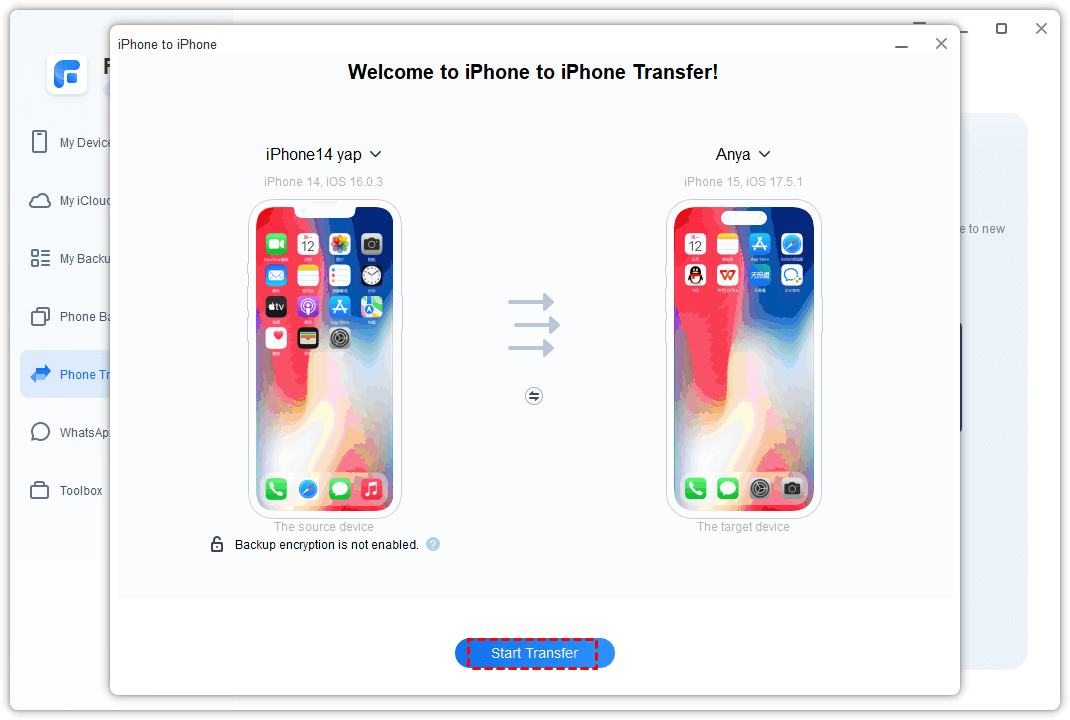
Step 3. Enable backup encryption for security > Start Transfer.
- ★Additional Feature:
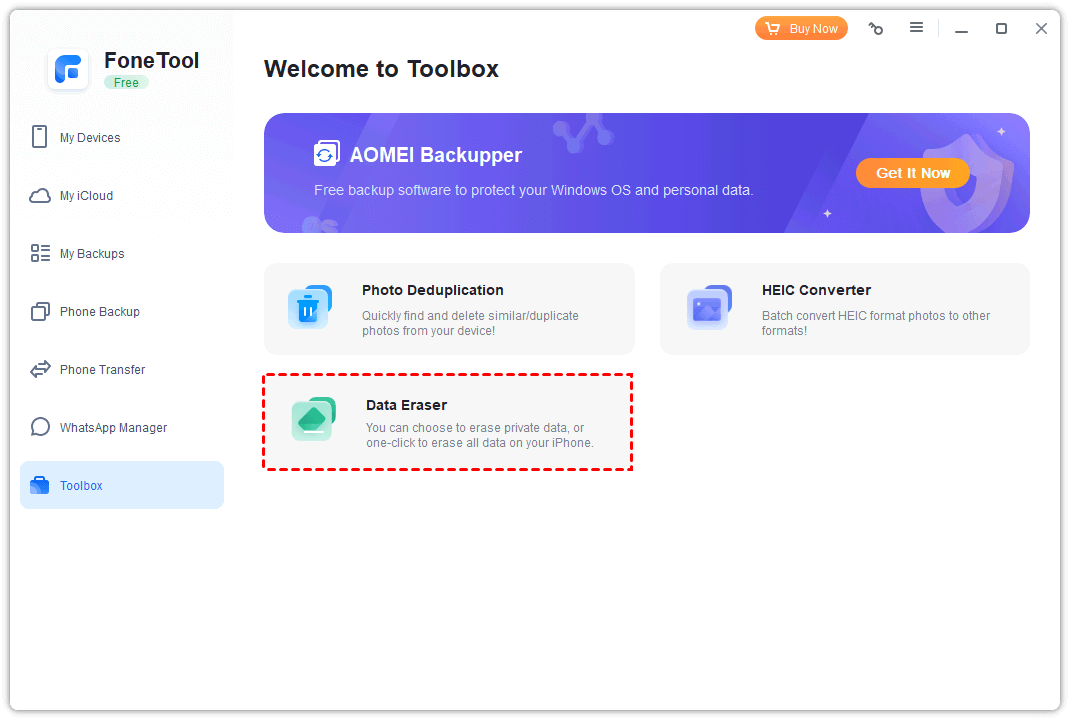
- Use Toolbox > Data Eraser > Erase all data to reset iPhone to factory settings before selling.
How to Sync Everything from iPhone to iPhone with iCloud
iCloud enables wireless data transfer between iPhones, though with slower speeds and storage limitations. Follow the steps to transfer data from iPhone to new iPhone with iCloud.
Note:
- iCloud provides only 5GB free storage. For larger backups, use FoneTool without storage limitations.
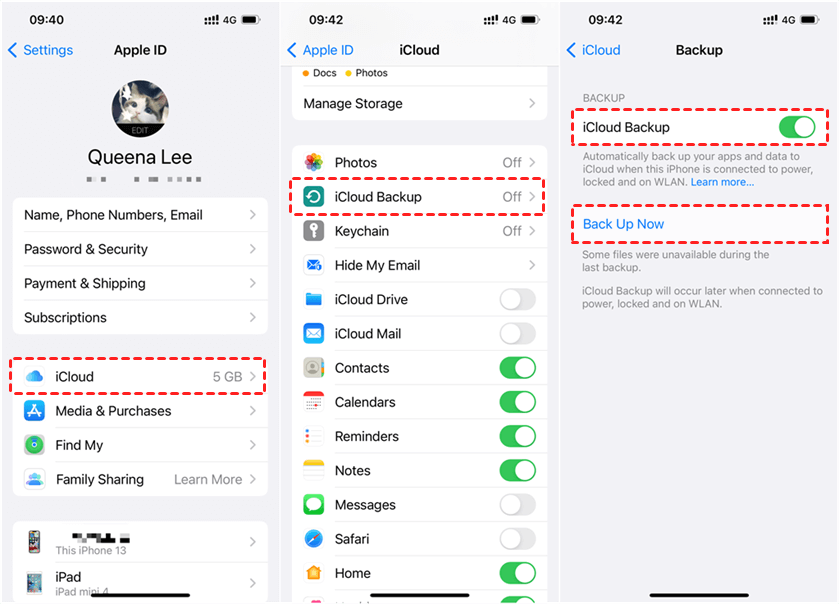
Step 1. On Old iPhone: Settings > [your name] > iCloud > iCloud Backup > Enable > Back Up Now.
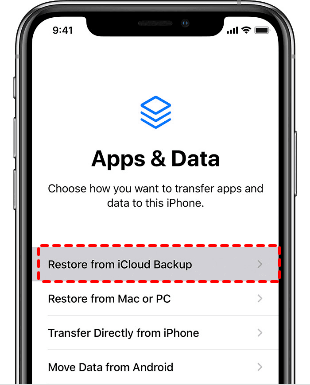
Step 3. On New iPhone: Setup process > Restore from iCloud Backup.
How to Transfer All Data from Old iPhone to New iPhone by Quick Start
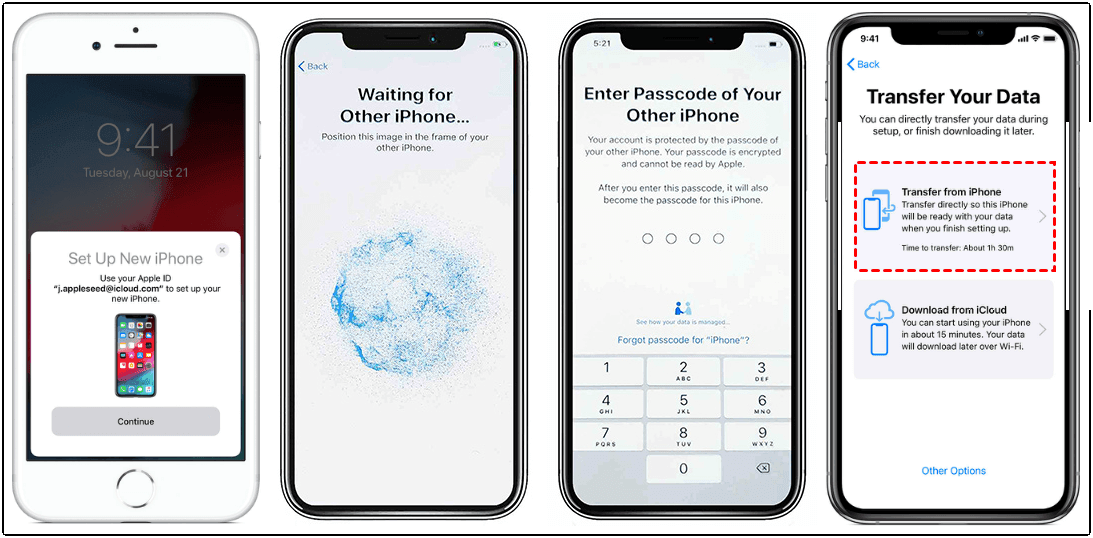
Apple's built-in Quick Start facilitates direct device-to-device transfers using Bluetooth and WiFi. Let's transfer data from iPhone to iPhone 16/17.
Step 1. Place two iPhones close to each other > Wait for Quick Start screen.
Step 2. Confirm the Apple ID and tap Continue.
Step 3. Enter passcode on new iPhone > Setup Face ID/Touch ID.
Step 4. On the Transfer Your Data screen > Select Transfer from iPhone.
How to Move Data from Old iPhone to iPhone 16/17 with iTunes
iTunes provides official wired transfer capability through computer-based backup and restoration.
Note:
- The restore process will overwrite the data on your new iPhone.
- You cannot transfer non-purchased data to a new iPhone.
- Backups and restores can take a long time to complete.
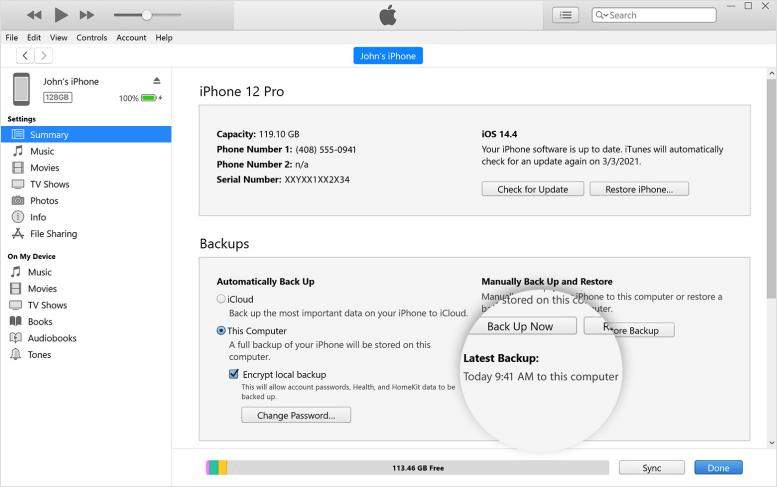
Step 1. Connect old iPhone > Download and launch the latest version of iTunes.
Step 2. Tap the Device tab > Summary > This Computer > Choose Back Up Now.
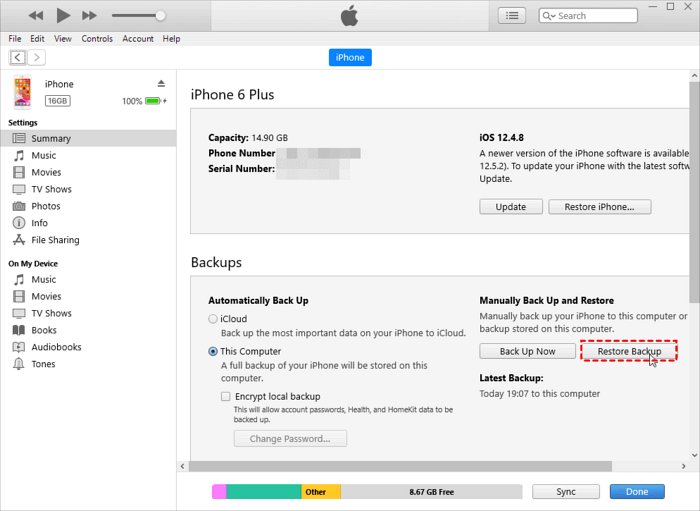
Step 3. Connect new iPhone > Summary > Restore Backup > Select backup > Restore.
How to Send Data from iPhone to iPhone using AirDrop
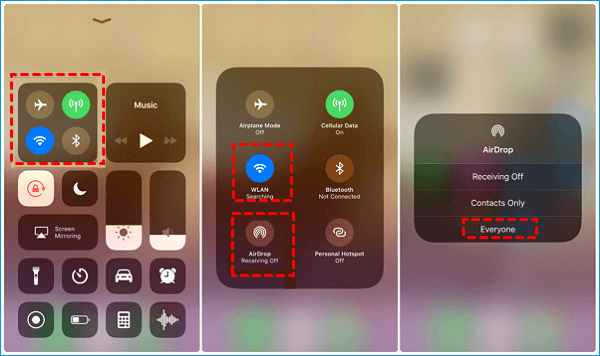
AirDrop enables wireless transfer of individual files between nearby iPhones, suitable for transferring small amounts of photos, videos, contacts, music and other files to new iPhone 16/17. Here are the detailed step-by-step instructions to transfer data from old iPhone to iPhone 16/17 wirelessly:
Step 1. Enable Bluetooth and Wi-Fi on both iPhones > Open AirDrop and select Everyone.
Step 2. Select files (contacts, photos, etc.) > Share > AirDrop > Choose target device.
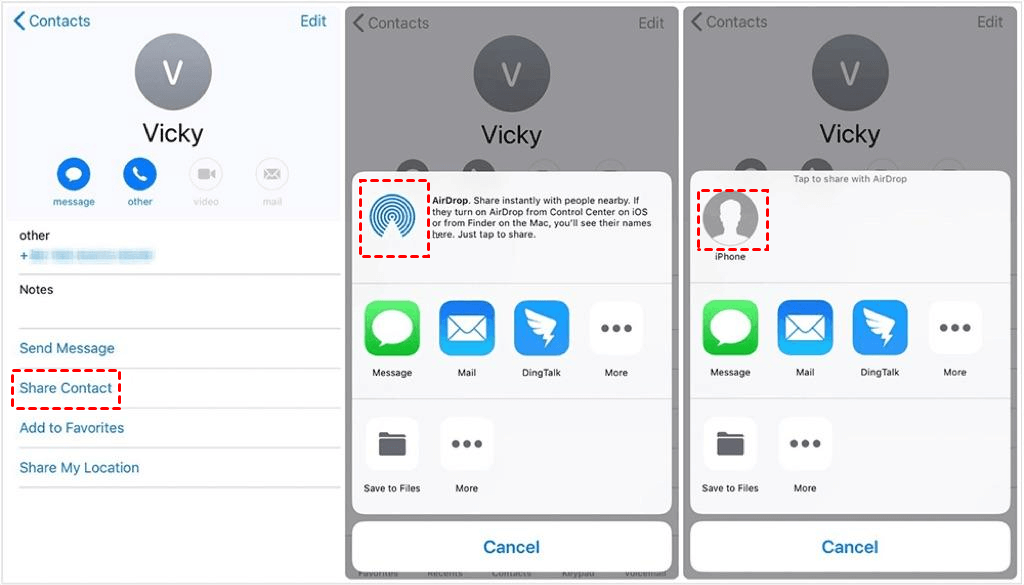
Step 3. Accept transfer on receiving iPhone.
Conclusion
That’s all about how to transfer data from iPhone to iPhone 16/17. You can choose the right method according to your needs. Each method has its own advantages and disadvantages, and choosing the suitable method depends on your speed needs, whether you use a computer, and the size of the file to be transferred.
If you care about speed and don't want to rely on the Internet, and don't lose any data on the old iPhone and the new iPhone, then FoneTool is the best choice to complete the transfer quickly and stably.
FoneTool - All-in-one iPhone Data Manager
Transfer, backup and manage data on iPhone, iPad and iPod touch in an easy way.
-
 iOS 27 Compatible
 iPhone 17 Supported
Windows 11/10/8/8.1/7

100% Secure

Kelsey is an English editor at FoneTool, passionate about helping users solve tech issues. She specializes in iPhone data management, backup, and recovery. In her free time, she enjoys learning IT skills and spending time with loved ones.
Read author info >>



 as a preferred
source on Google
as a preferred
source on Google