How to Print Text Messages from iPhone - 3 Easy Ways
From this post, you can learn how to print text messages from iPhone easily. It provides three effective methods, including screenshots, using a tool, and email.


How Do I Print an Entire Text Conversation from My iPhone?
Need to print iPhone text messages for legal records, business documentation, or sentimental keepsakes? While the Messages app doesn't offer direct printing, these three straightforward methods show you how to print text messages from iPhone, get those important conversations on paper quickly.

Method 1. Print iPhone Text Messages by Phone Screenshots
Perfect for short conversations, the screenshot method lets you quickly capture and print messages directly from your iPhone. Let's learn how to print a text message from iPhone without computer
Step 1. Open your Messages app and navigate to the conversation you want to print.

Step 2. Press the Side button and Volume Up button simultaneously to capture screenshots (for iPhone X and later).
.png)
Step 3. Repeat until you've captured the entire conversation, then open Photos to review your screenshots.
Step 4. Select all conversation screenshots and choose the Print option.
📝 Note:
For longer conversations, this method requires multiple screenshots and may result in varying print quality depending on image resolution.Method 2. Print Entire Text Messages from iPhone by FoneTool
When you need to print complete message threads with professional formatting, FoneTool provides the most efficient solution, which can quickly backup text messages from your iPhone in text format and then print them out from your computer.
- ★ Highlights of FoneTool:
-
✔ Complete conversations: Export and print entire message threads in one click
✔ Text format preservation: Maintain clear, readable text quality for printing
✔ No message limits: Handle conversations of any length without restrictions
✔ Offline functionality: Work without an internet connection during the process
✔ Powerful function support: Export & print WhatsApp messages, and iPhone transfer, backup and management
Now, you can download FoneTool and follow the guide to learn how to print all text messages from iPhone with 1-Click.
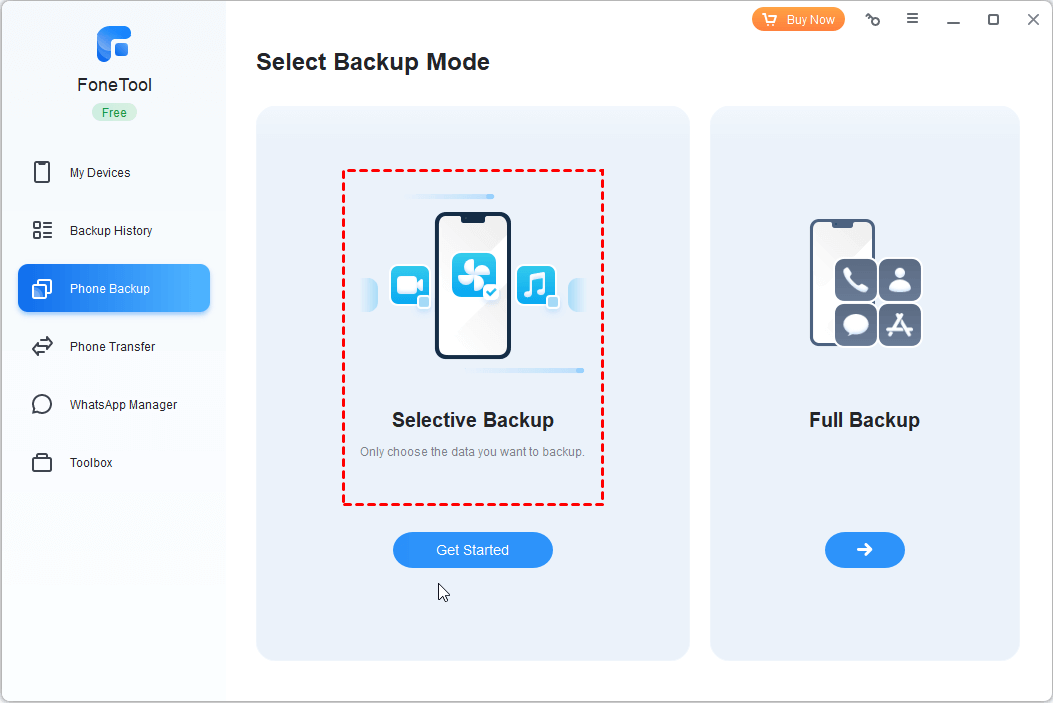
Step 1. Connect your iPhone to computer and launch FoneTool. Select Phone Backup > Selective Backup.
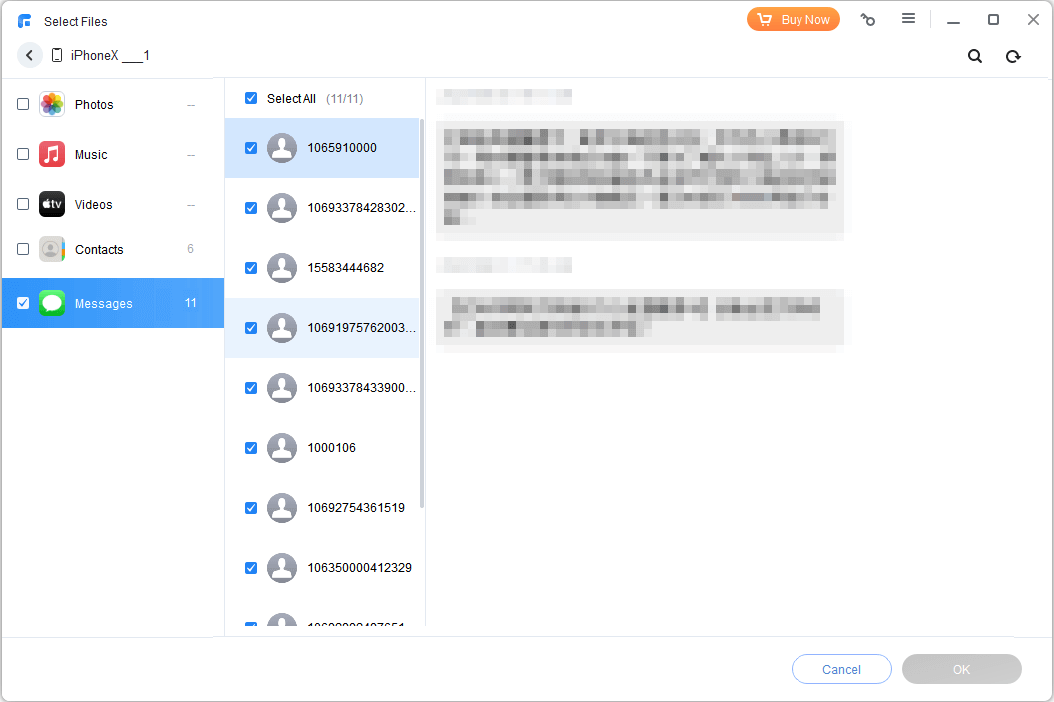
Step 2. Check the Messages icon and choose specific conversations or Select All for complete backup.
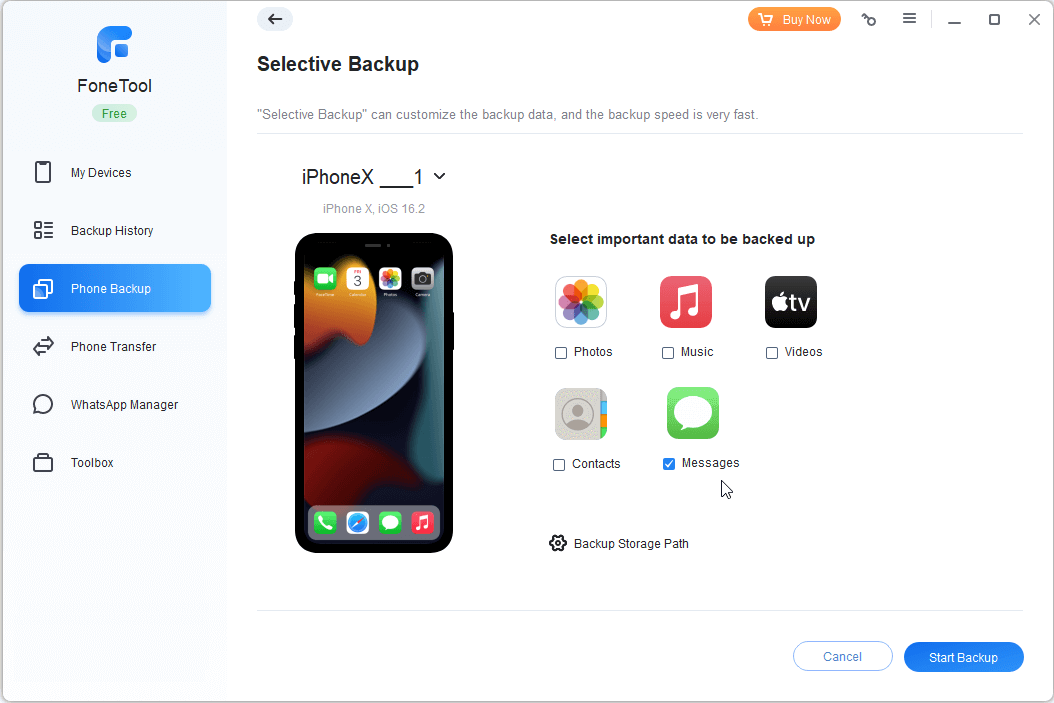
Step 3. Choose a computer storage location and click Start Backup to transfer messages.
Step 4. Access the saved messages folder, select your conversations, and print directly from your computer.
 Also Read:
 Bonus Tip: How to Print WhatsApp Conversation Easily
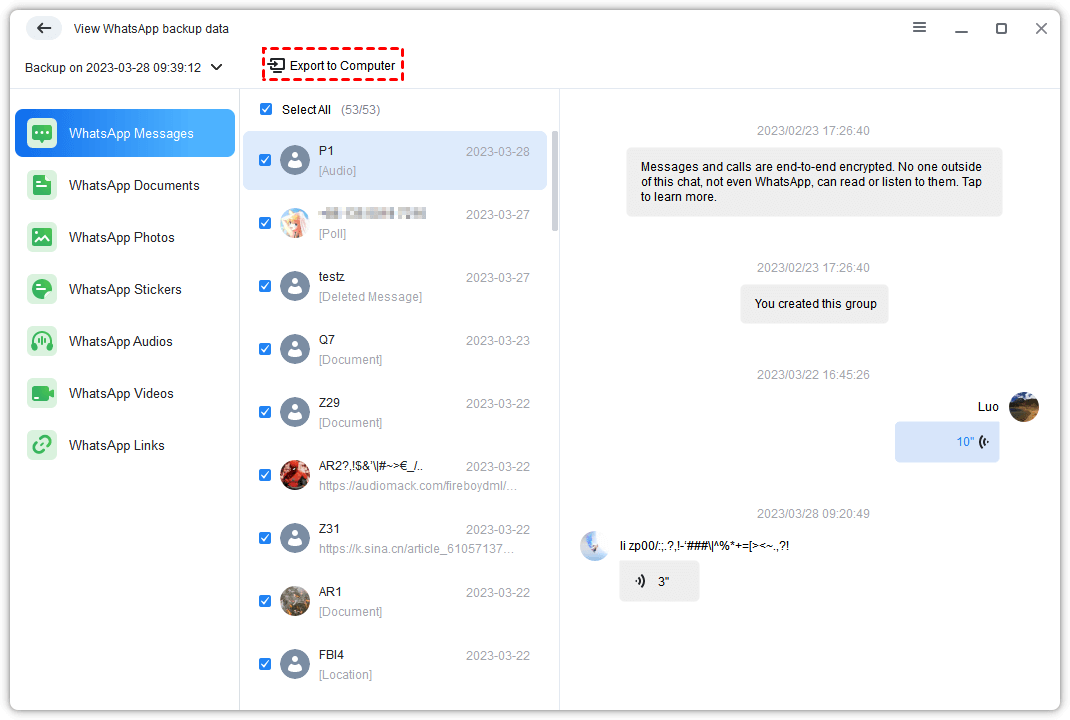
FoneTool can also help you backup and export all WhatsApp chats at once, simplifies printing your WhatsApp chat history with the same efficient process.
Best iPhone WhatsApp Data Manager - FoneTool
- Export WhatsApp / WhatsApp chats, stickers, photos, videos, etc.
- Easily backup WhatsApp / WhatsApp Business on iPhone to PC without iCloud.
- One-click to transfer WhatsApp from iPhone to iPhone without losing data.
- Support all iOS version, including the latest iOS 18/26.
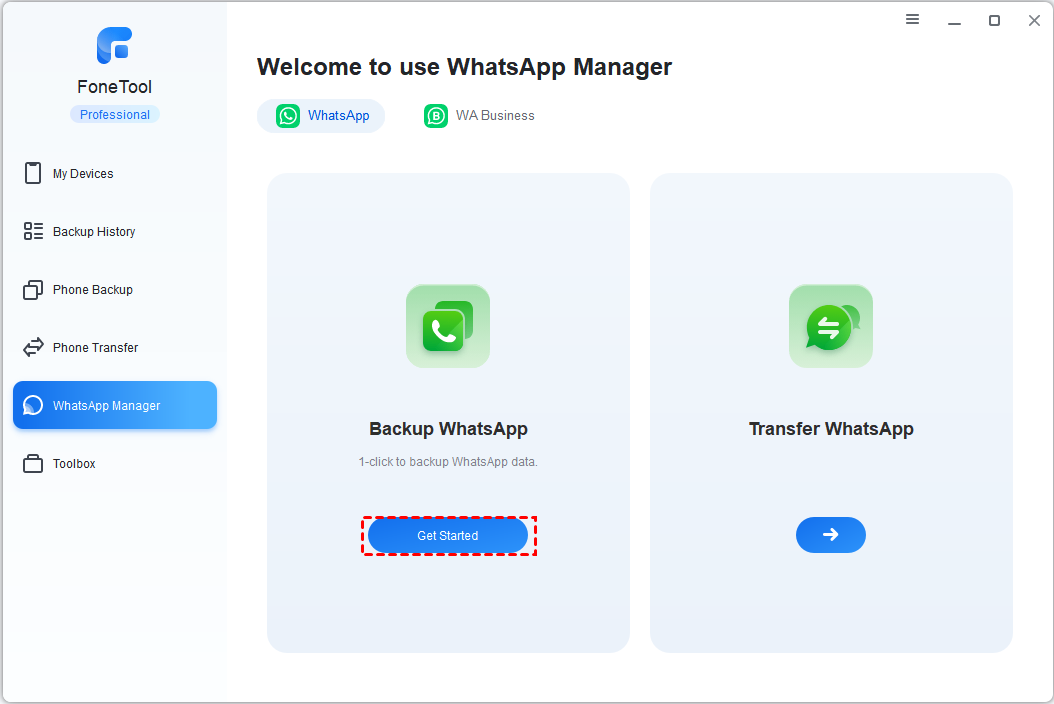
Step 1. In FoneTool, navigate to WhatsApp Manager > Backup WhatsApp > Get Started.
Step 2. Enable encryption if desired, set storage path, and click Start Backup.
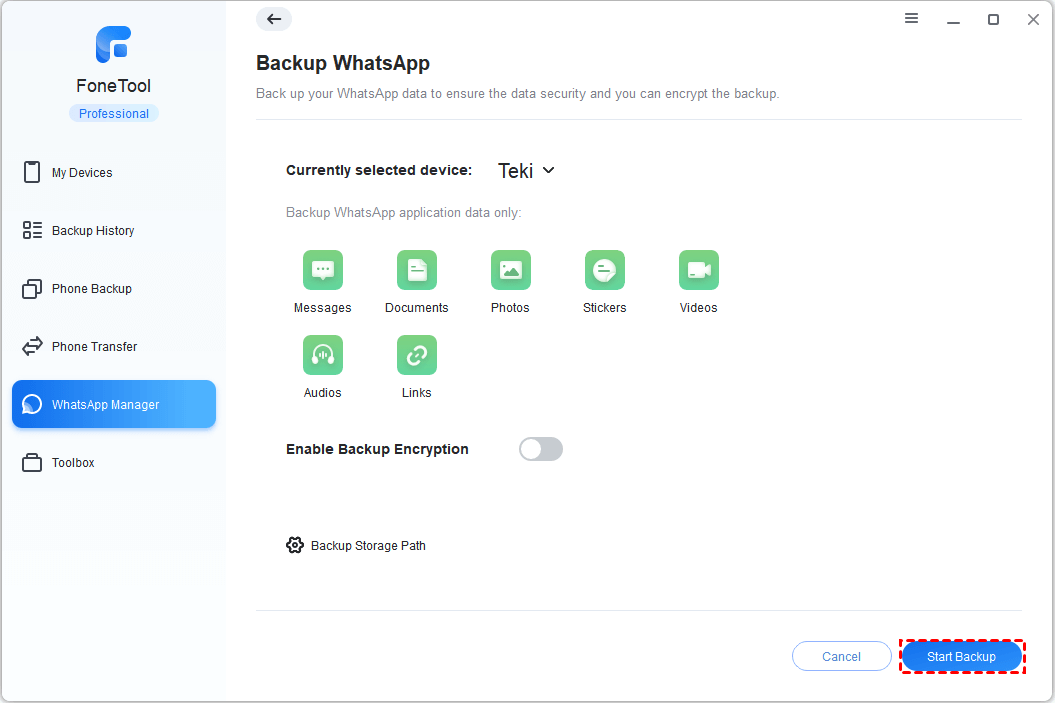
Step 3. Go to My Backups > View > select messages > Export to Computer and print these conversions with ease.
Method 3. Print Out Text Conversations from iPhone via Email
Suitable for very short conversations, this method uses your iPhone's copy and paste function with email. Here are the steps to learn how to export text messages from iPhone by Email and how to print these messages.
Step 1. Open Messages and long-press the specific text bubble you want to print.
Step 2. Tap Copy to save the message to your clipboard.
Step 3. Open your Mail app, create new email, and paste the copied text.
Step 4. Send to yourself, then open and print from your computer.
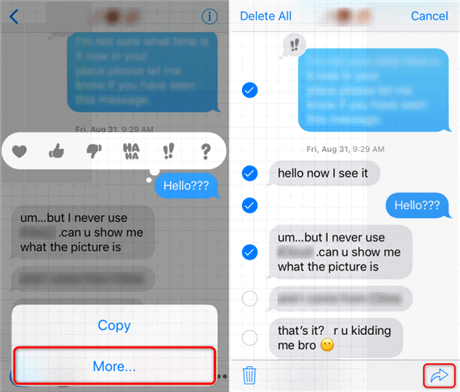
💡 Tip: This method becomes time-consuming for multiple messages or long conversations, as each message must be copied individually. We recommend that you choose the previous method to print multiple chat records at once.
Frequently Asked Questions
Conclusion
That’s all about how to print text messages from iPhone. Whether you choose to take a screenshot, use a third-party tool like FoneTool, or send the message via email, you can successfully print the text messages you want. Screenshots may be enough for short conversations, but for more professional prints or longer threads, a tool like FoneTool is the best choice.
FoneTool - All-in-one iPhone Data Manager
Transfer, backup and manage data on iPhone, iPad and iPod touch in an easy way.
-
 iOS 27 Compatible
 iPhone 17 Supported
Windows 11/10/8/8.1/7

100% Secure

Kelsey is an English editor at FoneTool, passionate about helping users solve tech issues. She specializes in iPhone data management, backup, and recovery. In her free time, she enjoys learning IT skills and spending time with loved ones.
Read author info >>



 as a preferred
source on Google
as a preferred
source on Google