Syncing With iCloud Paused on iPad? 8 Fixes
Syncing with iCloud paused on iPad"? Use 8 iPad-specific checks to resume Photos, Messages, Files, or app data without resetting your whole account too early.


You open your iPad, and there it is: "Syncing with iCloud paused". No explanation, no obvious fix, just a message that tells you something's wrong, but not what.
Let's figure that out. This guide helps you locate where the pause is happening - Photos, Messages, Files, or Settings, and walk through exactly what to do about it, without messing up your data.
This guide is specifically for iPad. iPads tend to spend longer asleep, away from a charger, or disconnected from Wi-Fi than iPhones. And if you have a Wi-Fi-only model, there's no cellular backup to fall back on. That's why these pauses can feel more frequent on iPad.
Here's a quick table to help you figure out what's paused and where to start:
| 📍 Where the pause appears | 🔄 Likely task | 🚀 Start with |
|---|---|---|
| Photos | Uploading or downloading your photo library | Check library status, power, Wi-Fi |
| Messages | Syncing conversations or attachments | Check Messages in iCloud and manually sync |
| Files | iCloud Drive transfer | Check network, file status, local space |
| Settings | Apple Account or iCloud in general | Check account alert and authentication |
| A third-party app | That app's iCloud data | Check app's iCloud permission and the app's support |
Why Is Syncing with iCloud Paused on iPad?
iPads are different from iPhones in ways that affect sync. They often sit idle for longer, stay disconnected from power, or lose Wi-Fi when you move around. A Wi-Fi-only iPad can't fall back to cellular when the network drops.
The most common causes are:
-
Low battery or Low Power Mode
-
Weak or unstable Wi-Fi
-
The iPad getting too warm
-
Temporary system optimization
-
Full iCloud storage
-
Low local iPad storage
-
iCloud disabled for the affected app
-
An Apple Account authentication request
-
Outdated iPadOS
-
A large photo or message library that's still processing
Fix 1: Charge the iPad and Turn Off Low Power Mode
🎯 Use this when: Your Photos or background sync paused while the battery was low, or you see a battery-related status message.
iPadOS tries to save power by pausing background tasks when the battery is low. Plugging in and turning off Low Power Mode is the quickest way to let iCloud get back to work.
Here's how:
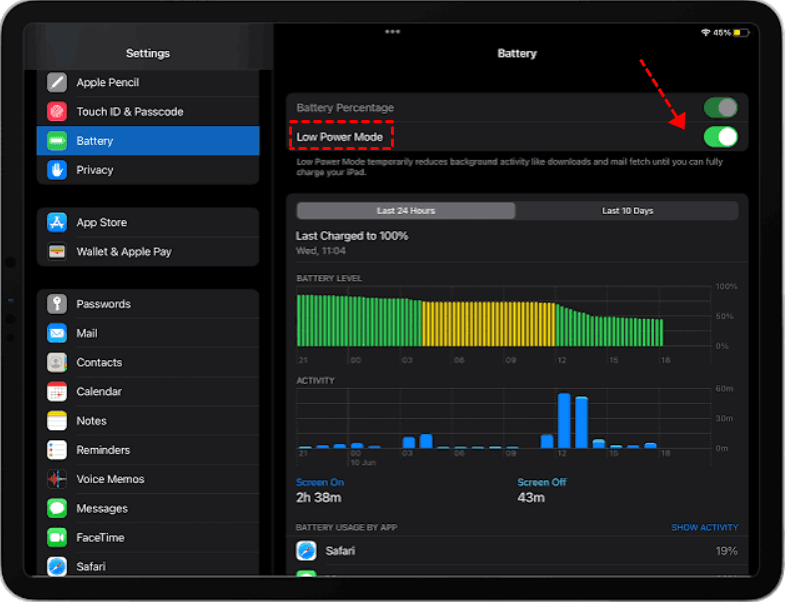
Step 1. Connect your iPad to a reliable power adapter. Open Settings > Battery and turn off Low Power Mode if it's on.
Step 2. Lock the screen or close heavy apps so the system can focus on the sync.
Step 3. check the affected app after a few minutes.
Low Power Mode pauses background activity to save battery that's exactly what's stopping your sync. Charging removes that restriction. But if storage is full or your account needs attention, this won't fix it - so keep reading.
Fix 2: Reconnect to Reliable Wi-Fi
🎯 Use this when: You're on a Wi-Fi-only iPad, you see a "Poor Network Connection" message, or sync stops when you move around.
iCloud sync needs a stable internet connection. If your Wi-Fi drops or gets weak, the upload or download will stall. This fix helps you confirm whether your network is the problem.
Here's how:
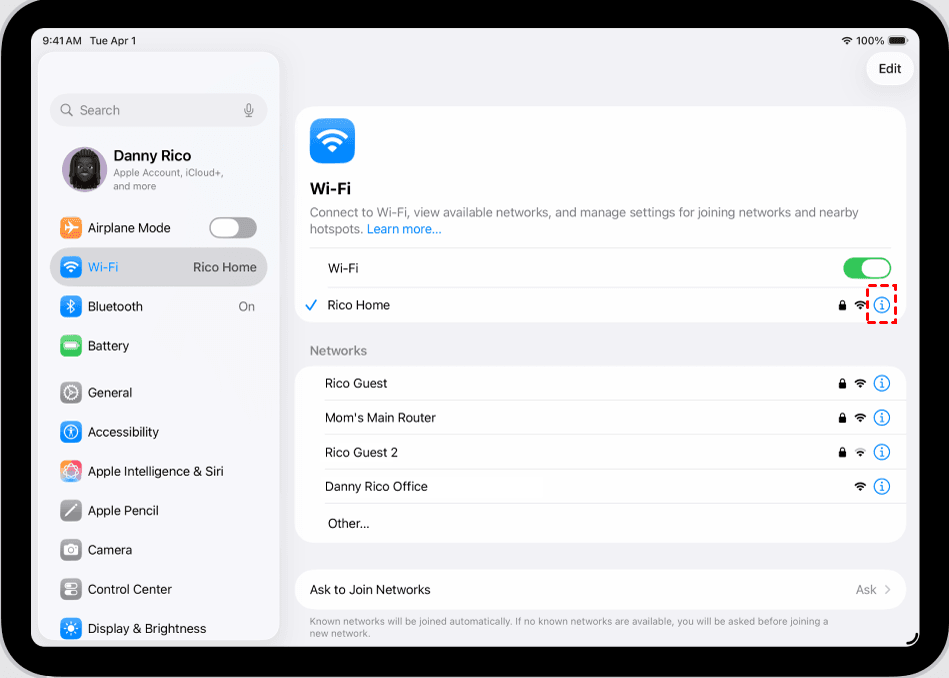
Step 1. Open Settings > Wi-Fi/WLAN and confirm which network you're on. Tap the blue Info (i) icon next to your network, then turn off Low Data Mode if it's on.
Step 2. Open Safari and test if a page loads reliably. If it doesn't load, switch to a trusted network and test again.
Step 3. Once the network is stable, reopen the affected app and check the sync status.
Notes:
- Disconnectfrom public networks or captive portals (like hotel or coffee shop Wi-Fi) as they often block large transfers.
- Keepyour iPad near the router while a large upload or download runs.
- If your iPad keeps trying to upload but nothing moves, check iCloud upload stuck.
A Wi-Fi/WLAN icon doesn't guarantee a working connection. This fix is low-risk, but it won't fix an account or storage issue.
Fix 3: Read the App Status and Sync Again
🎯 Use this when: The iPad shows a specific status message or offers a "Sync Now" button.
Photos and Messages often tell you more than the generic "paused" message if you know where to look. Reading that status tells you whether you should charge, improve your network, or just wait.
Here's how:
Step 1. Open the app where the pause appears.
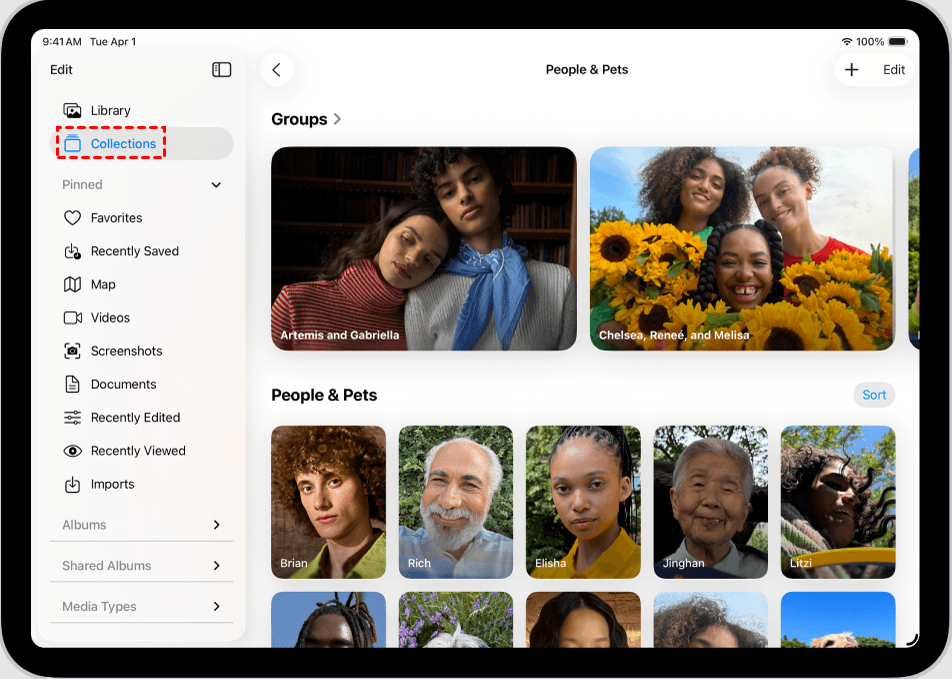
- In Photos, tap Collections >your profile icon and read the library status below your name and photo count.
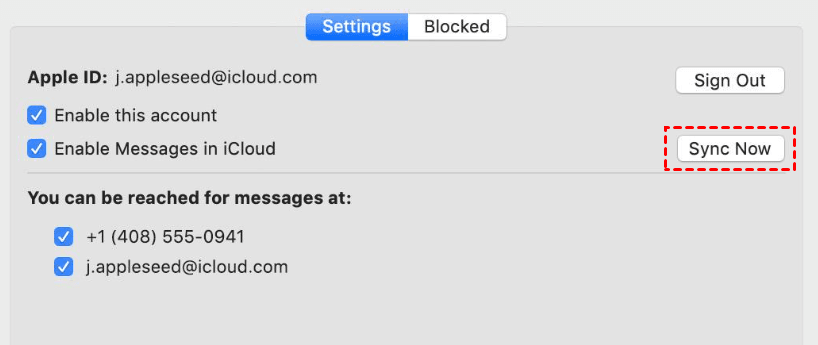
- For Messages, go to Settings > [your name] > iCloud > Messages. If you don't see Messages, tap See All next to Saved to iCloud.
- If you see a Sync Now button, tap it.
Step 2. Follow any instruction attached to the status message - it might say "Low Battery" or "Storage Full".
Step 3. Wait and let the task continue before changing another setting.
A status like "Low Battery" or "Storage Full" tells you more than the generic pause message ever will. Sync Now can override a temporary pause, but it won't fix a full iCloud account or a device that's too warm.
Fix 4: Check Which Apps Use iCloud
🎯 Use this when: Only one app isn't updating, while everything else syncs fine.
iCloud access is controlled separately for each app. If one app isn't working, the switch for that specific app might have been turned off accidentally or intentionally.
Here's how:
Step 1. Open Settings, tap your name > iCloud and select the app that's not syncing.
Step 2. Toggle the app to On if it was disabled.
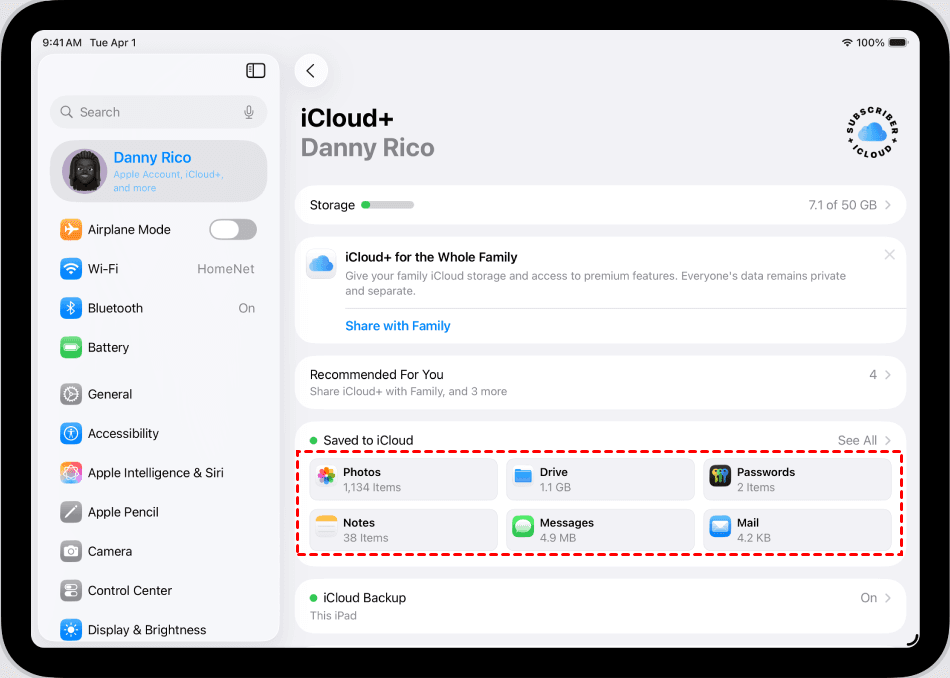
Step 3. Compare the same setting on your iPhone or Mac if you have one. This helps confirm if the setting is wrong on your iPad or across all devices.
Turning on the right app gives it access to iCloud data. But it won't merge content from a different Apple Account, and a large library still needs time to process.
Fix 5: Free iCloud Storage and iPad Storage
🎯 Use this when: The pause mentions storage, files stay in the cloud with no local copy, or attachments won't download.
iCloud storage and iPad storage are two separate things, you need both. iCloud stores your data in the cloud, but your iPad needs local space to download and process it. This fix checks both.
Here's how:
Step 1. Open Settings >[your name] >iCloud. Look at the storage bar at the top - if it's yellow, red, or nearly full, you're running low and should free up space.
Step 2. Tap Storage. You'll see a list of what's using space, such as Backups, Photos, Messages, iCloud Drive, and more. Tap any category to see what's inside.
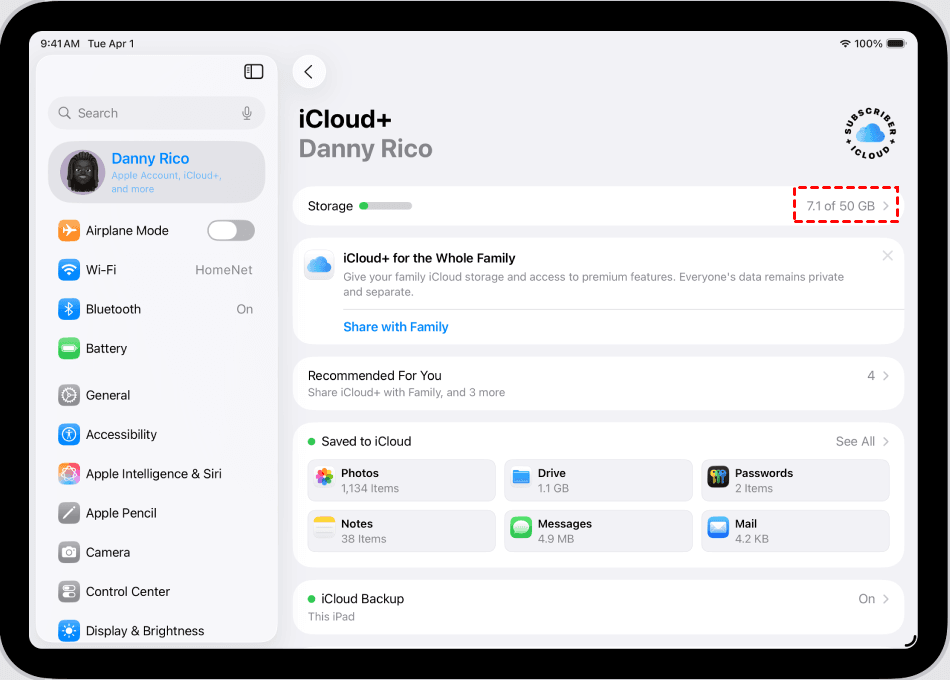
Step 3. To free up iCloud space:
-
Tap Backups: tap it, then tap any old device you no longer use and select Delete & Turn Off Backup.
-
Tap Photos: only delete here if you're sure. If iCloud Photos is on, deleting removes them from all your devices.
-
Tap Messages: large attachments can be removed individually.
Step 4. Open Settings > General > iPad Storage. This shows how much space is used and what's taking it up.
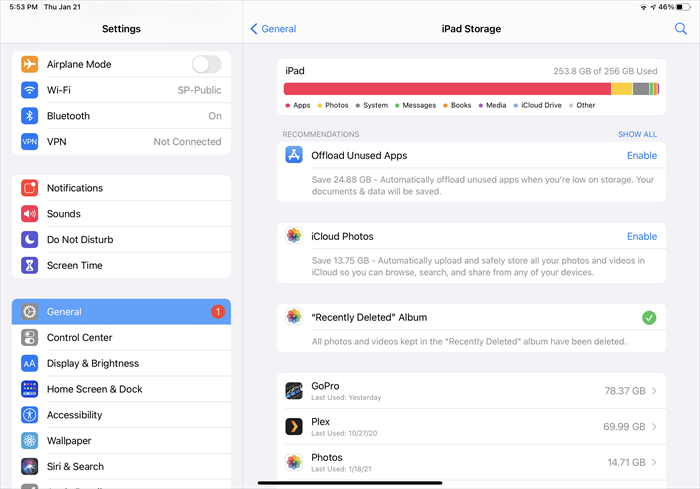
Step 5. If iPad storage is low, look at the list of apps. Try to:
- Tap any app you don't use often, then tap Delete App to remove it. You can always re-download it later.
- Or tap Offload App to remove the app but keep its data.
- Avoid deleting photos or messages you care about as this may remove them from all your devices (if iCloud Photos or Messages in iCloud is on).
Step 6. Once you've cleared space, reconnect to power and Wi-Fi and check if the sync resumes.
iCloud storage controls new cloud uploads. iPad storage controls local downloads and processing. Clearing the wrong category can accidentally delete data across all your devices.
If your iPad is constantly running out of space, check iPad storage full before resetting iCloud.
Fix 6: Cool, Restart, and Update the iPad
🎯 Use this when: Your iPad feels warm, the local process seems stuck, or you're behind on system updates.
iPadOS can pause demanding tasks when the device gets too warm. Cooling it down and restarting refreshes the local process, while an update can fix software bugs that are getting in the way.
Here's how:
Step 1. Disconnect unnecessary accessories and close heavy apps.
Step 2. Move your iPad out of direct sunlight and let it cool naturally.
Step 3. Restart your iPad. Reconnect to power and Wi-Fi.
Step 4. Open Settings > General > Software Update. If an update is available, download and install it. Be sure you have a current backup.
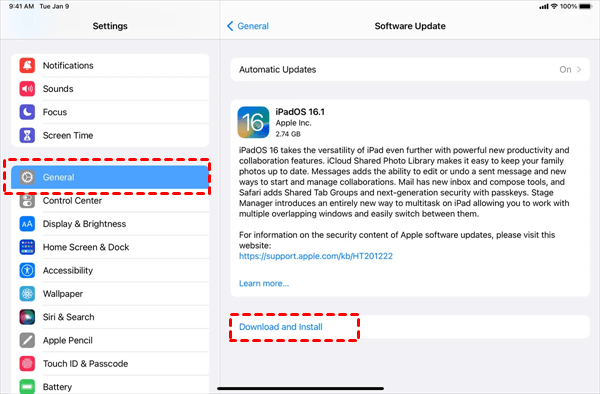
Step 5. Check the affected app again.
Cooling protects your hardware. Restarting clears temporary glitches. Updating can fix compatibility issues. None of these will repair a remote outage on Apple's side - but if the problem is local, this usually does the trick.
Fix 7: Refresh Only the Affected App's iCloud Setting
🎯 Use this when: One app remains stuck after you've checked power, network, storage, restarted, and updated.
Refreshing iCloud for just one app rebuilds only that service's connection. It's less disruptive than signing out of your entire Apple Account but it can still trigger a large redownload, so do it with care.
Here's how:
Step 1. Confirm that the data you care about exists in iCloud or on another device. If it's only on this iPad, don't proceed - back it up first.
Step 2. Open Settings > [your name] > iCloud. Tap the affected app and toggle Sync this iPad or Use on this iPad (the exact wording varies by app) off.
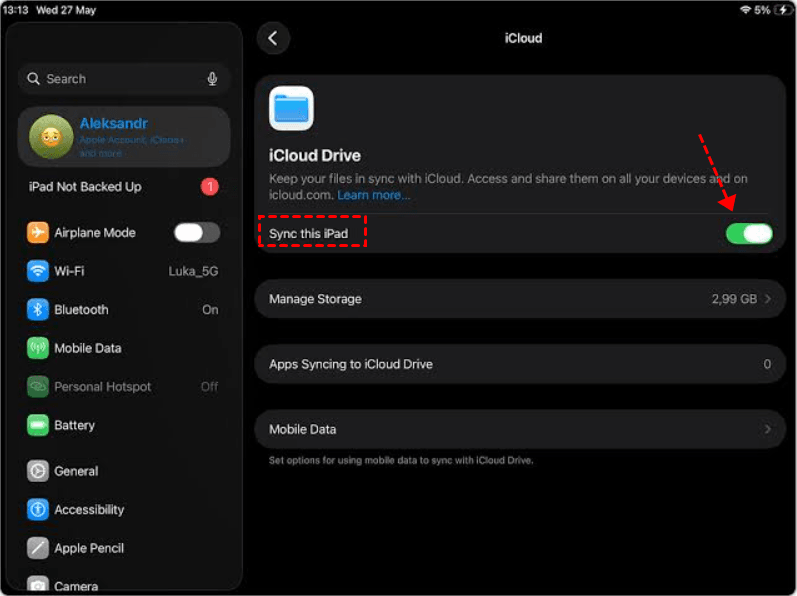
Step 3. Read every prompt carefully - it'll ask if you want to keep or remove local copies. Choose what you need and restart your iPad.
Step 4. Go back to the affected app, and toggle it back on.
Step 5. Keep your iPad plugged into power and connected to Wi-Fi while the content reconciles. This may take time if you have a large library.
Resetting one app is less risky than signing out of the whole account. But it can still trigger a long download, so only do this after the lower-risk fixes have failed.
Fix 8: Resolve Apple Account Authentication
🎯 Use this when: Settings shows a badge, password request, updated terms, or verification message near your Apple ID.
An unresolved Apple Account request can pause several iCloud services at once. Completing the prompt is safer and more targeted than signing out without understanding what's happening.
Here's how:
Step 1. Open Settings, tap the alert and follow the on-screen request to authenticate your Apple Account.
Step 2. Confirm your iPad uses the same Apple ID as your other devices.
Step 3. Restart and retry the affected service.
- If several services remain unavailable, check Apple System Status.
- If authentication works but the account-level warning stays, contact Apple Support.
Signing out shouldn't be your first move. It can remove synced data from your iPad and trigger a long redownload. Complete the account request first - it's safer and usually faster.
If Only Photos or Messages Is Paused
When Photos is affected: Read the library status in Photos first. If it says "Low Battery," charge it. If it says "Storage Full", free space. Don't turn off iCloud Photos as your first response that restarts the entire sync and can make things worse.
When Messages is affected: Confirm Messages in iCloud is on, the Apple Account is correct, and storage is available.
-
For new conversations that don't stay consistent: see iMessage sync paused.
-
For an existing history that won't finish downloading: see downloading messages from iCloud stuck.
When Files is affected: Confirm the file is available in iCloud Drive, your iPad has space for a local copy, and your network allows the transfer. A cloud icon next to a file means it's not stored locally yet.
If only Contacts is affected: See our specific guide on iPad contacts not syncing to iCloud.
Quick Comparison: Fixes for Syncing with iCloud Paused on iPad
| 🔧 Fix | ⚠️ Impact | 🎯 Best for | ⚖️ Trade-off |
|---|---|---|---|
| Fix 1: Charge + disable Low Power Mode | Minimal | Power-related pause | Won't fix storage or account issues |
| Fix 2: Improve Wi-Fi | Minimal | Poor or intermittent network | Won't fix Apple service outages |
| Fix 3: Read status + Sync Again | Minimal | Temporary app pause | Can't bypass full storage or overheating |
| Fix 4: Enable the affected app | Minimal | One app never syncs | Large libraries still take time to process |
| Fix 5: Free storage (cloud + device) | May remove content | Capacity warning | Deleting photos or messages removes them everywhere |
| Fix 6: Cool + restart + update | Minimal | Heat or local software stall | Won't repair account state |
| Fix 7: Refresh one app | May restart sync | One service connection is stuck | Turning off sync can trigger a long redownload |
| Fix 8: Authenticate the account | May require sign‑out | Visible account request | May need Apple Support |
Back Up Your iPad Before Major Changes
Some of the fixes above are safe to try without any preparation. But freeing up storage or refreshing an app's iCloud setting involve managing or removing data from your device. Before you go there, it's worth making sure your important data is backed up.
FoneTool is a reliable iPad backup software that lets you selectively back up data on iPad, including messages, photos, contacts, and more and save them to a computer, external drive, USB drive, NAS, etc. It works over USB, doesn't require Wi-Fi or iCloud, and supports incremental backups, so you're not re-copying everything each time.
Here's how to back up your iPad with FoneTool:
Step 1. Download and install FoneTool on your Windows computer, then connect your iPad with a USB cable and tap Trust on your iPad when prompted.
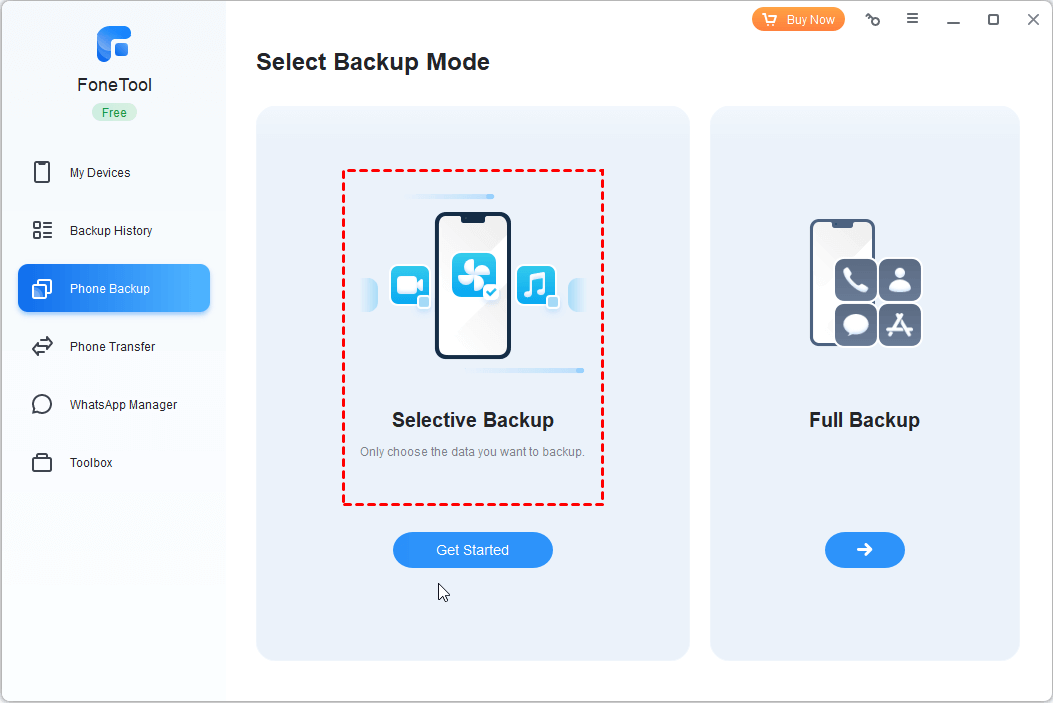
Step 2. Open FoneTool, click Phone Backup in the left panel. Then, select Selective Backup and click Get Started.
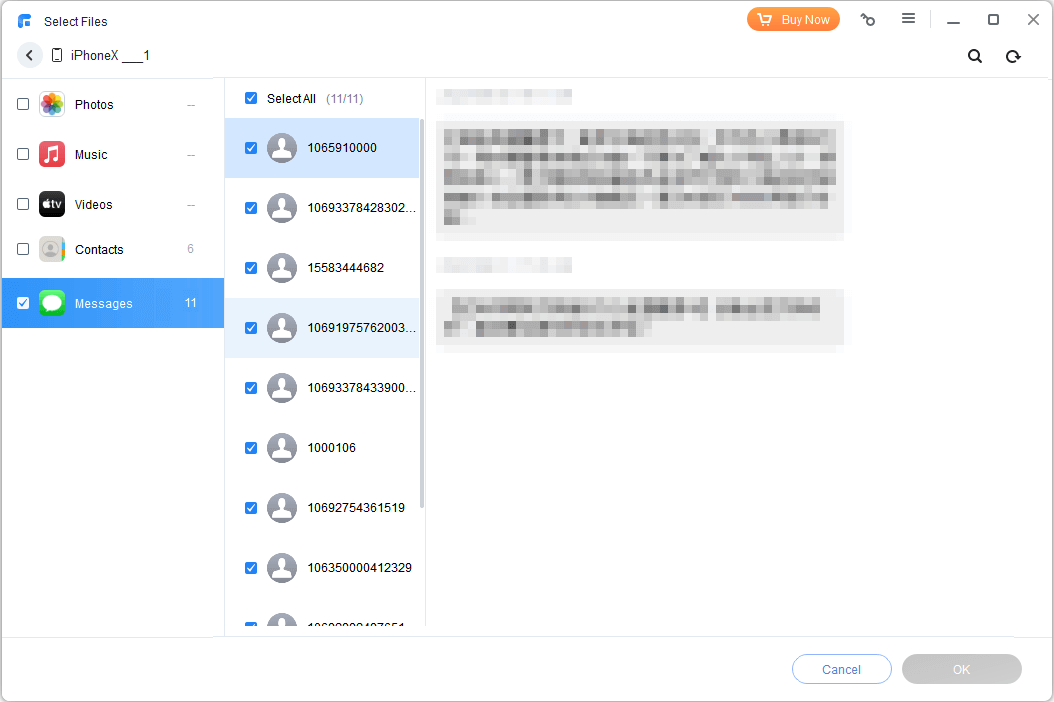
Step 3. Check the data types you want to back up, e.g., Messages, Photos, Contacts, or others, and click the icon to select specific items.
Step 4. Click Backup Storage Path to choose a destination where you want to save iPad data. It can be a folder on your computer, external drive, NAS, etc.
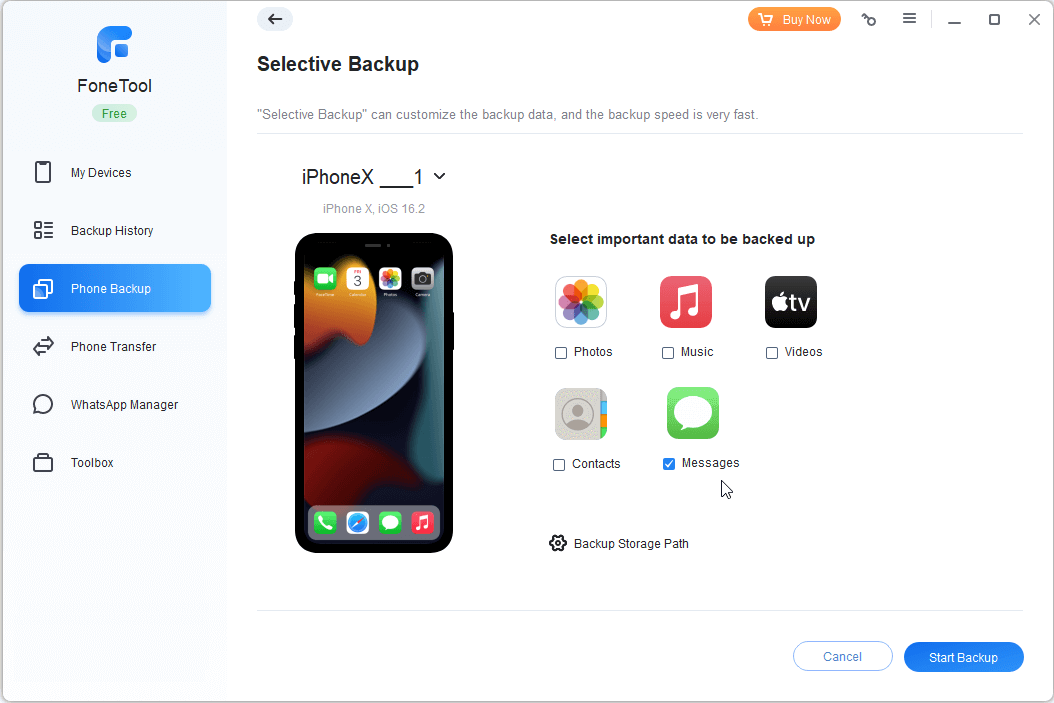
Step 5. At last, click Start Backup and wait it to finish.
Once the backup is complete, you can view your backup and restore it to your iPad at any time.
Conclusion
When "Syncing with iCloud Paused" shows up on your iPad, start by figuring out which app is affected. Then work through the fixes in order: charge > Wi-Fi > read status > check app settings > storage > restart/update > refresh one app > account authentication.
Don't rush to sign out of your Apple Account that's a last resort that can trigger long redownloads. And never turn off iCloud Photos as a first response as it restarts the entire sync.
Most of the time, it's something simple - low battery, weak Wi-Fi, or full storage. Don't panic, follow the order, and you'll probably get it sorted.
FAQs
1. Why does my iPad keep pausing iCloud sync?
Most often it's low battery, weak Wi-Fi, full storage, or an account request. The app's status usually tells you exactly which one.
2. How do I force my iPad to sync with iCloud?
Plug it in, connect to Wi‑Fi, open the affected app or its iCloud settings, and tap Sync Now if available. Resolve any storage or account warning first.
3. Does iCloud sync when an iPad is asleep?
It can, but only if conditions allow power, network, and system policies all play a part. Leaving it charging on Wi‑Fi gives a large task the best chance.
4. Why is my iPad not syncing with my iPhone?
They might use different Apple Accounts, have different app-level iCloud settings, or still be processing. Compare the account and the app's iCloud setting on both devices.
5. Does Low Power Mode affect iCloud on iPad?
Yes, it reduces background activity. Turn it off temporarily, plug in, and check the status again.
6. Will restarting iCloud sync delete iPad data?
Restarting the iPad doesn't normally delete data. But turning an app's iCloud setting off or signing out can change local copies. Read the prompt carefully and keep a backup before doing either.
FoneTool - All-in-one iPhone Data Manager
Transfer, backup and manage data on iPhone, iPad and iPod touch in an easy way.
-
 iOS 27 Compatible
 iPhone 17 Supported
Windows 11/10/8/8.1/7

100% Secure

Ivey is passionate about teaching users how to easily protect mobile device data. With the FoneTool series of iPhone management, unlocking, and repair software, even beginners can perform data backup, iPhone unlocking, and troubleshooting like a pro.
Read author info >>



 as a preferred
source on Google
as a preferred
source on Google