How to Fix Google Maps Can't Open This Link iPhone: 5 Ways
When you find the unsupported link Google Maps can't open this link iPhone issue occurs, don't worry. Use 5 ways mentioned in this passage to make it efficiently!


Google Maps is a web mapping platform and consumer application provided by Google. It offers satellite imagery, aerial photos, street maps, and 360° interactive street panoramas (Street View), helping users better plan their travel routes and accurately reach their desired destinations.
But sometimes during the use, you may receive a message to warn you that Google Maps can't open this link. Why does this issue occur and how to fix it? Find answers in this full guide!
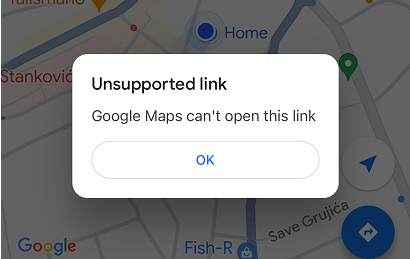
Why Google Maps can't open this link iPhone?
There could be several reasons behind the issue.
❌️Default Maps App: If you have set another app (like Apple Maps) as your default maps app, it may try to open the link there instead.
❌️Link Format: Sometimes, the link may not be formatted correctly. Check if the link starts with “https://” or is a proper Google Maps link.
❌️iOS Restrictions: There may be restrictions or settings on your iPhone that prevent certain apps from opening links.
❌️Internet Connection: A bad internet condition will lead to the error.
❌️Browser Issues: If you’re trying to open the link in a browser, it could be a browser-related issue. Try using a different browser or the Google Maps app directly.
How to fix unsupported link Google Maps can't open this link iPhone
This part will offer some useful ways for you to fix the issue right now. You can rely on the professional system repair tool to make it efficiently.
Solution 1. Restart your iPhone
Sometimes a simple restart can resolve app issues. Turn off your iPhone and turn it back on.
? For iPhone X or newer models: Press and hold the side button and either volume button simultaneously > Drag the slider to power off your iPhone > Wait for a few seconds, then press and hold the side button again until the Apple logo appears to turn your iPhone back on.
? For iPhone 8 or earlier models: Press and hold the top or side button until the slider appears > Drag the slider to power off your iPhone > Once your iPhone blacks out, press and hold the top or side button again to turn your device back on.
Solution 2. Reset the default app
If you have set another app as the default for maps, consider resetting it. Go to Settings > Maps and make sure Google Maps is the default if that option is available.
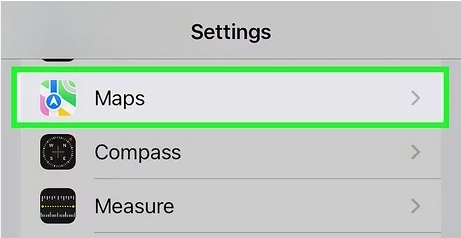
Solution 3. Check Restrictions on iPhone
Sometimes, your Google Maps app might be restricted by the iPhone settings. You can go to Settings > Screen Time > Content & Privacy Restrictions. Make sure there are no restrictions that could prevent Google Maps from opening links.
Solution 4. Update the app & iOS system
An outdated app or iOS system version can also lead to the issue. To Update the app, you can go to the App Store, tap on your profile picture, and check if there are any updates available for Google Maps. If any update is available, just update it right now.
If this doesn't work, then you may need to update your iOS system to fix the issue.
- Go to the Settings app > Choose General > Software Update > Select the "Download and Install" option if available.
💡If you can't update your iOS system manually, then you can rely on the professional FoneTool Repair to upgrade iOS version without error.
Download it on your computer and learn from the detailed steps to get how to upgrade your iPhone to the latest version.
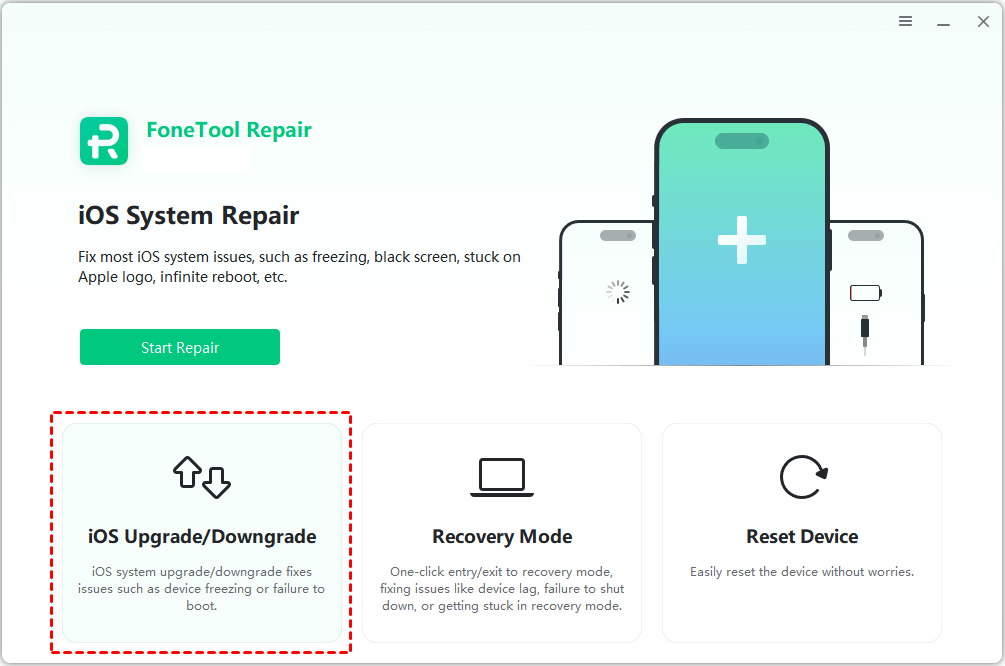
Step 1. Connect your iPhone to the computer > Launch FoneTool Repair > Choose iOS Upgrade/Downgrade to continue.
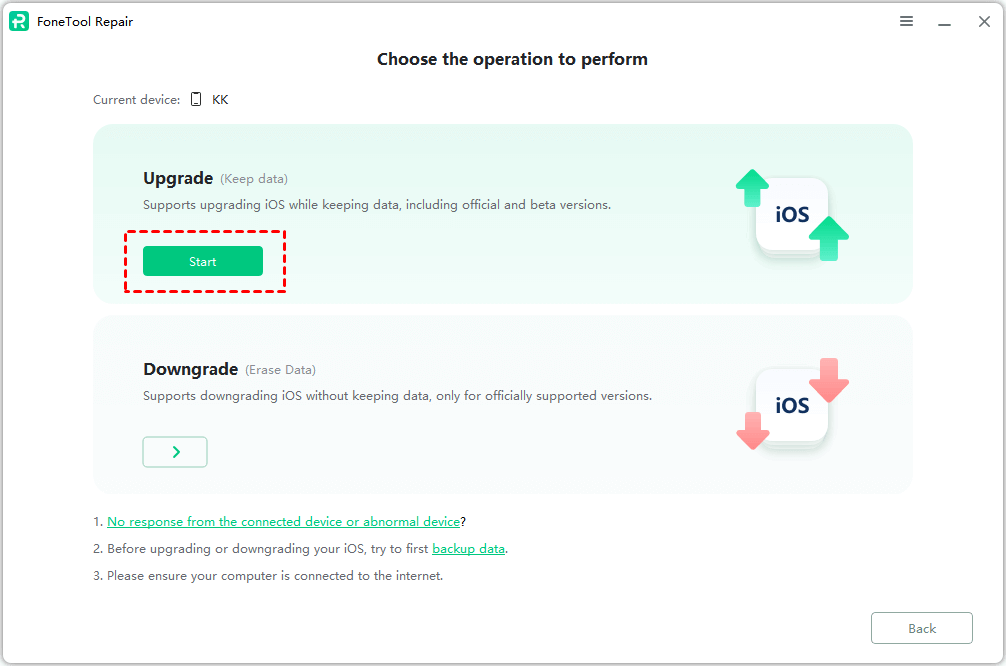
Step 2. Go to the Upgrade section > Click Start.
Step 3. Choose the firmware version you need > Change the storage path from the Target Path option > Click Download to get the firmware.
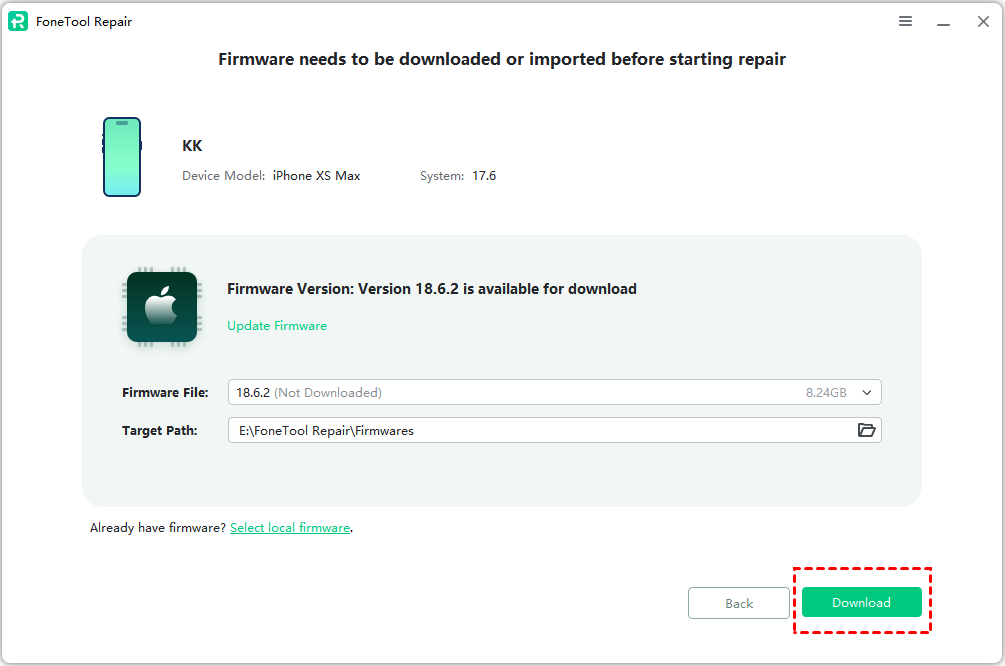
Step 4. Once the download process is finished, just click Start Upgrade to begin the task.
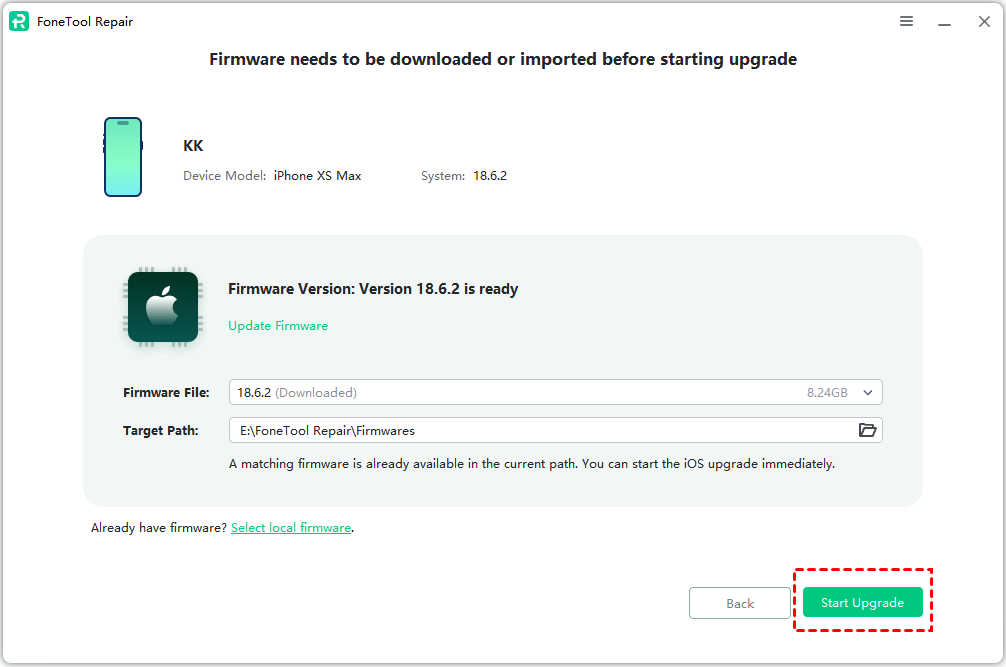
Once the process is finished, your iPhone will run with the latest iOS system, potentially resolving the Google Maps link issue.
Solution 5. Fix System Issues with FoneTool Repair (For Persistent Problems)
If the above methods don't work, the problem may be caused by a deep glitch in the iOS system. FoneTool Repair can help resolve various system issues that might prevent apps from functioning properly. You just need to select iOS System Repair > Standard Repair and click Start Repair to fix the current iPhone error without data loss.

This powerful iOS system repair tool is the best way to fix iOS/iPadOS issues without data loss
Conclusion
Now you know why Google Maps can't open links on iPhone and how to fix it. You can try the basic solutions like restarting your device, resetting default apps, checking restrictions, or updating the app and iOS system.
For more persistent system-related issues, FoneTool Repair provides a professional solution to fix underlying iOS problems that might be causing app malfunctions. With its user-friendly interface and comprehensive repair capabilities, it's an excellent choice for resolving various iOS system issues efficiently and safely.
Fixes 160+ iOS/iPadOS issues, boot loops, crashes, failed updates, with no data loss.
-
 iOS 27 Compatible
 iPhone 17 Supported
100% Secure

Kathy is an editor of FoneTool, who prefers to help more users address a series of iOS-related problems. She likes traveling and being close to nature makes her relax. She is also keen to engage in social activities and spend much free time with her friends.
Read author info >>



 as a preferred
source on Google
as a preferred
source on Google