How to Transfer Files from PC to iPad | 6 Fast Ways [2026]
How to transfer files from PC to iPad? This 2025 guide compares 6 methods: FoneTool (fastest USB), iTunes, iCloud, Google Drive, File Explorer & email. Complete with speed tests and pro tips.


Choosing the right PC to iPad transfer method
When you need to view, edit, or share PC files on your iPad, finding fast and reliable transfer solutions becomes essential. This guide presents six effective methods for wired and wireless file transfers, with FoneTool (Method 1) offering the most comprehensive solution.
Comparison of PC to iPad transfer methods
| Method | Connection Type | Best For | Speed | File Limitations |
|---|---|---|---|---|
| FoneTool | USB | Large files & batches | 46GB/39min | None |
| File Explorer | USB | Photos & videos | Slow | Media files only |
| iTunes | USB | App-specific files | Medium | Format dependent |
| iCloud | Wireless | Small files | Slow | 5GB free storage |
| Google Drive | Wireless | Medium files | Medium | 15GB free storage |
| Wireless | Single files | Slow | Attachment limits |
Method 1. How to transfer files from PC to iPad using USB [fast & free]
FoneTool provides the optimal solution for transferring a large number of files between PC and iPad with maximum speed and flexibility.
Free PC to iPad File Transfer Software
- Unlimited file transfers between PC and iPad
- Preview and selective transfer of photos, videos, music, contacts
- High-speed performance: 46GB in 39 minutes without quality loss
- Broad format compatibility with error-free transfers
- Easily transfer files from USB to iPad, like flash drive, SSD, etc.
- Full iOS device and version compatibility
Windows 11/10/8/8.1/7

100% Secure
Now you can download it to your computer and keep on reading to get how to move files from computer to iPad.
Step 1. Connect iPad to PC via USB > Unlock device > Tap Trus.
Step 2. Launch FoneTool > Go to Phone Transfer > PC to iPhone > Get Started.
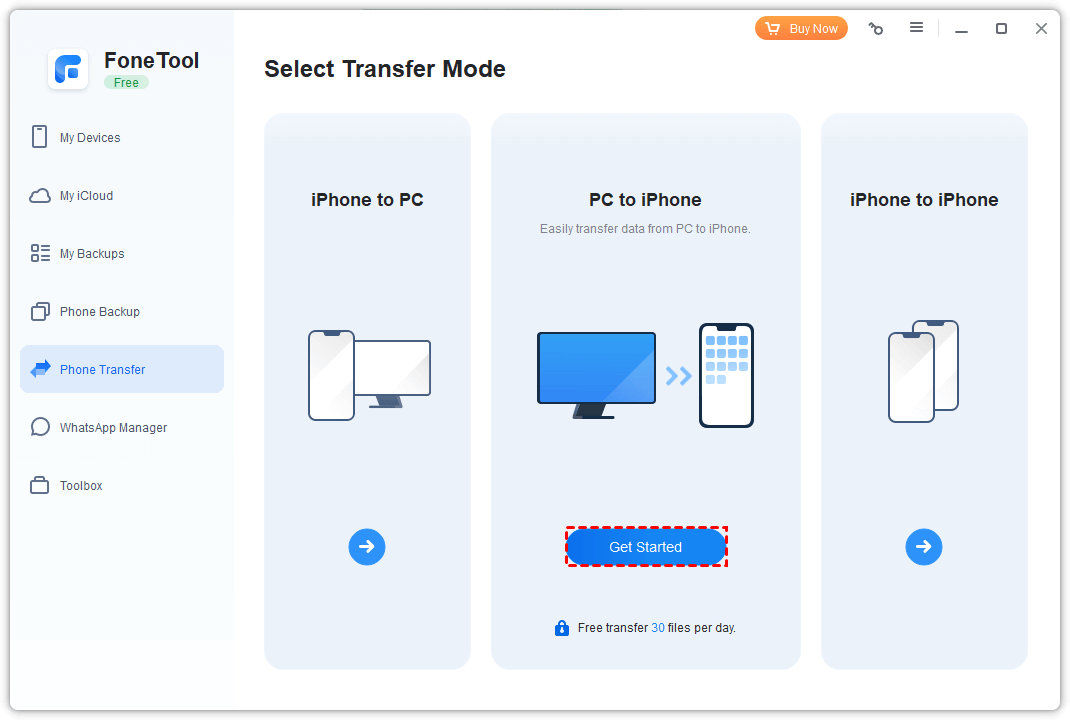
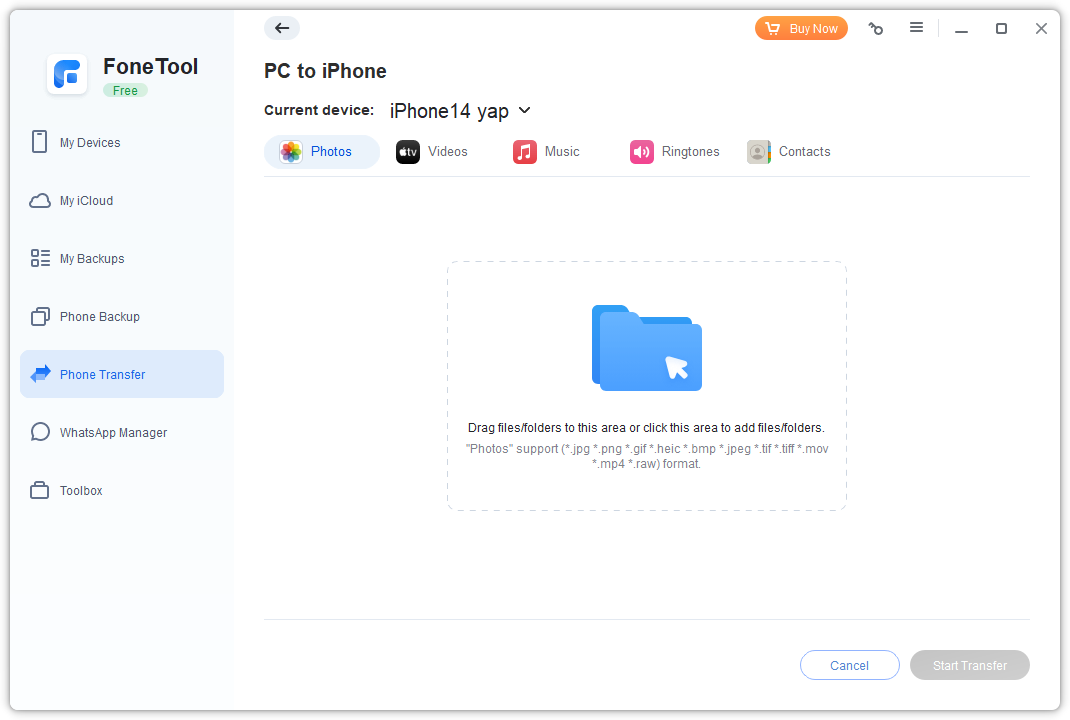
Step 3. Choose the file types > Choose specific files > Tap Open.
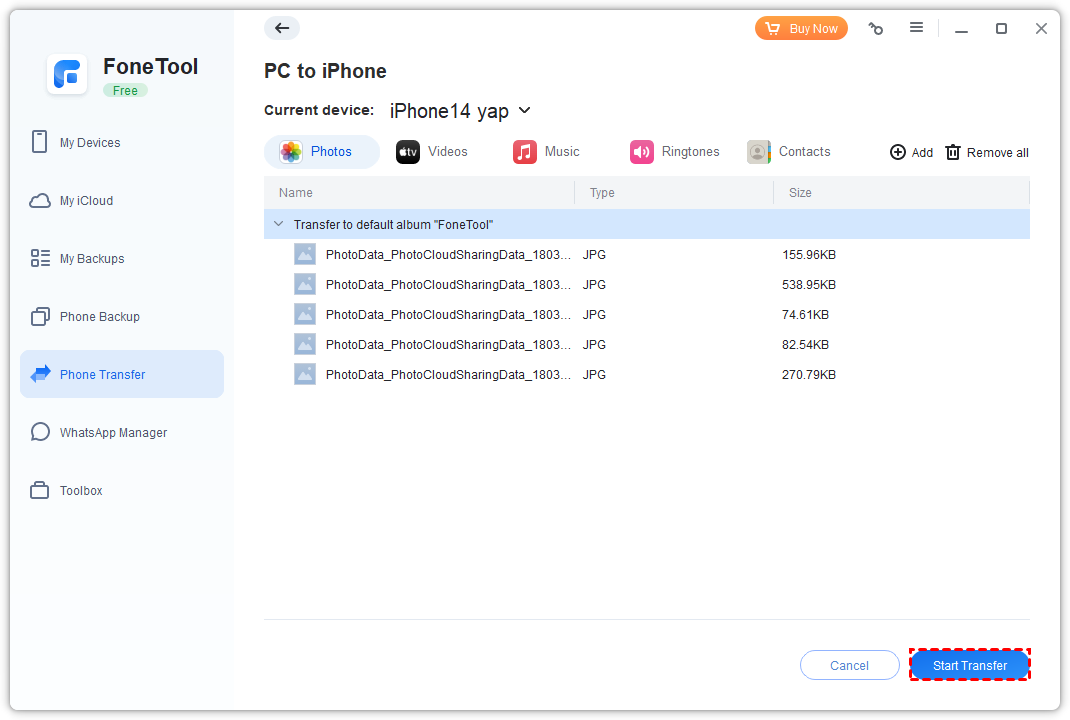
Step 4. Click Start Transfer to confirm your choice and begin the task.
• Transfer photos from iPhone to iPad,
• Transfer photos from PC to iPhone without iTunes.
Method 2. How to transfer files from Windows to iPad - File Explorer
How do I transfer files from PC to iPad without iTunes? Windows File Explorer enables direct file copying to iPad via USB connection, primarily for media files.
· Slow transfer speeds and inability to select multiple files across different locations simultaneously.
· If you find that iPhone photos not showing up on PC, you may need to turn to another way.
Step 1. Connect iPad to PC via USB > Tap Trust
Step 2. Open File Explorer > This PC > Select your iPad.
Step 3. Navigate to Internal Storage > DCIM.
Step 4. Create subfolder > Copy and paste files from PC.
Method 3. How to transfer files from Windows PC to iPad - iTunes
As an official sync program for Windows PC, iTunes is also used to connect PC to iPad and transfer files from PC to your targeted app on iPad.
Step 1. Connect your iPad to your computer > Open iTunes.
Step 2. Click the Device icon > Choose File Sharing.
Step 3. Select target app (use Files app for general storage).
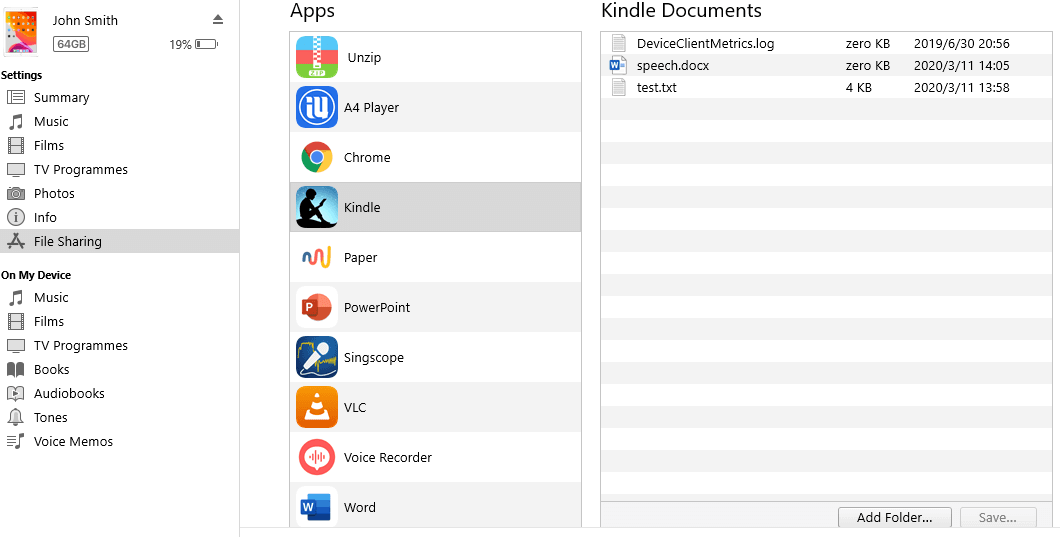
Step 4. Add File > Select files > Tap Open.
Step 5. Click Sync > Click Done upon completion.
Method 4. How to transfer data to an iPad from PC wirelessly - iCloud
iCloud provides wireless synchronization for smaller file transfers with 5GB free storage.
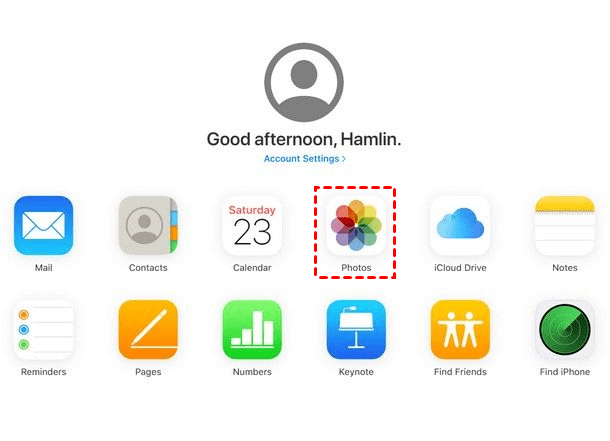
Step 1. Go to iCloud.com on PC > Upload files from your computer to iCloud.
Step 2. On iPad: Settings > [your name] > iCloud.
Step 3. Enable synchronization for target apps.
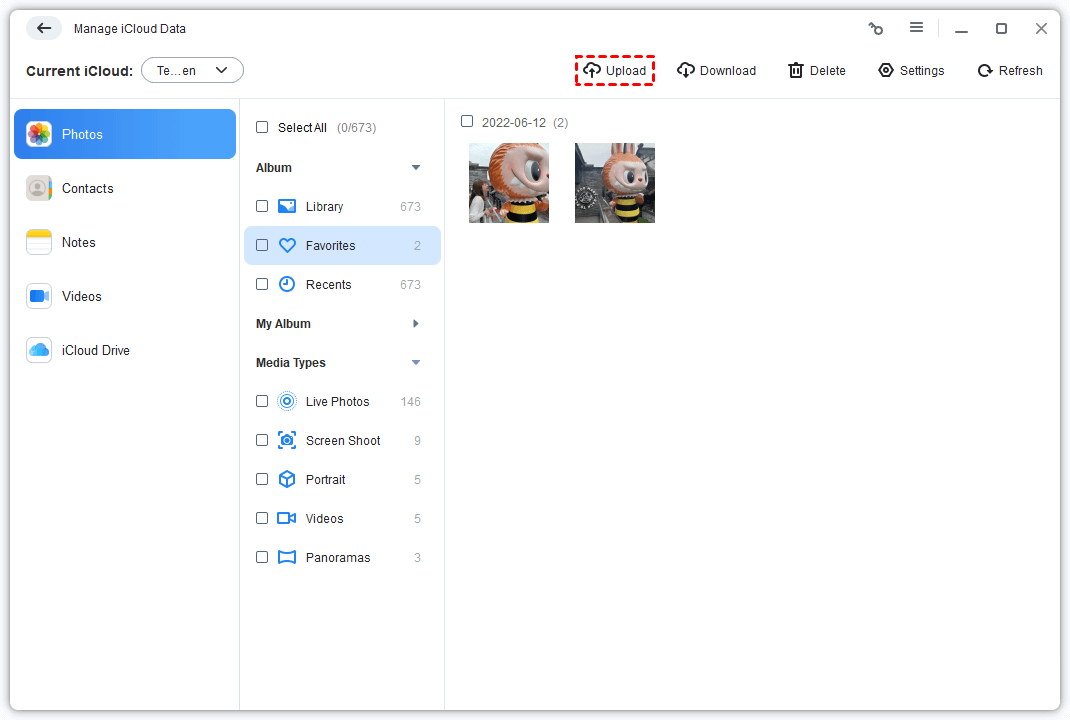
If you need a better way to speed up iCloud data upload process, a professional iCloud manager named FoneTool can help you a lot. You can even use it to upload notes from PC to iCloud, which iCloud.com cannot do.
- Highlights:
- · Preview and select photos, videos, contacts, notes for upload
- · Upload 1,000 photos in 10 minutes
- · Download, delete, or sync iCloud data from PC
- · SSL encryption for data security
Step 1. Download and install FoneTool on your PC and go to My iCloud.
Step 2. Log in with your Apple ID > Choose Manage iCloud to upload the data you need.
Method 5. How to transfer files from computer to iPad wirelessly - Google Drive
Google Drive offers 15GB free storage for wireless file transfers between PC and iPad.
Step 1. Go to drive.google.com on PC.
Step 2. Click New from the top-left corner and choose File Upload or Folder Upload.
Step 3. Choose the specific item > Click Open or Upload.
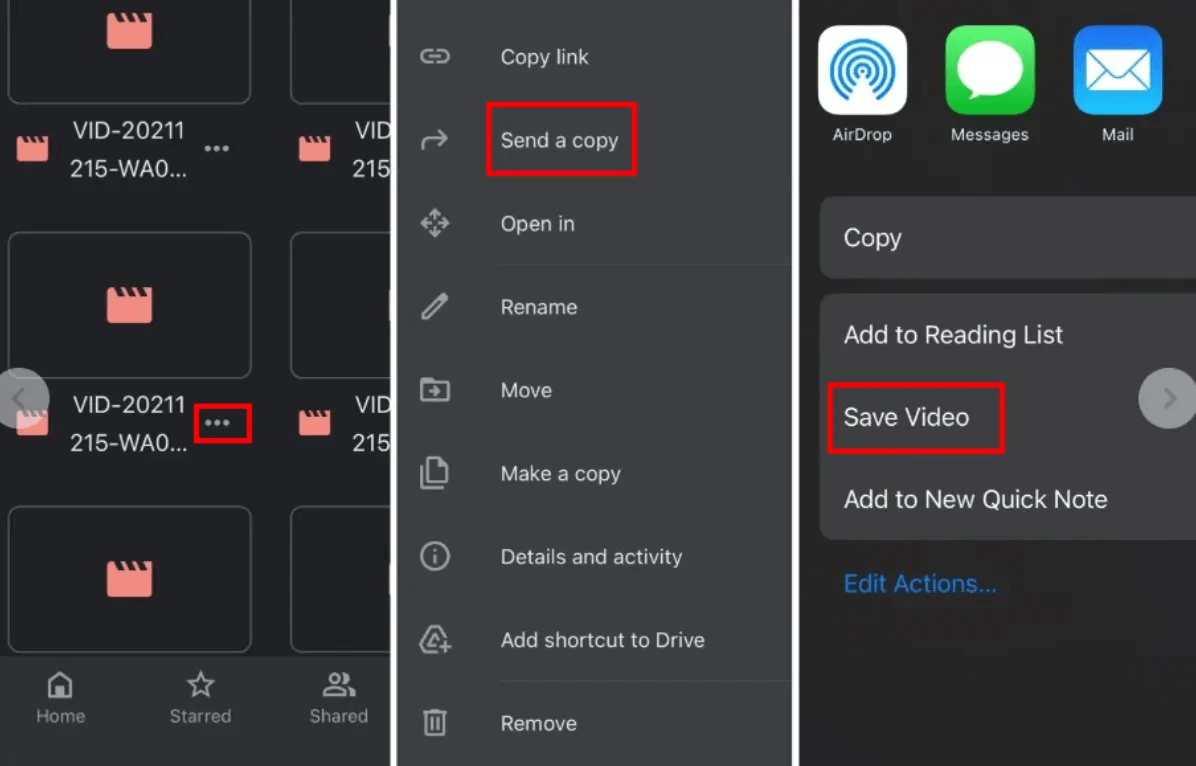
Step 4. On iPad: Go to the Google Drive app > Log in with your account.
Step 5. Find the targeted files > Three dots > Select Send a copy > Click Save.
Method 6. How to copy files from PC to iPad - Email
Email provides simple transfer solution for individual files or small documents.
Step 1. Compose email on PC with file attachments
Step 2. Send to your own email address
Step 3. Open email on iPad > Save attachments
Conclusion
This comprehensive guide presents six effective methods for transferring files from PC to iPad.
- For large-scale transfers with maximum speed and flexibility, FoneTool provides the optimal solution through USB connectivity.
- For smaller, wireless transfers, iCloud and Google Drive offer convenient alternatives, while iTunes facilitates app-specific file management.
Choose the method that best aligns with your file volume, transfer speed requirements, and connectivity preferences. Hope you can find all the things you need in this detailed guide.
FoneTool - All-in-one iPhone Data Manager
Transfer, backup and manage data on iPhone, iPad and iPod touch in an easy way.
-
 iOS 27 Compatible
 iPhone 17 Supported
Windows 11/10/8/8.1/7

100% Secure

Kelsey is an English editor at FoneTool, passionate about helping users solve tech issues. She specializes in iPhone data management, backup, and recovery. In her free time, she enjoys learning IT skills and spending time with loved ones.
Read author info >>



 as a preferred
source on Google
as a preferred
source on Google