[Easily] How to Transfer Notes from iPhone to Computer
This post discovers how to transfer notes from iPhone to computer with easy ways. Follow these easy steps to access notes from iPhone on PC.


Why Transfer Notes from iPhone to Computer?
The iPhone's Notes app serves as a versatile tool for recording personal thoughts, work notes, and important information. There are several compelling reasons to transfer notes from iPhone to computer:
📱 Backup protection against accidental deletion or device loss
💻 Enhanced accessibility for viewing and editing on larger screens
🗂️ Better organization through computer-based filing systems
🔄 Cross-platform availability for work and personal use
This comprehensive guide demonstrates multiple methods to export notes from iPhone to computer, ensuring you can choose the approach that best fits your needs.
How to Transfer Notes from iPhone to Computer with iCloud
After enabling iCloud on your iPhone, you can easily access your notes from any device, including your computer. Here, we will introduce two methods to transfer iPhone notes to computer using iCloud.
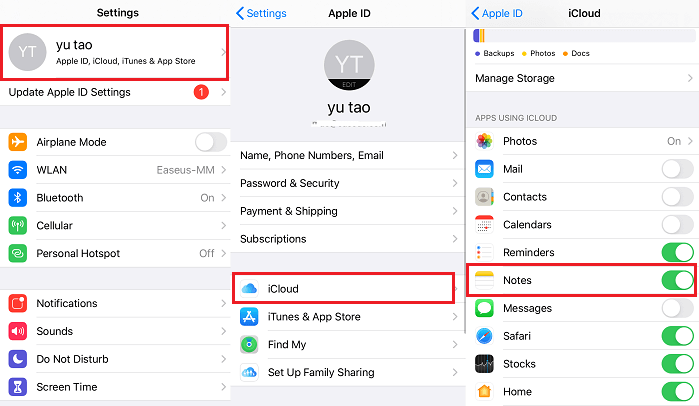
Preparation: Enable iCloud Notes on iPhone
Before transferring notes via iCloud, ensure proper synchronization between your iPhone and iCloud account.
Step 1. Go to Settings > Profile > iCloud
Step 2. Toggle Notes to enable synchronization
Step 3. Open Notes app and wait for sync completion
Option 1. Download Notes from iPhone to PC via iCloud Manager
FoneTool provides professional iCloud management with faster transfer speeds and selective note downloading capabilities, allowing you to easily manage your iCloud/iCloud Drive data on your computer, including notes, photos, videos, contacts, etc.
- ★ FoneTool combines more features in one:
-
• Comprehensive management of iCloud data including notes, photos, and contacts
• Accelerated transfer speeds compared to standard iCloud syncing
• Selective downloading of specific notes without affecting other data
• Format preservation maintaining original note content and structure
• Account synchronization between different Apple IDs or merge iCloud accounts
Now, you can download and follow the guide to learn how to transfer notes from iPhone to computer with FoneTool.
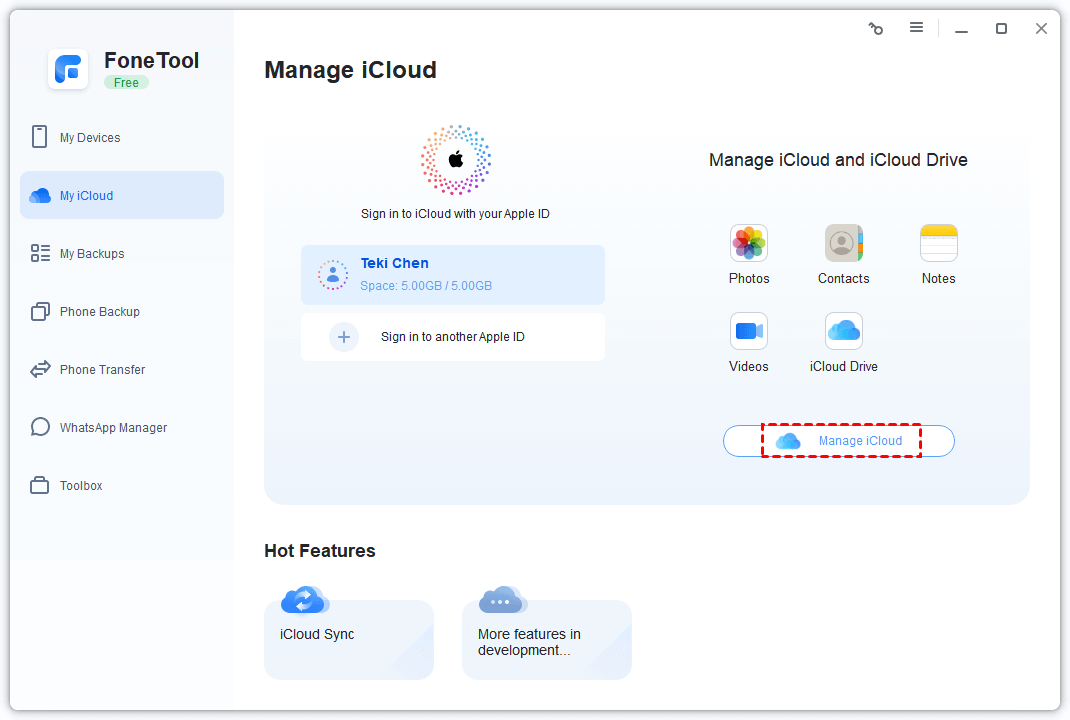
Step 1. Run FoneTool > Navigate to My iCloud > Sign in with Apple ID > Manage iCloud.
Step 2. Select Notes category > Choose specific notes to download.
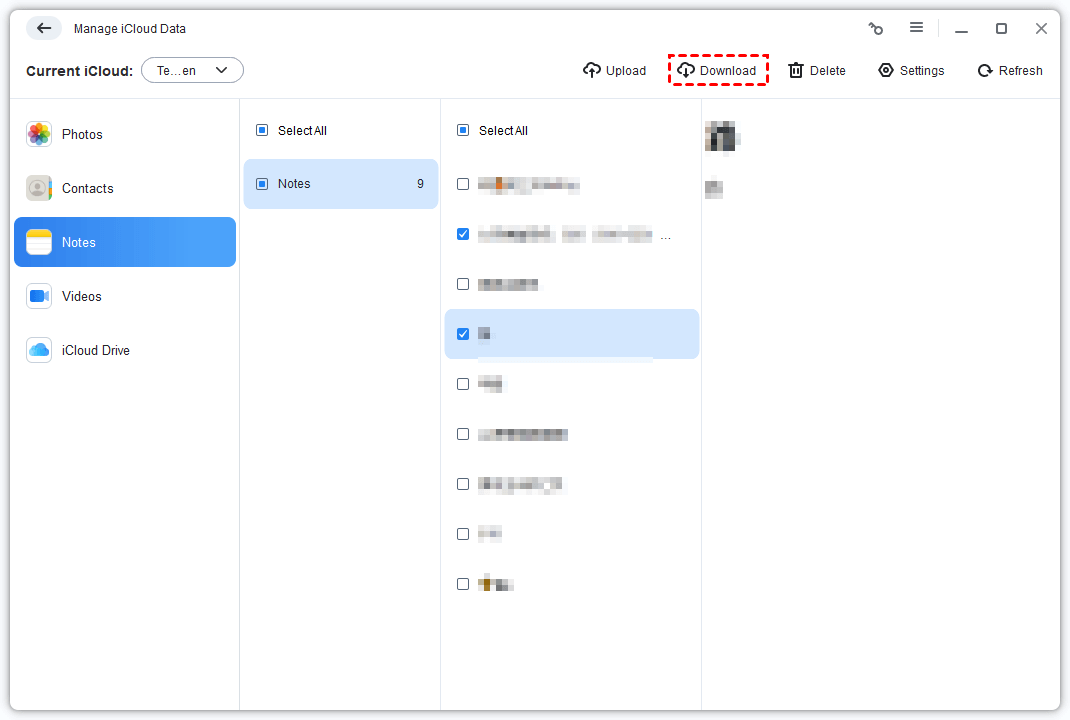
Step 3. Set download location > Click Download to complete transfer.
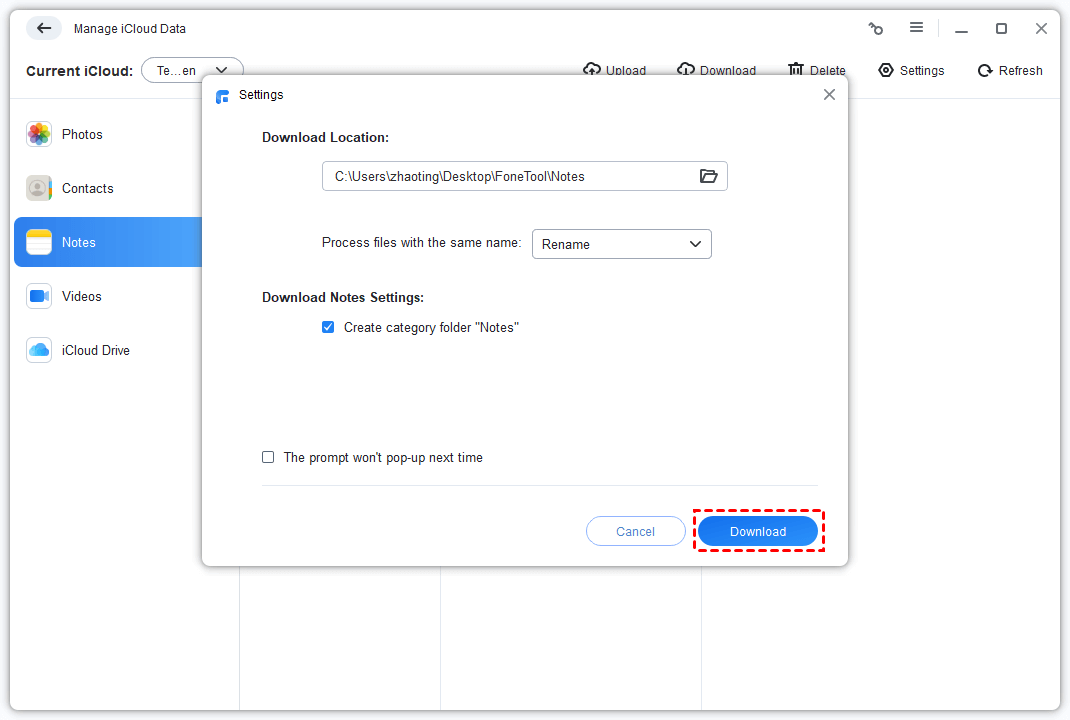
Option 2. Export Notes from iPhone to Computer with Website
iCloud.com provides web-based access to synchronized notes but lacks batch download functionality. provides web-based access to synchronized notes but lacks batch download functionality. Follow the guide to learn how to access notes from iPhone on PC via iCloud.com.
Step 1. Visit iCloud.com on your computer > Sign in with Apple ID.
Step 2. Click Notes icon to access synchronized notes.
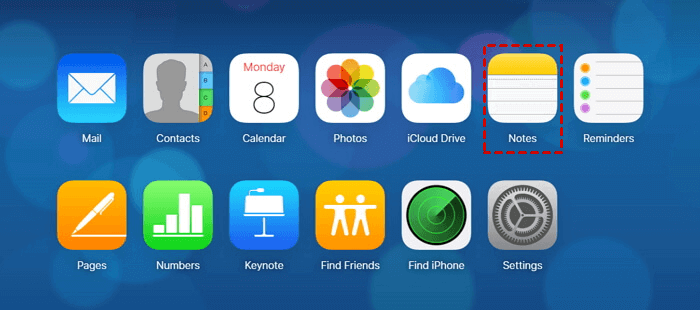
Step 3. Open individual notes > Copy content manually to computer.
⚠️ Limitation Note: iCloud.com doesn't support batch note exports, requiring manual copying of each note individually.
How to Access Notes from iPhone on PC Without iCloud
Email transfer provides a straightforward alternative for exporting notes from iPhone to computer without iCloud synchronization, though it's less efficient for multiple notes. Please refer to the following steps to learn how to export notes from iPhone to computer.
Step 1. Open Notes app on iPhone > Select target note.
Step 2. Tap Share icon > Choose Mail option.
Step 3. Enter your email address > Send.
Step 4. Access email on computer > Download or copy note content.
Bonus Tip: How to Transfer Files from iPhone to PC
FoneTool extends beyond note management to comprehensive file transfers between iPhone and computer withou iTunes.
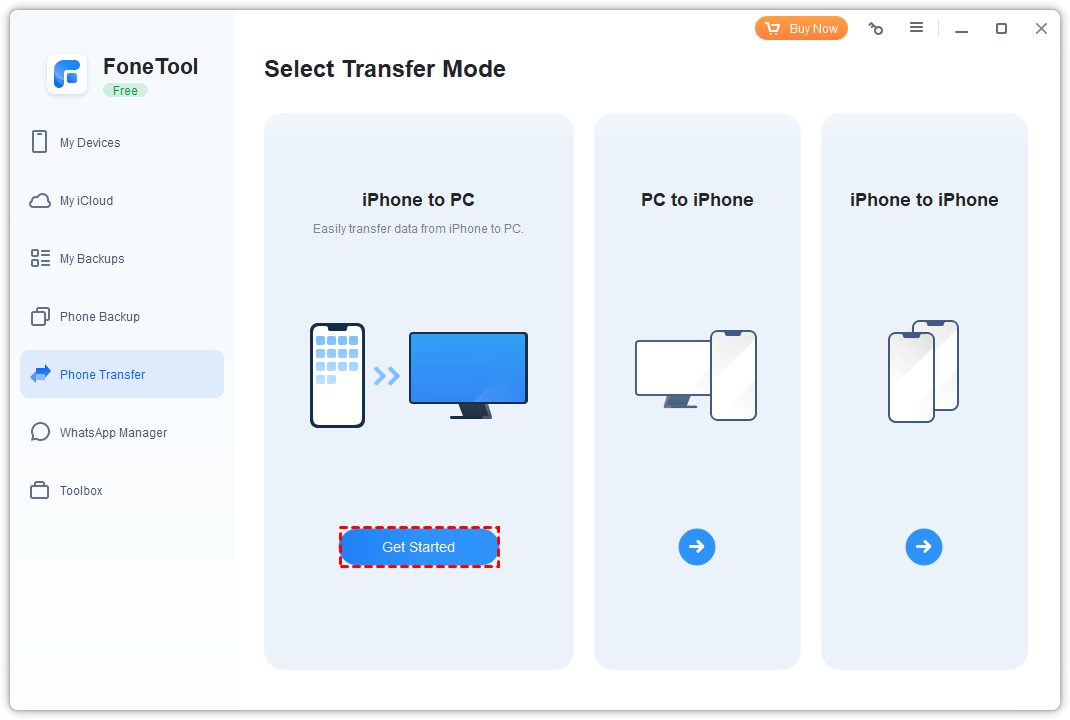
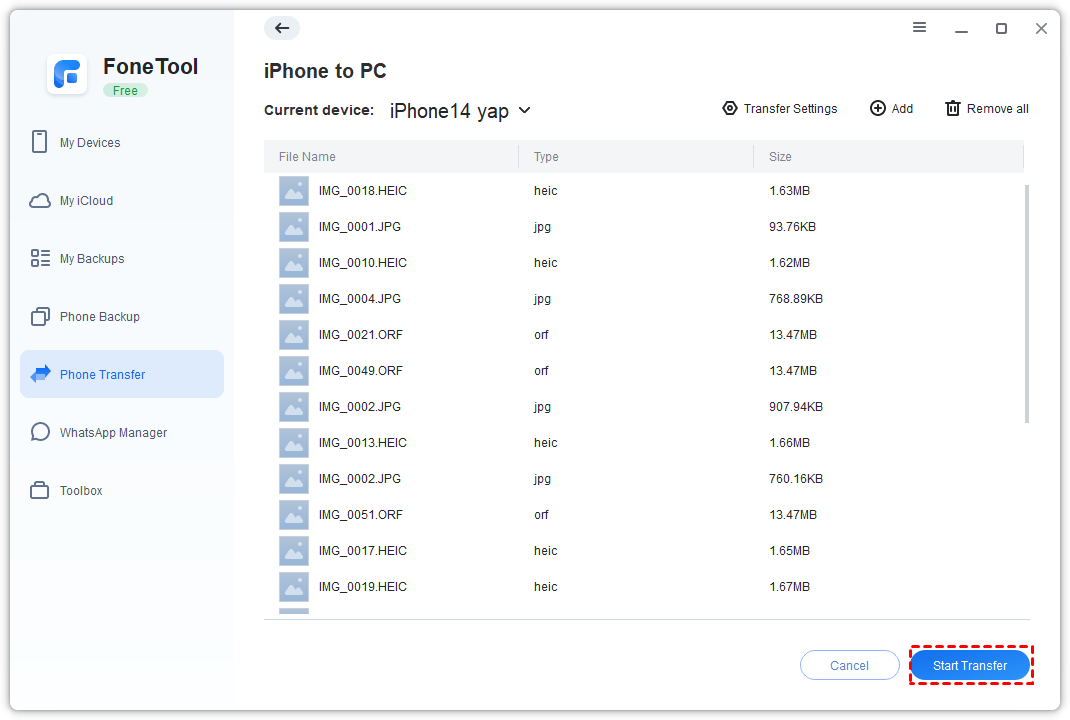
Step 1. Connect iPhone via USB > Open FoneTool > Phone Transfer > iPhone to PC > Get Started.
Step 2. Select file types (photos, videos, contacts, etc.) > Choose specific items.
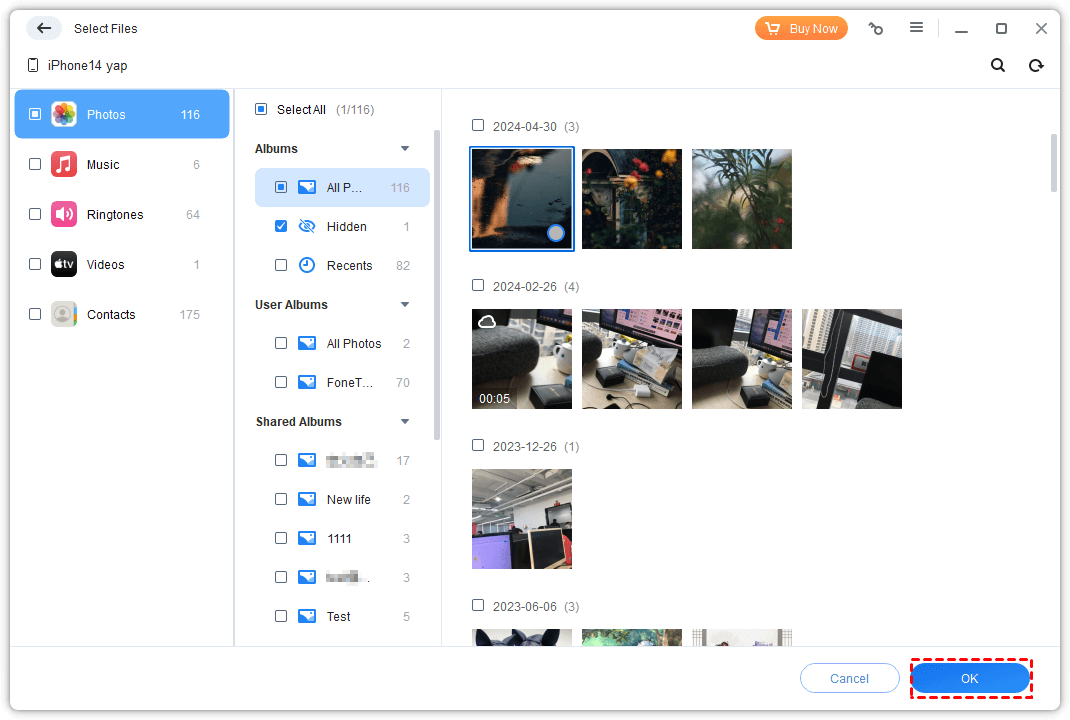
Step 3. Set destination folder > Start Transfer.
Conclusion
Now you understand multiple methods for transferring notes from iPhone to computer, each offering distinct advantages for different scenarios. Whether you choose iCloud synchronization, professional tools like FoneTool, or simple email transfers, these solutions ensure your important notes remain accessible and secure across all your devices. For comprehensive iPhone data management beyond just notes, FoneTool provides the most versatile and user-friendly approach.
FAQs on iPhone to PC Notes Transfer
FoneTool - All-in-one iPhone Data Manager
Transfer, backup and manage data on iPhone, iPad and iPod touch in an easy way.
-
 iOS 27 Compatible
 iPhone 17 Supported
Windows 11/10/8/8.1/7

100% Secure

Kelsey is an English editor at FoneTool, passionate about helping users solve tech issues. She specializes in iPhone data management, backup, and recovery. In her free time, she enjoys learning IT skills and spending time with loved ones.
Read author info >>



 as a preferred
source on Google
as a preferred
source on Google