How to Transfer Photos from iPhone 17/16 to PC - 5 Fast Ways (2026)
Learn 5 ways to transfer photos from iPhone 16/17 to PC - wired & wireless options compared. Fastest method takes just minutes!


Why Transfer Photos from New iPhone Models?
The arrival of the iPhone 17 has brought excitement to Apple fans, with significant camera upgrades particularly appealing to photography enthusiasts. As users increasingly document their lives using iPhones, these devices accumulate substantial photo collections that often need transferring to computers for viewing, editing, or storage.
This guide presents five efficient methods for transferring photos from iPhone 17/16 to your Windows PC.
Comparison: 5 Photo Transfer Methods for iPhone 17/16
| Method | Connection | Transfer Speed | Effectiveness | Large File Transfer |
| FoneTool🔥 | USB | Super-Fast | High - 3 Steps | Convenient |
| Photos App | USB | Moderate | Medium - Tedious Operation | Slow |
| File Explorer | USB | Moderate | Medium - Manually Find Data | Slow |
| iCloud | Wireless | Slow | Low - Unknown Errors may Occur | Unstable |
| Google Photos | Wireless | Slow | Low - Manually Upload/Download | Unstable |
1. How to Transfer Photos from iPhone 17/16 to PC - Fastest & Free
For rapid, reliable photo transfers from iPhone 16/17 to PC, FoneTool provides the optimal solution with superior speed and flexibility.
Easily transfer data from iPhone to PC and vice versa as you like.
- Transfer 100+ full-resolution images in seconds without quality loss
- A stable USB connection ensures data safety and reliability
- Preview and select specific photos before transfer
- Customizable storage locations (PC, external drives)
- Full compatibility with iPhone 17/16 and iOS 26
Windows 11/10/8/8.1/7

100% Secure
Follow the steps below to try the best way to transfer pictures from iPhone to PC.
Step 1. Connect iPhone to PC via USB > Tap Trust when prompted.
Step 2. Open FoneTool > Phone Transfer > iPhone to PC > Get Started.
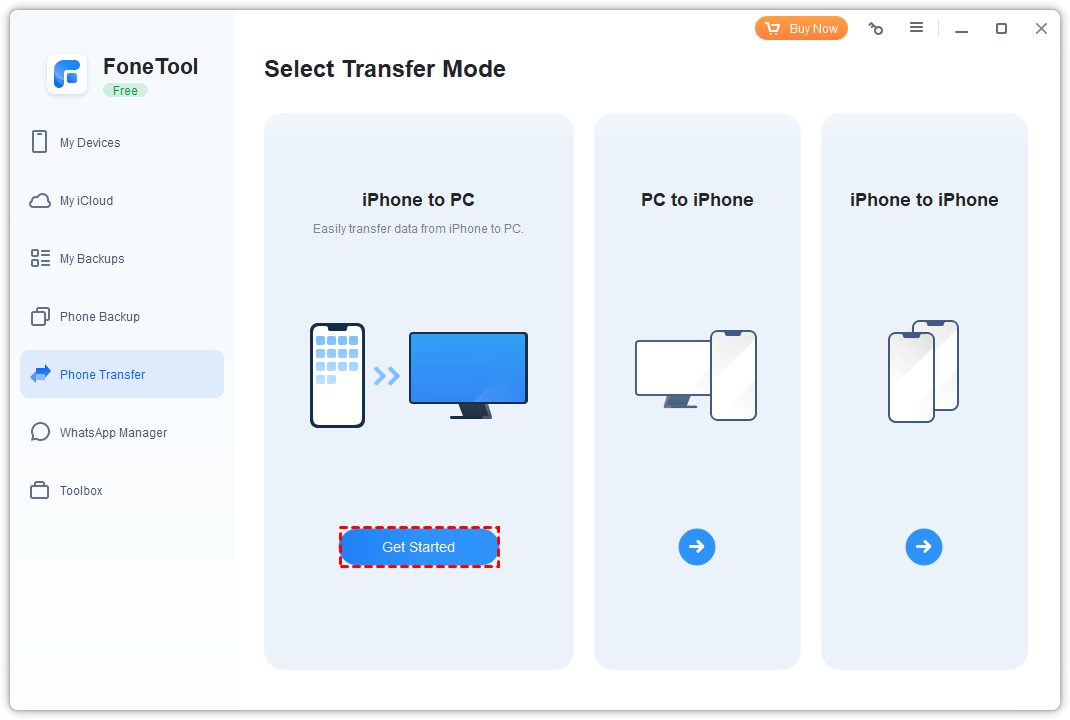
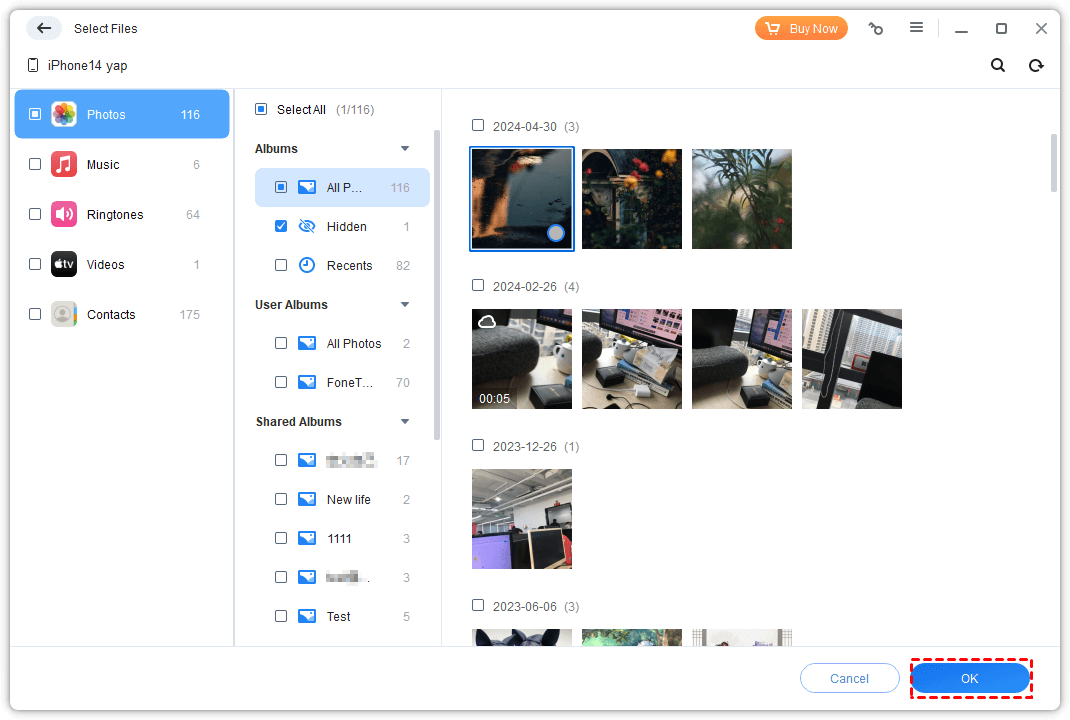
Step 3. Click + icon > Select photos/videos > OK.
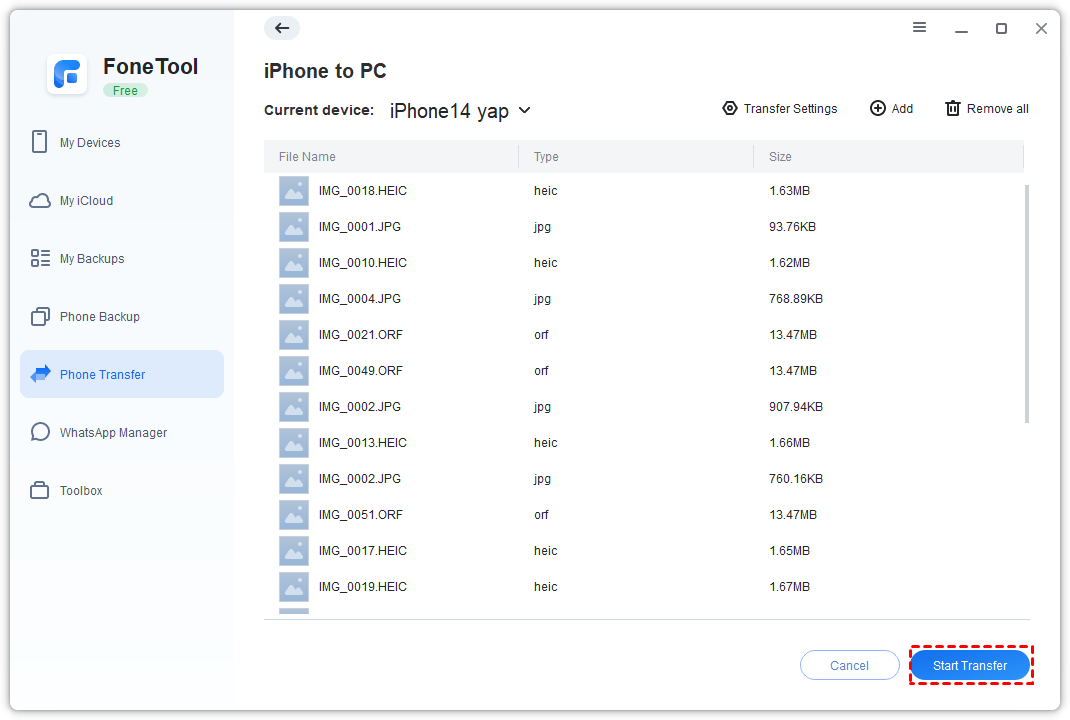
Step 4. Change photo storage location in Transfer Settings > Click Start Transfer to copy iPhone photos to PC without iTunes.
- ★Pro Tips:
- Use PC to iPhone feature for reverse transfers without iTunes
- Connect USB drives simultaneously for direct external storage transfers
- Essential for iPhone 17/16e users lacking mmWave 5G support
2. How to transfer photos from iPhone 16/17 to laptop with Photos
Windows' built-in Photos app provides a native solution for iPhone photo transfers without third-party software. You can set it to automatically put newly-taken iPhone pictures to computer.
Step 1. Connect iPhone to computer > Open Photos app.
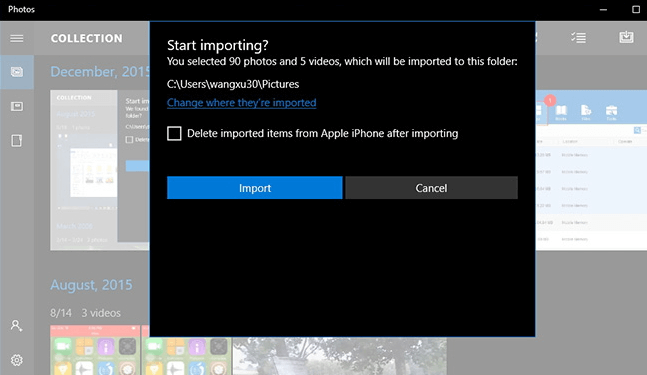
Step 2. Click Import > From A USB device.
Step 3. Wait for file detection > Deselect unwanted photos.
Step 4. Click Import to add iPhone 16/17 pictures to PC.
3. How to import photos from iPhone 16/17 to PC with File Explorer
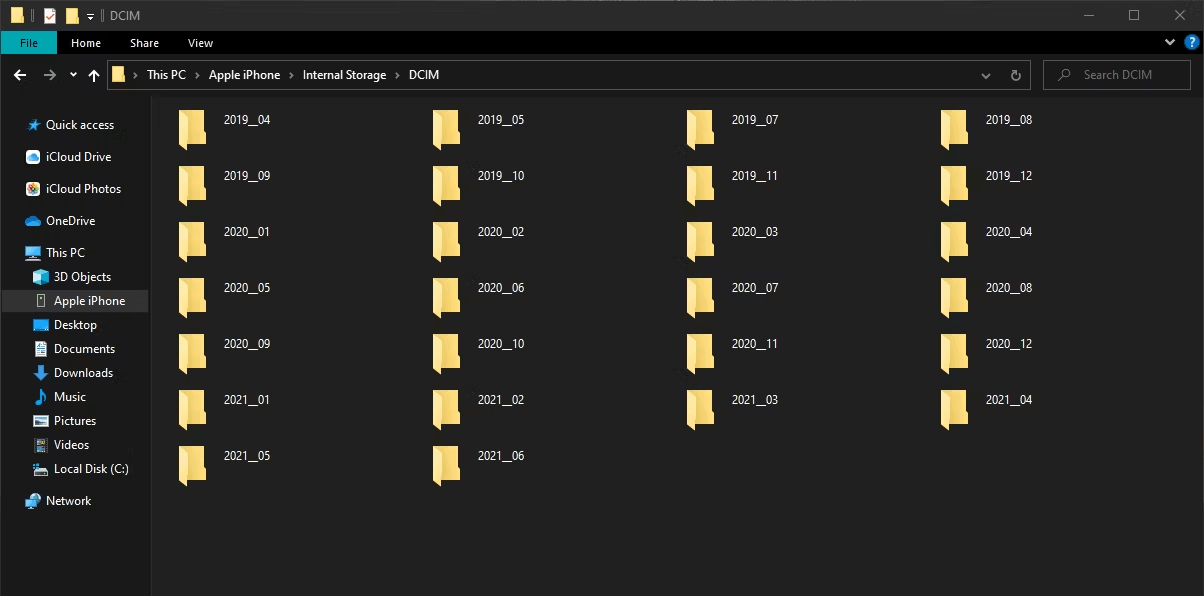
Windows File Explorer offers direct access to iPhone storage for manual photo management. Les't move photos/videos stored in the iPhone DCIM folder.
Step 1. Connect iPhone via USB > Open File Explorer.
Step 2. Navigate to This PC > Select your iPhone under Portable Devices.
Step 3. Open Internal Storage > DCIM folder.
Step 4. Drag and drop photos to PC destination.
4. How to download photos from iPhone 16/17 to PC with iCloud
For people who don’t need to move a large number of pictures, downloading photos from iCloud to PC will be a good way.
iCloud Setup Preparation
Enable iCloud Photos: Settings > Profile > iCloud > Photos > Enable sync.
Option 1. Save photos to computer via iCloud Website
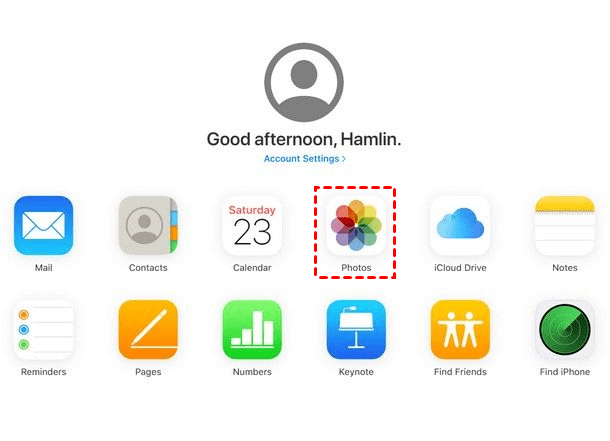
Step 1. Go to iCloud.com on your PC > Login Apple ID.
Step 2. Click the Photos icon > Select images > Tap Download icon to download photos to your PC.
Step 3. Save to computer (max 1000 photos per session).
Option 2. Copy iCloud photos to pc with a professional tool
FoneTool will be a fast and safe way to download iCloud data from PC.
- Highlights:
- · Efficiently download, upload or delete iCloud (Drive) data from Windows PC
- · Download 1000+ photos in 20 minutes without errors.
- · SSL encryption ensures data security
- · Sync between iCloud accounts with one click
Download FoneTool on your PC and choose your iCloud photos/videos to download as you like.
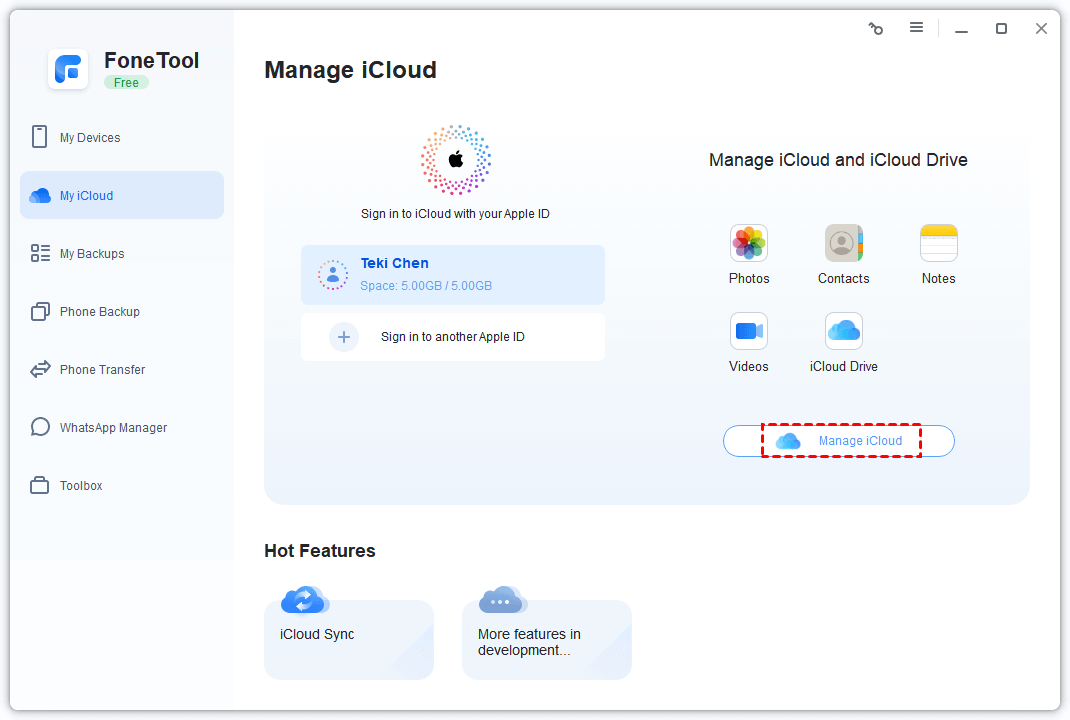
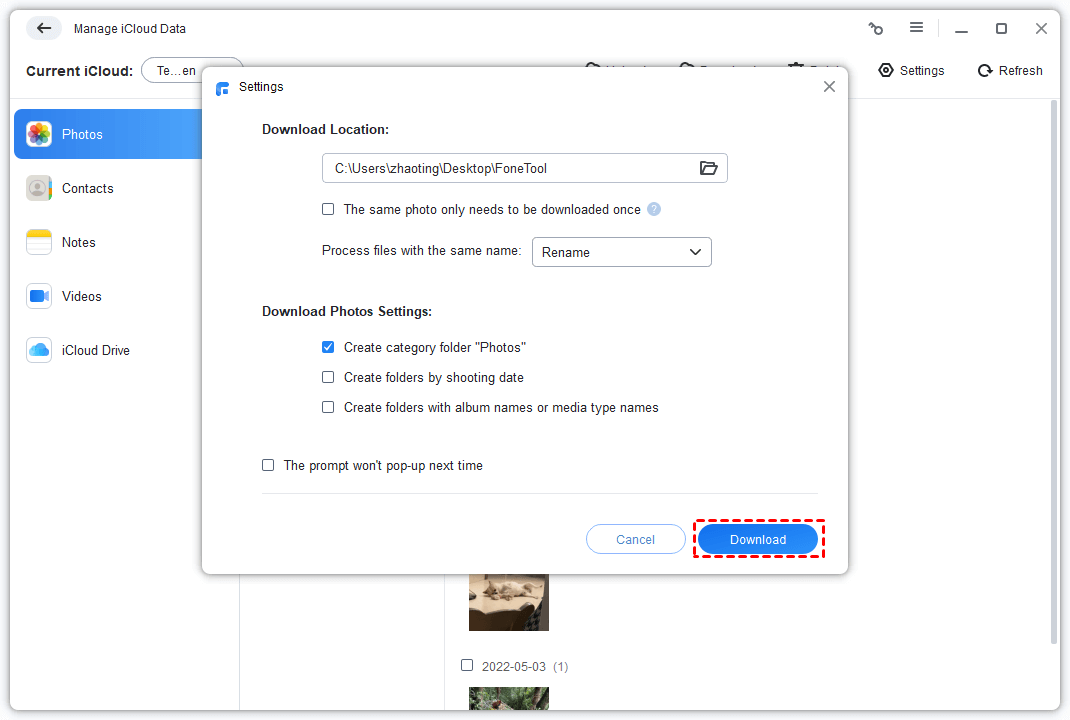
Step 1. Open FoneTool > My iCloud > Login > Manage iCloud.
Step 2. Select Photos > Choose files > Click the Downlod button.
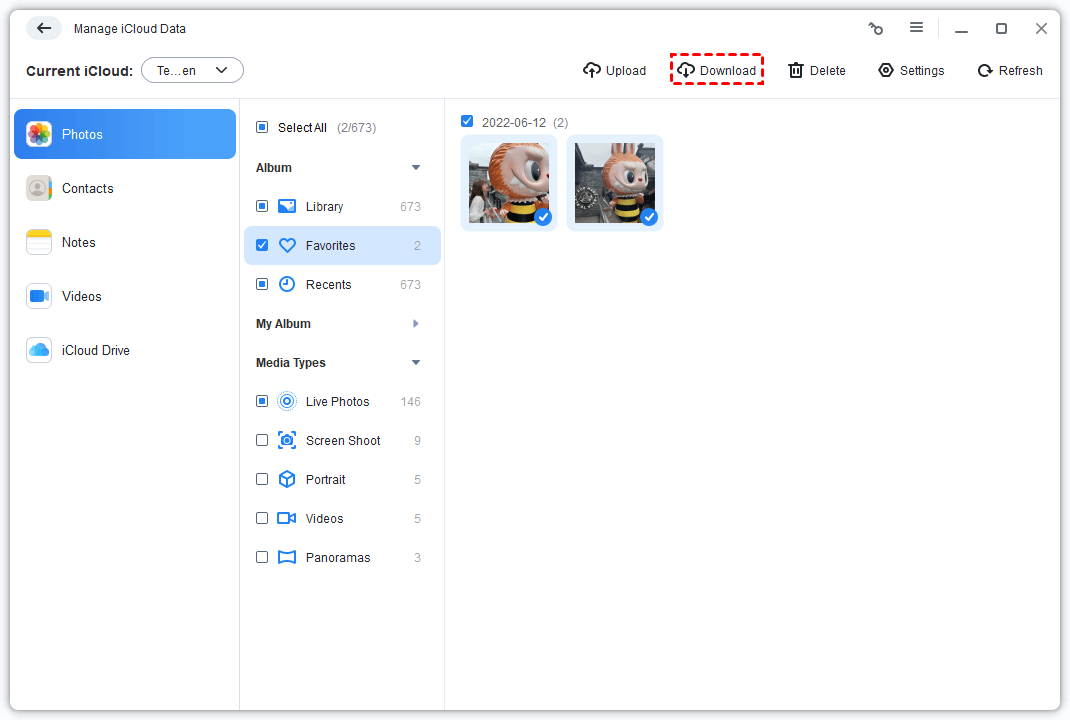
Step 3. Change the download settings > Click Download to confirm.
5. How to get photos from iPhone 16/17 to computer - Google Photos
If you need another wireless way to upload photos from iPhone 16/17 to computer, Google Photos offers 15GB free storage for cloud-based photo transfers.
Step 1. On iPhone: Access photos.google.comm or Google Photos app > Login > Upload photos.
Step 2. On PC: Visit photos.google.com > Login same account.
Step 3. Select photos > Three-dots menu > Click Download to download pictures from iPhone 16/17 to laptop/desktop.

More Photo Transfer & Management Solutions
Depending on your situation, one of these guides might be exactly what you need.
🔹 Running out of space? Offload photos to external drives
If your PC is low on storage or you just want a dedicated backup, moving photos straight to an external hard drive or USB flash drive is the way to go. You can do this with a computer (using FoneTool, File Explorer, or the Photos app) or even directly from your iPhone using a Lightning‑to‑USB adapter. This guide walks you through every option.
- Transfer photos from iPhone to external hard drive – with or without a computer, step by step.
🔹 No cable? No problem – wireless ways to move photos
Maybe your charging port is broken, or you just hate cables. Wireless methods like Bluetooth, iCloud, Dropbox, and Google Photos all work, but each has trade‑offs in speed and storage limits. This guide compares 6 wireless methods so you can pick the one that fits your needs.
- Transfer photos from iPhone to PC wirelessly – 6 ways compared, from Bluetooth to cloud services.
🔹 Your PC won't show your iPhone photos? Here's how to fix it
You plug in your iPhone, open File Explorer, and… nothing. No photos appear. This happens for all sorts of reasons: HEIC format incompatibility, iCloud syncing your photos to the cloud instead of the device, a locked phone, or a bad USB cable. This guide walks you through 9 fixes, including the fastest one – using FoneTool to bypass all the hassle.
- iPhone photos not showing up on PC? 9 fixes – from quick checks to professional tools.
🔹 Want to transfer iCloud photos directly to a USB drive?
If your photos are already in iCloud and you want to put them onto a flash drive without downloading everything to your PC first, you have options. You can use FoneTool's iCloud manager (fast, selective), go through iCloud.com in a browser, or use the iCloud for Windows app. This guide covers all three.
- Transfer photos from iCloud to flash drive – 3 ways to get your cloud photos onto physical storage.
FAQs about iPhone 16/17 to PC data transfer
Final Words
This guide presents five effective methods for transferring photos from iPhone 17/16 to PC:
-
For large-scale transfers: Use wired methods like FoneTool (fastest), Photos app, or File Explorer
-
For wireless convenience, iCloud or Google Photos provide cloud-based solutions
FoneTool stands out as the optimal solution with its superior speed, selective transfer capability, you can also go to Phone Backup and use it to backup iPhone 16/17 to PC without iCloud.
FoneTool - All-in-one iPhone Data Manager
Transfer, backup and manage data on iPhone, iPad and iPod touch in an easy way.
-
 iOS 27 Compatible
 iPhone 17 Supported
Windows 11/10/8/8.1/7

100% Secure

Kelsey is an English editor at FoneTool, passionate about helping users solve tech issues. She specializes in iPhone data management, backup, and recovery. In her free time, she enjoys learning IT skills and spending time with loved ones.
Read author info >>



 as a preferred
source on Google
as a preferred
source on Google