How Do I Get My Phone Out of SOS Mode: Easy Fixes
Is your phone stuck in SOS mode? This complete guide shows how to fix SOS mode on both iPhone and Android devices. From basic troubleshooting to advanced solutions, get your phone working again.


When your phone shows "SOS Only" or "Emergency Calls Only," it means you can only make emergency calls. This frustrating issue affects both iPhone and Android users. Don't worry - most SOS mode problems can be fixed with the right steps.
Why Phones Get Stuck in SOS Mode
Understanding why SOS mode activates helps you choose the right solution. Here are the most common causes:
|
Network Connection Problems |
Software and Settings Issues |
Hardware and SIM Card Problems |
|
Weak or no cellular signal |
Software update failures |
Damaged or improperly seated SIM card |
|
Carrier network outages |
Network configuration errors |
eSIM activation failures |
|
Incorrect network settings |
Emergency SOS accidental activation |
Rare baseband hardware issues |
Effective Solutions to Fix Phone Stuck in SOS Mode
We recommend you start with the basic glitches and try to fixthe iPhone stuck in SOS mode to get your phone working again.
Solution 1. Basic Troubleshooting
These simple steps solve most SOS mode problems and work for both iPhone and Android devices.
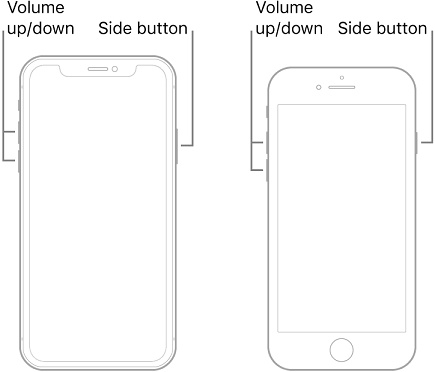
Step 1. Restart Your Phone
- For iPhone: Quickly press and release Volume Up, then Volume Down, then hold Side button until Apple logo appears
- For Android: Hold Power button and tap "Restart" or hold Power + Volume Down for 10 seconds
Step 2. Toggle Airplane Mode
- Swipe down from top of screen (Android) or from top-right corner (iPhone)
- Tap the Airplane icon, wait 10 seconds, then tap again

Step 3. Check Your Signal Strength
- Move to a different location with better reception
- Avoid basements, elevators, and underground areas
- ★Tip:
- Always start with a phone restart - it fixes most temporary software glitches causing stuck on SOS mode.
Solution 2. Network Connection Reset
If basic steps don't work, resetting network settings often solves SOS mode problems.
▶For iPhone:
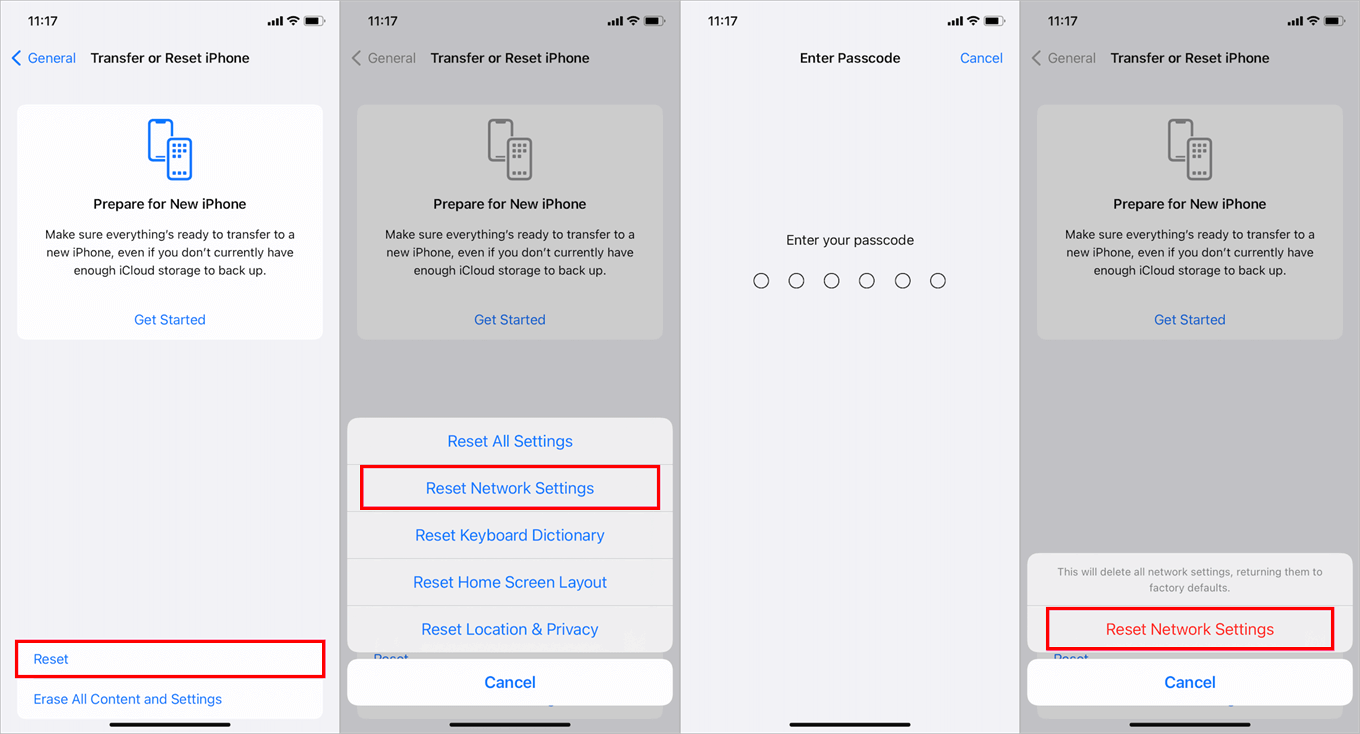
Step 1. Go to Settings > General > Transfer or Reset iPhone.
Step 2. Tap Reset > Reset Network Settings.
Step 3. Enter your passcode and confirm.
▶For Android:
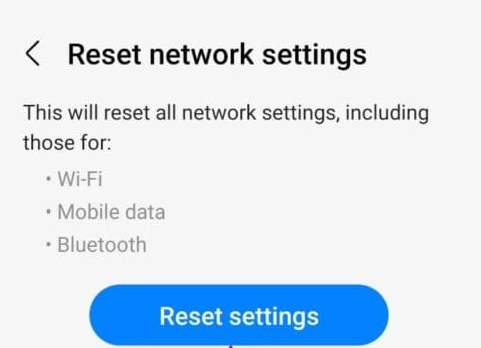
Step 1. Open Settings > System > Reset options.
Step 2. Tap Reset Wi-Fi, mobile & Bluetooth.
Step 3. Confirm the reset.
Solution 3. SIM Card and eSIM Solutions
SIM card issues commonly cause SOS mode. Here's how to fix them:
▶Physical SIM Cards
Step 1. Power off your phone completely.
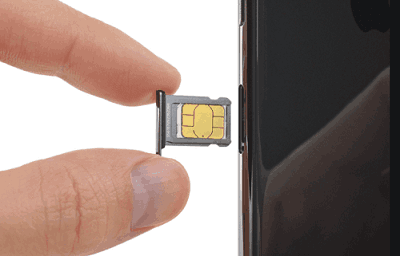
Step 2. Use a SIM ejector tool to remove the SIM tray.
Step 3. Clean the SIM card with a soft cloth.
Step 4. Reinsert the SIM card and restart your phone.
▶eSIM Troubleshooting
Step 1. For iPhone: Go to Settings > Cellular > Add Cellular Plan;
For Android: Go to Settings > Network & Internet > Mobile network > Carrier.
Step Contact your carrier for eSIM reconfiguration if needed.
Solution 4. Update Software and Carrier Settings
Keeping your software updated prevents many SOS mode issues:
Step 1. Update Your Phone Software
- iPhone: Settings > General > Software Update
- Android: Settings > System > System update
Step 2. Check Carrier Updates
- iPhone: Go to Settings > General > About - wait for update prompt
- Android: Check with your carrier for specific update procedures
Solution 5. Advanced Solutions for iPhone Stuck in SOS mode
When basic methods fail, persistent SOS mode caused by iOS system issues may require professional tools. FoneTool Repair specializes in fixing iOS problems without data loss.
This powerful iOS system repair tool is the best way to fix iOS/iPadOS issues without data loss
Step 1. Download FoneTool Repair on a Windows PC, connect your iPhone via USB and launch the tool.
Step 2. Choose the iOS System Repair on main interface.

Step 3. Select Standard Mode (recommended for data preservation).

Step 4. Download the firmware package and click Start Repair.

- ★Tip:
- Use FoneTool Repair if SOS mode persists after basic fixes, as it addresses deeper system issues.
Frequently Asked Questions
When to Contact Professional Help
If you've tried all solutions and your phone remains in SOS mode:
Way 1. Contact Your Carrier
- They can check for network outages in your area
- Verify your account status and service
- Re-provision your SIM or eSIM
Way 2. Visit Manufacturer Support
- Apple Support for iPhones
- Google Pixel Support or your Android manufacturer's service center
- Check for hardware warranty coverage
Conclusion
Getting your phone out of SOS mode is usually straightforward. Start with basic troubleshooting like restarting and toggling airplane mode. If that doesn't work, reset network settings or check your SIM card. For persistent iPhone issues, FoneTool Repair provides an effective solution without data loss. Android users should consider factory reset as a last resort after backing up data.
Remember that most SOS mode problems are software-related and can be fixed without professional help. If all solutions fail, contact your carrier or device manufacturer for further assistance.
Fixes 160+ iOS/iPadOS issues, boot loops, crashes, failed updates, with no data loss.
-
 iOS 27 Compatible
 iPhone 17 Supported
100% Secure

Kelsey is an English editor at FoneTool, passionate about helping users solve tech issues. She specializes in iPhone data management, backup, and recovery. In her free time, she enjoys learning IT skills and spending time with loved ones.
Read author info >>



 as a preferred
source on Google
as a preferred
source on Google