How to Soft Reset iPhone: A Step-by-Step Guide
This guide covers soft reset steps for all iPhone models (with/without Home Button). Also explores FoneTool Repair for persistent problems, FAQs, and SEO-optimized keywords.


A soft reset is one of the simplest yet most effective ways to resolve common iPhone issues like unresponsive apps, connectivity problems, or screen freezes without losing your data . Whether you own an older iPhone with a Home Button or a newer model with Face ID, this guide provides clear, step-by-step instructions to safely soft reset your iPhone. You'll also learn when to try advanced tools like FoneTool Repair for deeper system issues.
What Is a Soft Reset?
A soft reset (also called a restart or reboot) powers your iPhone off and on again, clearing minor software glitches and refreshing temporary memory. Unlike a factory reset, it does not erase your data or settings. Use it to fix:
- Frozen screens or laggy performance
- Wi-Fi or cellular connection drops
- Apps are crashing or not responding
- iPhone not detected by iTunes
How to Soft Reset iPhones with Face ID
For models like iPhone X to iPhone 17:
Step 1. Press and hold the Side button and either Volume button simultaneously.
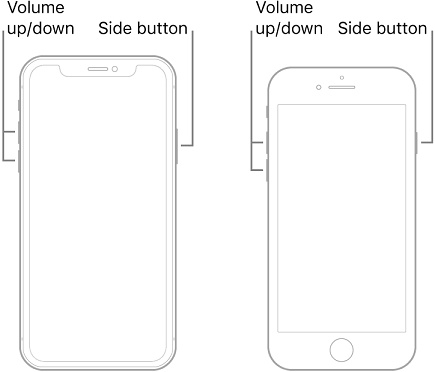
Step 2. Release when the "slide to power off" slider appears, then drag it to shut down.
Step 3. Press the Side button again after 30 seconds to restart.
How to Soft Reset iPhones with a Home Button
For models like iPhone 6, 7, 8, SE (1st–3rd gen), and earlier:
Step 1. Press and hold the Side (or Top) button until "slide to power off" appears.
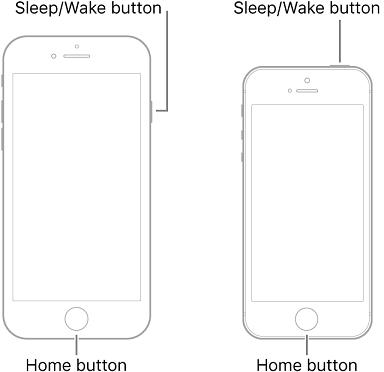
Step 2. Drag the slider to the right to turn off the device.
Step 3. Wait 30 seconds, then press and hold the Side button again until the Apple logo displays.
What to Do If a Soft Reset Doesn’t Work?
If your iPhone remains frozen, stuck on the Apple logo, or unresponsive, consider these solutions:
1. Force restart: Similar to a soft reset but uses button combinations to reboot the device without data loss (e.g., quickly press Volume Up, Volume Down, then hold Side button on newer models).
2. Check for iOS updates: Go to Settings > General > Software Update to install fixes for known bugs.
3. Use FoneTool Repair: For persistent issues like boot loops, black screens, or update failures, this tool can repair underlying iOS system errors.
Using FoneTool Repair for Advanced iOS Issues
When soft resets fail, FoneToolRepair offers a comprehensive solution for complex system problems.
This powerful iOS system repair tool is the best way to fix iOS/iPadOS issues without data loss
Step 1. Download the tool from FoneTool Repair and install it on a Windows computer.
Step 2. Connect your iPhone via USB and launch the app. Select "iOS System Repair".

Step 3. Choose a repair mode (e.g., Standard Mode for data retention) and download the recommended firmware.

Step 4. Click "Start Repair" to resolve the issue automatically.

- ★Tips:
- FoneTool Repair is compatible with iOS 9 to iOS 26 and all iPhone models, making it ideal for stubborn software glitches.
Frequently Asked Questions on Resetting iPhone
Conclusion
Knowing how to soft reset your iPhone is essential for troubleshooting everyday glitches quickly and safely. For most minor issues, a simple restart resolves the problem without risk to your data. If you encounter persistent system errors, tools like FoneTool Repair provide a user-friendly way to repair iOS and restore functionality. Keep your iPhone running smoothly by combining soft resets with advanced solutions when needed.
Fixes 160+ iOS/iPadOS issues, boot loops, crashes, failed updates, with no data loss.
-
 iOS 27 Compatible
 iPhone 17 Supported
100% Secure

Kelsey is an English editor at FoneTool, passionate about helping users solve tech issues. She specializes in iPhone data management, backup, and recovery. In her free time, she enjoys learning IT skills and spending time with loved ones.
Read author info >>



 as a preferred
source on Google
as a preferred
source on Google