How to Bypass Google Account Verification After Reset Without PC
Locked out after a reset and no PC available? Learn two methods to bypass Google account verification without a computer – plus a reliable FRP tool for PC if you need it later.


After a factory reset, your Android phone may ask you to verify the Google account previously linked to the device. If you’re wondering how to bypass Google account verification after reset without PC, there are two options offered in this article you can try. If you do have a PC, this guide also recommends a reliable FRP bypass tool.
🌟 To learn more situations about bypassing Google verification, please refer to this complete guide: How to Bypass Google Verification.
How to Bypass Google Account After Factory Reset Without Computer
Take Samsung devices as an example. Learn how to perform Samsung FRP bypass without PC step by step below.
Method 1: Recover Your Google Account on Another Phone
If you forgot the Google account email address or password required after a factory reset, recovering the original account is the safest option. You can use another phone to access Google's account recovery service and reset your login information.
👉 Forgot your password
Step 1. Go to the Google Account Recovery Page, type your email address or phone number, and click Next.
Step 2. When asked for your password, select the Forgot password option.
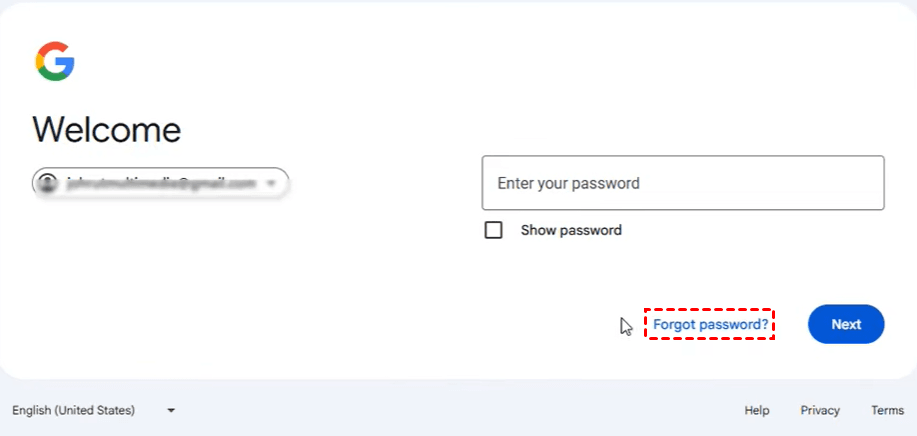
Step 3. Google will ask you to confirm ownership using a recovery method. This may include:
- Tapping Yes on a prompt sent to your logged-in phone or tablet.
- Entering a verification code sent via text message (SMS) or to your recovery email.
- Using a passkey, security key, or authenticator app code if set up.
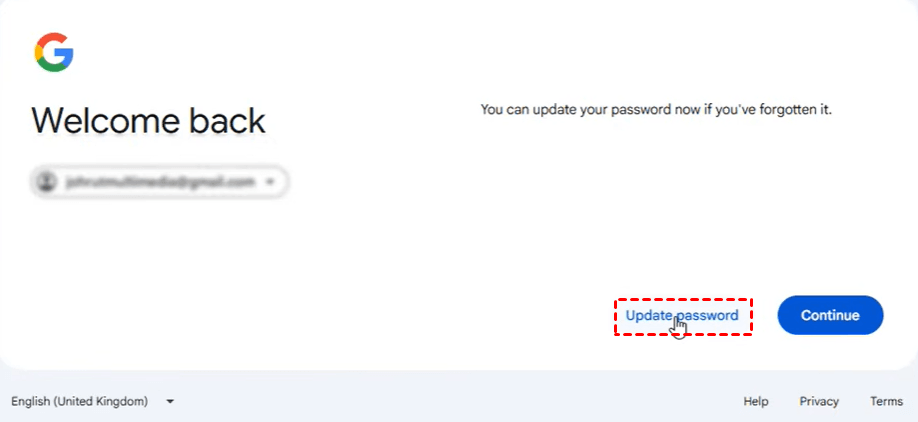
Step 4. Once your identity is verified, click Update password and create a strong new password that you have not used before on this account.
👉 Forgot the email address you use to sign in
Step 1. Go to the Google Account Recovery Page, enter your phone number or recovery email address linked to the account, and click Next.
Step 2. Enter your first and last name as they appear on the account.
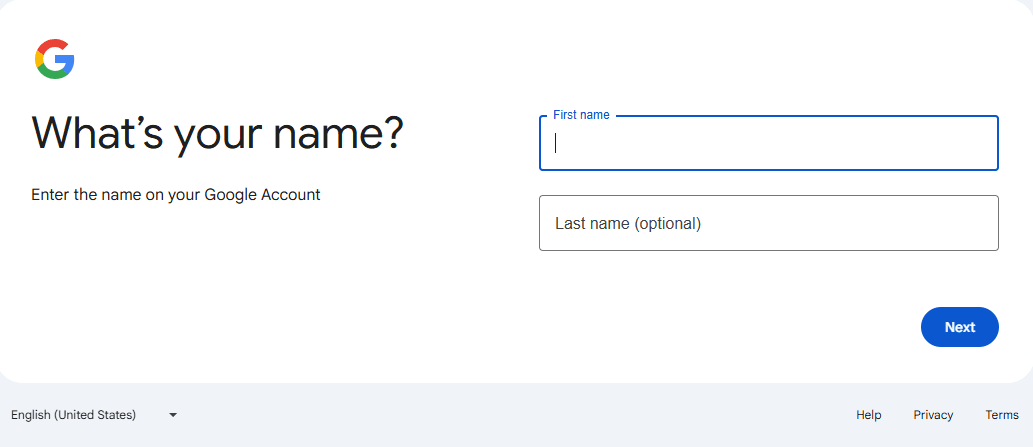
Step 3. Follow the on-screen steps to receive a verification code.
Step 4. View the list of matching usernames sent or displayed by Google.
Method 2: Bypass Google Account Verification Using Google Keyboard
Some older Android devices may have had accessibility or keyboard-related setup paths that could expose additional device settings during the initial setup process. However, these behaviors depend heavily on the phone model, Android version, security patch, and manufacturer. Follow the steps below to remove FRP lock Samsung without computer:
Step 1. On the Google verification screen, tap the text field to bring up the keyboard. Press and hold the "@" key until a settings menu appears. Select Google Keyboard Settings.
Step 2. In the keyboard settings, tap the three-dot menu in the top-right corner and choose Help & Feedback.
Step 3. In the help section, select any text on the screen, then choose the Web Search option from the pop-up menu.
Step 4. In the search bar that appears, type Settings and search. Look for a result that opens the device's main Settings app.
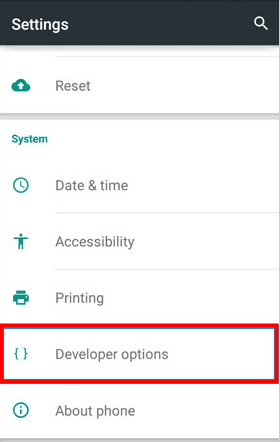
Step 5. If you successfully open Settings, go to About phone and tap on Build number seven times to unlock Developer Options.
Step 6. Go back and enter Developer options, then toggle on OEM unlocking.
Bonus: How to Remove Previously Synced Google Account After Factory Reset on PC
If you cannot complete Google account verification directly on your Android phone, a PC-based solution may be another option. FoneTool Unlocker is a Windows tool designed to help remove Google FRP locks on supported devices.
- Key Features:
- ⭐Samsung FRP Bypass: Remove the Google FRP lock from supported Samsung devices.
- ⭐USB Connection: Connect your Samsung device to a Windows PC via USB to get started.
- ⭐Multiple FRP Unlock Methods: Features One-click Removal, along with solutions for Android OS 16, MediaTek devices, Qualcomm (Snapdragon) devices, US models, and Android OS 6/7/8/9/10/11/12/13.
- ⭐Supported Devices: Samsung Galaxy S26, S25, S24, and selected Galaxy S, A, M, Z, Fold, and Flip models.
- ⭐System Requirements: Compatible with Windows 11, 10, 8.1, 8, and 7, and supports Android OS 6 through 16.
- ⭐iOS Device Unlock: Besides unlocking Samsung devices, it can also help you bypass iCloud Activation Lock, remove Apple ID, and more.
Learn how to remove previously synced Google account after factory reset using FoneTool Unlocker below:
Step 1. Connect the locked Samsung phone to the computer with a USB cable. Then download and install FoneTool Unlocker on your computer.
Step 2. Launch FoneTool Unlocker. From the main interface, find Unlock Samsung Devices and click Start.
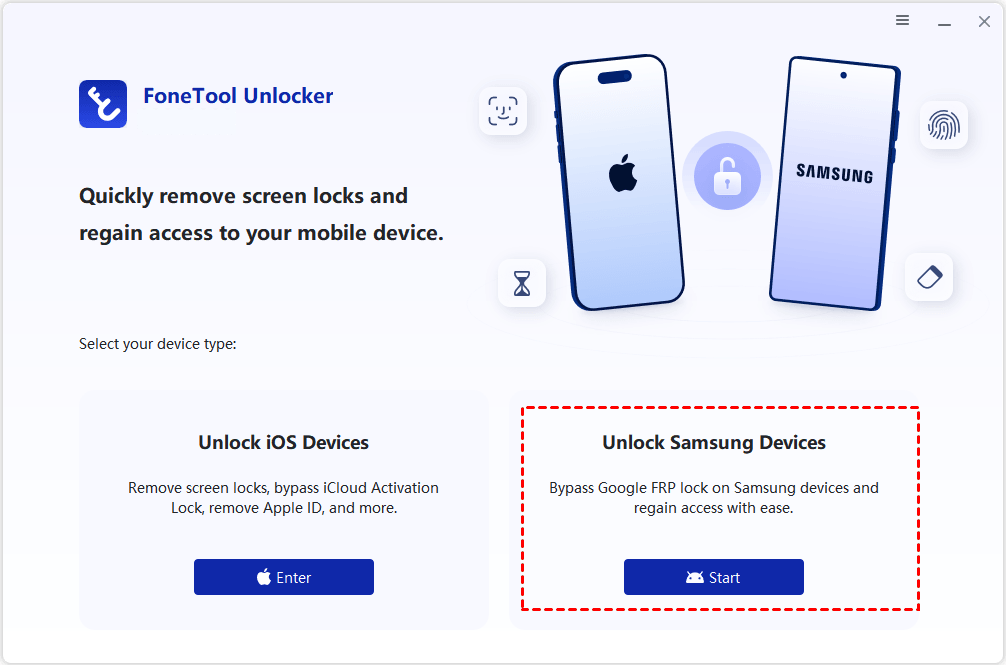
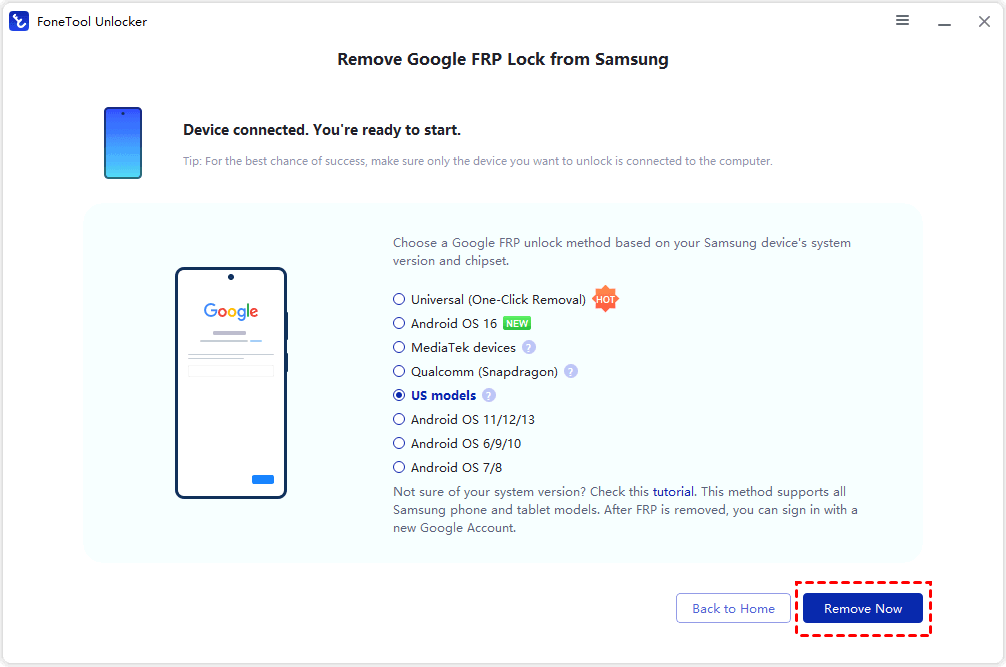
Step 3. Choose the FRP removal method according to your Samsung phone's Android version and chipset, then click Remove Now. If you are not sure of your system version, choose Universal (One-Click Removal).
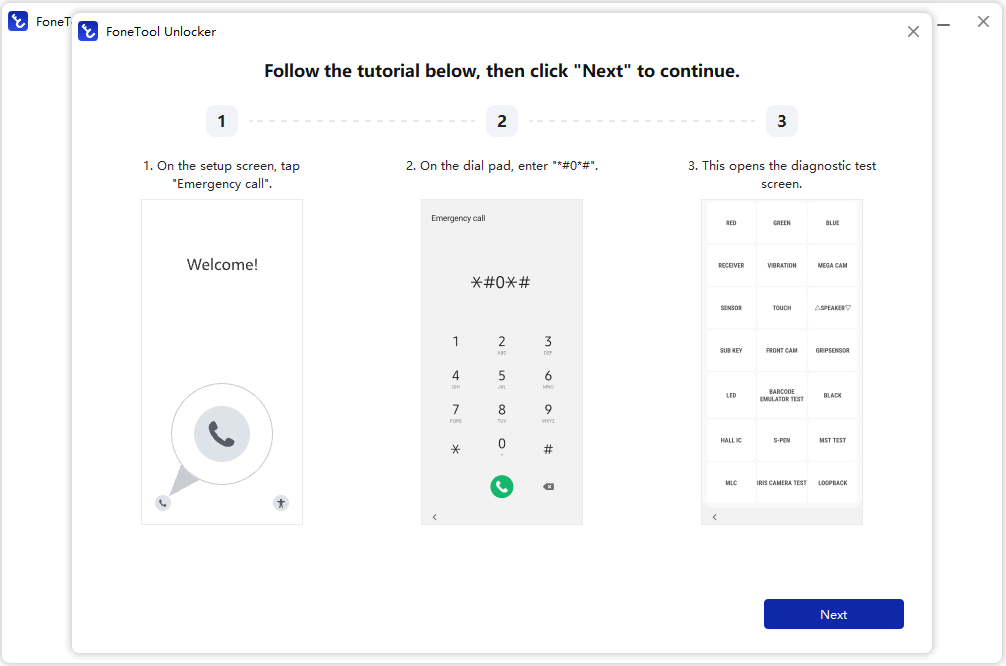
Step 4. During the process, FoneTool Unlocker may display instructions requiring an action on the phone. Tap Emergency Call on the phone screen and enter the specific code (e.g., *#0*#) to activate Test Mode. Once completed, click Next on the computer.
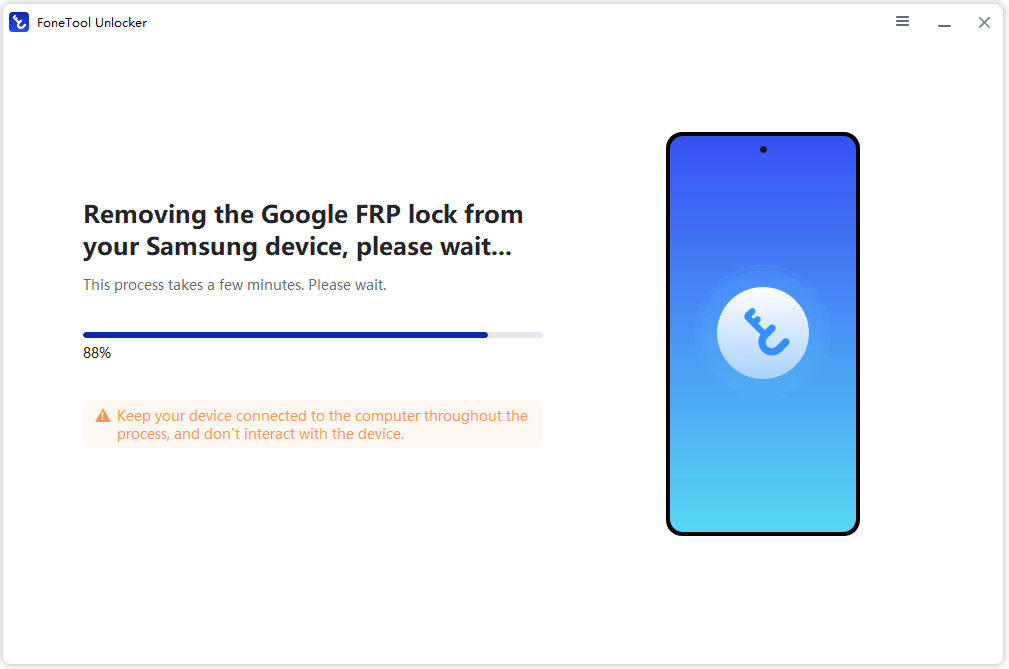
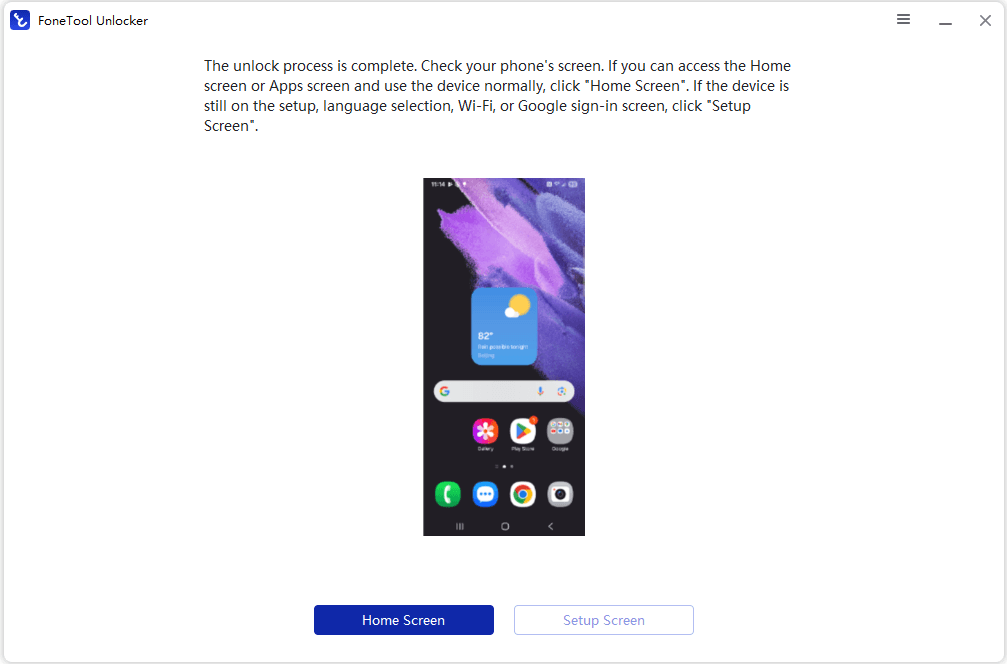
Step 5. After the required device action is completed, the program will proceed with the FRP removal process. Keep the Samsung phone connected to the computer and wait until the operation is complete.
Step 6. After the FRP lock is removed, follow the remaining on-screen instructions to set up the device.
FAQs About Google Account Verification Without a PC
1. Can I remove Google account verification without a PC?
In some cases, you can regain access without a PC by recovering and signing in to the Google account that was previously synced with the device. If you purchased the phone second-hand, contacting the previous owner or the manufacturer's support is another legitimate option.
2. What if I forgot the Google account password after resetting my phone?
You can recover the Google account using another phone or a web browser. After recovering your credentials, sign in with the same account that was previously associated with the reset device. If you recently changed the password, you may need to wait before completing device verification.
3. Can I bypass FRP using only my phone?
Some older devices may have supported phone-only workarounds, but their availability varies significantly by manufacturer and Android version. Be cautious with websites offering unknown APK files or instructions that require disabling security protections.
Conclusion
If you’re looking for how to bypass Google account verification after reset without PC, you may be able to regain access directly from your phone by recovering the previously synced Google account. However, phone-only workarounds can vary by device and Android version.
If these options don’t work, a PC-based solution such as FoneTool Unlocker may provide another option for supported devices. Always use these methods only on devices you own or are authorized to access.
FoneTool Unlocker - 1-Click Phone Unlock Software
Easily remove passcodes and restrictions from iPhone, iPad, iPod touch, and Samsung devices.
-
 iOS 27 Compatible
 iPhone 18 Supported
-
Samsung FRP Removal
100% Secure

Lily Green is dedicated to helping users protect their valuable mobile data and addressing issues that arise on mobile devices. She consistently stays vigilant about the latest trends in technology, guaranteeing that the given information aligns with the ongoing advancements in the field.
Read author info >>



 as a preferred
source on Google
as a preferred
source on Google