FRP Bypass Tools Without a PC: What You Need to Know
Looking for frp bypass tools no pc? Compare APK tools, TalkBack, keyboard shortcuts, and OTG methods, understand their limits, and find the next step for your Samsung phone.


FRP bypass tools without a PC generally rely on APK files, browser shortcuts, or access to Android settings, and their usefulness depends on your device’s software and available setup options.
If your phone asks for a previously synced Google account after a reset, finding a download is only part of the problem. You also need a compatible way to access and use it. Some methods require another phone, an OTG adapter, or settings that may be unavailable.
This guide explains the most commonly discussed method and helps you decide what to do next. It covers devices you own or are authorized to service, with additional guidance for Samsung Galaxy S23, A16, S8, and A15 owners.
FRP Bypass Tools No PC: What Are Your Options?
Common no-PC FRP methods use APK files, TalkBack, keyboard shortcuts, or a USB drive. Some combine several of these. For example, a keyboard shortcut may open a browser so you can download an APK.
Whether a method works depends on your phone’s software and the options available during setup. Newer updates may block the shortcuts it needs.
APK and Browser-Based Tools
An APK is an Android app installation file. Some FRP tools use APKs to open Settings or other apps during setup. Sites such as vnROM provide downloads and shortcuts for this purpose.
Your phone needs to open the download page and allow the app to install and run. If any of these steps is blocked, the APK cannot help you finish the process.
Check what else the method needs. Downloading an Android app does not always mean you can complete every step without a computer.
TalkBack and Settings
TalkBack is Android’s screen reader. On some software versions, its menus can help you open another app or reach Settings during setup.
Some methods then try to stop Android Setup or disable Google Play Services. These controls may be missing or unavailable on your phone. Even when you can change them, Google verification may still appear when you return to setup.
Opening Settings or reaching the home screen is only part of the process. You should be able to finish setup and sign in with your own Google account normally.
Google Keyboard Shortcuts
Some methods use a keyboard’s help menu or links to open a browser or Settings. They need a specific keyboard and the right menu options.
If your keyboard does not show the required option, you cannot follow that method as written. A link that opens a different screen can also stop the process.
Check that your menus match before continuing. Repeating the same taps will not fix a missing option.
OTG and USB Methods
An OTG adapter connects a USB drive to your phone. You can put an APK on the drive and try opening it on the phone instead of downloading it through a browser.
For this to work, the phone must let you open the drive, install the APK, and use the app. Recognizing the USB drive does not mean FRP has been removed.
You need a compatible adapter, a USB drive, and another device to copy the APK onto it. You may not need a computer while working on the locked phone, but you still need extra equipment.
What to Check Before Choosing a No PC FRP Bypass Tool
Compare prerequisites before comparing promises.
| 🛠️ Method | 🔑 What You Need | 🚧 Where It Fails |
|---|---|---|
| APK and browser tools | A compatible browser or app entry and installation access | Downloading or installing a file |
| TalkBack and settings methods | The required accessibility menus and settings controls | Opening Settings |
| Keyboard shortcuts | The specified keyboard and help options | Reaching a help page |
| OTG and USB methods | Suitable hardware and access to the stored file | Detecting the USB drive |
Check your exact model, Android version, and any available firmware or security-update information. If a guide does not identify its tested conditions, its applicability remains unclear.
Read the first few instructions before beginning. A procedure that starts inside Settings assumes access you may not have. Stop when an essential prerequisite is missing rather than combining unrelated steps from several tutorials.
Be clear about the lock, too. FRP verification is different from a screen PIN, Samsung account prompt, or carrier restriction. Google explains that a protected device may require an account previously added and synced to it after a reset.
Finally, review data implications. A factory reset erases locally stored information, and further procedures may have additional effects. Back up anything still accessible.
Samsung FRP Bypass Without a Computer: Find Your Model
A general method comparison helps narrow your choices, but a model-specific guide should explain which conditions actually match your phone.
Samsung Galaxy S23
The samsung s23 frp bypass no pc guide focuses on identifying the device and comparing its setup screens with a method’s prerequisites. It separates confirmed requirements from broad compatibility claims.
Samsung Galaxy A16
For galaxy a16 frp bypass without pc, start with the exact device variant and available software information. A guide mentioning “A16” should not assume every variant follows identical instructions.
Samsung Galaxy S8
The samsung s8 bypass google account without pc guide distinguishes post-reset verification from ordinary account sign-in problems. It also explains how to assess older tutorials without assuming their conditions match your S8.
Samsung Galaxy A15
The samsung a15 frp bypass no pc guide organizes the next steps around your current screen and account access. If you already attempted a method, identifying where it stopped is more useful than starting another unrelated tutorial.
What If No-PC FRP Bypass Tool Do Not Work?
If FRP bypass tools without PC does not work, you can still try the following options:
First, consider whether account access can resolve the problem. Recovering your own Google account does not bypass FRP, but it can restore the credentials needed for verification.
For a second-hand device, ask the previous owner to help resolve setup without sharing their password.
Samsung also advises owners with an FRP-locked device to seek help from an authorized service center and bring proof of purchase. Check local arrangements before visiting.
In addition, if there is a PC availble, consider FoneTool Unlocker. It helps to unlock FRP on Samsung devices, such as Samsung Galaxy A15, A16, S8, S23, etc.
How to Unlock Samsung Devices and ByPass Google FRP on PC
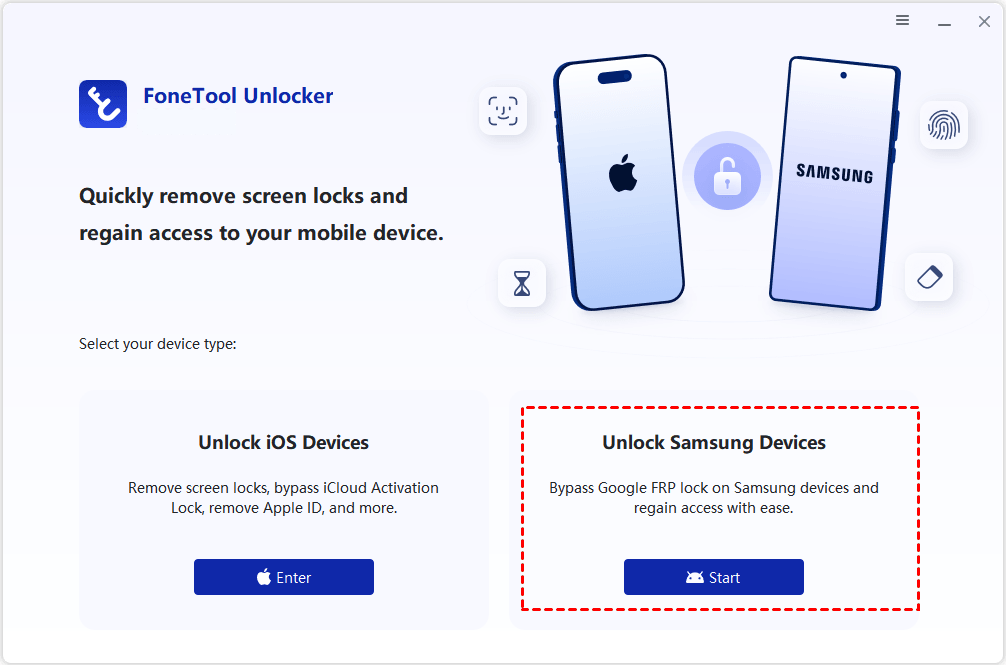
If you're on a Windows PC, try FoneTool Unlocker, a dedicated tool with a clean, user-friendly interface. It offers multiple unlock methods tailored to your Samsung device's system version and chipset, plus a Universal (One-Click Removal) mode that detects both automatically, so you don't have to choose manually.
Before you start:
- Download and install FoneTool Unlocker on your Windows PC.
- Charge the phone to at least 50%
- Prepare the required cable. The Qualcomm solution specifically requires an engineering cable.
Step 1. Connect the phone to your Windows PC. Open FoneTool Unlocker, Under Unlock Samsung Device, click Start.
Step 2. Select Universal (One-Click Removal) if you don't know the system version or chipset, then click Remove Now.

Step 3. On the phone, tap Emergency Call and enter the code specified by the software, such as *#0*#, to open the diagnostic menu. Once the required screen appears, click Next on the computer. If it does not appear, recheck compatibility.
Step 4. Once authorized, the tool will automatically remove the Google FRP lock. Wait for processing and look for Removal Completed.
Consult the current Samsung unlock guide for your selected method’s requirements.
Frequently Asked Questions
Can an emergency dialing code remove FRP by itself?
Do not treat a diagnostic code as a complete removal method. Opening a menu can be one stage of a larger process, including the PC-based example above.
Can another phone’s hotspot bypass verification?
A hotspot provides connectivity. Claims that interrupting it bypasses verification need separate evidence; the referenced no-PC guide gives inconsistent descriptions of this method, so it is not a recommended solution here.
Are online unlock services always computer-free?
No. “Online” describes how a service is accessed, not necessarily how it operates. Confirm its equipment requirements, exact device support, pricing, and terms before proceeding.
Conclusion
Choose a no-PC FRP method by its prerequisites rather than its download label or headline. APK tools, accessibility methods, keyboard shortcuts, and OTG workflows all depend on access that may be unavailable on your phone. Use the matching Samsung guide to investigate further, recover account access where possible, and consider a verified PC-based option when phone-only methods do not fit.
FoneTool Unlocker - 1-Click Phone Unlock Software
Easily remove passcodes and restrictions from iPhone, iPad, iPod touch, and Samsung devices.
-
 iOS 27 Compatible
 iPhone 18 Supported
-
Samsung FRP Removal
100% Secure

Ivey is passionate about teaching users how to easily protect mobile device data. With the FoneTool series of iPhone management, unlocking, and repair software, even beginners can perform data backup, iPhone unlocking, and troubleshooting like a pro.
Read author info >>



 as a preferred
source on Google
as a preferred
source on Google