FRP Bypass Open Settings: 3 Ways to Access Android Settings
Read this article to learn 3 methods about FRP bypass open settings, so to set up a new account on your iPhone for re-access easily.


What is FRP & Why Need FRP Bypass?
FRP stands for Factory Reset Protection. It is part of Android's device-protection system running on Android 5.1 (Lollipop) and later. It aims to protect the phone's data and make a stolen phone harder to reuse. Once you sign in with a Google Account on an Android device and set up a screen lock (such as a PIN, pattern, or password), the FRP feature is automatically enabled. If someone attempts to factory reset the device via recovery mode or other methods, the system will require to provide the original Google Account credentials before you can use the device again.
FRP bypass helps to bypass Google FRP after factory reset and regain access to the device. You may search for FRP bypass via hidden settings or access Android Settings when the normal interface is unavailable. Here is a complete guide on FRP bypass open settings.
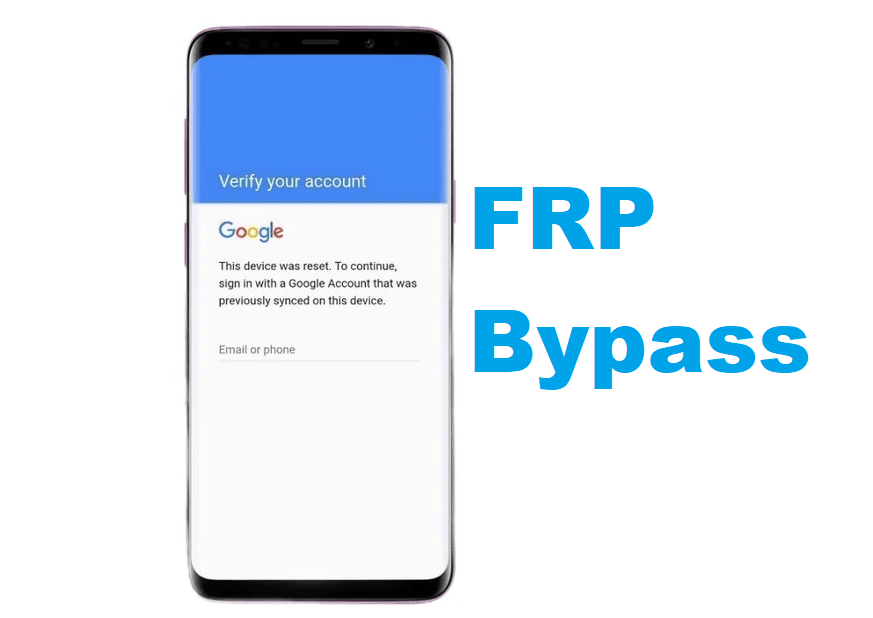
FRP Bypass Open Settings with 3 Simple Methods
The choices for opening FRP settings on Samsung devices below serve different device states. You can check the exact model, Android version, and security patch first to get the right method.
Option 1. Use FRP Bypass APK
One common method involves using specialized helper application packages (APKs) to gain access to system shortcuts.
Step 1. Connect your locked device to a Wi-Fi network.
Step 2. Access a browser window via TalkBack accessibility gestures or a browser shortcut tool.
Step 3. Search for and download helper APKs (such as QuickShortcutMaker or Android Hidden Settings).
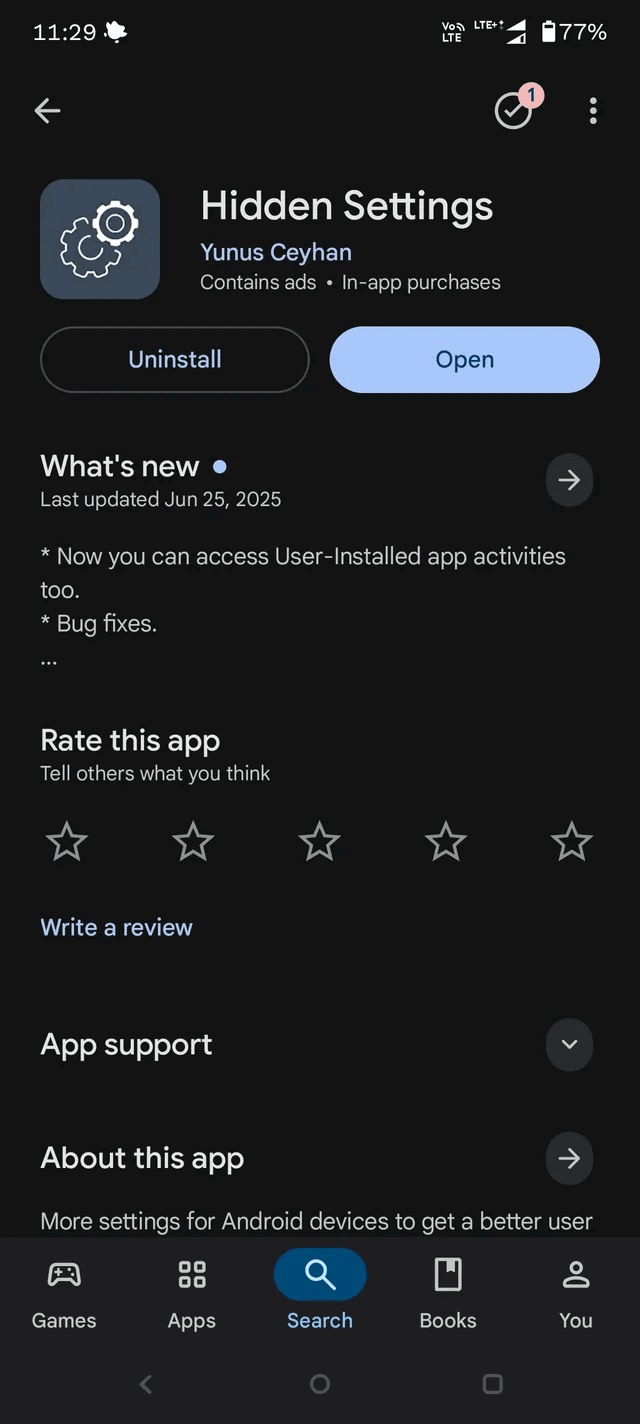
Step 4. Install the application and search for internal activities. Navigating to options like Play Services hidden settings in Android 11 allows you to temporarily disable core services or configure a new screen pattern, effectively bypassing the old lock.
Option 2. Exploit Device Malfunctions and Features
Certain older versions of Android (typically Android 6 through 10) have known vulnerabilities that allow attackers to bypass FRP to open settings on Samsung devices by exploiting system features such as TalkBack, accessibility shortcuts, or YouTube. These methods involve bypassing the lock screen to access the device settings and remove the Google account. Here we take TalkBack FRP bypass as an example:
Step 1. On the initial Welcome screen, press and hold Volume Up + Volume Down simultaneously until the TalkBack prompt appears, then confirm.
Step 2. After TalkBack is enabled, draw a large L gesture on the screen to open the TalkBack Context Menu. Double-tap TalkBack Settings.
Step 3. Scroll down with two fingers and select Braille Keyboard or Help & Feedback. Find a help page containing an embedded YouTube video, such as Get started with Voice Access.
Step 4. Select the video and follow the available on-screen options to open YouTube.
Step 5. In YouTube, go to Profile > Settings > About > Google Privacy Policy to open the browser.
Please note that these exploit methods generally, including FRP Bypass TalkBack will not work on newer versions of Android and require a certain level of technical knowledge. Additionally, Google frequently patches these vulnerabilities in system updates.
Option 3. Use Flash Stock ROM or Use ADB (for Advanced Users)
Advanced users may try to flash the official stock ROM or use ADB (Android Debug Bridge) commands to reset or remove FRP locks. This often requires:
Step 1. Install appropriate USB drivers and developer tools (like Minimal ADB and Fastboot) on a PC.
Step 2. Boot the phone into Download or Fastboot mode.
Step 3. Use desktop-based FRP tools to open settings or send specific ADB shell commands to launch the Settings application activity directly: adb shell am start -n com.android.settings/.Settings.
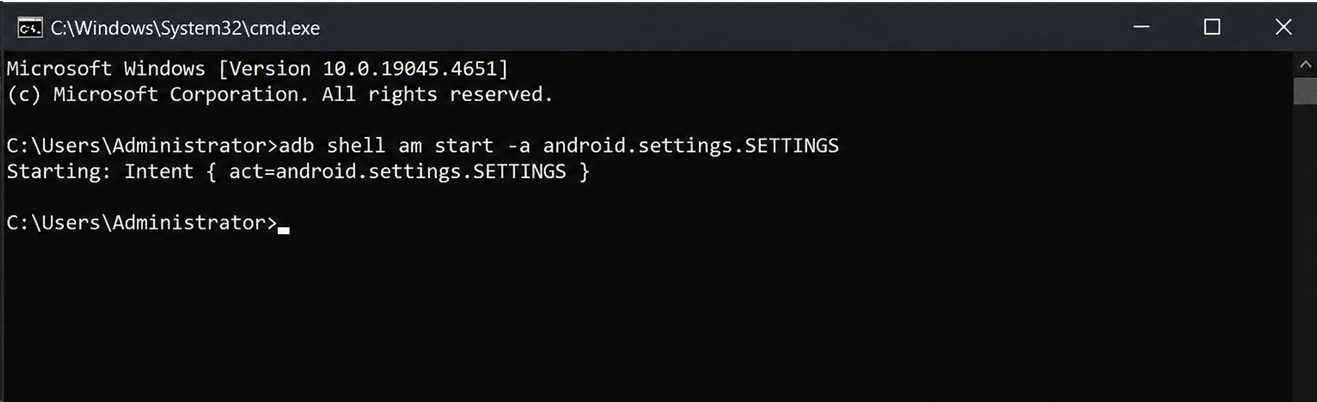
Step 4. Once the Settings app opens on the phone display, execute a full system reset from within the OS.
Best FRP Bypass Tool to Remove Google FRP Lock Easily
While attempting manual browser tricks or searching for hidden menu options can work on legacy software, it is often time-consuming and unreliable on modern devices. If you want a straightforward, one-click solution that removes the lock cleanly, FoneTool Unlocker is the recommended desktop application.
FoneTool Unlocker is an all-in-one desktop utility designed to bypass Android screen locks and Google FRP verifications. It replaces manual APK tricks and complex command lines with an intuitive, automated interface.
- Key Features:
- ⭐Direct FRP Bypass: Completely removes Google Account verification without requiring old credentials or manual browser exploits.
- ⭐No Manual Settings Needed: Automatically communicates with the phone OS to clear security parameters.
- ⭐Broad Compatibility: Supports selected Galaxy S26, S25, S24, S, A, M, Z, Fold, and Flip models.
- ⭐Beginner-Friendly: Guided on-screen prompts allow anyone to bypass FRP without technical expertise.
- ⭐iOS Device Unlock: Besides FRP unlocking for Samsung devices, it also allows you to unlock any iPhone/iPad/iPod Touch screen passcode, bypass screen time passcode, remove Apple ID without password, and so on.
- ⭐Windows compatibility: Works perfectly on Windows 11, 10, 8.1, 8, and 7.
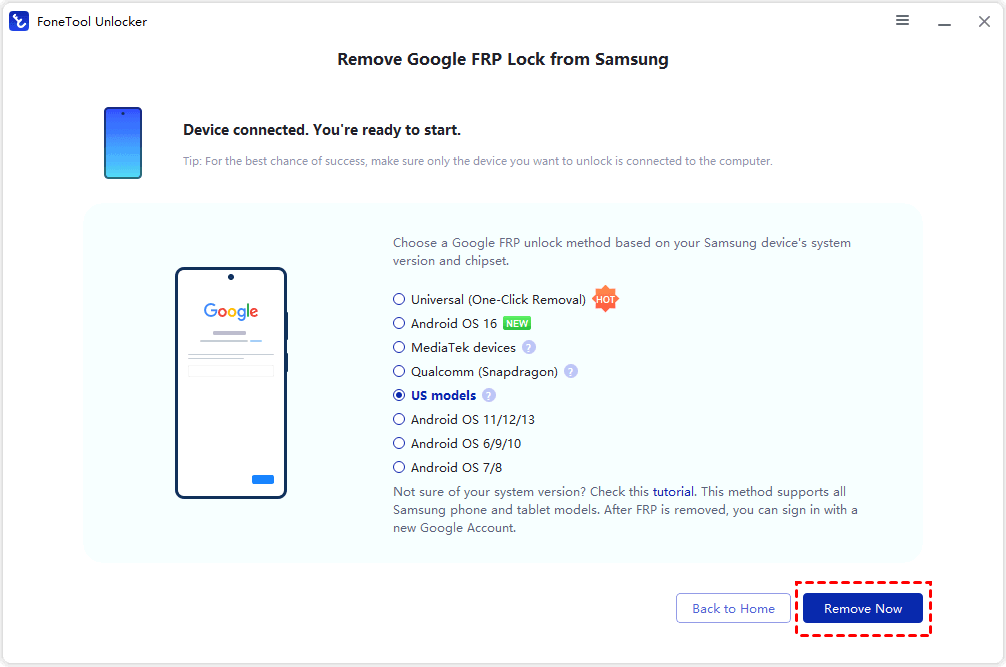
Step 1. Connect the locked Samsung phone via USB. Launch FoneTool Unlocker. From the main interface, locate Unlock Samsung Devices and click Start.
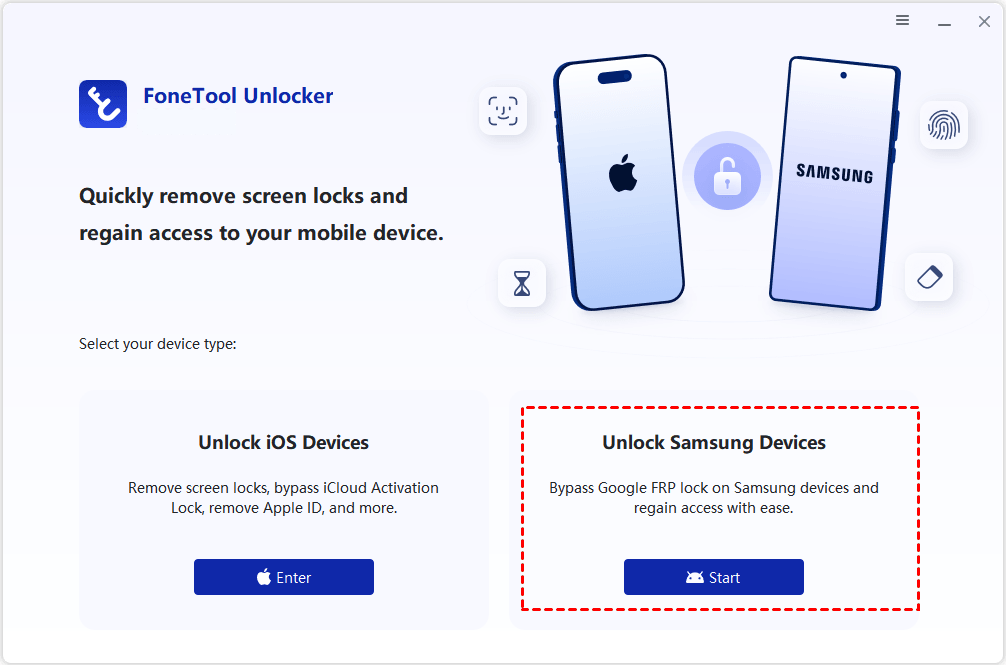
Step 2. Depending on the system version and chipset, choose the required FRP unlocking method. It also includes a Universal (One-Click Removal) option for supported configurations. Click Remove Now.
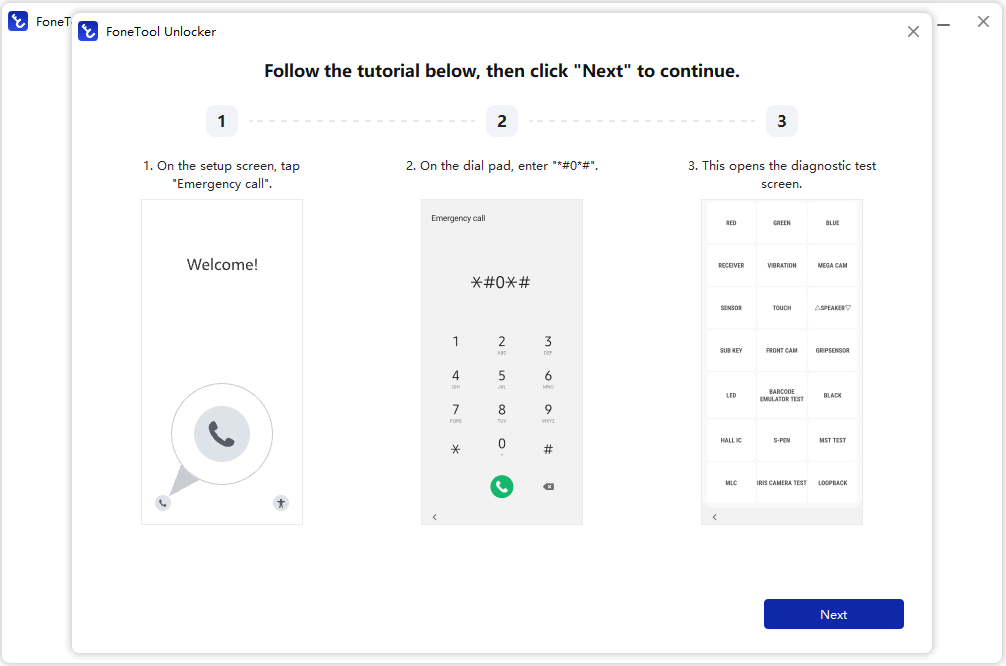
Step 3. Then, follow the on-screen guide to tap Emergency Call on the phone and enter the specific code (e.g., *#0*#) to activate Test Mode. And click Next on the computer to continue.
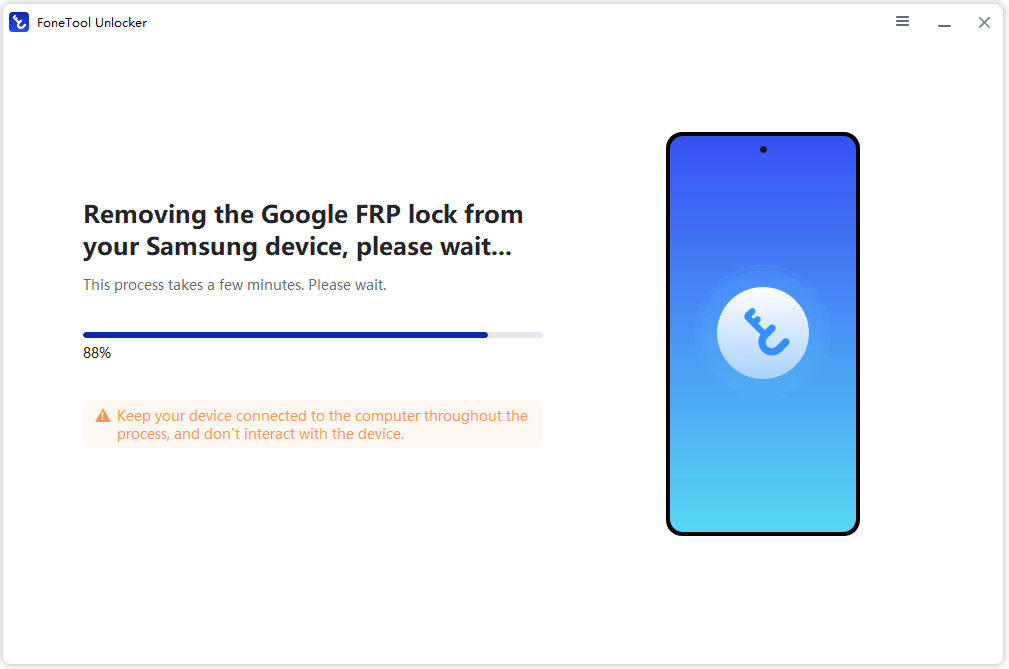
Step 4. Keep the Samsung phone connected to the computer and wait until the removal process is complete.
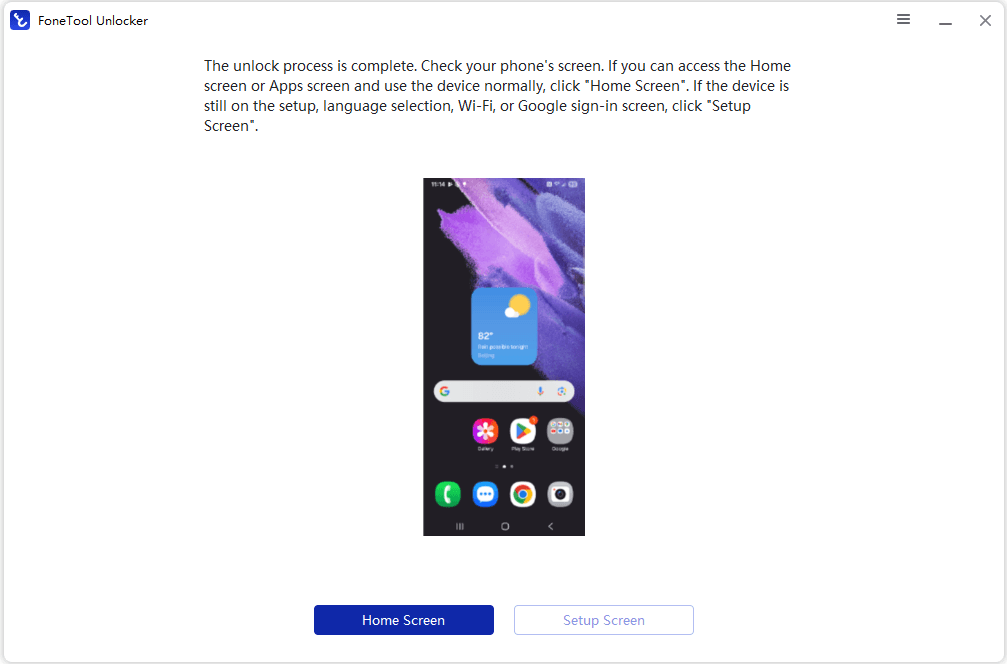
Step 5. When the software indicates that the process has completed, check the phone. If the device returns to the setup interface, continue through the Android setup process and sign in with your own Google account when prompted.
How to Disable FRP Lock in Settings
To disable FRP lock on Android, you can prepare an accessible phone for resale or transfer by removing its Google account before a factory reset. It should be noted that a phone already stopped at Google verification generally cannot use this option until access is restored.
Step 1. Open the Settings app on your device. Go to Accounts and Backup.
Step 2. Tap Manage Accounts and select your active Google Account.
Step 3. Tap Remove Account and confirm. (Repeat this for all linked Google accounts).
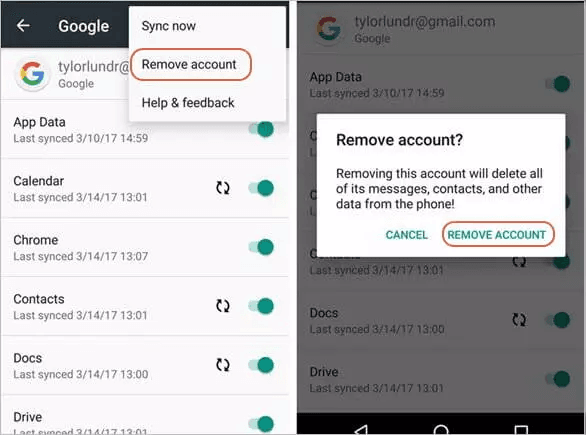
Step 4. (Optional) Remove your Samsung Account under the same menu. Once all accounts are removed, FRP is completely disabled. You can safely perform a factory reset without encountering verification screens.
FAQs on FRP Bypass Open Settings
#1. Can I open Settings from the FRP verification screen?
Normally, the FRP verification stage intentionally limits access to the normal Android environment. Whether a particular shortcut exists depends on the manufacturer, Android version, and firmware.
If you own the device, account recovery is preferable to relying on an undocumented shortcut.
#2. Does factory resetting remove FRP?
No. A factory reset can actually trigger Google Device Protection. Google states that protected devices can request previously associated account credentials after certain resets.
#3. How do I prevent FRP before selling my Samsung phone?
Remove your Google Account from the device before performing the factory reset. Also make sure any other accounts or security locks you no longer need are removed before handing the phone to another person.
#4. Why can't I access Settings using TalkBack on my phone?
Google continuously updates Android security patches. On newer versions, vulnerabilities used to trigger browsers or launcher settings through TalkBack or emergency dialers have been closed.
#5. What are Play Services Hidden Settings on Android 11?
Play Services hidden settings in Android 11 generally refer to less-visible Google Play Services activities or system interfaces on Android 11. Their availability can differ by device and software configuration. Accessing such an activity does not necessarily disable FRP.
Summary
Executing an FRP bypass open setting technique is a long-standing method for regaining access to locked Android devices. While manual options like APK shortcuts, hidden settings menus, and ADB commands offer workarounds, they can be difficult to execute on modern security patches.
For a hassle-free, efficient solution, FoneTool Unlocker, a simple-to-use FRP hijacker tool, provides a streamlined path. It eliminates complex manual setups, allowing you to bypass Google FRP locks safely and get back to using your device in just a few simple steps.
FoneTool Unlocker - 1-Click Phone Unlock Software
Easily remove passcodes and restrictions from iPhone, iPad, iPod touch, and Samsung devices.
-
 iOS 27 Compatible
 iPhone 18 Supported
-
Samsung FRP Removal
100% Secure

Jona is an expert in mobile data backup and transfer, phone unlocking, and resolving iPhone issues. She maintains a sharp insight into the latest technology trends, ensuring that the information she provides stays current with industry developments.
Read author info >>



 as a preferred
source on Google
as a preferred
source on Google