Galaxy A16 FRP Bypass Without a PC: What to Check First
Explore galaxy a16 frp bypass without pc options, identify your model and chipset, and choose a suitable next step when Google verification blocks setup.


Completing Google verification on a Galaxy A16 without a PC is possible when you can use a previously synced account or another verification option during setup. An APK or setup shortcut needs additional conditions, and the name “Galaxy A16” alone does not establish that those conditions are met.
The first useful check is the exact variant. A16 LTE and A16 5G devices do not all use the same processor, and regional A16 5G versions can differ. That distinction matters when a later method depends on the chipset.
Use these checks for your own phone or an authorized repair. The broader frp bypass tools no pc overview can help you compare the main categories first.
Galaxy A16 FRP Bypass Without PC: What Should You Know?
A post-reset request for a Google account previously used on the phone is different from an ordinary Google sign-in prompt. Entering a newly created account will not replace the required verification. Repeating a factory reset is not an account recovery method either.
Your next step depends on what you still have access to:
-
Complete the Google verification screen if you know a previously synced account and its password.
-
Recover your Google account from another phone using a browser if you know the account but can't sign in.
-
Ask the previous owner for help if it's a second-hand phone.
If none of these apply, check the prerequisites of any phone-only method before downloading files. A file stored on another phone can't be used on the locked A16 unless the required transfer, access, and installation options are available. Reaching a browser or a settings screen is only an intermediate step - the real outcome is whether normal setup can be completed.
Check Your Galaxy A16 Model Before Trying an FRP Bypasss Method
The A16 family illustrates why processor verification matters. The following are confirmed examples, not a complete list of every market:
| Your Device | Processor | Chipset Family |
| Galaxy A16 LTE in Brazil | Helio G99 | MediaTek |
| Galaxy A16 5G in Brazil | Exynos 1330 | Samsung Exynos |
| Galaxy A16 5G in Indonesia | Dimensity 6300 | MediaTek |
These differences appear in Samsung's Brazilian A16 specifications and Indonesian A16 5G specifications. Match your exact model and market before assigning it to either family.
Step 1. If you can access Settings, open Settings > About phone and record the model number. Otherwise, check the box or purchase documentation for the model code.
Step 2. Open Software information and record the Android version and Android security patch level if available. If setup blocks this screen, retain any reliable pre-reset record and mark the installed version as unknown until confirmed.
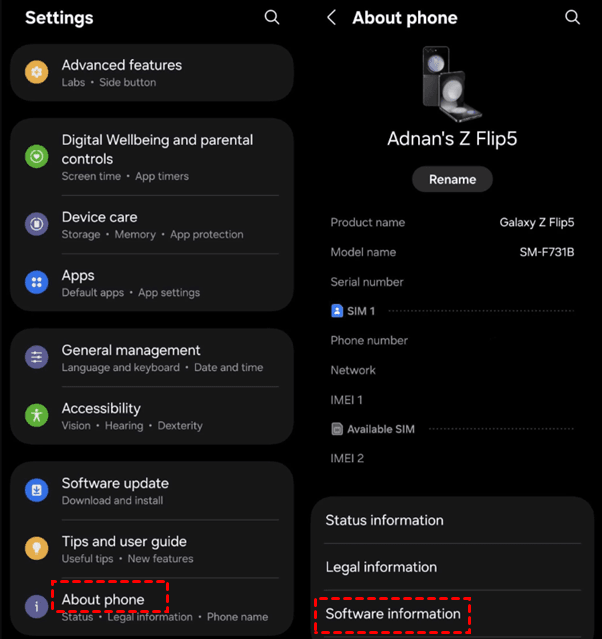
Step 3. Match the model code to Samsung's regional specifications to identify its processor. Do not infer MediaTek or Qualcomm from “A16 5G” alone.
The software listed in a launch specification is not proof of the version now installed. An updated device may retain newer software after a reset. Likewise, a method suitable for a Samsung A15 FRP bypass without a PC should not automatically be applied to an A16 with a different processor.
How to Recover Google account without a PC
You can work on account access while identifying the hardware; the recovery service does not require choosing a chipset method.
Step 1. On another phone, open Google Account recovery, enter your email or phone number, and select Next.
Step 2. Select a way to sign in and complete the available identity checks. Use Try another way if it appears and you cannot complete the current check.
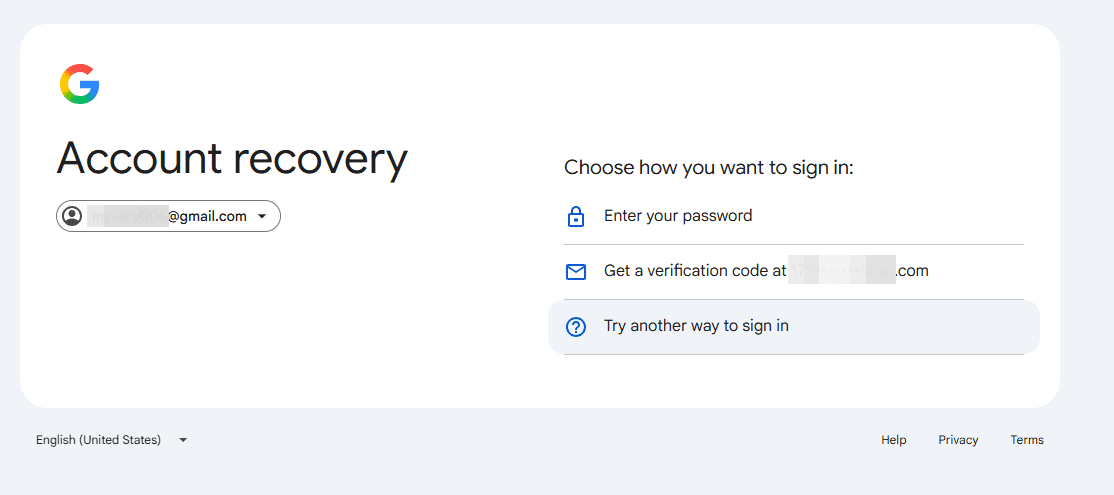
Step 3. Return to the A16 after recovery and enter the accepted account credentials. Follow any displayed security delay rather than assuming a new password works immediately.
For a purchased used device, ask the previous owner to enter their credentials themselves. If they cannot help, retain the receipt and discuss assistance with Samsung support or a return with the seller.
What If Your Galaxy A16 Does Not Show No-PC Options?
Stop at the first mismatch and identify what is missing. A procedure that requires a browser entry cannot continue as written when that entry is unavailable. Adding an unrelated APK later does not supply the missing access.
| ✅ Expected Action | ⚠️Where It May Fail | 🔍Useful Next Check | |
| Open a keyboard help menu | The keyboard or menu differs | Compare the actual keyboard and setup screen | |
| Launch another app |
|
Confirm the software-specific entry requirement | |
| Install an APK | No permitted installation path exists | Separate file access from installation permission | |
| Continue setup | Google verification returns | Confirm whether the account requirement is still unresolved |
Do not combine disconnected steps from different devices and assume the resulting sequence is compatible. A Samsung S23 FRP bypass without a PC scenario involves different hardware and may also use different setup software.
Keep a short record of the screen, the action attempted, and the response. That is more useful for support than listing several downloaded tools without identifying where each attempt stopped.
When to Choose an FRP Bypass Method on a Windows PC
If account recovery or the seller can't help, try unlocking Samsung FRP on a Windows PC. FoneTool Unlocker offers several methods, grouped into three types: system version, chipset, and Universal (One-Click Removal).
Start with a matching Android version or chipset for the best first-attempt results. If you don't know either, choose Universal (One-Click Removal).
- For an A16 with Helio G99 or Dimensity 6300, pick MediaTek devices - the system version doesn't matter.
- For an Exynos 1330 A16 5G, choose Universal (One-Click Removal), since it's neither MediaTek nor Qualcomm.
Step 1. Launch FoneTool Unlocker on Windows and click Start under the Samsung device unlock feature.
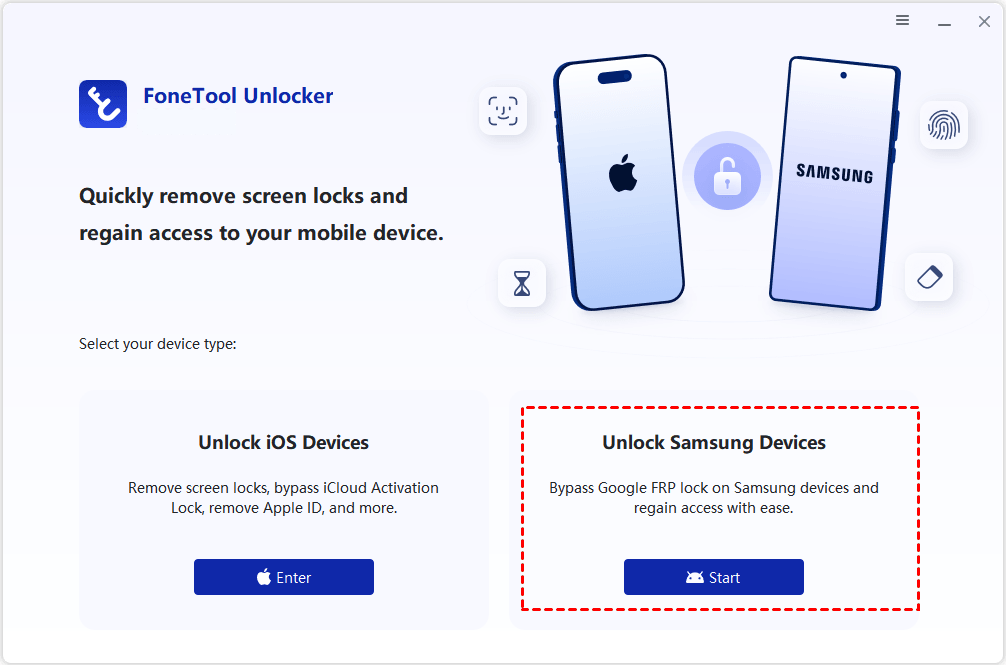
Step 2. Connect the phone as instructed. On Remove Google FRP Lock from Samsung, select MediaTek devices only after confirming the A16 has a MediaTek processor. Or select Universal if you don't Android version or chipset.

Step 3. Click Remove Now, activate test mode on your device, and wait for the unlock to finish. Then confirm setup completes normally.
Conclusion
For an A16, establish the exact variant before choosing a device-specific method. Use account recovery when possible, and treat a missing setup entry as a reason to reassess the procedure. If you move to FTU, select MediaTek only for verified MediaTek hardware and confirm support separately for an Exynos device.
FoneTool Unlocker - 1-Click Phone Unlock Software
Easily remove passcodes and restrictions from iPhone, iPad, iPod touch, and Samsung devices.
-
 iOS 27 Compatible
 iPhone 18 Supported
-
Samsung FRP Removal
100% Secure

Ivey is passionate about teaching users how to easily protect mobile device data. With the FoneTool series of iPhone management, unlocking, and repair software, even beginners can perform data backup, iPhone unlocking, and troubleshooting like a pro.
Read author info >>



 as a preferred
source on Google
as a preferred
source on Google