FRP Bypass with Hidden Settings - How-to Guides
This guide explores FRP bypass with hidden settings, and it introduces FoneTool Unlocker as a faster, seamless solution that bypasses FRP without needing complex manual exploits.


Factory Reset Protection (FRP) is an essential Android safety mechanism designed to protect your device and data from unauthorized access if your phone is lost, stolen, or forcefully reset via recovery mode. When FRP is triggered on a Samsung device, it requires you to enter the credentials of the Google Account previously synced with the device.
However, if you forgot your password or acquired a pre-owned phone, getting past the "Verify your account" page can feel nearly impossible. Many users turn to an Android hidden settings FRP bypass method to regain access. In this comprehensive how-to guide, we will break down what hidden settings are, how to access FRP bypass open settings and manual bypass methods with the settings, and the most reliable alternative available.
What are Hidden Settings on Samsung Devices?
Android and Samsung One UI operating systems contain numerous nested preferences, developer options, and system activity pages that are not readily visible in the standard user interface menu. These options are collectively referred to as "hidden settings." On Samsung devices, hidden settings typically include internal activity launchers, test menus (such as *#0*# diagnostics), accessibility triggers, and app preference sub-menus.
Why Hidden Settings are Used for FRP Bypass?
During the initial setup wizard, access to normal system menus is blocked by the Google verification lock. However, system vulnerabilities - such as TalkBack gestures, Emergency Call dial codes, or USB keyboard shortcuts - can sometimes be exploited to launch a secondary application like a web browser or an activity launcher app. Through these entry points, users access hidden settings for FRP bypass activity pages. By reaching internal system menus, users attempt to:
- Change or set a new device Lock Screen PIN/Pattern to overwrite existing credentials.
- Access application control lists to disable core system packages.
- Force stop and clear storage for Google Play Services and Setup Wizards.
How to Perform FRP Bypass with Hidden Settings
Performing an FRP bypass with hidden settings usually involves gaining access to the device's web browser during setup, downloading a specialized launcher or shortcut APK, and navigating into hidden system activities. While exact steps vary depending on the Android version and security patch level, the general process follows these steps:
Note: Manual hidden settings tricks require precise execution. Newer Samsung security updates frequently patch these activity loopholes, which can cause these methods to fail on modern devices.
Step 1. Open the Web Browser from Setup Screen
- Connect your locked Samsung phone to a Wi-Fi network.
- Trigger an accessibility feature (such as double-finger tap or TalkBack shortcut) or use an ADB shortcut tool on a PC to pop up a browser link (YouTube or Help page).
- Access Google Chrome or Samsung Internet browser.
Step 2. Download a Hidden Settings Activity Launcher
- Search for a trusted shortcut APK (e.g., Android Hidden Settings or QuickShortcutMaker).
- Download and install the application onto the device.
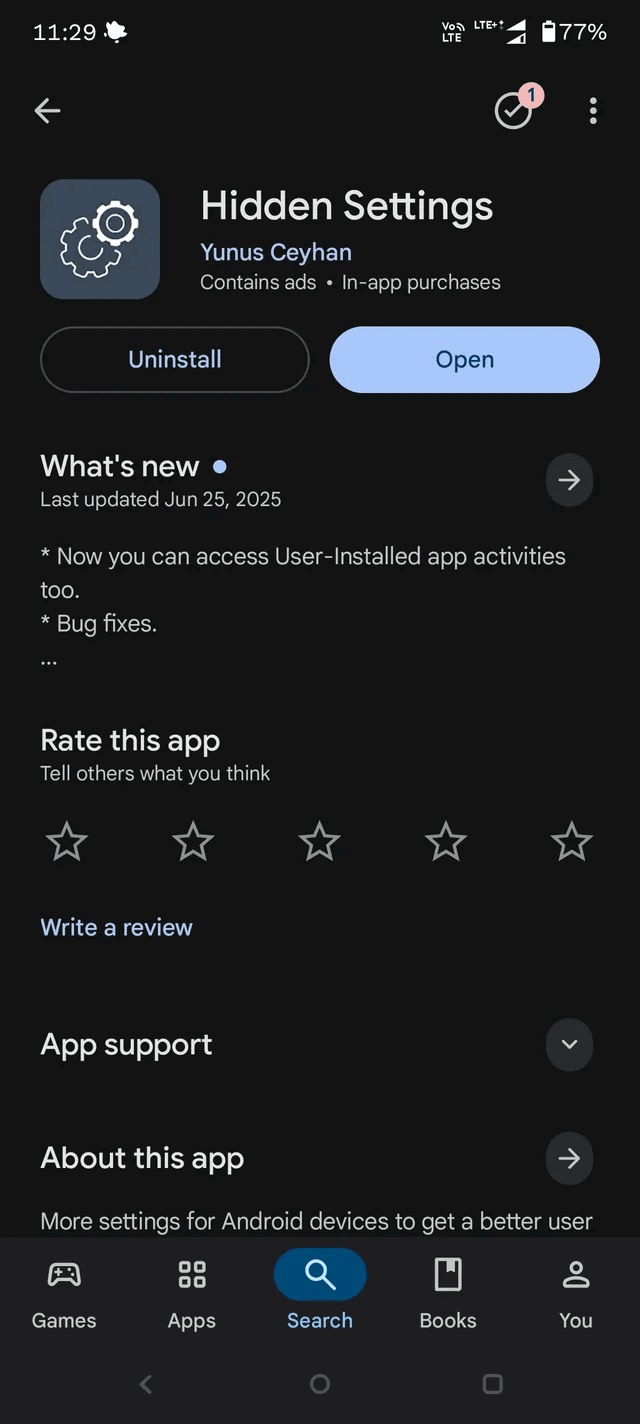
Step 3. Utilize Google Play Services Hidden Settings for FRP
- Open the hidden settings launcher application. Search for system services associated with Google account management.
- Locate the Google Play Services hidden settings FRP entry point or the Android Setup activity list.
- Disable Google Play Services and force-stop Android Setup.
- Alternatively, locate the Set Screen Lock hidden activity page to apply a brand-new lock screen PIN.
Step 4. Reboot and Complete Setup
- Return to the initial setup screen or restart the phone. Enter the newly configured PIN or complete setup while Google Play Services is temporarily bypassed.
Re-enable Google Play Services once you reach the home screen and sign in with a new account.
Simpler Way to Do FRP Bypass with FoneTool Unlocker
While attempting a manual hidden settings FRP bypass can be effective on older software, it is often tedious, complicated, and prone to failure on recent Android updates. If you want a quick, automated method that avoids digging through system activities, FoneTool Unlocker provides a far simpler path forward.
This software is a dedicated desktop application engineered to solve Google FRP efficiently. Instead of requiring users to hunt down browser vulnerabilities or install unverified APK shortcuts, it automates the entire process cleanly through a secure USB connection.
- Key Features:
- ⭐Automated FRP removal: Bypasses Google account locks directly without relying on complex hidden settings hacks.
- ⭐One-click removal: Designed for all experience levels with clean, clear on-screen instructions.
- ⭐Broad device coverage: Selective support for various Samsung Galaxy series (S, A, Note, Z Series).
- ⭐High success rate: Updated regularly to remain effective against modern security patches.
- ⭐iOS Device Unlock: Besides FRP unlocking for Samsung devices, it is useful for iCloud Activation Lock bypass, screen time passcode removal, Apple ID removal without password, and more.
- ⭐Windows compatibility: Works with Windows 11, 10, 8.1, 8, and 7.
Step 1. Connect the FRP-locked phone to the computer with a USB cable. Then download and run FoneTool Unlocker on your computer.
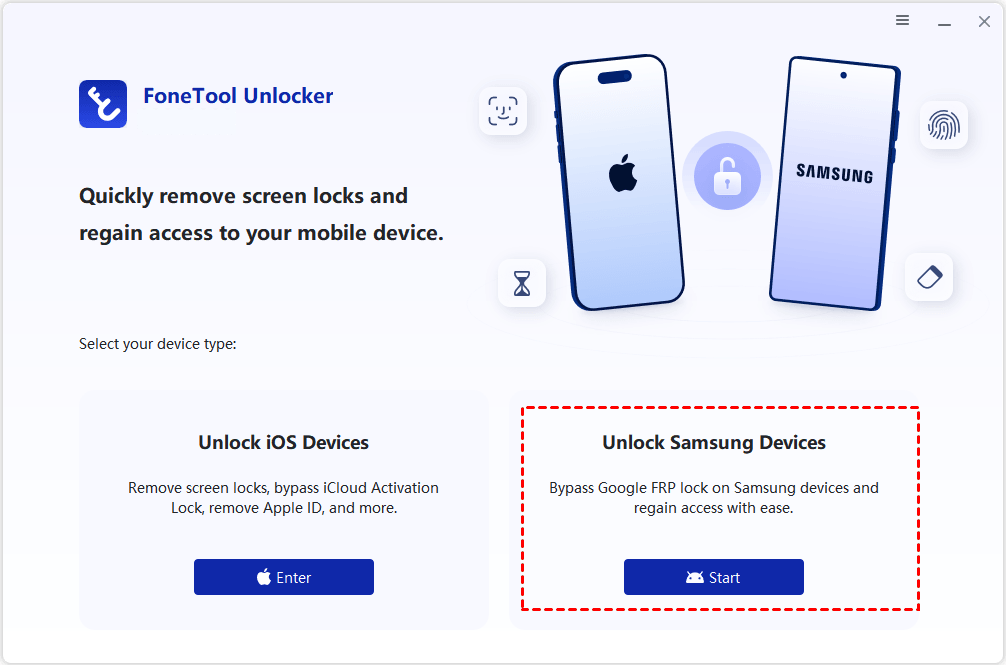
Step 2. Run this FRP hijacker tool and select Unlock Samsung Devices from the main interface.
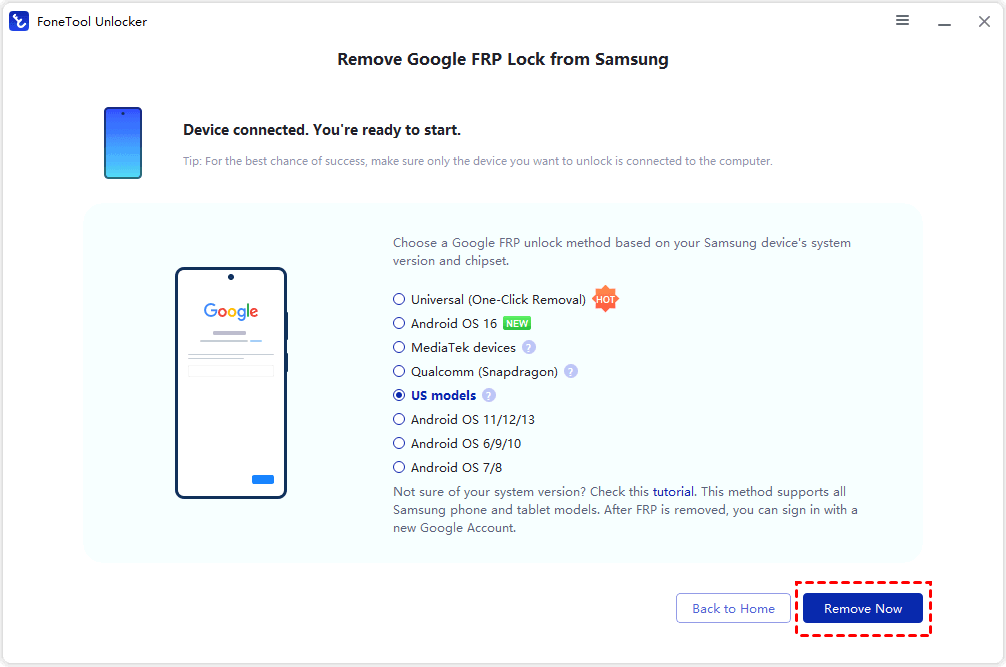
Step 3. Pick an FRP removal method according to the Samsung phone's Android version and chipset, and then click Remove Now. Universal (One-Click Removal) here is available to use when you are not sure of your system version.
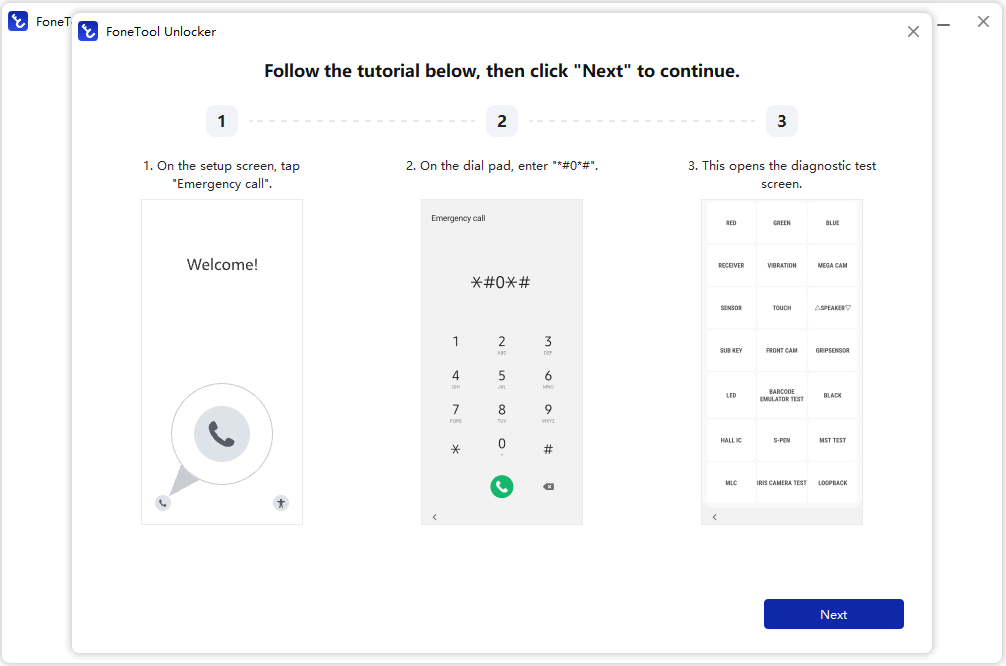
Step 4. During the removal process, tap Emergency Call on the phone and enter the specific code (e.g., *#0*#) to activate Test Mode when required, and click Next on the computer.
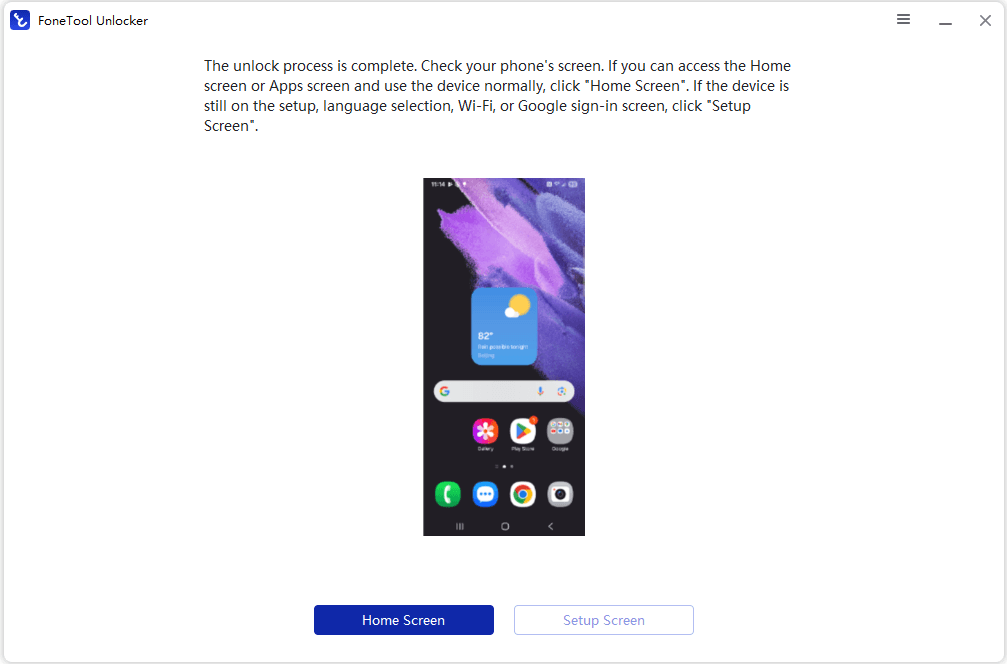
Step 5. Keep the USB connection stable while FoneTool Unlocker performs the supported FRP removal process. When the process is done, click Home Screen or Setup Screen to set up your Samsung device as brand-new without entering any previous account credentials.
FAQs about FRP Bypass with Hidden Settings
#1. Can I bypass Samsung FRP using Hidden Settings?
It depends on the device and software version. Hidden Settings may expose system activities, but their availability does not mean that FRP can be removed. Modern Samsung devices may restrict or remove routes that older guides describe.
#2. Why can't I access hidden settings on my Samsung phone?
If your Samsung phone has received a recent Android or One UI security update, Google and Samsung may have patched the specific vulnerability (such as TalkBack or browser shortcuts) used to open hidden settings. In such cases, using automated software like FoneTool Unlocker is recommended.
#3. Is using an Android hidden settings FRP bypass method safe?
Manual methods often require downloading third-party APK files or shortcuts from unverified websites during setup, which can pose security risks. Utilizing a secure desktop utility is a safer, cleaner approach.
In the End
Performing FRP bypass with hidden settings has long been a popular workaround for users locked out of their devices. However, as Android security patches become tighter, navigating these hidden activity pages gets increasingly complex and unreliable.
For a smooth, stress-free experience, FoneTool Unlocker offers a modern alternative. By eliminating the need for manual exploits and hidden settings navigation, this tool lets you regain full access to your Samsung devices in just a few clicks.
FoneTool Unlocker - 1-Click Phone Unlock Software
Easily remove passcodes and restrictions from iPhone, iPad, iPod touch, and Samsung devices.
-
 iOS 27 Compatible
 iPhone 18 Supported
-
Samsung FRP Removal
100% Secure

Jona is an expert in mobile data backup and transfer, phone unlocking, and resolving iPhone issues. She maintains a sharp insight into the latest technology trends, ensuring that the information she provides stays current with industry developments.
Read author info >>



 as a preferred
source on Google
as a preferred
source on Google