Samsung S23 FRP Bypass Without a PC: What Are Your Options?
Looking for samsung s23 frp bypass no pc options? Check your software, recover account access, and match a PC-based method to your Android version and chipset.


You can complete Google verification on a reset Samsung S23 without a PC if you can use a previously synced Google account or a previous screen lock offered during setup. Those options restore access through verification; they are different from bypassing FRP with an APK or a setup-screen shortcut.
If you have neither, a phone-only bypass cannot be confirmed from the S23 name alone. The installed software and available setup screens matter. Use the following checks for a phone you own or are authorized to service. For a broader comparison before choosing a method, see frp bypass tools no pc.
Samsung S23 FRP Bypass No PC: What Should You Check First?
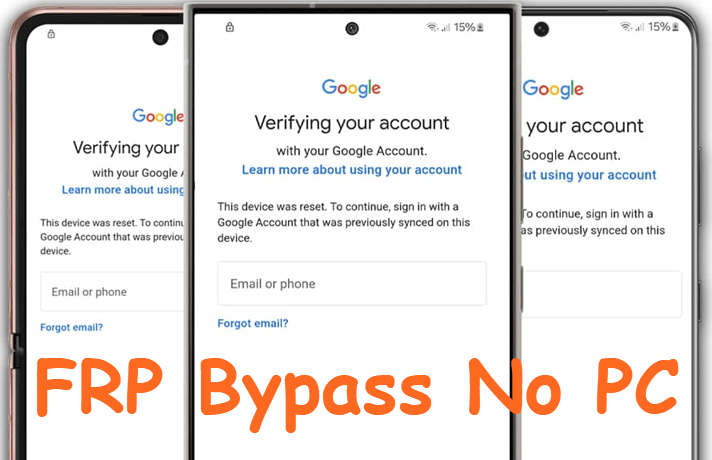
Start with the message on the screen. A request for a Google account previously synced with the phone indicates post-reset device protection. A Samsung account prompt, ordinary Gmail sign-in, or screen PIN prompt may require a different response.
The Galaxy S23 uses Snapdragon 8 Gen 2 for Galaxy. Do not extend that identification to an S23 FE simply because the names look similar. Record the exact model from the box, purchase record, or Settings > About phone if Settings is accessible. Samsung's Galaxy S23 specifications confirm the processor.
For software details, open Settings > About phone > Software information and note the Android version and security patch level. If setup prevents access, use information you recorded before the reset; do not assume the phone still runs its original launch software. A factory reset is not a reliable way to return to an earlier Android version.
Also establish which Google accounts were used before the reset. An account that works on another phone is useful only if it meets the S23's verification requirement. Creating a new account does not substitute for the account being requested.
Options for Samsung S23 Without a Computer
Way 1: Sign in with an accepted account
If you remember the credentials, connect the S23 to Wi-Fi and enter the previously synced account when prompted. If setup explicitly offers verification with the previous PIN, password, or pattern, use that displayed option. Do not assume every software build presents the same choice.
Keep two-step verification access nearby, such as your other signed-in phone. Check that you are entering the right email address before resetting its password. A typing error and a forgotten password need different fixes.
Way 2: Recover the account on another phone
Account recovery does not require a Windows computer. Another phone with a browser can provide access to Google's recovery service.
Step 1. Open Google Account recovery on a familiar device. Enter the email address or phone number for the account and select Next.
Step 2. Complete the verification questions. If an offered check is unavailable, select Try another way when that option appears and use an accessible verification method.
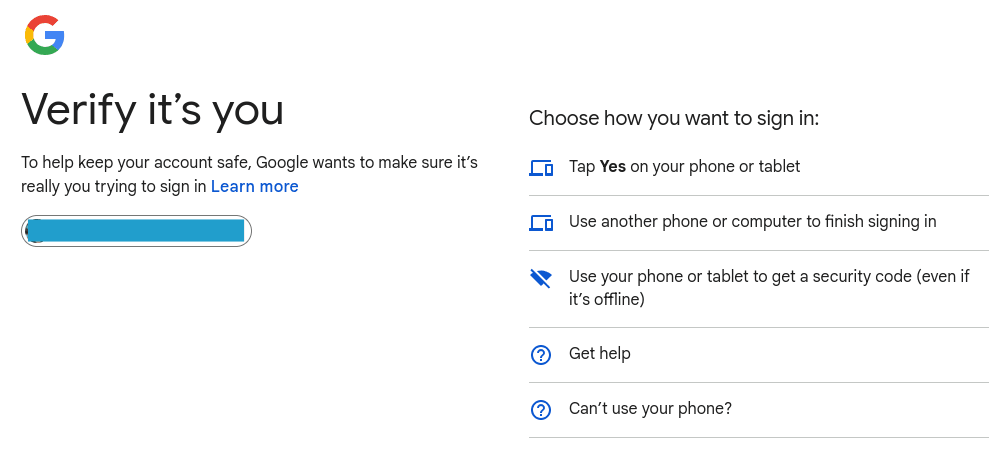
Step 3. After regaining account access, return to the S23's Google verification screen and sign in with that account. If a security delay appears, follow the stated waiting instructions before trying again.
Do not reset the phone repeatedly during a waiting period. The reset does not recover the account and may simply put you back at the same verification screen.
Way 3: Ask the previous owner for help
For a second-hand S23, ask the seller to help complete verification in person rather than send you a password. Once normal access is restored, they can remove their account from the phone before a proper handover. If they cannot help, discuss a return or contact Samsung support with your purchase documentation.
Why No-PC FRP Method May Not Work on Your Samsung S23
Phone-only methods often depend on a sequence: an entry point opens another screen, that screen permits a browser or settings access, and subsequent actions change the setup state. A failure near the beginning prevents later actions from helping.
An APK download is therefore not enough by itself. The phone must be able to reach the file and permit the required action. Similarly, opening Settings does not establish that Google verification has been resolved.
|
✅ Checkpoint |
⚠️ Where It May Fail |
🔎 What to Check |
|
Keyboard or accessibility menu |
The required entry is missing |
Match the installed software and visible menus |
|
Browser access |
A shortcut returns to setup |
Confirm the entry actually opens a usable browser |
|
APK installation |
Installation is unavailable or blocked |
Do not treat the downloaded file as a completed bypass |
|
Return to setup |
Google verification appears again |
Check the final setup outcome, not partial access |
Record the first point where your screen differs. Trying unrelated menus after that point makes troubleshooting harder. An older Samsung S8 Google account bypass procedure does not establish compatibility with an S23.
Samsung S23 FRP Bypass With a PC: An Alternative to Consider
If account recovery isn't an option, try FoneTool Unlocker instead. It's a Windows FRP bypass tool that supports various Samsung devices, with multiple unlock methods to choose from.
Which unlock method you need depends on your phone's system version and chipset. To maximize your chances on the first attempt, check your Samsung S23 and select the matching method.
- Android 13: Select Android OS 11/12/13.
- Android 14 or 15: Select Qualcomm (Snapdragon). This may require a Samsung EDL engineering cable.
- Android 16: Use Android OS 16 (for Qualcomm devices).
Step 1. Launch FoneTool Unlocker on a Windows PC and click Start under the Samsung device unlock feature.
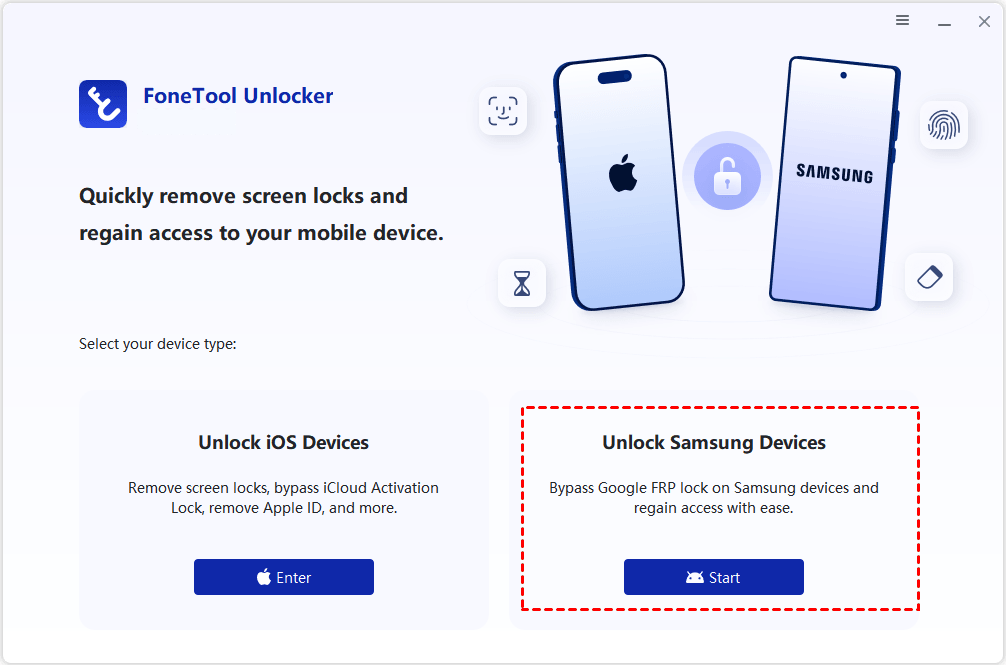
Step 2. Connect your Samsung S23 to get started. On the Remove Google FRP Lock from Samsung window, choose the unlock method matching the system version and chipset.

Step 3. Click Remove Now, follow the instructions to authorize on your Samsung S23 and let this software to remove GoogleFRP lock.
For more details, check our guide on how to unlock Samsung device.
FAQs
Can I use an A15 method on my S23?
Do not transfer chipset instructions between them. The Samsung A15 FRP bypass without a PC scenario involves MediaTek hardware, while the S23 discussed here uses Snapdragon. Shared branding does not make their device-specific workflows interchangeable.
Will removing FRP recover my erased photos?
FRP removal and recovery of erased files are separate tasks. Regaining device access does not promise restoration of data deleted during a factory reset. Check existing cloud or computer backups after you recover your account.
Conclusion
Start with the verification option your S23 actually offers and recover the accepted account where possible. If a phone-only attempt stops at a missing entry, record that mismatch instead of repeating it. When moving to Windows, pair the verified Snapdragon hardware with the installed Android version before selecting an FTU method.
FoneTool Unlocker - 1-Click Phone Unlock Software
Easily remove passcodes and restrictions from iPhone, iPad, iPod touch, and Samsung devices.
-
 iOS 27 Compatible
 iPhone 18 Supported
-
Samsung FRP Removal
100% Secure

Ivey is passionate about teaching users how to easily protect mobile device data. With the FoneTool series of iPhone management, unlocking, and repair software, even beginners can perform data backup, iPhone unlocking, and troubleshooting like a pro.
Read author info >>



 as a preferred
source on Google
as a preferred
source on Google