How to Remove Google Account from Samsung Tablet [2 Ways]
This post will show you how to remove Google account from Samsung tablet through Settings or bypass FRP lock after factory reset without password using a professional unlocking tool.


User Case: How Do I Delete My Previous Owner Account on My Samsung Galaxy Tablet?
I recently bought a used Samsung Galaxy Tab from someone online, and when I tried to set it up after a factory reset, it keeps asking me to sign in with the previous owner's Google account. I don't know the previous owner's email or password, and I can't get past this Google verification screen. Is there any way to delete the previous owner's account from my Samsung Galaxy tablet?
When you purchase a pre-owned Samsung tablet, or when you simply want to remove an old Google account you no longer use, there may be 2 very different situations. You have full access to the tablet's Settings menu, or the tablet has been factory reset and is now locked by FRP (Factory Reset Protection), demanding credentials you do not have- each situation requires a completely different approach.
Part 1. How to Remove Google Account from Samsung Tablet from Settings
The most straightforward way to bypass Google account from Samsung tablet is through the Settings app. But this method works when you have full, unimpeded access to the device. Before you begin, check these requirements:
- You can unlock the tablet and open Settings. This method does not work from the verification screen.
- You know the tablet's screen lock (pattern, PIN, or password) -mandatory when the Google account you are deleting is the only one on the device.
- You are online, so the removal can sync to Google's servers.
- You have backed up what you want to keep. Removing an account also deletes everything associated with it from the device, including email, contacts, calendar events, and settings.
How to bypass Google account on Samsung Galaxy Tab A and other tablet series:
Step 1. Open Settings on your Galaxy Tab, and go to Accounts and backup.
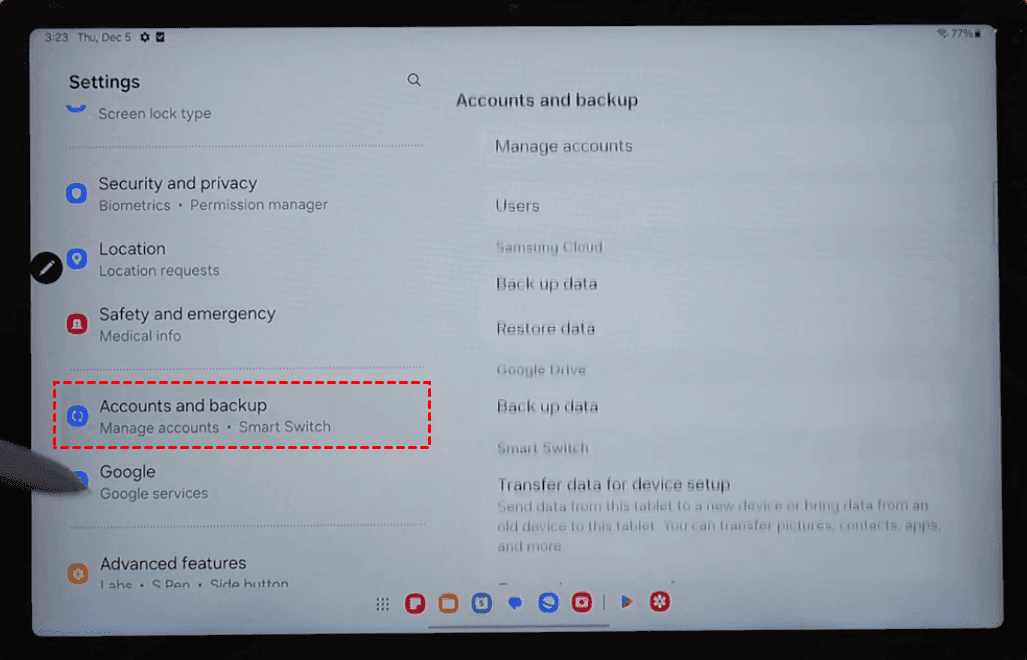
Step 2. Click Manage accounts to see every account signed in, including Google, Samsung, and third-party accounts.
Step 3. Select the Google account you want to delete and tap Remove account.
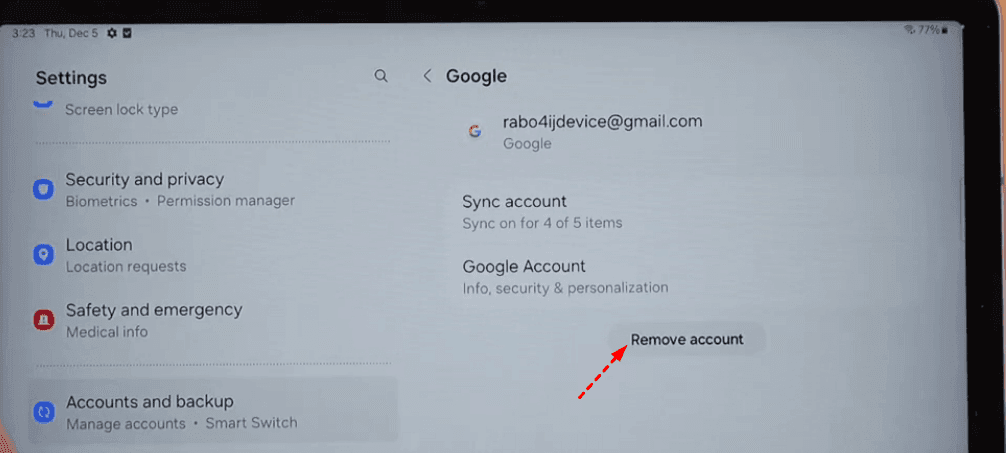
Step 4. Confirm your Samsung Google account removal by tapping Remove account again in the pop-up. If it is the only Google account on the tablet, enter your pattern, PIN, or password when asked.
Part 2. How to Remove Google Account from Samsung Tablet after Factory Reset without Password
What if you have already performed a factory reset and are now stuck at the Google account verification screen with no password? To bypass Google account on Samsung tablet without password, you need a dedicated Samsung FRP unlocking tool like FoneTool Unlocker. This tool allows to bypass FRP on Samsung tablets & phones through a USB connection.
- Key Features:
- Multiple unlock methods. Options matched to Android version and chipset, supporting Android 6-16, MediaTek, Qualcomm (Snapdragon), and US models. And Universal (One-Click Removal)for all supported Samsung phone and tablet models.
- Broad device coverage. It covers most Samsung Galaxy models, including Galaxy S26, S25, S24, and selected S, A, M, Z, Fold, and Flip series devices.
- No command lines, no rooting. It is simple to use with step-by-step guides.
- Wide PC support. It runs on Windows 11, 10, 8.1, 8, and 7.
- Extra unlock functions. Besides Samsung FRP unlocking, it can also remove Apple ID or bypass iCloud Activation Lock on iOS devices.
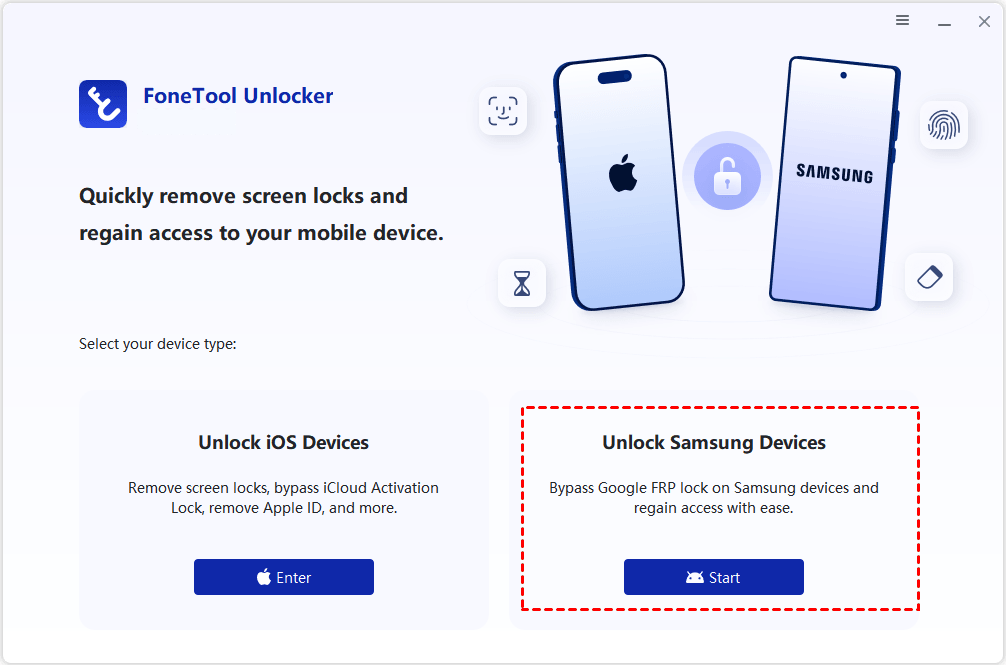
Step 1. Connect the locked Galaxy tablet to the PC with a USB cable, launch FoneTool Unlocker, and click Start under Unlock Samsung Devices.
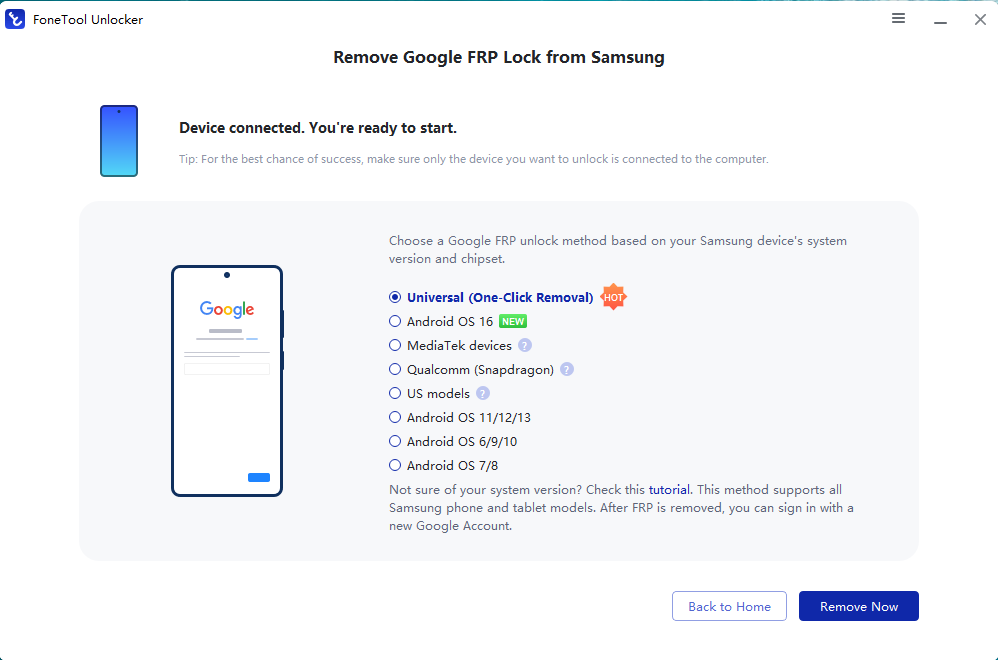
Step 2. Select an FRP unlock method based on the tablet's Android version and chipset, or choose Universal (One-Click Removal) if you are unsure. Click Remove Now.
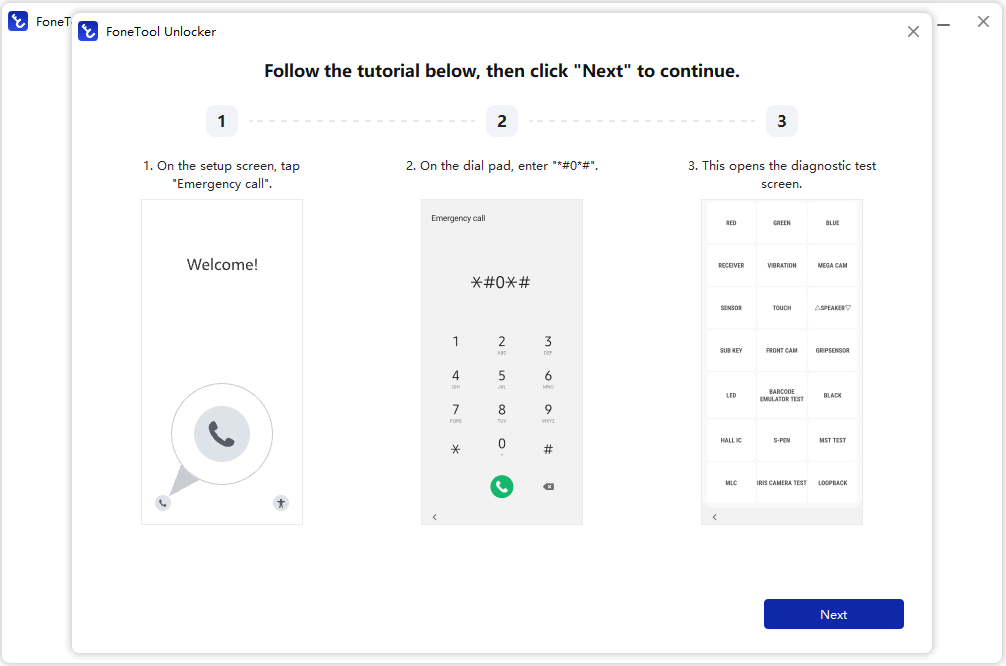
Step 3. Follow the on-screen action required on the tablet: tap Emergency Call and enter the code the software provides, such as *#0*#, to open the diagnostic Test Mode menu. Once it appears, click Next on the computer.
Step 4. Keep the USB cable steady and let the tool remove the Google FRP lock automatically.
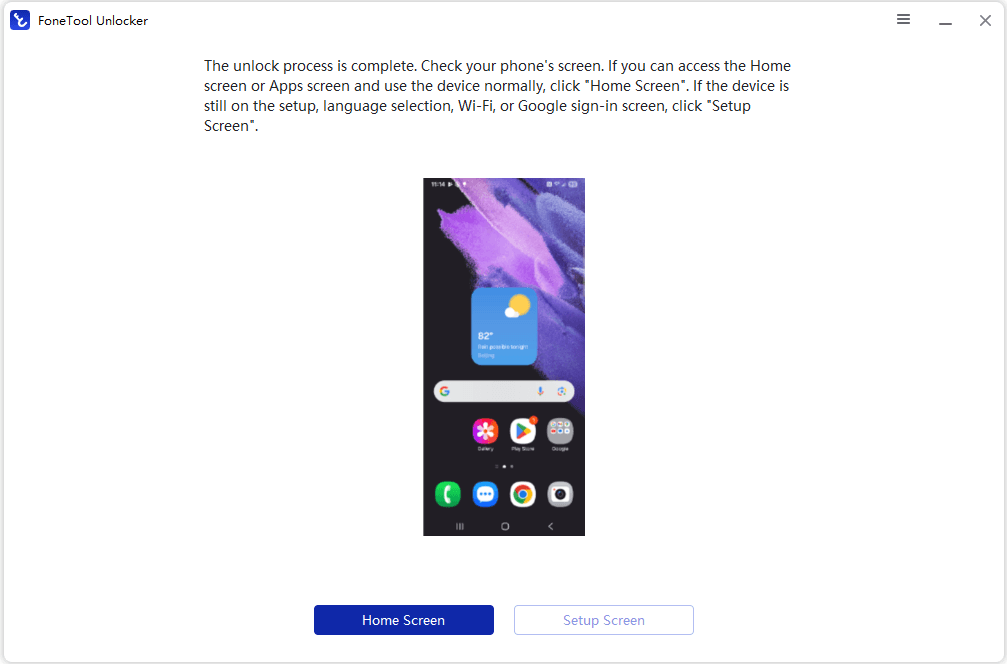
Step 5. Go to the tablet screen. Tap Home Screen on the PC if it reaches the home screen, or Setup Screen if it is still in the setup wizard. Complete the setup, skipping the Wi-Fi step if prompted, and sign in with your own Google account.
FAQs about Removing Google Account from Samsung Tablet
#1. Can I use Samsung tablet without Google account?
Yes. Skip the Google sign-in during setup and you can still use calling, messaging, Wi-Fi, Bluetooth, the camera, the Galaxy Store, and Samsung's own apps. But there are something you can’t access, including the Play Store, Gmail, Drive, Google Photos backup, and Google contacts or calendar sync.
#2. Should I remove a Google account from a Samsung tablet when giving it away?
Yes, and you must do this before resetting the device. Removing the account first is the only reliable way to ensure the recipient won't encounter the “Google Verification” screen when turning on the device. If you wipe the tablet without first removing the account, the system will trigger “Factory Reset Protection” (FRP), requiring the next user to enter your account credentials before they can continue using the device.
#3. Can I remove a Google account from a Samsung tablet without losing photos?
Generally yes. Removing an account deletes the data associated with that account from the device, but photos, videos, and files already stored locally on the tablet remain untouched. Anything existing only in that account's Google Photos cloud stays on Google's servers and can still be retrieved at photos.google.com in a browser. Or you can transfer photos from Samsung to PC for quick access.
In the End
Removing a Google account from a Samsung tablet is a straightforward process when you have access to the Settings menu. When you are already locked out after a factory reset and do not have the original Google credentials, FoneTool Unlocker offers an effective solution for FRP bypass after factory reset. It supports a wide range of Samsung tablets and phones and requires no Google password.
FoneTool Unlocker - 1-Click Phone Unlock Software
Easily remove passcodes and restrictions from iPhone, iPad, iPod touch, and Samsung devices.
-
 iOS 27 Compatible
 iPhone 18 Supported
-
Samsung FRP Removal
100% Secure

Jona is an expert in mobile data backup and transfer, phone unlocking, and resolving iPhone issues. She maintains a sharp insight into the latest technology trends, ensuring that the information she provides stays current with industry developments.
Read author info >>



 as a preferred
source on Google
as a preferred
source on Google