Samsung A13 FRP Bypass TalkBack Not Working No PC: What to Try
Facing samsung a13 frp bypass talkback not working no pc? Check where TalkBack stops, then try account verification or recovery without a computer.


Trying to bypass FRP on your Samsung A13 with TalkBack, but a button won’t open or the required menu is missing and you don’t have a PC? First, check whether TalkBack has selected the item without activating it. If the required entry is unavailable, move to an option that does not depend on that shortcut.
You can complete Google verification with a previously synced account or recover its password from another phone. These options verify account access rather than technically bypassing FRP.
Start with the TalkBack check below, then choose the account option you can complete. A separate Windows alternative follows if you later gain access to a computer.
Samsung A13 FRP Bypass TalkBack Not Working No PC: What Do You See?
If TalkBack reads a button aloud but nothing opens, check whether the button was only selected.
- Tap once on the button you want to open. Listen to its label to confirm the selection.
- Double-tap to activate it, then check the screen that appears.
If the button opens, continue only if the next screen matches the required steps. If the menu is missing or the shortcut cannot open another app, repeating the gesture will not restore it. For other symptoms, see FRP bypass TalkBack not working.
If Settings opens but a required control is missing, Google verification remains unresolved. This time, you need to check FRP bypass Open Settings not working for troubleshooting.
Older tutorials may use menus that are no longer available during setup. The A13 model name alone does not establish that those steps will work on your installed software.
Which FRP Bypass Methods Should You Use?
If the TalkBack shortcut still cannot continue, choose an option below that does not require it.
| 🧩 Your situation | ✅ What to try |
|---|---|
| You remember a previously synced account and its password | Sign in with that account during setup |
| The phone offers verification with your previous screen lock | Use the PIN, password, or pattern shown on the lock screen |
| You forgot the Google account password | Recover the account from another phone |
| A secondhand A13 requests the seller’s account | Ask the previous owner to complete verification |
| Account access is unavailable, but you can use Windows | Consider the PC alternative |
For other options that avoid accessibility shortcuts, see bypass FRP without TalkBack.
Method 1: Sign In with the Previous Google Account
If you remember a Google account previously added and synced to the A13, enter it on the verification screen. A newly created account will not replace that requirement.
Step 1. Continue through Samsung A13’s setup screens until you reach Wi-Fi. Select your network, enter its password, and connect.
Step 2. At Google verification, enter the email address or phone number for a previously synced account, then your password. Tap Next to continue.
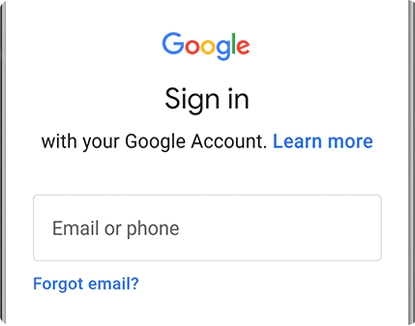
Step 3. Complete any additional identity check shown and the remaining setup prompts. Confirm you can finish setup and use the phone normally.
If the A13 offers a previous PIN, password, or pattern, select that displayed choice and enter the screen lock requested. The option must appear on your phone; it is not an extra menu that every A13 provides.
If the account is rejected, check the address for typing errors and confirm that it was used on this A13 before the reset. If you recognize the account but cannot remember its password, continue to Method 2.
Method 2: Recover Previous Account from Another Phone
If a forgotten password prevents sign-in, recover the Google account in another phone’s browser. You do not need browser access on the locked A13.
Step 1. On another phone, open Google Account recovery. Enter the email address or phone number for the account used on your A13.
Step2. Select a way to sign in and complete the available identity checks. Use Try another way if it appears and you cannot complete the current check.
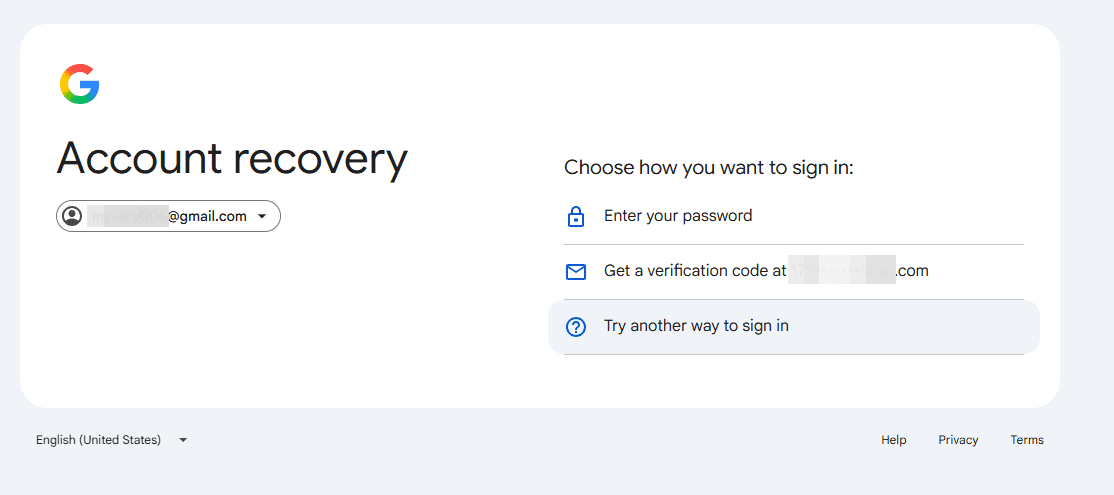
Step 3. Create a new password if prompted. Then, return to the A13's Google verification screen, enter the recovered account details, and continue setup.
If you forget the email address, click Forget email at the Account Recovery window. A familiar device and location may help Google recognize the recovery request.
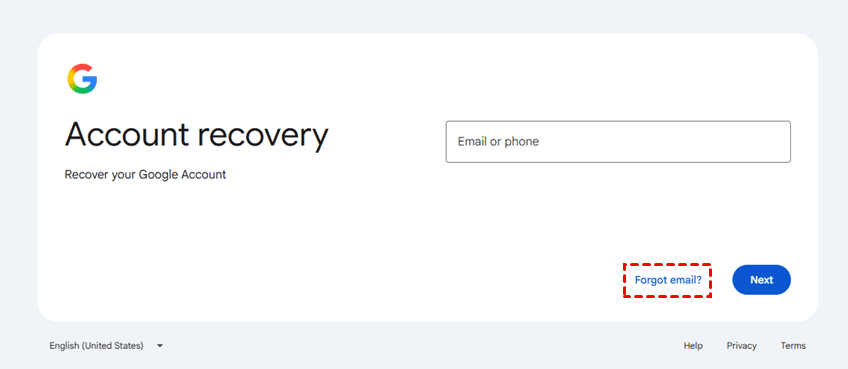
If the A13 displays a waiting period after the password change, follow that message before signing in again. Recovering the account doesn’t finish setup for you. You still need to enter the account details on the phone.
What If You Cannot Access the Previous Account?
If a secondhand A13 requests the seller’s account, ask the seller to complete verification personally. They can enter their credentials without sharing their password. After setup, they should remove their accounts and personal information before handing the phone back.
If the seller is unavailable and you cannot recover the account, contact Samsung support with proof of purchase. Ask what assistance and documents are required in your region before visiting a service center.
If you need a bypass without either account access or a computer, the methods above do not meet both conditions. A failed TalkBack shortcut is not enough evidence to recommend an APK or another unverified sequence as a working replacement.
Use a PC FRP Bypass Tool as an Alternative
If you cannot restore account access and can use a Windows computer, consider FoneTool Unlocker. It offers multiple FRP removal methods for different Samsung devices you own or are authorized to service. Its removal feature does not erase device data.
- Android version: If the installed version is Android 11, 12, or 13, prefer Android OS 11/12/13, subject to device support.
- Chipset: If your A13 uses MediaTek, choose MediaTek devices. If it uses Exynos, skip both MediaTek and Qualcomm.
- Universal: If neither category matches, consider Universal (One-Click Removal) as alternative.
For example, an A13 5G running Android 13 matches Android OS 11/12/13. Do not select that group for a later system just because the phone originally shipped with an older version.
Step 1. Open FoneTool Unlocker on Windows and click Start for the Samsung device unlock feature.
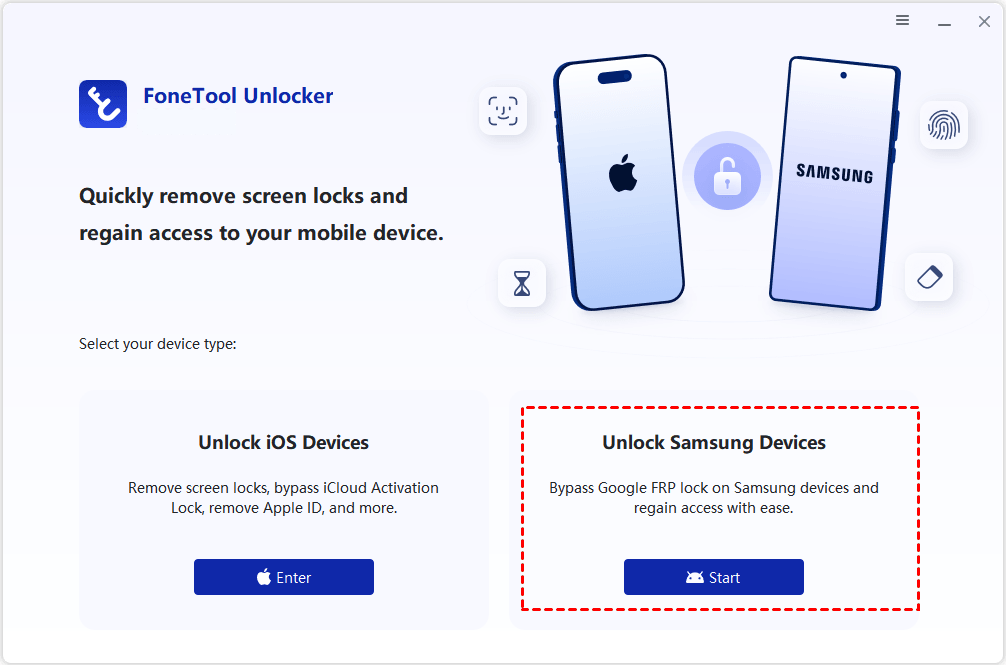
Step 2. Connect your A13 as instructed. On Remove Google FRP Lock from Samsung, prefer a matching Android version or chipset option.

Step 3. Click Remove Now and follow the prompts to activate test mode on your device. Keep the phone connected while the removal process runs.
After completion, finish setup and confirm that you can use your Google account normally.
FAQs
Can I Recover the Account without Another Phone?
Yes. You can use a browser on another available device, such as a tablet. Account recovery does not have to run on the locked A13.
Will FRP Removal Restore Photos Deleted by the Reset?
No. Removing FRP does not recover deleted photos or other files. Once you’re back in, check your account for existing backups.
For Samsung A13 FRP problems without a PC:
- first use the account or previous screen lock accepted by the phone.
- Recover the account if needed.
- If those options are unavailable, consider support or a Windows alternative instead of repeating a shortcut that stops at the same missing step.
FoneTool Unlocker - 1-Click Phone Unlock Software
Easily remove passcodes and restrictions from iPhone, iPad, iPod touch, and Samsung devices.
-
 iOS 27 Compatible
 iPhone 18 Supported
-
Samsung FRP Removal
100% Secure

Ivey is passionate about teaching users how to easily protect mobile device data. With the FoneTool series of iPhone management, unlocking, and repair software, even beginners can perform data backup, iPhone unlocking, and troubleshooting like a pro.
Read author info >>



 as a preferred
source on Google
as a preferred
source on Google