How to Run Samsung A16 FRP Bypass on PC: Top 2 Ways
Locked out of your Samsung A16 after a factory reset? Learn how to bypass FRP using the best 2 removal tools – plus fixes for common Samsung A16 FRP problems.


What Is FRP Lock on Samsung Galaxy A16?
FRP is an Android security feature that prevents unauthorized access after a factory reset. When a Google account is added to a Galaxy A16, FRP activates automatically. If the phone is reset without removing that account first, setup may require the previously synced Google account—protecting personal data if the device is lost or stolen.
FRP can become an obstacle when you forget your Google credentials, buy a second-hand Galaxy A16 still linked to the previous owner's account, or reset the phone without removing the account first.
Before trying an FRP bypass, consider these legitimate options:
- Recover your Google account: Use Google's account recovery service if you own the account but cannot remember its password.
- Contact the previous owner: If you purchased a used Galaxy A16, ask the previous owner to complete the required account verification or remove the device from their account as appropriate.
- Contact Samsung support: If you can prove ownership but cannot complete verification, ask an authorized Samsung service center for assistance.
🌟 To learn more about bypassing FRP on Samsung, please check this complete guide: Samsung FRP Bypass.
Best 2 Samsung FRP Bypass Tools for PC
If the standard account recovery options do not resolve the problem, you may use PC-based utilities for Samsung Galaxy A16 FRP bypass.
1. FoneTool Unlocker
FoneTool Unlocker is a Windows-based device-unlocking utility that provides FRP-related functions for selected Samsung devices.
- Key Features:
- One-Click Removal: Offers a Universal option for supported devices when the exact Android system information is unknown.
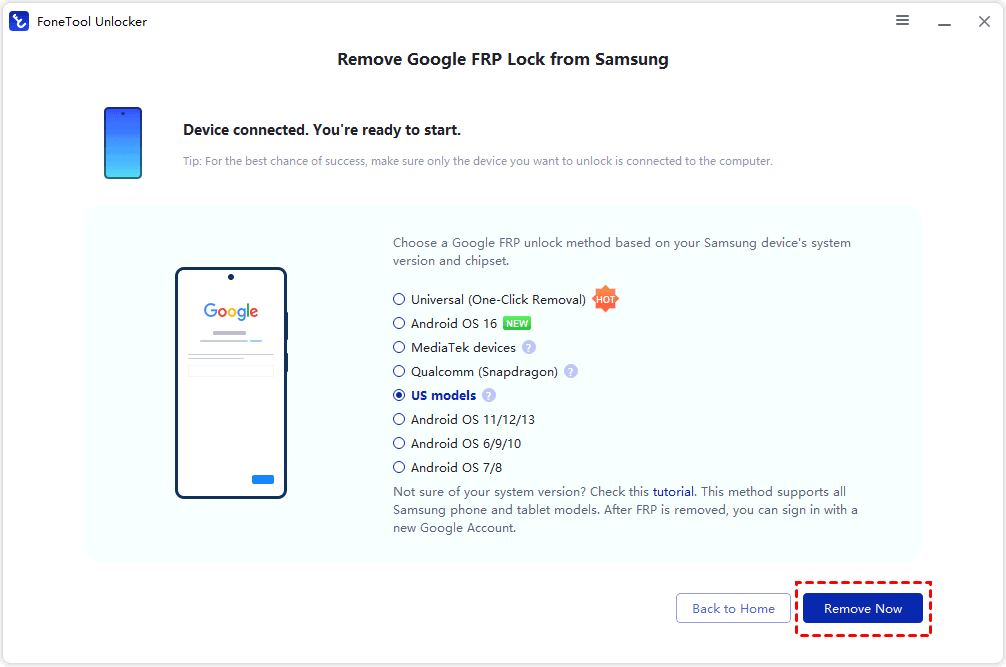
- Multiple Unlock Methods: Provides different unlocking methods for Android 16, MediaTek, Qualcomm/Snapdragon, US models, and various older Android versions.
- Broad Samsung Compatibility: Supports selected Samsung Galaxy S26, S25, S24, S, A, M, Z, Fold, and Flip series models.
- iOS Device Unlock: In addition to Samsung unlocking, it offers iOS unlocking features, including iCloud Activation Lock bypass, Screen Time passcode removal, Apple ID password recovery, and more.
- Windows Compatibility: Supports Windows 11, 10, 8.1, 8, and 7.
2. DroidKit
DroidKit is a desktop Android toolkit featuring an FRP Bypass module for supported devices. It works with Samsung and several other Android brands, offering FRP removal alongside additional utilities for screen unlocking, data recovery, and Android system repair.
Main features:
- FRP Bypass: Helps remove Google account verification on supported Android devices.
- Guided Unlocking Process: Provides step-by-step on-screen instructions to select the appropriate Android version or chipset.
- Wide Android Compatibility: Supports multiple Android versions and brands, including Samsung, Xiaomi, OPPO, Motorola, and Vivo.
- Samsung-Specific Support: Offers dedicated FRP bypass procedures for supported Samsung models.
How to Remove Google Account from Samsung A16
Now let’s see how to run Samsung Google FRP bypass with FoneTool Unlocker and DroidKit step by step.
Method 1: Remove FRP on Samsung A16 with FoneTool Unlocker
Step 1. Download and install FoneTool Unlocker on your Windows PC.
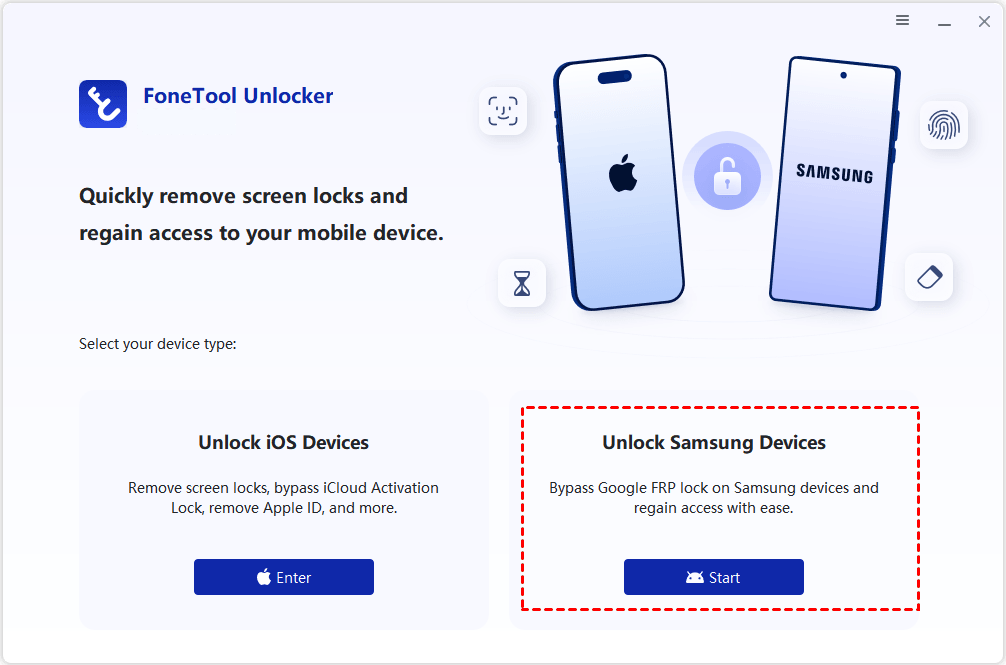
Step 2. Connect your FRP-locked Samsung Galaxy A16 to the computer using a USB data cable. Launch FoneTool Unlocker, find Unlock Samsung Devices and click Start.
Step 3. Review the available FRP removal methods. Select the option that matches your Samsung A16's Android version and chipset, then click Remove Now.
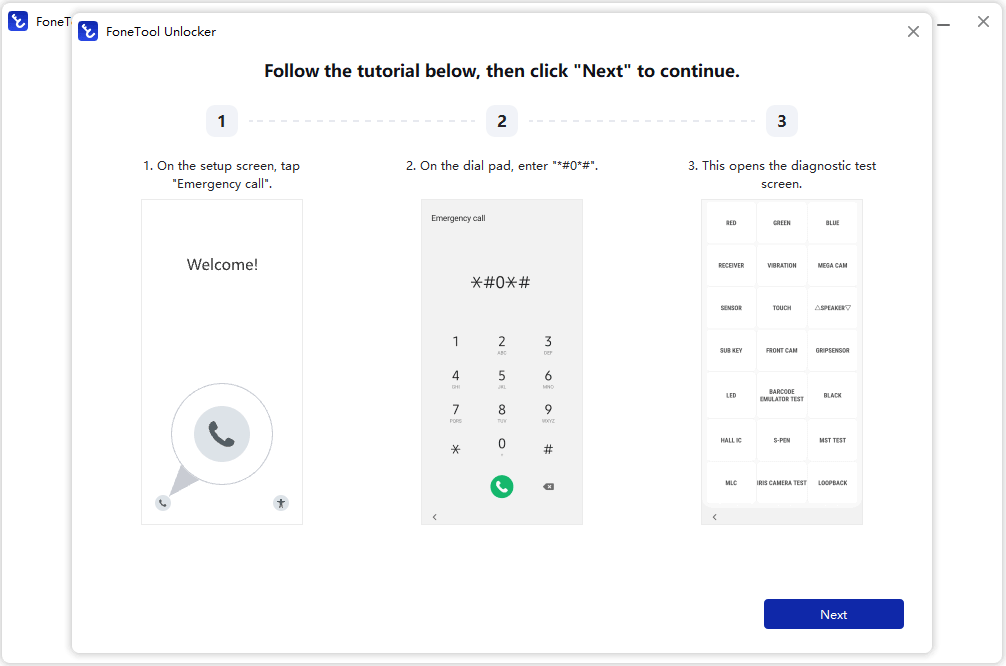
Step 4. Follow the instructions displayed in the software. You may be asked to open Emergency call on your phone and enter a specific code, such as *#0*#. Then click Next on the computer.
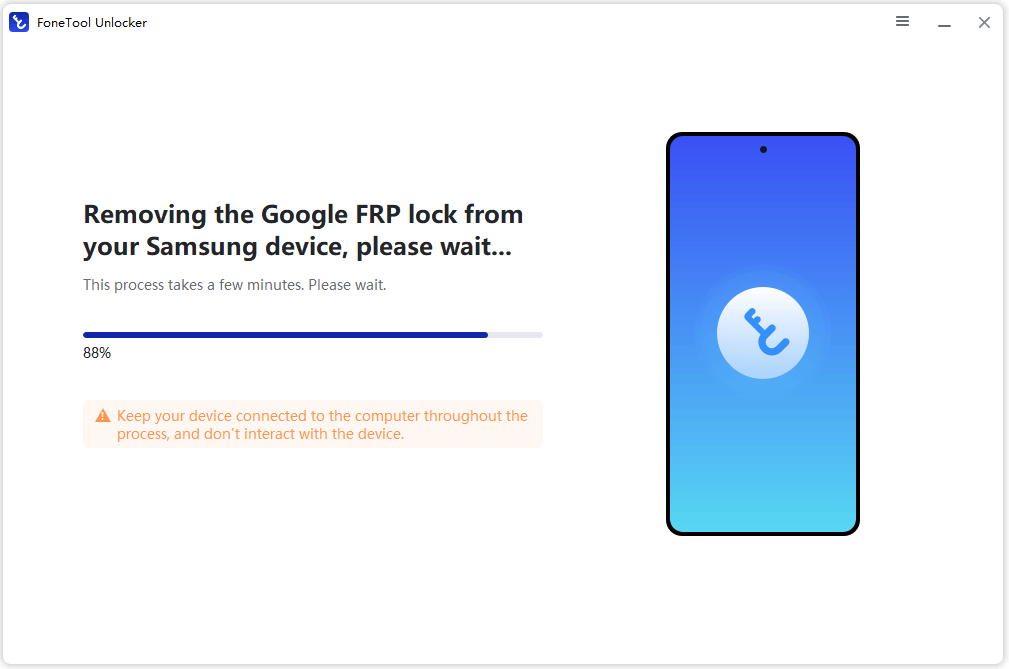
Step 5. Keep your Samsung A16 connected to the computer while the software performs the removal operation. Do not unplug the USB cable or interrupt the process.
Step 6. When the process finishes, check the phone's screen and follow the software's prompts to continue. Complete the setup process if the device allows you to proceed.
Method 2: Bypass FRP on Samsung A16 via DroidKit
Step 1. Visit the official DroidKit website to download and install the program on your Windows computer. Launch DroidKit and select FRP Bypass from the main interface.
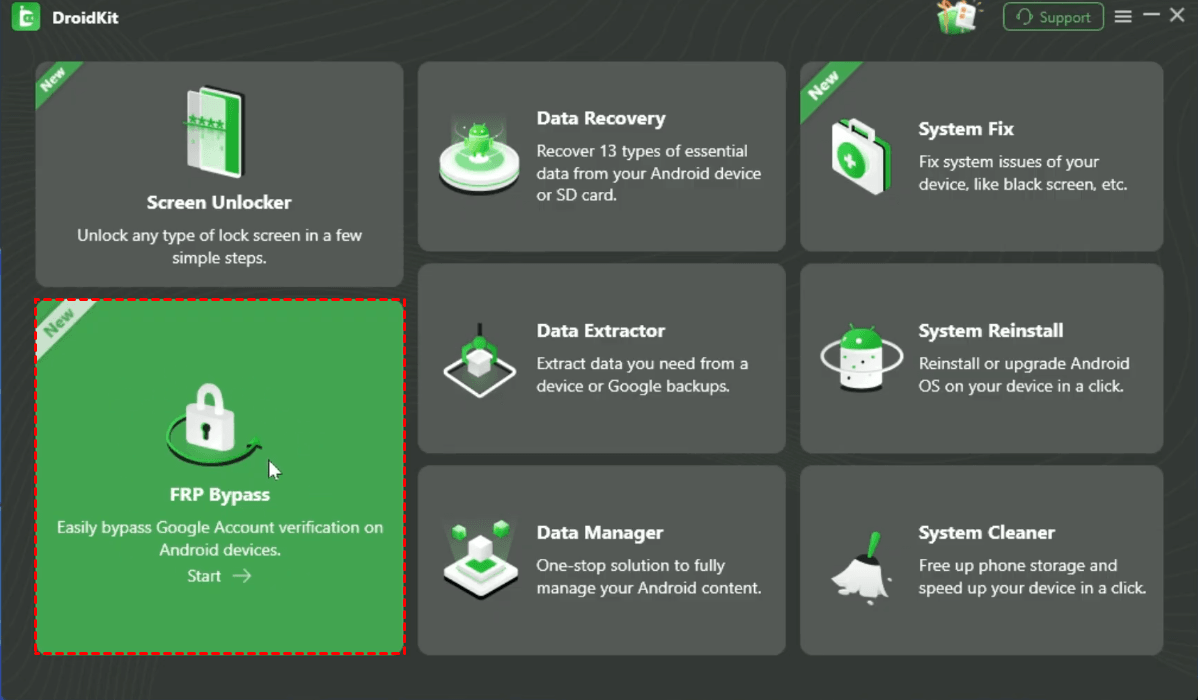
Step 2. Connect your Samsung Galaxy A16 to the computer using a compatible USB cable, then click Start if the program detects the device.
Step 3. Select the Android version or chipset option requested by DroidKit. Then click Next to continue.
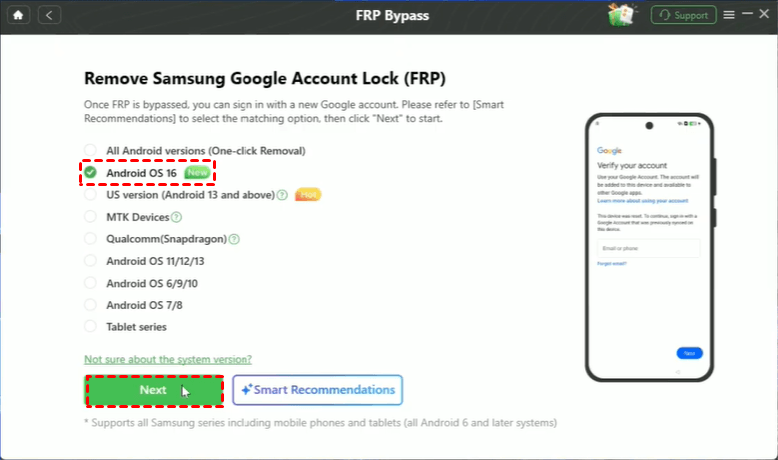
Step 4. Follow the on-screen instructions. If DroidKit requires additional drivers or device preparation, complete the prompts provided by the software.
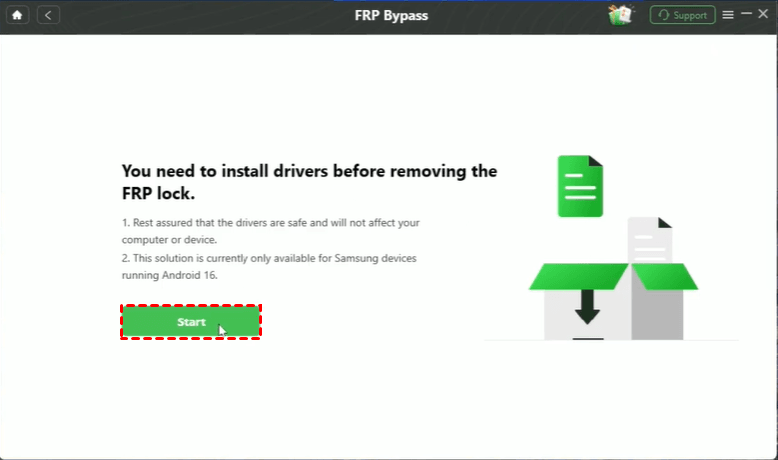
Step 5. Keep the phone connected during the FRP removal process. When the process is complete, click Complete.
Step 6. The phone will restart automatically. You can then continue setting up your Samsung A16.
How to Fix Common Samsung A16 FRP Problems
Even when you have the correct account information, FRP verification may not proceed as expected. Here are some common situations and solutions.
1. Samsung A16 Keeps Asking for the Previous Google Account
This usually happens when the phone was reset without removing the Google account previously synced to it.
If you own the account, visit Google Account Recovery Page. Complete the verification process and follow Google's instructions. If the phone belongs to someone else, ask the previous owner to help complete the required verification.
2. Google Account or Password Is Not Accepted
First, check that you entered the correct email address and password. If you recently changed your Google password, Google may require a waiting period before the updated credentials can be used to complete device setup.
Use a trusted browser or another device to confirm that you can sign in to the account. Then follow the prompts on your Galaxy A16.
3. Samsung A16 Cannot Connect to Wi-Fi During Setup
FRP verification requires an internet connection. If the phone cannot connect:
- Check whether the Wi-Fi password is correct.
- Restart your router and try again.
- Connect to another trusted Wi-Fi network.
- If available, try a compatible mobile network connection.
Once the phone is online, retry Google account verification.
4. Samsung A16 FRP Bypass Tool Cannot Detect the Phone
If a PC utility does not recognize your Galaxy A16, check the USB connection and computer setup.
- Use a reliable USB cable that supports data transfer.
- Try another USB port on the computer.
- Restart the phone and PC, then reconnect the device.
- Check whether the required Samsung USB drivers are installed.
- Confirm that the tool supports your exact Galaxy A16 variant and software version.
If the program still cannot detect the phone, consult its official troubleshooting guide rather than trying unrelated device modes or procedures.
Conclusion
To handle Samsung A16 FRP bypass after a factory reset, start with Google account recovery or assistance from the previous owner, as these are the safest ways to regain access.
If you are considering a PC-based utility, FoneTool Unlocker and DroidKit are two available options. What's more, FoneTool Unlocker offers many practical unlock features for iPhone. You can use it to bypass iCloud Activation Lock as necessary. Just give it a shot!
FoneTool Unlocker - 1-Click Phone Unlock Software
Easily remove passcodes and restrictions from iPhone, iPad, iPod touch, and Samsung devices.
-
 iOS 27 Compatible
 iPhone 18 Supported
-
Samsung FRP Removal
100% Secure

Lily Green is dedicated to helping users protect their valuable mobile data and addressing issues that arise on mobile devices. She consistently stays vigilant about the latest trends in technology, guaranteeing that the given information aligns with the ongoing advancements in the field.
Read author info >>



 as a preferred
source on Google
