Samsung A20 Google Account Remove - Step-by-Step Guide
This is a complete guide to Samsung A20 Google account removal in 2 ways, including via Settings before factory reset and using a professional unlocking software after factory reset.


User Case: How Do I Bypass Google Verification on a Samsung A20?
I picked up a Samsung Galaxy A20 from a friend who forgot the Google account he used on it. He did a factory reset to clear his stuff, handed me the phone, and now it boots into a screen that says 'Verify your account' and asks for the Gmail address that was on it before the reset. I don't have that password, and the phone won't let me do anything else. How do I bypass Google verification on a Samsung A20?
The Samsung A20 runs Android 9 (Pie), and like every modern Galaxy, it has Factory Reset Protection (FRP). When a Google account is added to the phone and a screen lock is set, the device marks itself as protected. A factory reset, especially one triggered through Recovery Mode, wipes the user data but keeps that protection flag. The next time the phone starts, Android demands the previously synced Google account before setup can finish.
This guide covers a full guide on Samsung A20 Google account remove, so to simply bypass Google FRP lock.
Part 1. Samsung A20 Google Account Remove via Device Settings
This is the standard, official method for Samsung Google account removal, and it is the one you should always try first before you perform a factory reset on Samsung devices. This method allows you to do FRP bypass on Samsung A20 with no PC, but it works only when you have full, unimpeded access to the A20 device. Specifically, this means:
- You can unlock the screen with your pattern, PIN, or password.
- You can open the Settings app and navigate the menus.
- You are not stuck on the Google account verification screen at setup.
Step 1. Open the Settings app on your Samsung A20, and navigate to Accounts and backup.
Step 2. Tap Manage accounts to view all accounts signed into the device.
Step 3. Select the Google account you want to remove, tap Remove account, and confirm it.
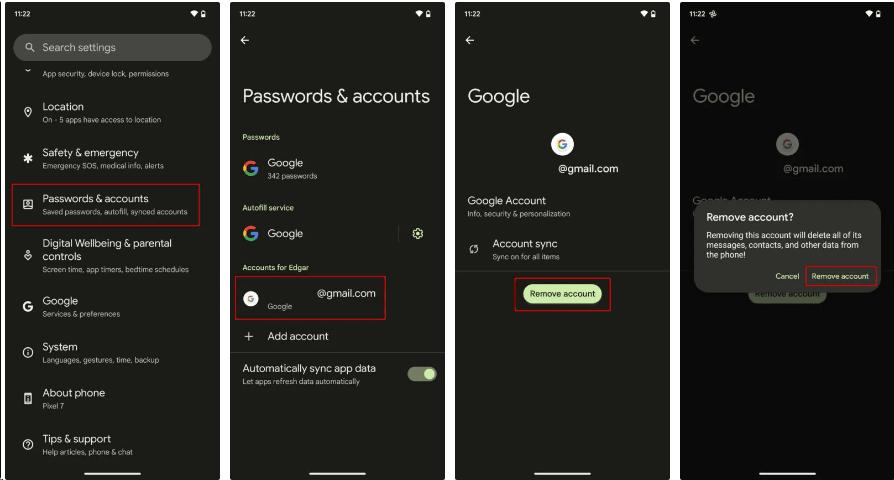
If this is the only Google account on the Samsung A20, you may need to enter your pattern, PIN, or password when prompted.
Part 2. Remove Samsung A20 Account & Google FRP Lock Easily with Unlocking Software
FoneTool Unlocker is a specialized PC-based unlocking tool that provides Samsung FRP bypass solutions for supported Galaxy phones and tablets. It is designed precisely for the situation where you are locked out at the Google account verification screen after a factory reset, and you do not have the original Google credentials. It mainly offers two unlocking functions:
🗨 Samsung device unlocking: Mainly for Samsung FRP bypass, it offers multiple unlock methods and wide device & Android OS support to remove the Google Factory Reset Protection (FRP) lock on supported devices.
🗨 iOS device unlocking: It offers to remove Apple ID, bypass iCloud Activation Lock, remove iTunes backup encryption, remove screen time passcode, and so on.
For Samsung A20 Google lock bypass, it comes with various advantages:
- Dedicated support for A20's Android version: The Galaxy A20 runs Android 9, and it includes a bypass method specifically built for Android 6/9/10, making it well-suited to this model.
- Simple to use: No complicated ADB commands or rooting to bypass FRP in a few clicks. And it simply runs on Windows 11, 10, 8.1, 8, and 7 over a standard USB cable.
- Broad chipset compatibility: Supports MediaTek and Qualcomm (Snapdragon) Samsung devices.
- Dedicated method for US Samsung models: Includes an additional FRP removal method specifically for US-market devices.
Step 1. Connect the locked Samsung A20 to the PC with a USB cable, launch FoneTool Unlocker, and click Start under Unlock Samsung Devices to begin the Samsung A20 FRP bypass process.
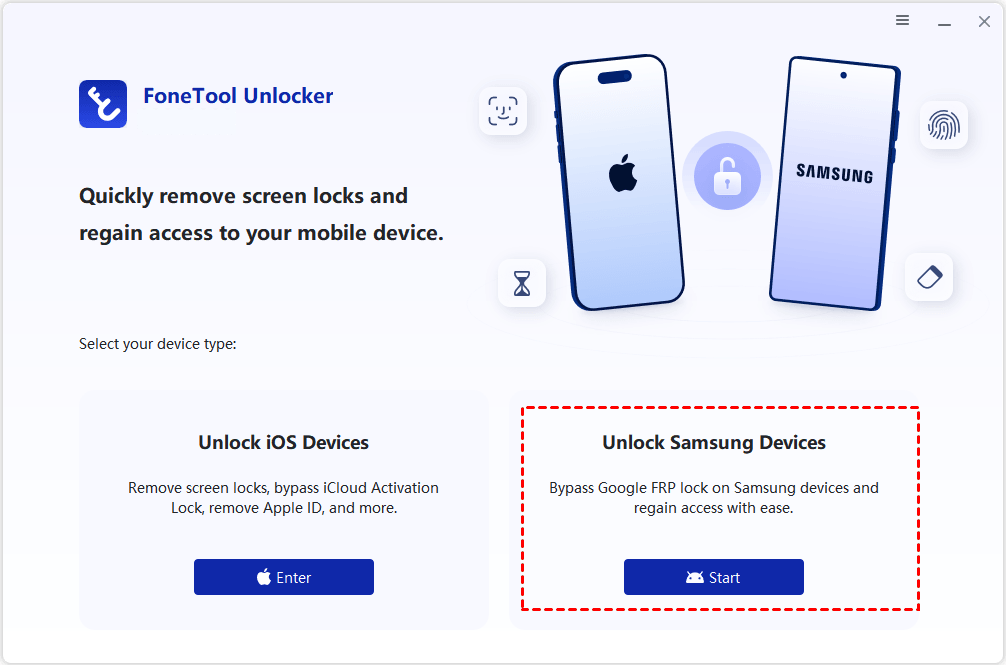
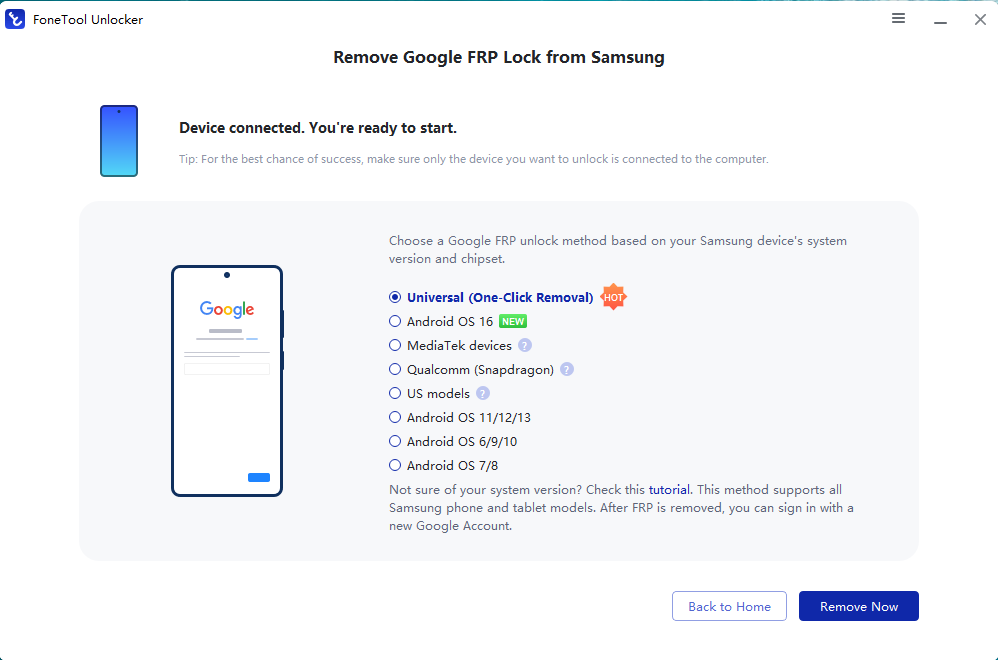
Step 2. Choose the Android 6/9/10 unlock method and click Remove Now.
Step 3. On the phone, tap Emergency Call and dial the code the software provides, such as *#0*#, to open the diagnostic Test Mode menu. When it appears, click Next on the computer.
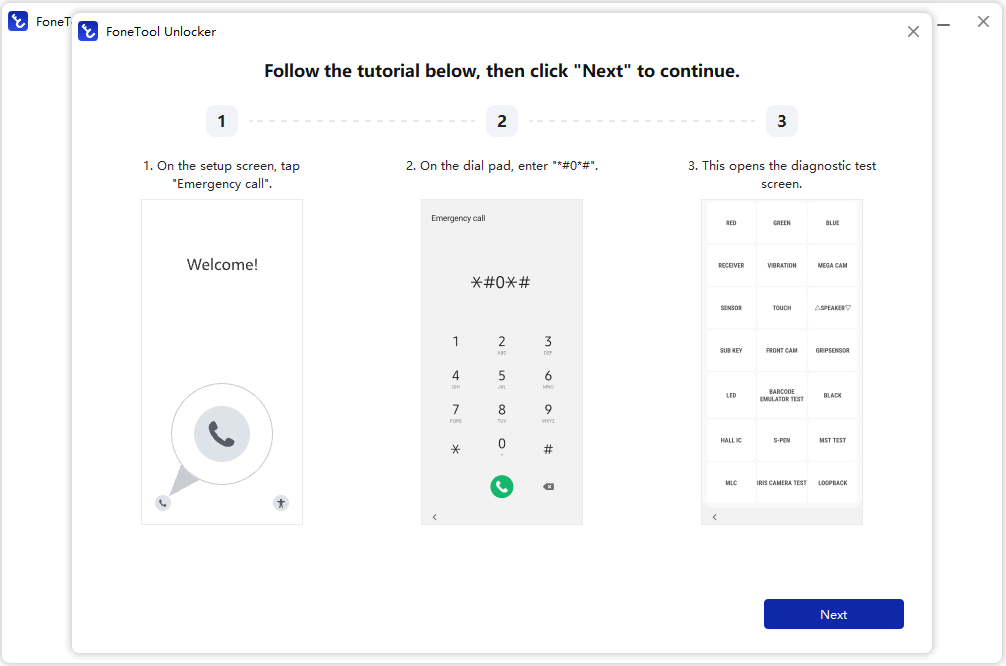
Step 4. Keep the USB connection steady while the tool removes the Google FRP lock automatically. Wait until it reports Removal Completed for Samsung A20 bypassing Google account.
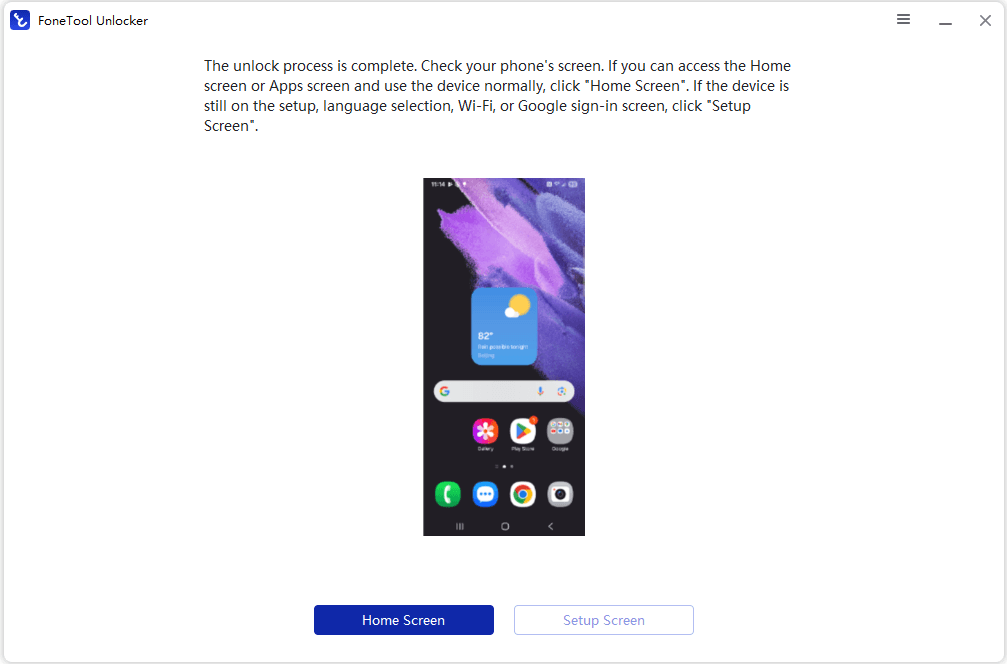
Step 5. Check the phone's screen: click Home Screen if it has reached the home screen, or Setup Screen if it is still in the wizard. You can now proceed past the Google verification screen and finish setup with a new Google account.
FAQs on Samsung A20 Google Account Removal
1️⃣Is Samsung A20 Google account removal without password possible?
Yes. Removing a Google account from a Samsung A20 without the password is possible, though the method depends on your situation. If you can access the phone's Settings menu, you can remove the account without entering the Google password. If you are locked out at the FRP verification screen and do not know the Google password, a dedicated unlocking tool like FoneTool Unlocker can remove the FRP lock without requiring the password at all.
2️⃣Is a factory reset needed to remove a Samsung A20 Google account?
No. To remove a Google account from an unlocked A20, use the Settings steps above. A factory reset is only needed if you also want to wipe the phone; if you reset while a Google account is still attached, FRP activates and locks the phone afterwards.
3️⃣Can I remove a Samsung A20 Google account using Find My Device?
Find My Device cannot remove a Google account from a Samsung A20. Google's Find My Device service offers 3 actions: play sound, secure device (lock it), and erase device. The "erase device" option performs a remote factory reset; a factory reset does not remove the Google account lock; it activates FRP. After the erase, the A20 will still ask for the previously synced Google credentials during setup.
Summary
Samsung A20 Google account removal comes down to 2 clear paths, and choosing the right one depends on whether you can access your phone. For dealing with second-hand phones, the simplest approach is to use professional unlocking software, such as FoneTool Unlocker. It is simple to operate for everyone, with a high success rate. Also, it supports FRP removal for Samsung Galaxy S26, S25, S24, and selected S, A, M, Z, Fold, and Flip series models.
FoneTool Unlocker - 1-Click Phone Unlock Software
Easily remove passcodes and restrictions from iPhone, iPad, iPod touch, and Samsung devices.
-
 iOS 27 Compatible
 iPhone 18 Supported
-
Samsung FRP Removal
100% Secure

Jona is an expert in mobile data backup and transfer, phone unlocking, and resolving iPhone issues. She maintains a sharp insight into the latest technology trends, ensuring that the information she provides stays current with industry developments.
Read author info >>



 as a preferred
source on Google
as a preferred
source on Google