Samsung FRP Bypass TalkBack Not Working: What to Try
Fix samsung frp bypass talkback not working by identifying the failed step, checking the available controls, and choosing account verification or FoneTool Unlocker when needed.


Trying to bypass Google verification on your Samsung phone with TalkBack, but a button won’t open or the required menu is missing? First, check whether TalkBack is responding to your gestures. If its controls work but the shortcut is unavailable, repeating the same steps will not restore that entry.
TalkBack is a screen reader. It can help you navigate setup, but turning it on does not remove FRP. The next action depends on whether you have a touch-control problem, a missing shortcut, or an account verification request.
Start with the matching check below. For broader troubleshooting beyond Samsung devices, see FRP bypass TalkBack not working.
Samsung FRP Bypass TalkBack Not Working: What Do You See?
| 👁🗨 What you see | ✅ What to try |
|---|---|
| The phone reads a button aloud but does not open it | Method 1: Check TalkBack’s activation controls |
| A page will not scroll with one finger | Method 1: Use a two-finger swipe |
| The TalkBack menu opens, but the required entry is missing | Method 2: Check whether the shortcut is available |
| TalkBack speaks, but Google Assistant does not appear | Method 2: Identify which feature is open |
| Google still requests the previous account | Method 3: Sign in, or use Method 4 to recover the password |
| Account recovery is unavailable | Consider the separate PC alternative |
Go to the method that matches your screen. If you already know that a required entry is missing, skip the gesture checks and move to the available account options.
Method 1: Check Whether TalkBack Opens the Selected Item
If your Samsung phone highlights or reads an item without opening it, use TalkBack’s selection and activation controls. A single tap normally selects an item instead of activating it.
- Tap once on the button you want to open. Listen to its label to confirm the selection.
- Double-tap the screen to activate the selected button.
- Use a two-finger swipe if you need to scroll the page.
If you need the TalkBack menu, try a continuous swipe down, then right, or a three-finger tap where supported. Gesture availability can depend on the TalkBack version and configuration.
If the button or menu now opens, check whether the next required option exists. If it does not, continue to Method 2 rather than repeating the gesture.
Method 2: Check Whether the Required Shortcut Is Available
If TalkBack responds normally but the bypass process stops, check the first missing or blocked action. Samsung phones with different software may not show the same setup menus.
Step 1. Read the current screen title. A TalkBack tutorial or voice-command prompt does not necessarily mean Google Assistant has opened.
Step 2. Check whether the specific menu item, help link, or app shortcut required by your instructions is present. Do not substitute an unrelated entry simply because its name looks similar.
Step 3. If a webpage shows a connection error, return to the available Wi-Fi setup screen and check the connection. If the page loads but cannot open an app, a working network does not resolve that blocked action.
Step 4. Check the result after opening Settings. If the required control is absent or Google verification returns, the process is incomplete.
If Settings is the failed step, see FRP bypass Open Settings not working. Changing an APK will not necessarily help when it still depends on the same unavailable entry.
If the shortcut cannot continue, use Method 3 or Method 4. For other approaches that avoid accessibility shortcuts, see bypass FRP without TalkBack.
Method 3: Sign In with the Previous Google Account
If you remember an account previously synced to the Samsung phone, sign in during setup. This completes Google verification without depending on TalkBack.
Step 1. Return to the setup screen using Back, where available, and connect to Wi-Fi.
Step 2. Enter the email address or phone number for a previously synced Google account, then your password. Tap Next to continue.
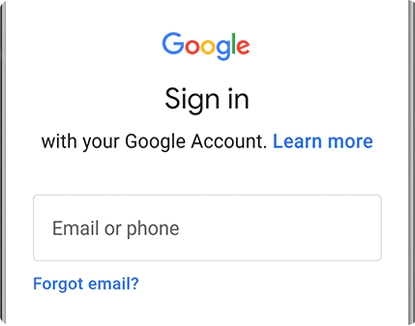
Step 3. Complete any additional identity check shown and the remaining setup prompts. Meanwhile, be sure you can use the phone normally.
If the phone offers a previous PIN, password, or pattern, you can use that displayed choice. A new Google account does not replace the account required after the reset.
For a secondhand phone, ask the previous owner to complete verification personally. If the account is yours but the password is forgotten, continue to Method 4.
Method 4: Recover the Account if You Forgot the Password
If you cannot remember the password, recover the account on another device. You do not need to reach a browser through TalkBack on the locked phone.
Step 1. Open Google Account recovery on another phone, tablet, or computer.
Step 2. Enter the account’s email address or phone number and select Next.
Step 3. Select a way to sign in and complete the available identity checks. Select Try another way when offered if you cannot use the current option.
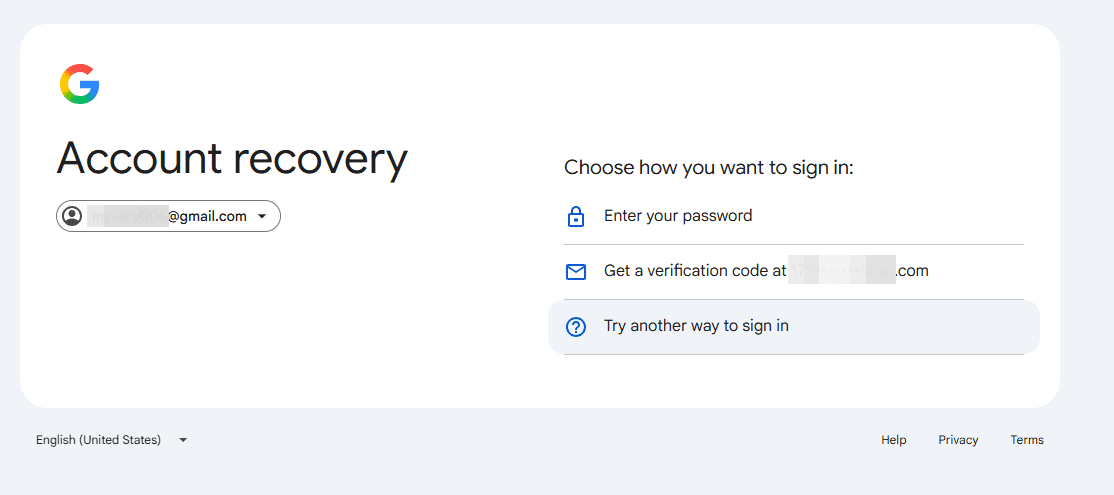
Step 4. Create a new password if prompted. Then, return to the Samsung phone and sign in.
If the phone displays a waiting period after the password change, follow that message. Recovering an unrelated account will not satisfy verification, so use the account previously synced to this device.
Use a PC FRP Bypass Tool as an Alternative
If the shortcut is unavailable and you cannot restore account access, consider FoneTool Unlocker for a phone you own or are authorized to service. It offers FRP removal for different Samsung devices through a Windows PC. Its Samsung FRP removal feature does not erase device data.
Your Samsung model, installed Android version, and processor determine which option fits. Do not assume that phones in the same Galaxy series use the same chipset.
- Android version: Prefer the matching group: Android OS 11/12/13, Android OS 6/9/10, or Android OS 7/8.
- Chipset: Choose MediaTek devices for a verified MediaTek processor or an eligible Qualcomm option for a verified Qualcomm processor. Exynos does not match either chipset family.
- Universal: If neither category fits, consider using Universal (One-Click Removal) as alternative.
For example, a supported Samsung phone running Android 12 matches Android OS 11/12/13. Its launch version is not enough to establish the version currently installed.
How to start FRP removal:
Step 1. Launch FoneTool Unlocker on Windows and click Start for the Samsung device unlock feature.
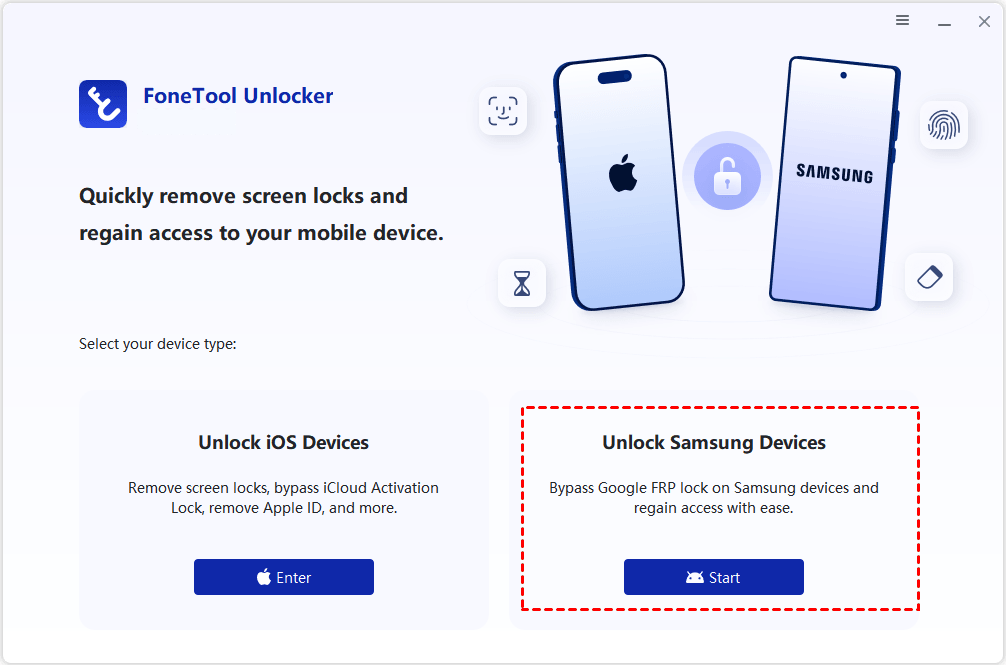
Step 2. Connect the phone as instructed. On Remove Google FRP Lock from Samsung, select the matching option. If you select the Samsung Qualcomm unlock solution, prepare a Samsung EDL engineering cable, as required by the Samsung unlock instructions.

Step 3. Step 3. Click Remove Now, then follow the instructions for your selected option, if prompted.
After completion, finish setup and confirm that you can use your Google account normally.
FAQ
Will Another Factory Reset Bring Back a Missing TalkBack Menu?
Another reset does not guarantee that an older menu will return or downgrade the installed software. You may reach the same Google verification screen again.
Will FRP Removal Recover My Google Password?
No. FRP removal does not recover your Google password. Use account recovery if you need access to the previous account, its email, or cloud backups.
- If TalkBack responds but the required shortcut is missing, stop repeating the same gestures.
- Use the previous account or recover it when possible.
- If those options are unavailable, choose a supported Windows alternative based on your Samsung phone’s actual system and processor.
FoneTool Unlocker - 1-Click Phone Unlock Software
Easily remove passcodes and restrictions from iPhone, iPad, iPod touch, and Samsung devices.
-
 iOS 27 Compatible
 iPhone 18 Supported
-
Samsung FRP Removal
100% Secure

Ivey is passionate about teaching users how to easily protect mobile device data. With the FoneTool series of iPhone management, unlocking, and repair software, even beginners can perform data backup, iPhone unlocking, and troubleshooting like a pro.
Read author info >>



 as a preferred
source on Google
as a preferred
source on Google