Samsung A15 FRP Bypass Without a PC: Options and Next Steps
Explore samsung a15 frp bypass no pc options, understand why an attempt stops, and choose account recovery or a compatible MediaTek-based PC method.


If your Samsung A15 is stuck at Google verification after a reset, start by checking whether you can use the previously synced account or another verification option displayed during setup. If a phone-only attempt has already failed, identify the point where it stopped before downloading another APK.
A missing browser entry, a blocked installer, and a return to Google verification are different problems. Each tells you something about the method's prerequisites. This article helps you assess those situations on a phone you own or are authorized to service. For a comparison of the broader options, see frp bypass tools no pc.
Samsung A15 FRP Bypass No PC: Where Should You Start?
Before choosing a method, check these 3 things:
1. Where are you stuck?
- At the Google account verification screen.
- Inside an app opened during setup.
- Back at verification after restarting.
Opening an app does not mean you have completed setup.
2. Which account does the phone need?
If it asks for a Google account previously used on the phone, use that account or recover it if you have forgotten the password. A Samsung account request is a different issue.
3. Which A15 do you have?
Both use MediaTek processors, as confirmed in Samsung’s A15 series specifications.
- Galaxy A15 LTE: MediaTek Helio G99.
- Galaxy A15 5G: MediaTek Dimensity 6100+.
If you can open Settings, check:
- Model number: Go to Settings > About phone.
- Android version: Under About phone, select Software information.
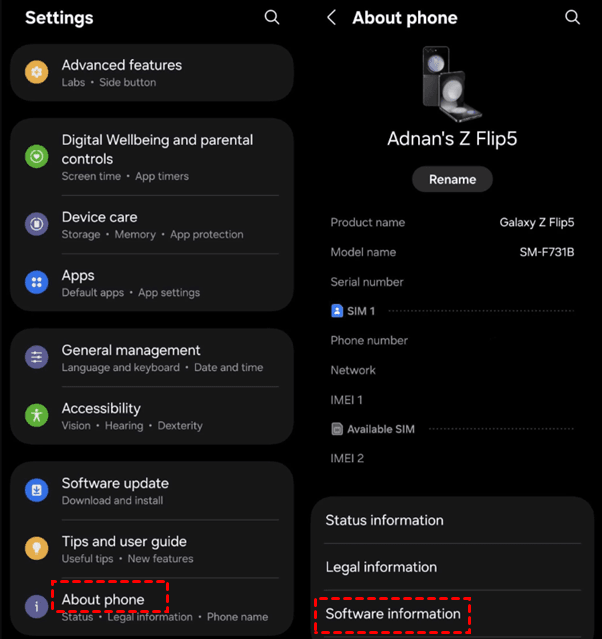
If Settings is blocked, check the box or purchase record for the model. The phone may have been updated, so its original Android version may not be the one installed now.
Options for Samsung A15 Google Verification Without a Computer
Use the accepted account or recover it
If you remember the account and password, enter them on the A15's verification screen. If a previous PIN or pattern option is explicitly offered, you can use it. Creating a new Google account does not replace a previously synced account requirement.
Forgot the password? Recover the account on another phone, preferably using a familiar device and location. Follow Google’s recovery prompts.
Step 1. Open Google Account recovery on that phone, enter your email or phone number, and select Next.
Step 2. Choose a sign-in method and complete the verification check. Or select Try another way if it is available and use one of the recovery options you can access.
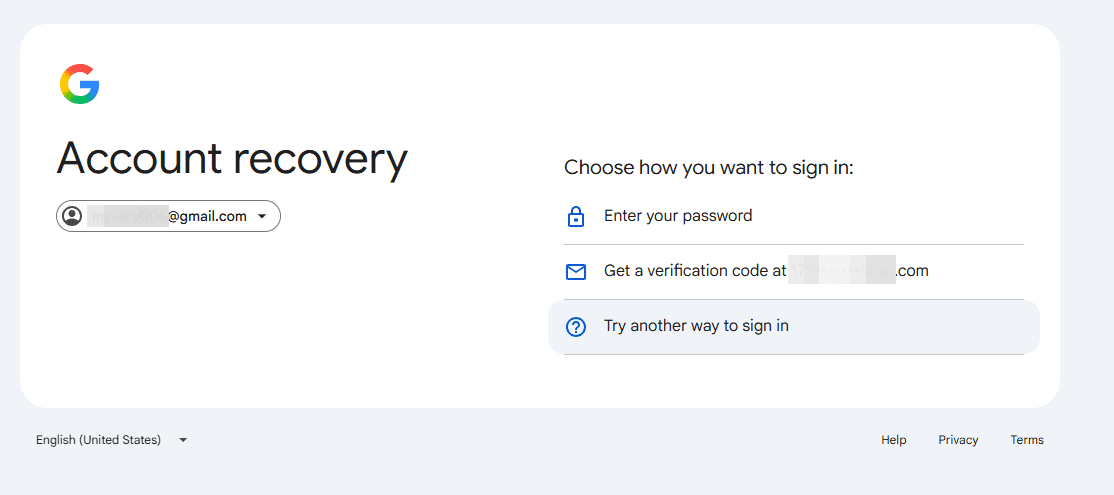
Step 3. After account access is restored, return to the A15 and enter the accepted credentials. Follow any security waiting period shown before retrying setup.
Contact previous owner for Google FRP Bypass
For a used A15, contact the seller before investing time in unrelated tools. Ask them to complete verification personally and remove their account through the phone once access is restored. They should not need to send you their password.
If the handover cannot be completed, discuss returning the device or ask Samsung support what purchase documentation is needed for assistance. Keep the receipt and model details available.
Check the prerequisites for phone-only tools
An APK-based attempt needs a usable way to reach the file and perform the required installation or app action. A browser shortcut, accessibility entry, or OTG adapter provides only part of that process. None should be treated as proof of completed FRP removal by itself.
Even nearby model names can conceal important differences. A Galaxy A16 FRP bypass without PC process may involve an Exynos variant, so do not transfer chipset instructions to the A15 merely because both are Galaxy A devices.
Why Your Samsung A15 No-PC FRP Attempt May Fail
Work backward from the first failed stage. If the required menu is absent, later instructions are not yet relevant. If a file downloads but cannot be installed, trying to launch that application will not solve the installation barrier.
|
✅ Stage |
⚠️ Where It May Fail |
🔎 Next Check |
|
Open an entry point |
The expected menu is missing |
Match the keyboard, app, and installed software |
|
Download or transfer a file |
The phone cannot access it |
Confirm the required browser or storage access |
|
Install or open an APK |
The action is blocked or unavailable |
Separate download success from permission to run it |
|
Change a setting |
The control is missing or inactive |
Do not assume partial Settings access is sufficient |
|
Complete setup |
Google verification returns |
Treat the account requirement as unresolved |
These checkpoints give you a useful stopping point. Repeating the same gesture does not make a missing menu appear, and disabling unrelated apps can complicate the setup state without proving that verification has been removed.
If a method depends on an older app version or security patch, compare those conditions before continuing. A factory reset is not a dependable way to downgrade software. Record any settings you have already changed so you can explain the phone's current state accurately when seeking help.
Samsung A15 FRP Bypass With a PC - FoneTool Unlocker
If no-PC FRP bypass fails, try unlocking Samsung A15 FRP on a Windows PC. FoneTool Unlocker provides multiple FRP bypass methods for different Samsung devices, such as the A15, A16, S8, S23, and more.
These methods fall into three types: system version, chipset, and Universal (One-Click Removal). Start with the option that matches your system version or chipset for the best chance on the first attempt. FRP removal does not erase your device data.
|
A15 Variant |
Processor |
Bypass Method |
|
A15 LTE |
MediaTek Helio G99 |
MediaTek devices |
|
A15 5G |
MediaTek Dimensity 6100+ |
MediaTek devices |
Step 1. Download, install and launch FoneTool Unlocker on a Windows PC. Under Unlock Samsung Device, click Start.
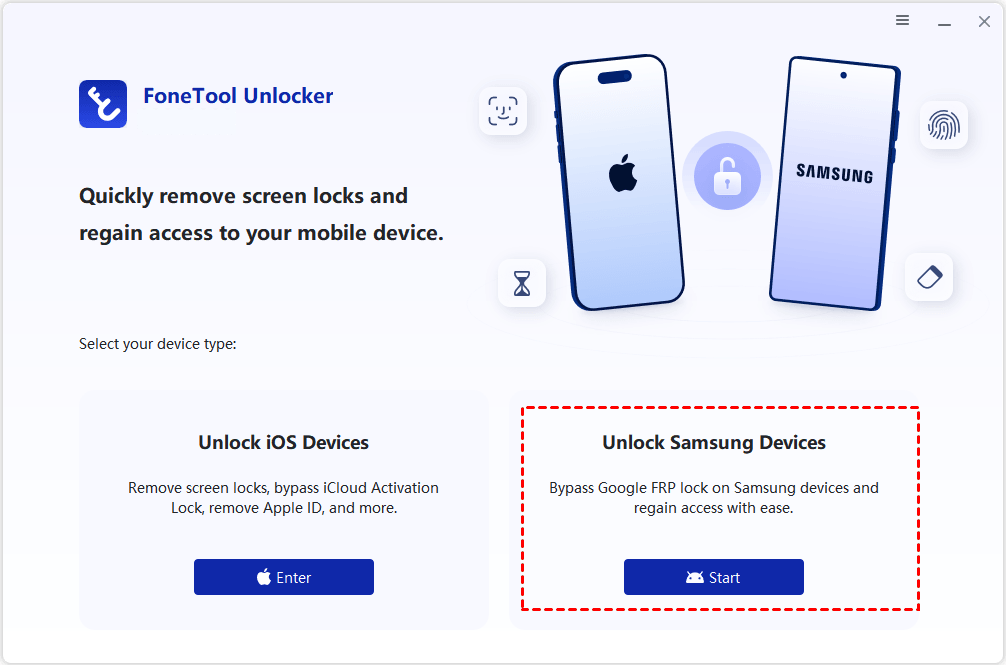
Step 2. Connect the A15 as instructed. On Remove Google FRP Lock from Samsung, select MediaTek devices for the verified MediaTek model.

Step 3. Click Remove Now and follow the prompts to activate test mode on your device. Wait for the FRP removal to finish.
If the device is actually an S23 rather than an A15, reassess it using the Samsung S23 FRP bypass without a PC guide; that model uses Snapdragon hardware.
Conclusion
Choose the next step from your A15's actual stopping point. Recover the accepted account where possible, and stop treating downloaded files or partial settings access as a completed solution. If you move to Windows, confirm the installed system and MediaTek hardware before selecting the matching FTU option.
FoneTool Unlocker - 1-Click Phone Unlock Software
Easily remove passcodes and restrictions from iPhone, iPad, iPod touch, and Samsung devices.
-
 iOS 27 Compatible
 iPhone 18 Supported
-
Samsung FRP Removal
100% Secure

Ivey is passionate about teaching users how to easily protect mobile device data. With the FoneTool series of iPhone management, unlocking, and repair software, even beginners can perform data backup, iPhone unlocking, and troubleshooting like a pro.
Read author info >>



 as a preferred
source on Google
as a preferred
source on Google