How to Find Apple ID Password on iPad (3 Proven Ways)
How to know your Apple ID password on iPad? This guide shows you three ways to find it – using the Passwords app, iCloud Keychain, or a password manager.


Can You See Your Apple ID Password on iPad?
The short answer is yes, but only in certain situations. Apple does not display your Apple ID password directly in the Settings app for security reasons. Whether you can see your Apple ID password on an iPad depends on several factors:
- The password was previously saved in iCloud Keychain or the Passwords app.
- iCloud Keychain is enabled on your device.
- You have access to Face ID, Touch ID, or the device passcode.
- The Apple ID login information has not been removed or overwritten.
🌟 To check more scenarios about finding or recovering Apple ID password, please refer to this complete guide: How to Find Apple ID Password.
How Do I Find My Apple ID Password on iPad?
If you've forgotten your Apple ID password but are still signed in on your iPad, you may be able to view it without resetting it. Learn where to find Apple ID password on iPad below.
Method 1: Using the Passwords App (iPadOS 18 +)
On iPadOS 18 and later, there is a Passwords app which stores website, app, Wi-Fi, and Apple account credentials that you've chosen to save. Learn how to find Apple ID password on iPad using the Passwords app below:
Step 1. Open the Passwords app on your iPad. Authenticate using Face ID, Touch ID, or your device passcode.
Step 2. Use the search bar to search for Apple, iCloud, or the email address associated with your Apple ID.
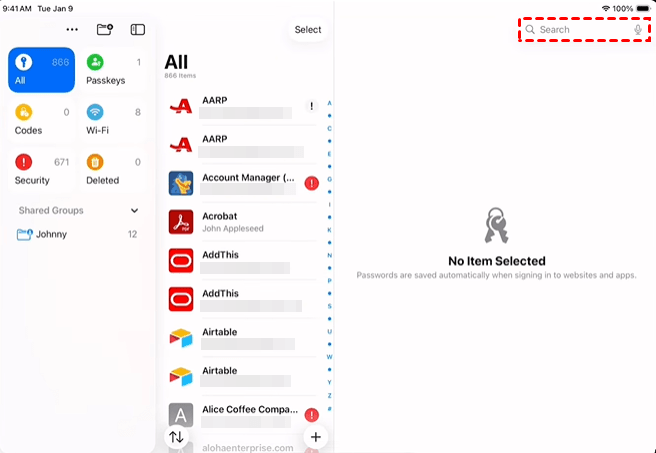
Step 3. Tap the matching account entry. Then select the Password field to reveal the saved password.
Method 2: Using iCloud Keychain
If you are running an old iPadOS (before iPadOS 18), you are able to retrieve Apple ID password through iCloud Keychain on another trusted Apple device. Follow the steps below to find your Apple ID password on Mac:
✅Requirements for This Method
- iCloud Keychain must be enabled on both your iPad and Mac.
- You're signed in with the same Apple ID on both devices.
- The Apple ID password has been saved on your iPad or Mac.
- You must have administrator access on the Mac device.
Now follow the instructions below:
Step 1. On your Mac, press Command + Space to open Spotlight Search. Then type Keychain Access and press Return to launch the Keychain Access application.
Step 2. In the sidebar, make sure you click on iCloud, followed by the Passwords tab.
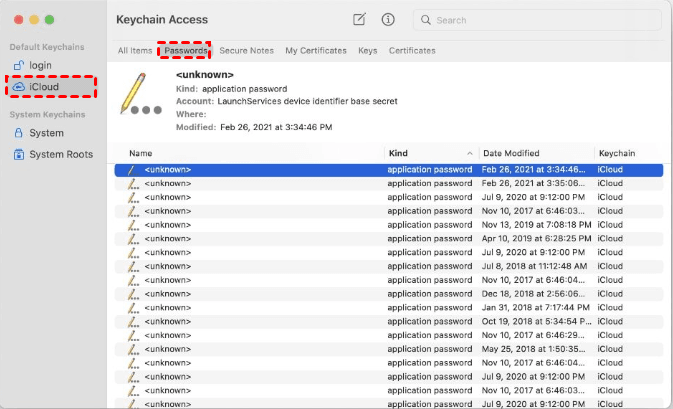
Step 3. Search for Apple ID, iCloud, or your Apple ID email address and open the matching entry.
Step 4. Check Show password and authenticate when prompted.
Method 3: Using a Professional Apple Password Manager
FoneTool Unlocker is a trusted desktop software that can help identify and display passwords stored on an Apple device after establishing a secure connection.
- Key Features:
- ⭐Deep scanning for connected devices – Compatible with all iPhone and iPad models, up to the latest release.
- ⭐Extract and view saved passwords – Recover and display Wi-Fi passwords, Safari login credentials, and account passwords from other apps.
- ⭐Reveal Apple ID information – Display the Apple ID credentials currently active on the connected device.
- ⭐Remove screen locks – Remove 4-digit/6-digit passcodes, Touch ID, and Face ID to factory reset your device.
Learn how to find Apple ID password on iPad using FoneTool Unlocker below:
Step 1. Connect your iPad to the computer via USB and tap Trust This Computer when prompted. Then unlock your device.
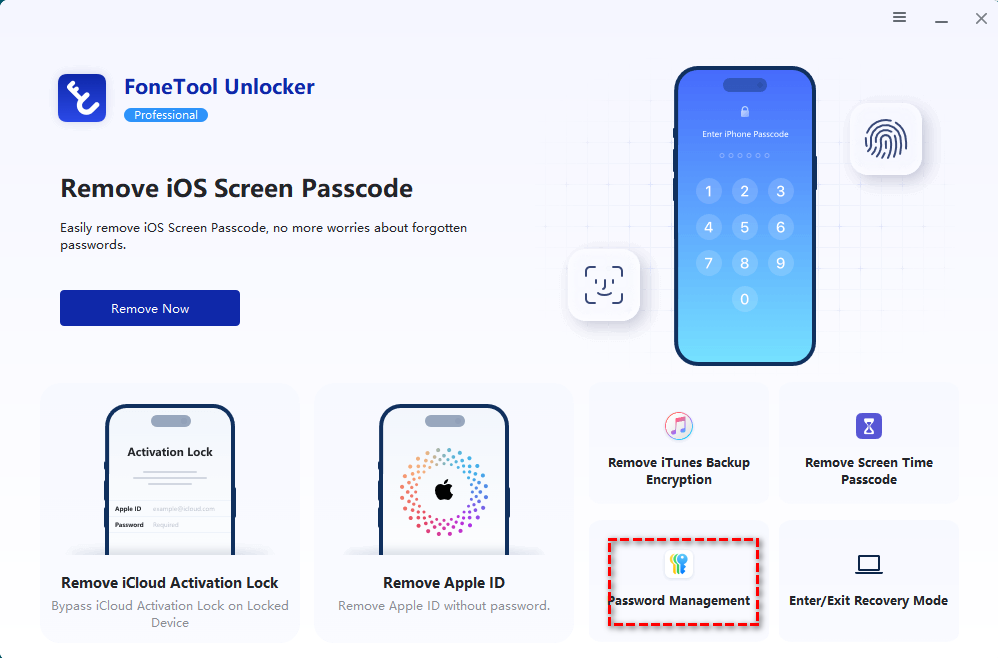
Step 2. Download, install, and open FoneTool Unlocker on your Windows PC. On the main screen, click Password Management in the bottom-right corner.
Step 3. In the next window, click Start Scan.
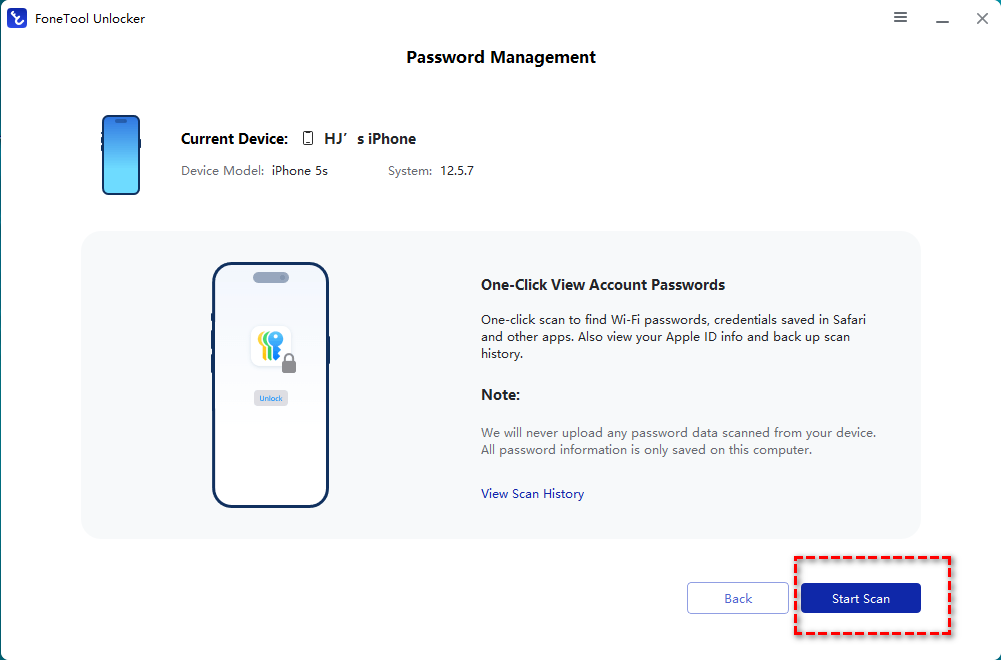
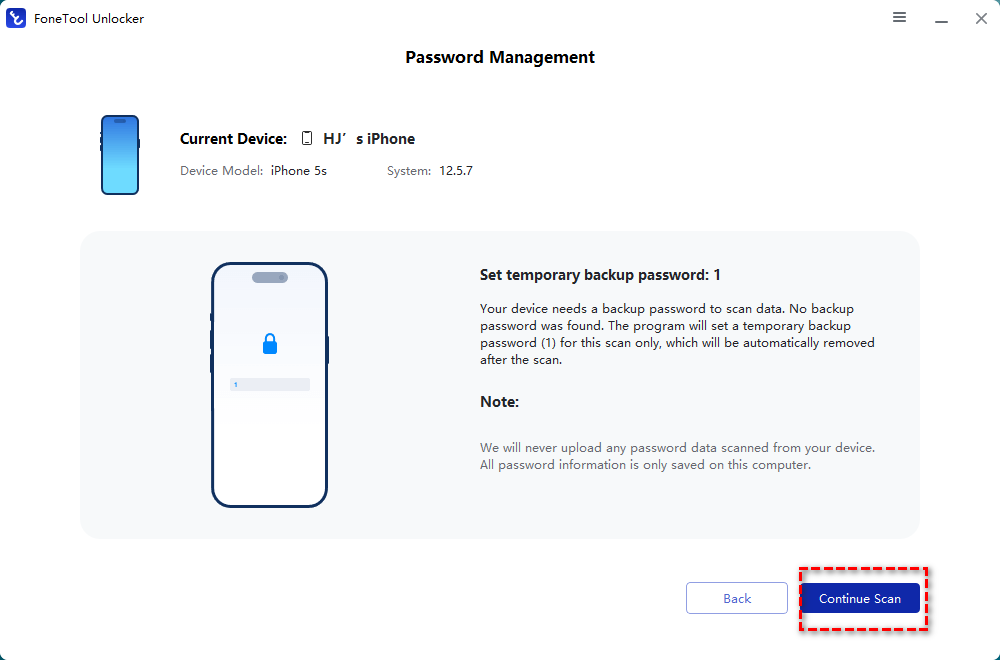
Step 4. Confirm the temporary backup password and click Continue Scan to begin scanning. The scan time depends on the number of passwords saved on your device, usually taking a few minutes.
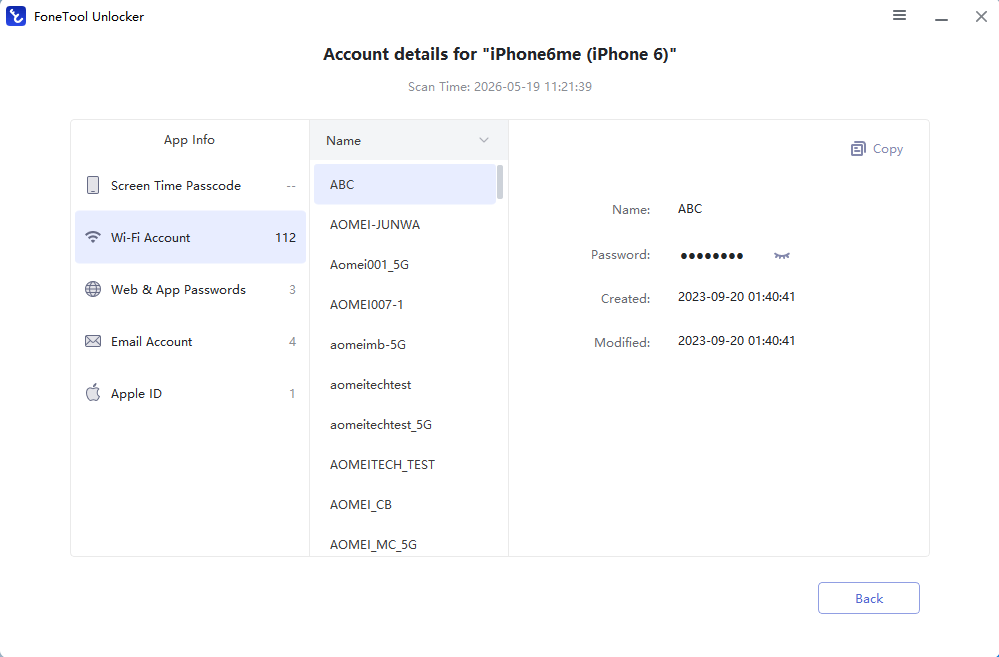
Step 5. Once the scan is complete, select View Password. Finally, click Apple ID from the left panel to reveal your Apple ID password.
Which Method Is Best to Find Apple ID Password on iPad?
The best method depends on your iPadOS version, device setup, and whether you simply want to view a password or export it to another device. The following table compares the three methods:
|
Feature |
Passwords App (iPadOS 18+) |
iCloud Keychain |
FoneTool Unlocker |
|
Type |
Built-in app |
Apple cloud service |
Desktop software |
|
Primary Use |
View saved passwords |
Sync & store passwords across devices |
Remove various locks & manage passwords |
|
Apple ID Password Access |
Yes |
Yes |
Yes |
|
Requires Computer |
No |
Yes (Mac for viewing) |
Yes (Windows PC) |
|
Requires Internet |
No |
Yes (sync required) |
No (local scan) |
|
Jailbreak Needed |
No |
No |
No |
|
Best For |
Quick password viewing on iPad |
Apple ecosystem users |
Password management & removing |
Bonus: How to Reset Apple ID Password on iPad If You Can't Find It
If you've tried the Passwords app, iCloud Keychain, and a professional password manager but still can't locate your Apple ID password, you'll need to reset it. Fortunately, Apple makes it possible to change your Apple ID password directly from your iPad as long as you can verify your identity. Follow the guidance below:
Step 1. Open Settings on your iPad and tap your name at the top of the screen.
Step 2. Select Sign-In & Security and tap Change Password.
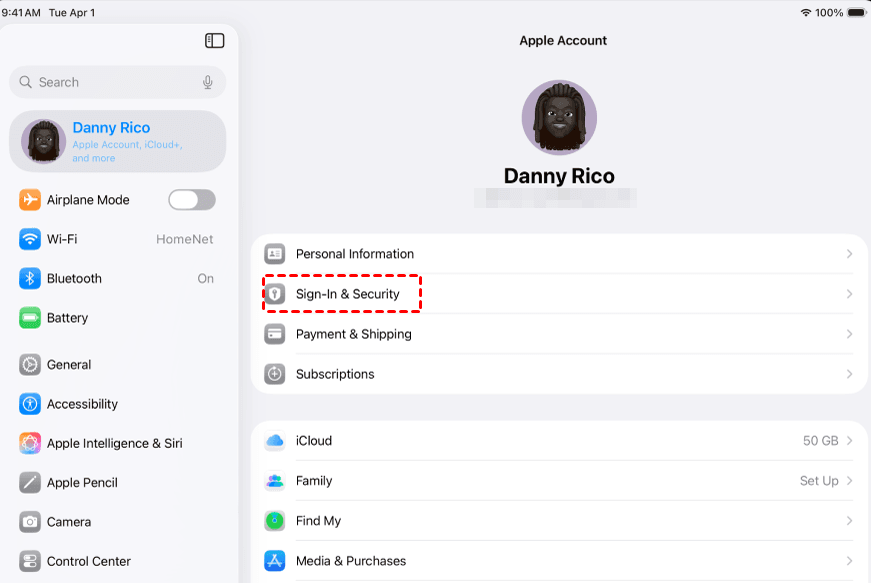
Step 3. Enter your iPad passcode when prompted and create a new Apple ID password.
Step 4. Confirm the new password and tap Change or Continue.
To Sum Up
That’s all about how to find Apple ID password on iPad. The easiest method is to check the Passwords app, which stores all saved passwords on your iPad. If the Passwords app isn't available, you can look for your Apple ID password using iCloud Keychain on Mac.
For users who need a more advanced solution, FoneTool Unlocker offers a secure way to manage and recover key credentials on iPhone and iPad. What’s more, it can help you remove activation lock without Apple ID. Just give it a shot!
FoneTool Unlocker - 1-Click iPhone Unlock Software
Easily unlock all passcodes and restrictions on your iPhone, iPad, and iPod Touch.
-
 iOS 27 Compatible
 iPhone 17 Supported
100% Secure

Lily Green is dedicated to helping users protect their valuable mobile data and addressing issues that arise on mobile devices. She consistently stays vigilant about the latest trends in technology, guaranteeing that the given information aligns with the ongoing advancements in the field.
Read author info >>



 as a preferred
source on Google
as a preferred
source on Google