How to Bypass Trust This Computer on iPhone | 2026 Guide
How to bypass trust this computer on iPhone when the popup won't show, screen is broken, or device is disabled. Complete guide for every scenario.


What Is the “Trust This Computer” Prompt and Why Does It Exist?
When you connect an iPhone to a new computer for the first time, iOS asks if you trust that computer. Tapping Trust gives the computer access to your photos, contacts, backups, and file transfers. Your iPhone remembers trusted computers until you reset location and privacy settings.
The problem appears in three common situations:
- Prompt won‘t show – You connect the cable, but the popup never appears
- Screen is broken – The prompt shows up, but you can’t tap it
- iPhone is disabled – You can‘t unlock the screen at all, so you can’t reach the prompt
- Prompt keeps popping up – You tap Trust, but it asks again every time you connect
Each situation has a different fix. Start with the section that matches yours.
Method 1. Basic Troubleshooting When the Prompt Won't Appear
Before trying anything extreme, run through these quick checks. They solve most iPhone trust this computer, not showing issues.
1.1 Check Your Cable and Ports
A damaged or non-certified USB cable is the #1 reason the trust prompt disappears. Try a different cable. Try a different USB port. If possible, test on another computer to isolate the issue.
1.2 Restart Both Devices
Disconnect your iPhone. Restart your iPhone and your computer. Then reconnect. This clears the temporary glitches that often suppress the trust prompt.
1.3 Reset Location and Privacy Settings
Your iPhone remembers which computers it trusts. If that memory is corrupted, the prompt stops appearing. Resetting these settings forces iOS to ask again on the next connection.
Step 1. Go to Settings > General > Transfer or Reset iPhone.
Step 2. Tap Reset > Reset Location & Privacy.
Step 3. Enter your passcode to confirm.
Step 4. Reconnect your iPhone to the computer, the trust prompt should now appear.
1.4 Update Your Computer's Software
An outdated version of iTunes, Finder (macOS), or the Apple Devices app can prevent the trust prompt from appearing. Make sure your computer's software is up to date.
📌Still stuck with a verification error?
If you‘re trying to erase your iPhone and get a “Verification Failed” message instead of a trust prompt, the problem might be Apple ID or network related. The full troubleshooting guide is here:9 Easy Methods to Fix Erase iPhone Verification Failed.
Method 2. Bypass Trust This Computer on iPhone with a Broken Screen
A cracked or unresponsive screen doesn't mean you're stranded. There are several ways to bypass "Trust this computer" on iPhone without tapping the screen physically.
2.1 Use Siri + VoiceOver
If the screen still shows content but won't register touch, VoiceOver can navigate for you.
Step 1. Activate Siri by holding the Side or Home button.
Step 2. Say "Turn on VoiceOver". The screen will now read options aloud.
Step 3. Connect your iPhone to the computer.
Step 4. When the trust prompt appears, swipe left or right to move the VoiceOver focus. A double-tap anywhere selects the currently highlighted option, in this case, "Trust".
2.2 Use an OTG Adapter + External Keyboard/Mouse
For more precise control, connect a physical input device.
Step 1. Attach a Lightning-to-USB OTG adapter to your iPhone.
Step 2. Plug in a USB keyboard or mouse.
Step 3. Activate Siri and say "Turn on VoiceOver" (if needed).
Step 4. Use the mouse to click "Trust" or the keyboard to navigate and select it.
2.3 If You've Trusted This Computer Before
This one is simple: if you previously tapped "Trust" on the same computer, your iPhone won't ask again unless you've reset your location and privacy settings. Just connect your iPhone and open iTunes or Finder. The computer will recognize the device without a prompt.
2.4 If Nothing Else Works and Data Isn't Needed
Enter DFU mode. This completely resets the iPhone and bypasses the trust requirement entirely. However, it erases all data on the device.
Method 3. How to Trust Computer on an iPhone That Is Disabled
A disabled iPhone is one of the most frustrating situations. You've entered the wrong passcode too many times, and now the phone won't unlock. You can't tap "Trust" because you can't unlock the screen. But bypassing the trust prompt is still possible with a few methods.
3.1 Recovery Mode (Apple-Official Method)
Recovery Mode resets your iPhone and forces a fresh connection with your computer. It's the officially recommended solution for locked-out devices.
Step 1. Connect your disabled iPhone to the computer.
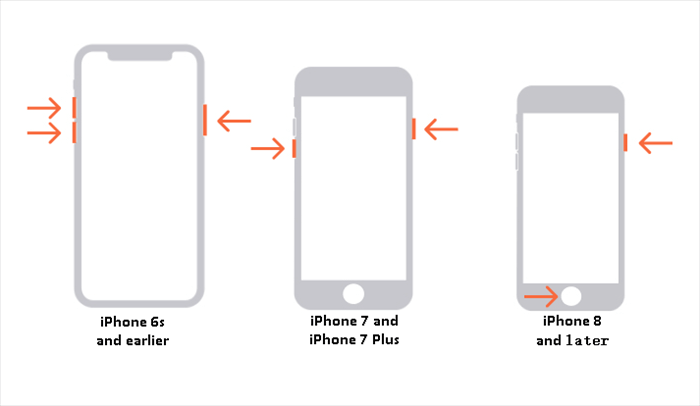
Step 2. Put your iPhone into Recovery Mode:
- iPhone 8 and later: Quickly press and release Volume Up, then Volume Down. Press and hold the Side button until the recovery mode screen appears.
- iPhone 7 / 7 Plus: Press and hold both the Volume Down and Side buttons simultaneously until the recovery mode screen appears.
- iPhone 6s and earlier: Press and hold both the Home and Side buttons simultaneously until the recovery mode screen appear.
- ★Tip:
- You can use a third-party tool to enter or exit the recovery mode in one click.
Step 3. When your computer detects a device in recovery mode, click Restore.
Step 4. Wait for the restore to complete. Your iPhone will restart as a fresh device.
Step 5. During setup, reconnect to the computer. This time, the "Trust This Computer" prompt will appear, and you can tap it normally.
Recovery Mode erases all data on the iPhone.
🔍Can’t use a computer at all?
If you have no computer access but your iPhone is disabled, check the dedicated guide: How to Unlock Disabled iPhone Without Computer. It covers iCloud remote erase, Find My app, and even a Siri trick for very old iOS versions.
3.2 Find My iPhone(Remote Erase)
If "Find My iPhone" was enabled on your disabled device before it locked, iCloud offers a remote reset option.
Step 1. Go to iCloud.com on any computer or phone.
Step 2. Sign in with your Apple ID and password.
Step 3. Open Find My and select your disabled iPhone from the device list.
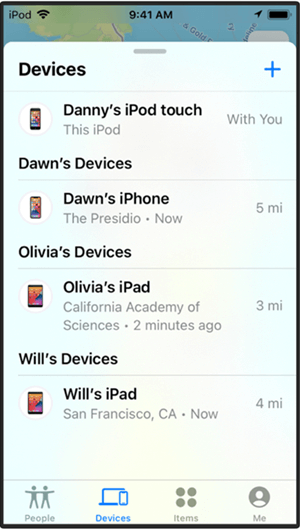
Step 4. Click Erase iPhone. This removes the disabled status and wipes the device remotely.
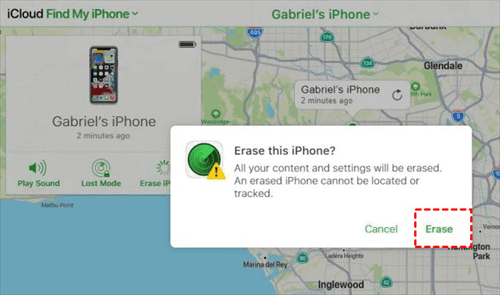
Once the erase finishes, set up the iPhone as new. The trust prompt will appear when you reconnect to your computer.
Method 4. Fix Trust This Computer Keeps Popping Up
Some users face the opposite problem: the trust prompt appears over and over again, even after tapping "Trust". If "Trust this computer" iPhone bypass isn't your issue because the prompt is showing, it's just showing too much; try these fixes.
4.1 Turn Off Personal Hotspot
A surprising but proven fix: disable Personal Hotspot on your iPhone. Some users have reported that having Hotspot enabled forces the trust prompt to reappear every time the device is connected.
Step 1. Go to Settings > Personal Hotspot.
Step 2. Turn off the toggle for "Allow Others to Join".
Step 3. Reconnect to your computer. The prompt should appear once and then stop repeating.
4.2 Update or Reinstall iTunes on Windows PC
An outdated or corrupted iTunes installation is a common culprit.
Step 1. Open the Microsoft Store and check for iTunes updates. Or download the latest version directly from Apple.
Step 2. Ensure "iTunes Mobile Device Helper" is set to run at startup if you installed from the Microsoft Store.
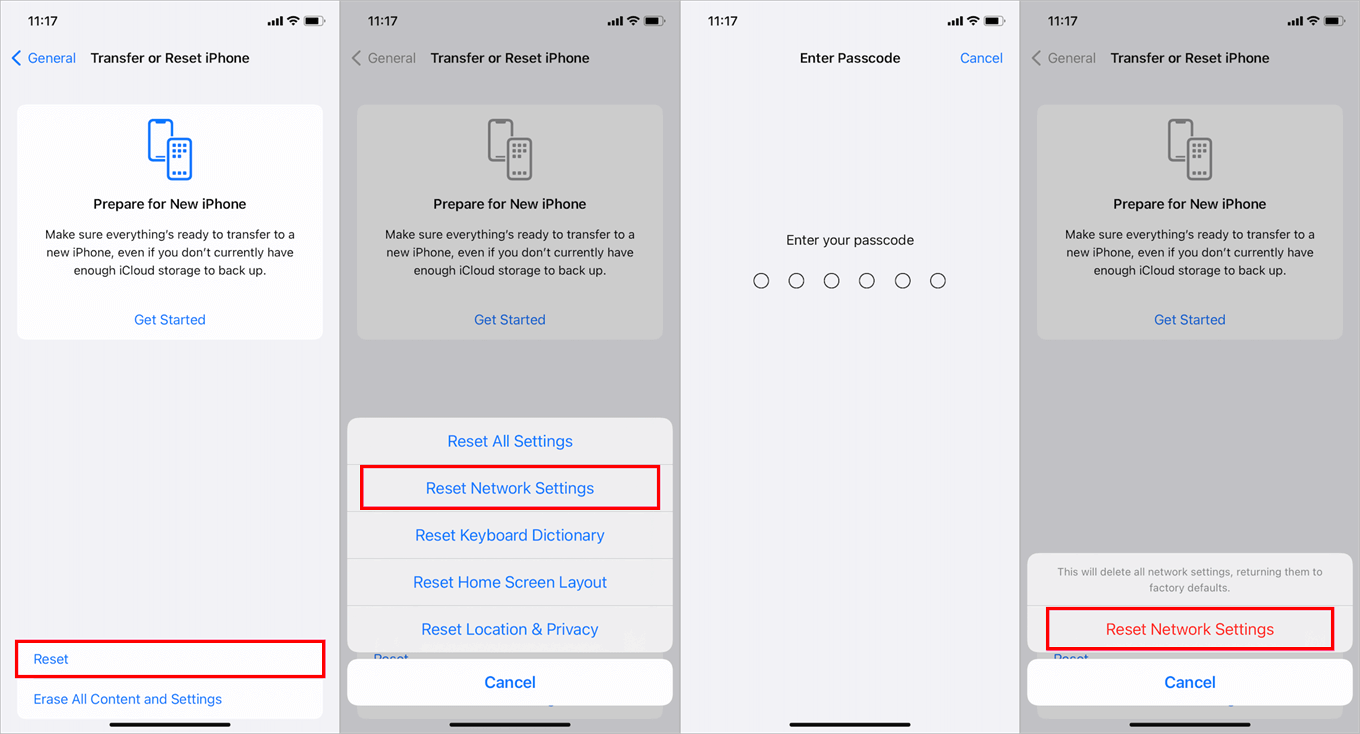
4.3 Reset Network Settings
Go to Settings > General > Transfer or Reset iPhone> Reset > Reset Network Settings. This clears any corrupted network configurations that might be interfering with the trust handshake. Note that this also removes saved Wi-Fi passwords.
💡Need to erase an iPhone but don‘t have the Apple ID password?
See How to Erase iPhone Without Apple ID for three methods including iTunes/Finder, iCloud, and third‑party tools.
Method 5. Locked Out of Your iPhone Entirely? Use FoneTool Unlocker
Here's the scenario that none of the above methods can solve: you can't trust computer iPhonedisabled because the device is completely locked, not just disabled, but stuck on the Activation Lock screen from a previous owner. Or you've forgotten your screen passcode, and recovery mode doesn't work. Or the device is trapped in a boot loop.
When you can't even attempt the basic fixes, you need a tool that operates directly from your computer, bypassing the iPhone's restrictions entirely. FoneTool Unlocker is designed to remove various types of iOS locks without requiring the original password. Once the lock is removed, you can access the iPhone normally, and the "Trust This Computer" prompt becomes a non-issue because you'll finally be inside the device.
✨Achieves a 99% success rate through extensive real-world testing.
✨Ensures 100% data security with advanced encryption and no leakage.
✨Features a simple, step-by-step interface, no technical skills required.
✨Unlocks your iPhone in under 5 minutes, faster than recovery mode.
✨Works on disabled iPhones and supports all iOS versions.
How to Use FoneTool Unlocker (When You Can't Access Your iPhone)
Step 1. Download and install FoneTool Unlocker on a Windows PC, and you need to connect your locked iPhone to the computer via USB cable.
Step 2. Launch the tool and select your required function:
- "Remove iOS Screen Passcode": If you forgot your screen passcode
- "Remove Apple ID": If the device is stuck on the Activation Lock screen from a previous owner

Step 3. Go to "Enter/Exit Recovery Mode" to put your iPhone into Recovery Mode or DFU Mode. The software includes a tutorial for each method.
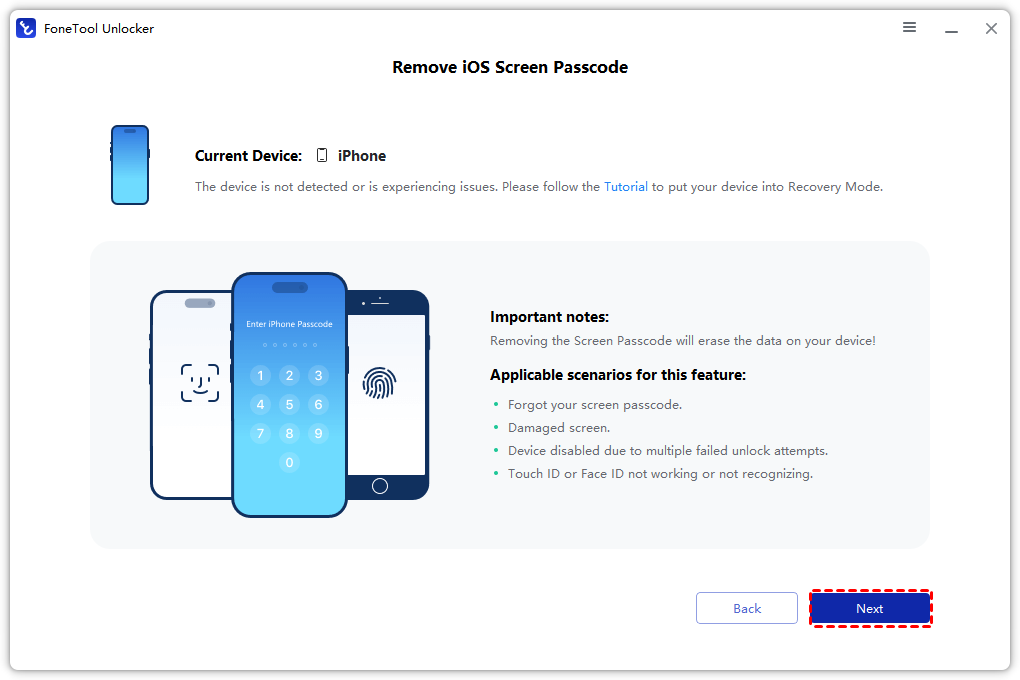
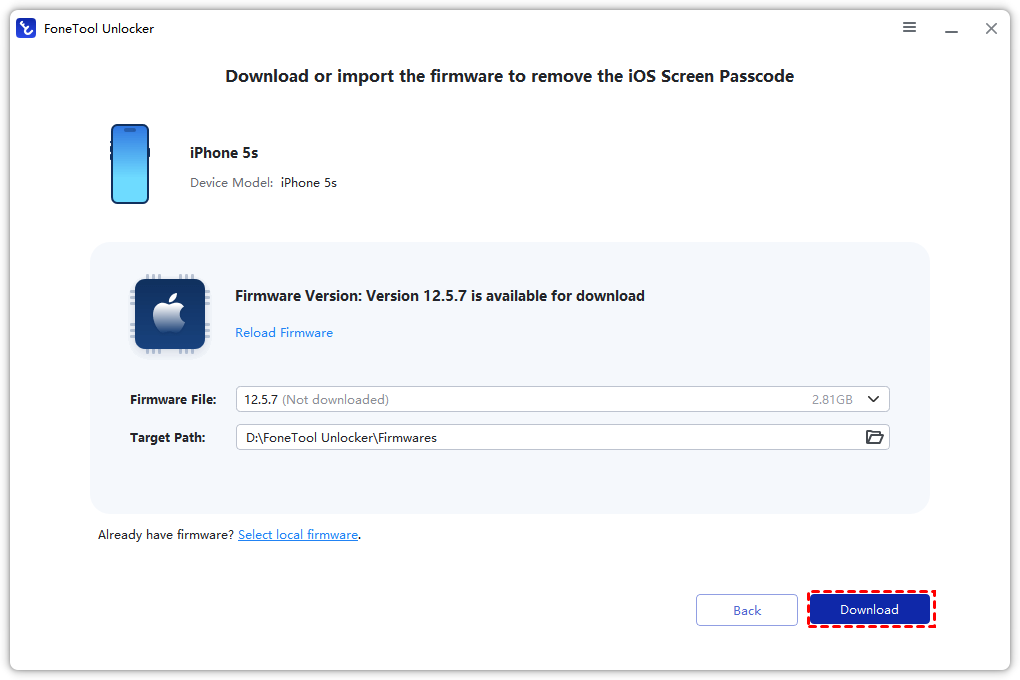
Step 4. Click "Download" to retrieve the latest firmware for your device model.
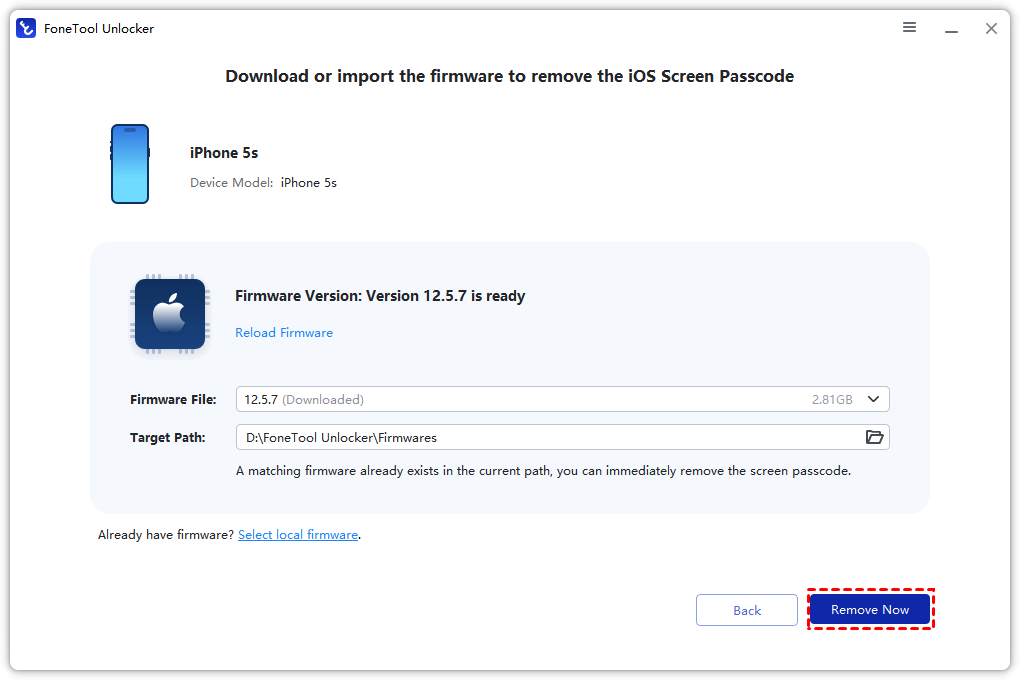
Step 5. Click "Remove Now" and wait approximately 5 minutes. Your iPhone will restart with the selected lock removed.
Method 6. Trust Computer Setup After Bypass (For New Computers)
Once you've regained access to your iPhone using any of the above methods, you'll eventually want to connect it to a computer again. Here's the correct way to establish trust:
Step 1. Unlock your iPhone with your passcode (or Face ID).
Step 2. Connect it to your computer using a reliable USB cable.
Step 3. On your iPhone screen, tap "Trust" when the prompt appears.
Step 4. On your computer (Finder on Mac, Apple Devices app on Windows, or iTunes on older systems), locate and select your device.
From this point forward, your iPhone will remember this computer and won't ask for trust again, unless you reset your location and privacy settings or restore the device to factory settings.
Frequently Asked Questions
Recovery Mode allows you to restore or update iOS while preserving user data options. DFU (Device Firmware Update) Mode goes deeper, it bypasses the bootloader entirely and is useful when the device is completely bricked or unresponsive. Both can be used to trust computer iPhonedisabled after the restore completes.
This is usually caused by an outdated iTunes version, a corrupted trust settings cache, or Personal Hotspot being enabled. Update iTunes, reset your location and privacy settings (Method 1.3), or turn off Personal Hotspot (Method 4.1).
Yes. On a broken screen, use VoiceOver (Method 2.1) or an OTG mouse/keyboard (Method 2.2). On a disabled iPhone, you cannot tap "Trust"; you must first restore the device via Recovery Mode or Find My iPhone, and then the trust prompt will appear during setup.
If you need to recover data from a device that won't show the trust prompt, your options are limited. Third-party data recovery tools sometimes bypass the trust requirement by reading from an existing iTunes backup or using system exploits. However, for most locked or disabled devices, data recovery without prior backup is unlikely.
No. Resetting location and privacy only revokes permissions you've granted to apps (camera access, location, notifications, and trusted computer lists). Your photos, contacts, messages, and installed apps remain untouched.
Summary
To bypass trust this computer on iphone, use basic fixes for missing prompts, VoiceOver for broken screens, Recovery Mode for disabled devices, and FoneTool Unlocker when you're completely locked out.
Still stuck? Try FoneTool Unlocker to remove screen locks and regain access in minutes.
FoneTool Unlocker - 1-Click iPhone Unlock Software
Easily unlock all passcodes and restrictions on your iPhone, iPad, and iPod Touch.
-
 iOS 27 Compatible
 iPhone 17 Supported
100% Secure

Kelsey is an English editor at FoneTool, passionate about helping users solve tech issues. She specializes in iPhone data management, backup, and recovery. In her free time, she enjoys learning IT skills and spending time with loved ones.
Read author info >>



 as a preferred
source on Google
as a preferred
source on Google