How to Recover Apple ID Without Phone Number: 3 Feasible Ways
Forgot phone number for Apple ID? This page shows you 3 effective ways to recover your account – plus tips to prevent future access issues.


Can You Recover an Apple ID Without a Phone Number?
Yes, in many cases, you can recover an Apple ID without a phone number. While Apple uses a trusted phone number as part of its security and identity verification process, losing access to that number does not necessarily mean you will lose access to your Apple ID forever.
How can I recover my Apple ID without phone number? Before starting the recovery process, prepare any information that can help confirm your identity, including:
- Your Apple ID email address
- A trusted device (e.g., your friend’s or family’s iPhone)
- Recovery contacts (if previously set up)
- Account recovery keys (if enabled)
🌟 To check more scenarios about finding or recovering Apple ID password, please refer to this complete guide: How to Find Apple ID Password.
How to Recover Apple ID Without Phone Number
If you've lost access to your trusted phone number, don't panic. Apple provides several ways to regain access to your Apple ID. Learn how to reset Apple ID password without phone number below.
Method 1. Recover Apple ID Through Apple's Account Recovery Website
If you don’t have access to a trusted iPhone, iPad, or Mac, you can borrow an iPhone from your friend or family and use the borrowed device to recover your Apple ID. Follow the steps below:
Step 1. On the borrowed iPhone, go to iforgot.apple.com website and tap Reset password.
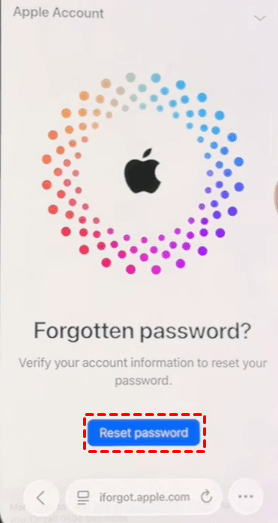
Step 2. Tap Help Someone Else.
Step 3. Enter the email address associated with the Apple account whose password you’re resetting and tap Continue.
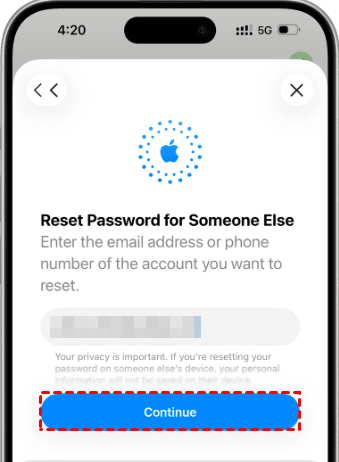
Step 4. Type the phone number of your borrowed iPhone and tap Continue.
Step 5. Tap Send code to [the phone number you entered]. Then enter the code you received via SMS.
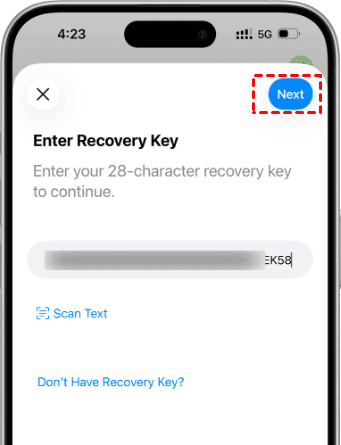
Step 6. (Optional) Enter the 28-digit recovery code if you’ve enabled it for your Apple account. If you haven’t set it, this screen won’t appear.
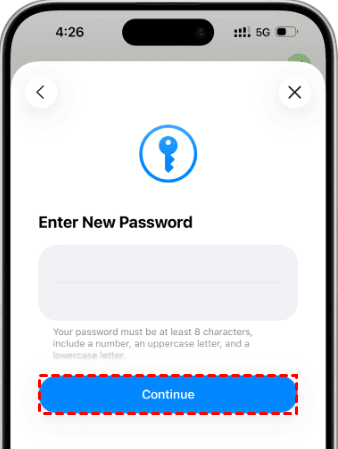
Step 7. Type your new Apple account password twice and hit Continue to set it.
✍ Tips:
- Turn off all other devices that are currently signed in with your Apple Account until account recovery is complete. If your Apple Account is in use during your request, your account recovery will be cancelled automatically.
- You’ll get an email with a confirmation of your request and the date and time when you can expect to regain access. This email arrives within 72 hours.
Method 2: Recover Apple ID Using Apple Support
The Apple Support app can also help you reset Apple ID password without phone number. Follow the instructions below:
Step 1. Borrow an iPhone or iPad from a trusted friend or family member. Download the Apple Support app on the device.
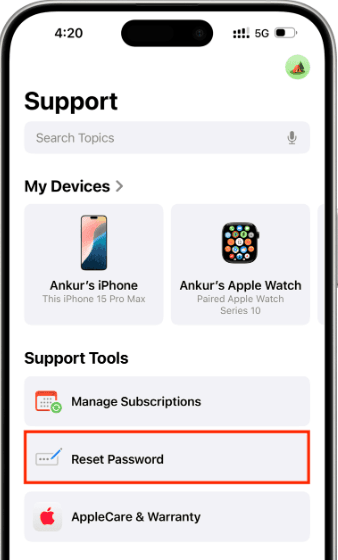
Step 2. Open the app and choose Reset Password in the “Support Tools” section.
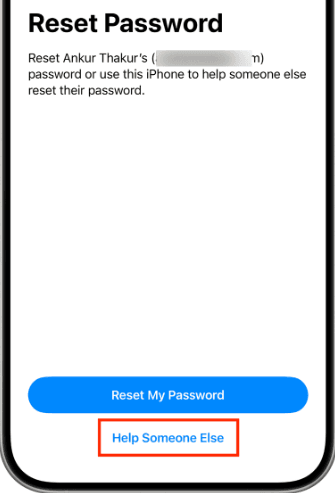
Step 3. Tap Help Someone Else. The rest steps are the same as method 1.
Method 3. Recover Apple ID from a Recovery Contact
If you previously set up a Recovery Contact for your Apple ID, recovering your account can be much easier even if you no longer have access to your trusted phone number. Here’s how to do it:
Step 1. Contact your designated Recovery Contact and ask for assistance.
Step 2. On their iPhone or iPad, have them open Settings and tap their name.
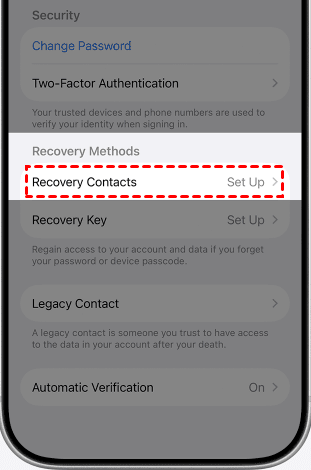
Step 3. Select Sign-In & Security > Recovery Contacts.
Step 4. Tap your name under Account Recovery For. Then choose Get Recovery Code.
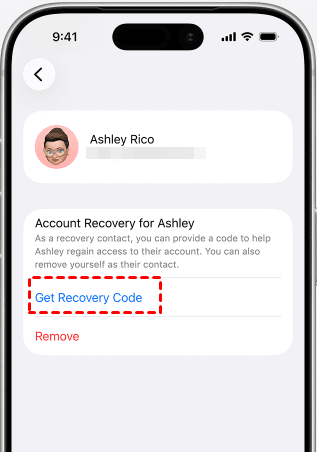
Step 5. Ask them to share the recovery code with you.
Step 6. On your device, begin the Apple ID recovery process and enter the recovery code when prompted.
Step 7. Follow the remaining instructions to reset your password and regain access to your account.
Bonus: Find My Apple ID Password Without Resetting
If you've forgotten your Apple ID password but don't want to reset it immediately, you may be able to find the saved password on your iPhone or iPad. FoneTool Unlocker comes to help.
- Key Features:
- ⭐Deep scanning for connected devices – Compatible with all iPhone and iPad models, up to the latest release.
- ⭐Extract and view saved passwords – Recover and display Wi-Fi passwords, Safari login credentials, and account passwords from other apps.
- ⭐Reveal Apple ID information – Display the Apple ID credentials currently active on the connected device.
- ⭐Remove screen locks – Remove 4-digit/6-digit passcodes, Touch ID, and Face ID to factory reset your device.
- ⭐Beginner-friendly interface – Designed for easy navigation and operation, requiring no technical expertise.
Learn how to find Apple ID password via FoneTool Unlocker below:
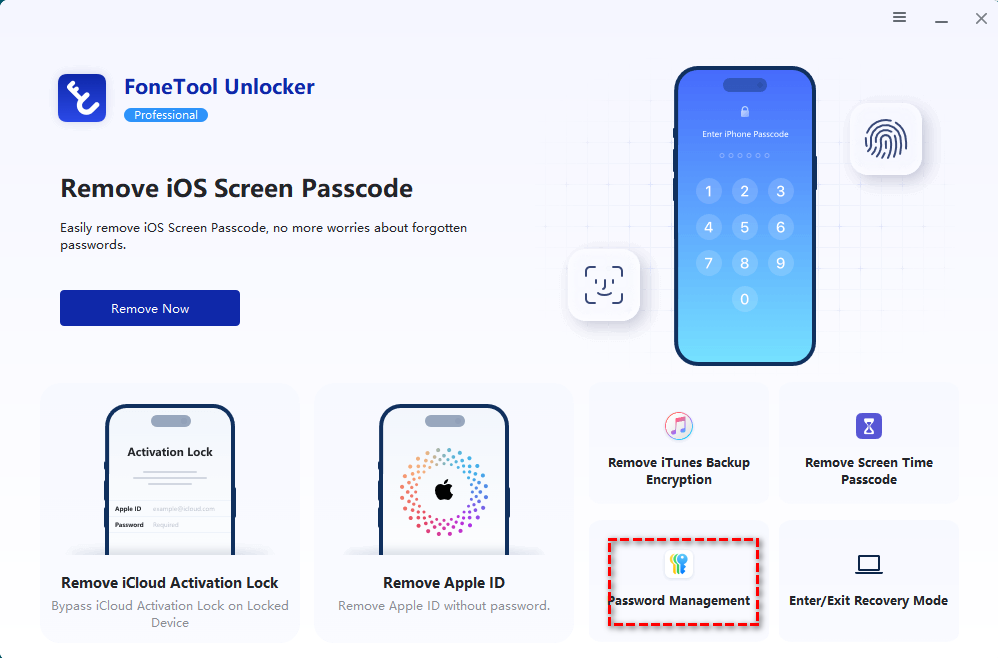
Step 1. Download, install, and open FoneTool Unlocker on your Windows PC. On the main screen, click Password Management (bottom-right corner).
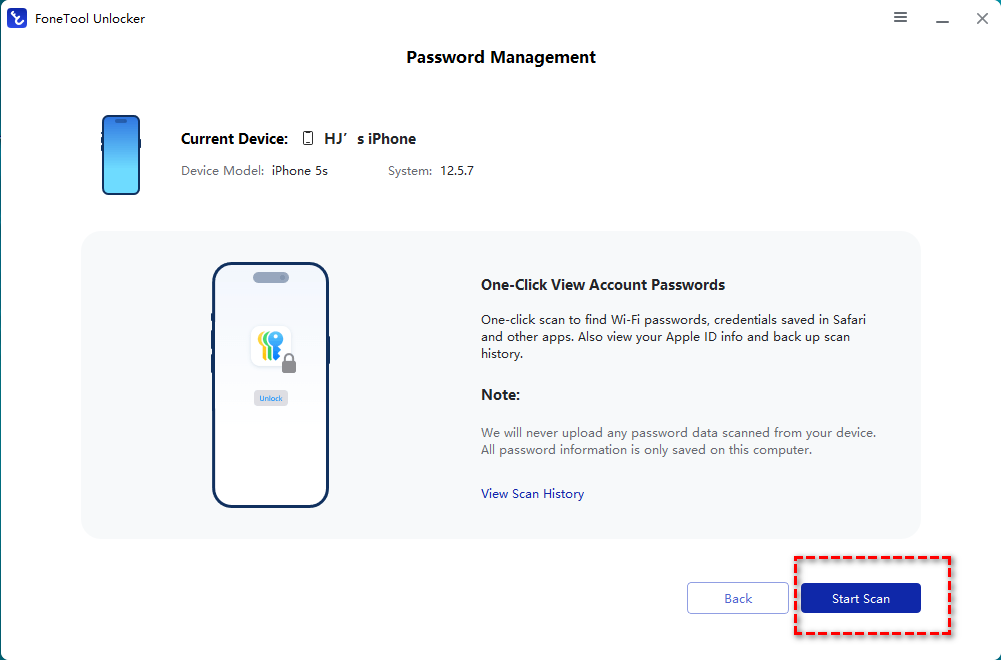
Step 2. In the next window, click Start Scan.
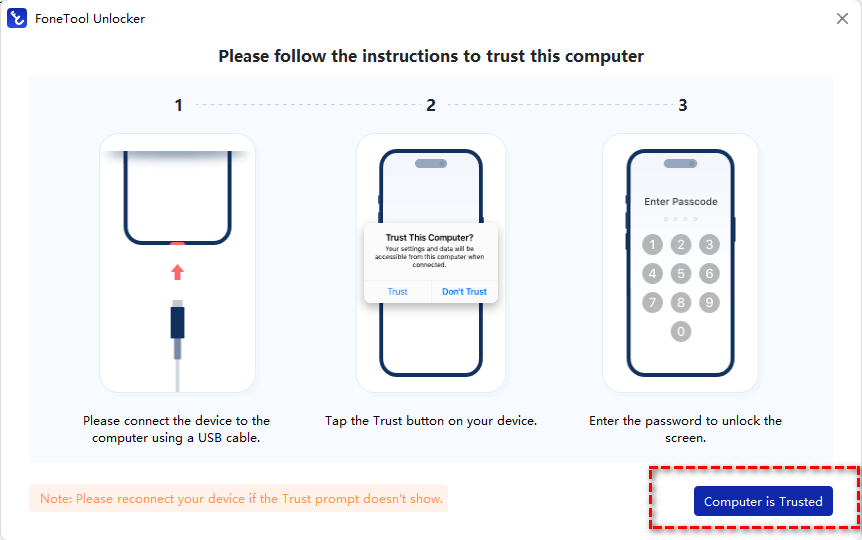
Step 3. Connect your iPhone or iPad to the computer via USB and tap Trust This Computer when prompted. Then unlock your device.
Step 4. Go back to FoneTool Unlocker and click Computer is Trusted.
Step 5. Click Continue Scan to begin scanning. The scan time depends on the number of passwords saved on your device, usually taking a few minutes.
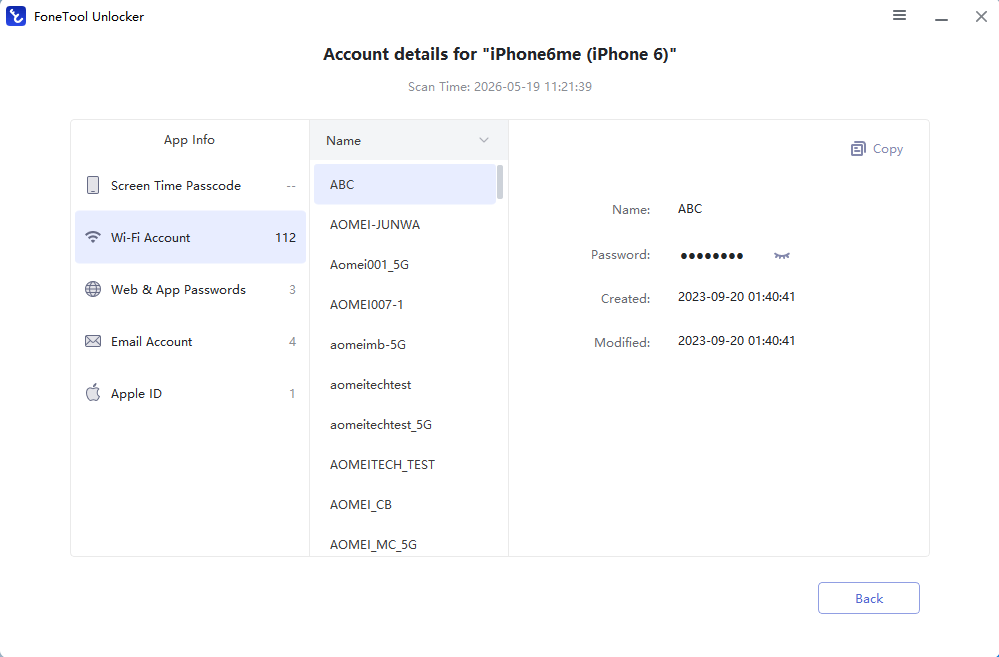
Step 6. Once the scan is complete, select View Password. Finally, click Apple ID from the left panel to reveal your Apple ID password.
Tips to Prevent Losing Access to Your Apple ID Again
Recovering an Apple ID can be time-consuming, especially if you've lost access to your trusted phone number and devices. Taking a few preventive measures now can save you from future account recovery hassles and help keep your Apple account secure.
✅ Keep Your Trusted Phone Number Updated
Whenever you change your phone number, update it in your Apple ID settings as soon as possible. An outdated trusted number is one of the most common reasons users get locked out of their accounts.
✅ Add Multiple Trusted Devices
Sign in to your Apple ID on more than one Apple device, such as an iPhone, iPad, and Mac. Having multiple trusted devices gives you alternative ways to receive verification codes and reset your password if one device becomes unavailable.
✅ Set Up Recovery Contacts
Apple's Recovery Contact feature allows trusted friends or family members to help you regain access to your account. Setting up at least one recovery contact provides an additional safety net if you lose access to your phone number or trusted devices.
✅ Create and Store a Recovery Key
If you enable Apple's Recovery Key feature, keep the key in a secure location such as a password manager or encrypted document. This key can help you recover your account when other recovery methods are unavailable.
Wrapping Things Up
Losing access to your trusted phone number doesn't mean you've lost access to your Apple ID forever. This guide shows you how to recover Apple ID without phone number using 3 effective methods – using Apple's account recovery website, Apple Support app, and a Recovery Contact.
If your credentials are saved on your iPhone or iPad, a password management tool like FoneTool Unlocker may also help you view stored account information before attempting a password reset. Download it to have a try!
FoneTool Unlocker - 1-Click iPhone Unlock Software
Easily unlock all passcodes and restrictions on your iPhone, iPad, and iPod Touch.
-
 iOS 27 Compatible
 iPhone 17 Supported
100% Secure

Lily Green is dedicated to helping users protect their valuable mobile data and addressing issues that arise on mobile devices. She consistently stays vigilant about the latest trends in technology, guaranteeing that the given information aligns with the ongoing advancements in the field.
Read author info >>



 as a preferred
source on Google
as a preferred
source on Google