How to Sign Out of iCloud Without Password |3 Working Ways
Need to sign out of iCloud but forgot the password? This guide covers three methods: Apple's official account recovery, a workaround for old iOS versions, and using FoneTool Unlocker to remove the account completely.


Being locked out of your iCloud account because you've forgotten the password is a common and frustrating experience. Whether you're trying to sell your iPhone, give it to a family member, or simply troubleshoot an issue, Apple's security requires that password to sign out. This guide cuts through the confusion and provides clear, actionable solutions for different situations.
|
Your Situation |
Best Method to Use |
What It Does |
Key Notes |
|
You remember your Apple ID email or phone number. |
Official Password Reset |
Guides you through Apple's account recovery to reset your password. |
The safest, official way. Requires access to your trusted email or phone. |
|
You have a very old iPhone (only iOS 7.0 to 7.0.6). |
Legacy iOS Workaround |
Uses a patched bug to bypass the password prompt on these specific old versions. |
Not for modern devices. Only works on this narrow range of outdated iOS. |
|
You have NO access to the account (e.g., a used phone). |
FoneTool Unlocker |
Removes the Apple ID directly from the device. |
Erases all data. The go-to solution for unknown accounts on used iPhones. |
Method 1.Reset Your Apple ID Password (The Official Way)
If you have access to your account's trusted email or phone number, this is the safest and recommended first step.
Step 1. On any web browser, go to iforgot.apple.com.
Step 2. Enter your Apple ID (email address) and click Continue.
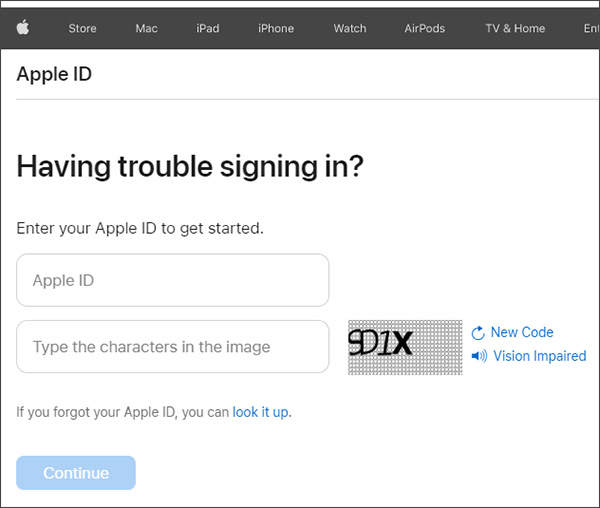
Step 3. Choose to reset your password via a trusted phone number or email address.
Step 4. Enter the received verification code and create a new, strong password.
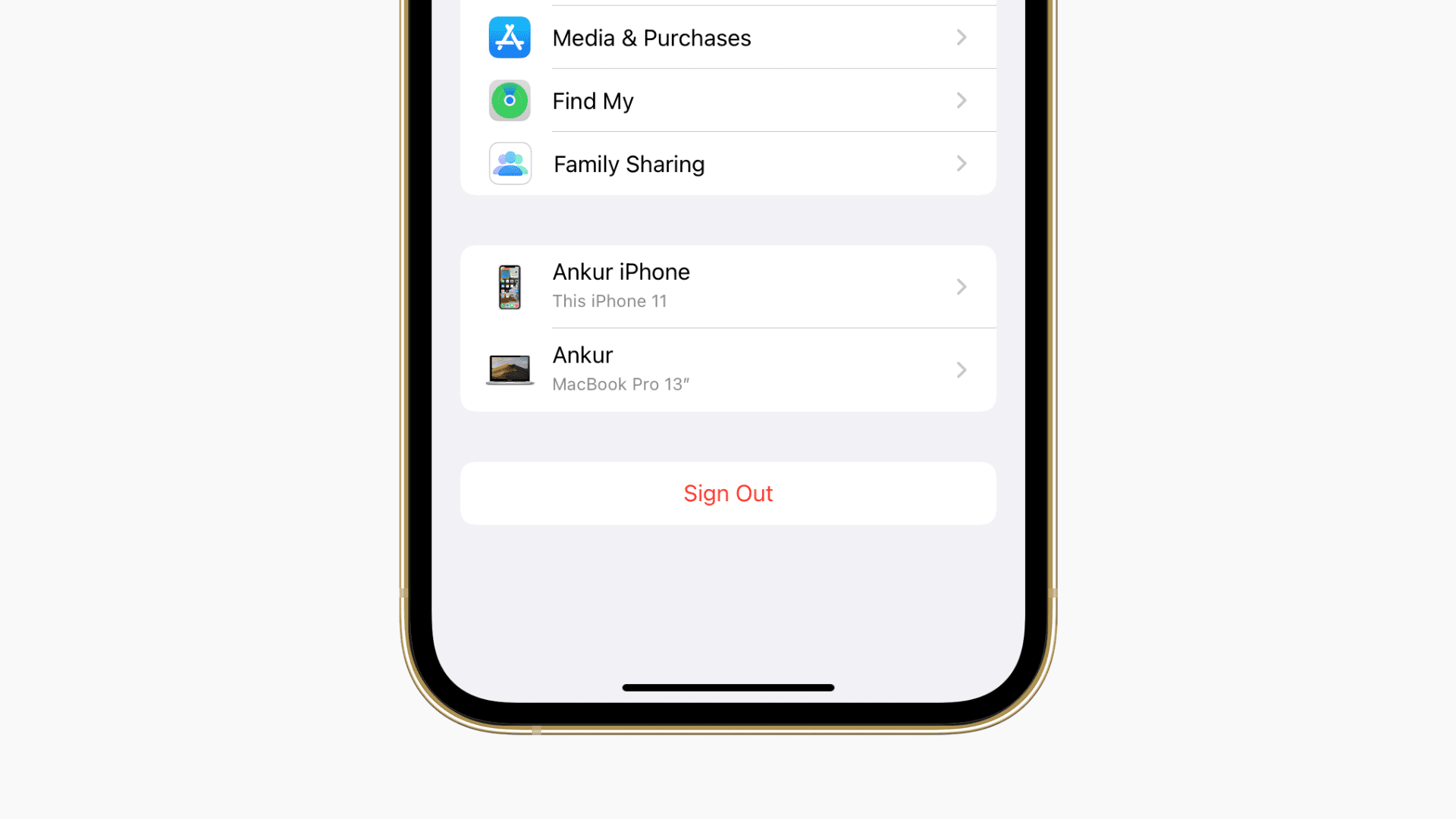
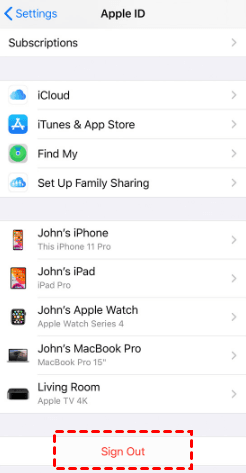
Step 5. On your iPhone, go to Settings > [Your Name], scroll down, and tap Sign Out. Enter your new password to complete the process.
Method 2.The Legacy iOS Workaround (For iOS 7.0-7.0.6 Only)
Important: This method relies on a bug Apple fixed years ago. It only works on devices running iOS versions 7.0 through 7.0.6. It will not work on any modern iPhone.
Step 1. Navigate to Settings > iCloud.
Step 2. Tap Delete Account, then confirm by tapping Delete and Delete from My iPhone.
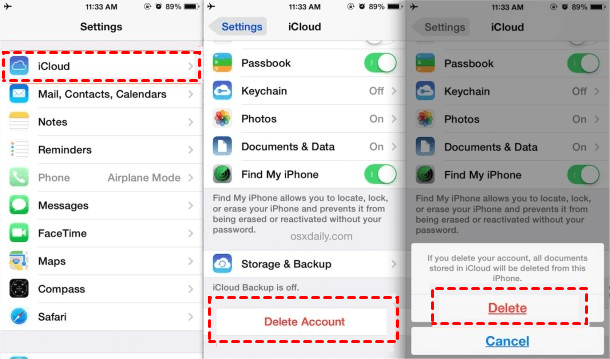
Step 3. When the password prompt appears, tap Cancel.
Step 4. Quickly tap your Account at the top, delete the email in the Apple ID field, and tap Done.
Step 5. After an error, try deleting the account again from the main iCloud screen. When the password prompt reappears, tap Cancel a second time.
Method 3.Remove iCloud Account with FoneTool Unlocker
For situations where you have no access to the Apple ID account - like with a second-hand phone- a professional tool like FoneTool Unlocker provides a guaranteed solution. It directly removes the Apple ID from the device, preparing it for a new user.
- ★FoneTool Unlocker Highlights:
-
Remove locked Apple ID and Screen Time without the password.
Unlock forgotten screen passcodes on disabled iPhones.
High success rate with a straightforward, guided process.
Compatible with a wide range of iPhone models and iOS versions.
Step 1. On a Windows PC, download and install FoneTool Unlocker from the official website.
Step 2. Launch the software, connect your iPhone, and select "Remove Apple ID".
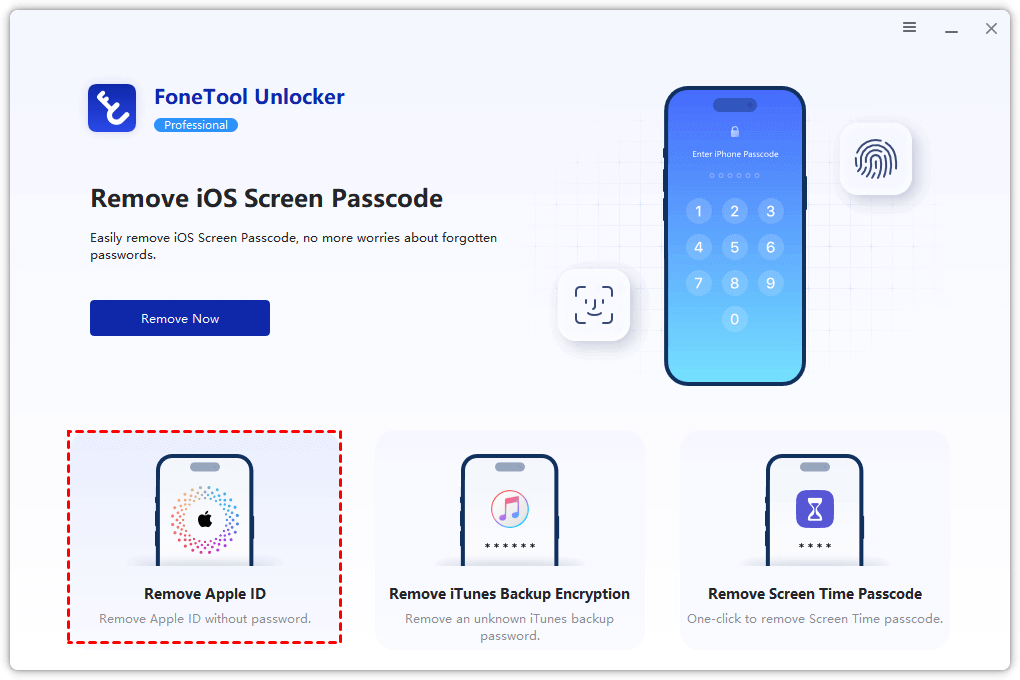
Step 3. Follow the on-screen guide to put your device into the required mode.
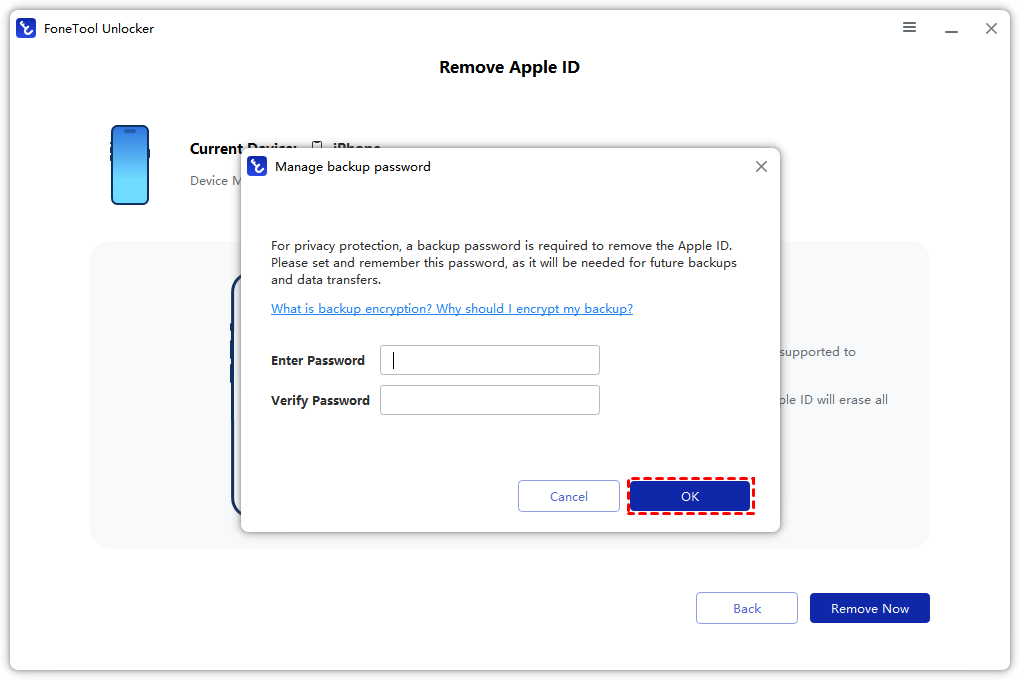
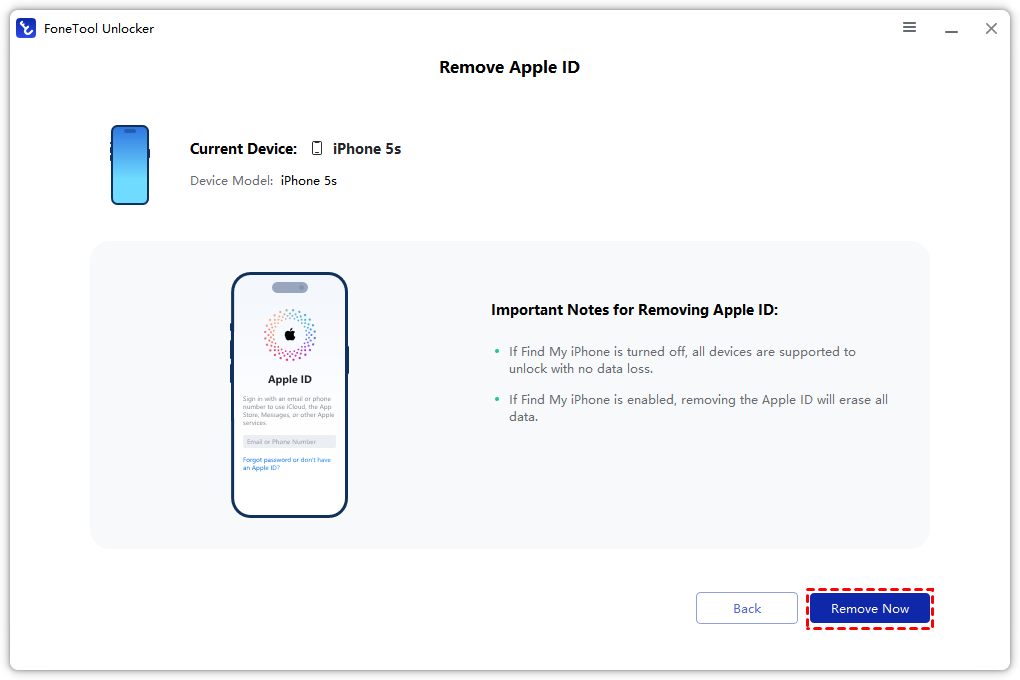
Step 4. Click "Remove Now" to begin. Once done, your iPhone will be erased and ready for new setup.
Frequently Asked Questions
Conclusion
Signing out of iCloud without a password is possible. The best method depends on your access: use Apple's official password reset if you can. For a used iPhone with an unknown account, FoneTool Unlocker offers a direct and reliable solution.
Ready to regain control of your device? Visit the official FoneTool Unlocker website to learn how FoneTool Unlocker can help you resolve iCloud lock issues today.
FoneTool Unlocker - 1-Click iPhone Unlock Software
Easily unlock all passcodes and restrictions on your iPhone, iPad, and iPod Touch.
-
 iOS 27 Compatible
 iPhone 17 Supported
100% Secure

Kelsey is an English editor at FoneTool, passionate about helping users solve tech issues. She specializes in iPhone data management, backup, and recovery. In her free time, she enjoys learning IT skills and spending time with loved ones.
Read author info >>



 as a preferred
source on Google
as a preferred
source on Google