How to Turn Off Lockdown Mode on iPhone| Step-by-Step Guide
Need to disable iPhone Lockdown Mode? Follow our guide for the steps via Settings, understand the feature's limits, and find help if a forgotten passcode locks you out.


What Is iPhone Lockdown Mode?
"Lockdown Mode" is an optional, extremely strict security feature designed for those who face the threat of extremely sophisticated and high-tech cyberattacks, such as journalists, activists, or government workers.179 It is not designed for everyday use by the general public 19.
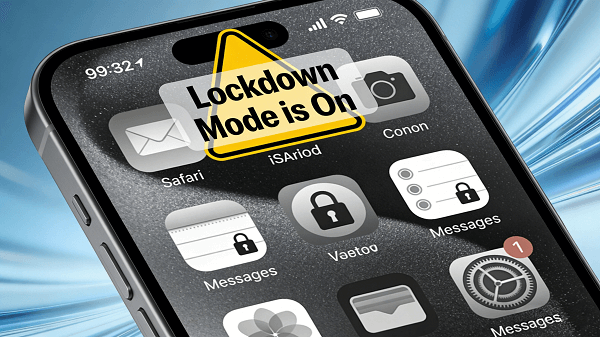
When enabled, it significantly reduces your iPhone's "attack surface", limiting potentially vulnerable apps and features. Here's a brief overview of the changes involved:
|
How to Turn Off Lockdown Mode on iPhone
Disabling lockdown mode is a simple process that requires restarting the device.Here are the main ways to disable this feature:
Step 1. Open the Settings app on your iPhone.
Step 2. Navigate to Privacy & Security.
Step 3. Scroll down and tap Lockdown Mode.
Step 4. Tap Turn Off Lockdown Mode.
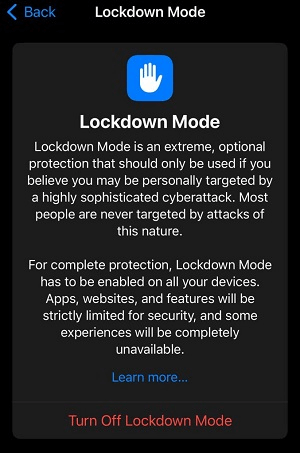
Step 5. Your iPhone will restart automatically to complete the process and return to normal functionality.
Managing App & Website Exceptions
While in Lockdown Mode, you can allow specific websites in Safari to function normally if their restrictions are too disruptive.
- In Safari: Tap the "AA" icon in the address bar, then tap Website Settings and toggle off Lockdown Mode for that specific site.
- In Settings: You can manage a list of excluded websites and apps under Settings > Privacy & Security > Lockdown Mode > Configure Web Browsing.
When You're Locked Out-Regaining Access with FoneTool Unlocker
When it comes to managing settings like Lockdown Mode, a common obstacle is not being able to access your iPhone device. If you forget your device's passcode, you can't open the Settings app to turn off any features. Professional iOS unlocking software like FoneTool Unlocker can help you regain access when you can't access your device due to forgetting your screen passcode.
✅ Remove Apple ID and Activation Lock without needing the original password
✅ Unlock forgotten screen passcodes on disabled iPhones
✅ User-friendly process with clear, step-by-step guidance.
✅ High compatibility with the latest iOS versions and iPhone models
Step 1. Download and open FoneTool Unlocker on your computer. Use a USB cable to link your locked iPhone or iPad to the computer.
Step 2. From the main menu, navigate to and select the Remove iOS Screen Passcode option to begin.

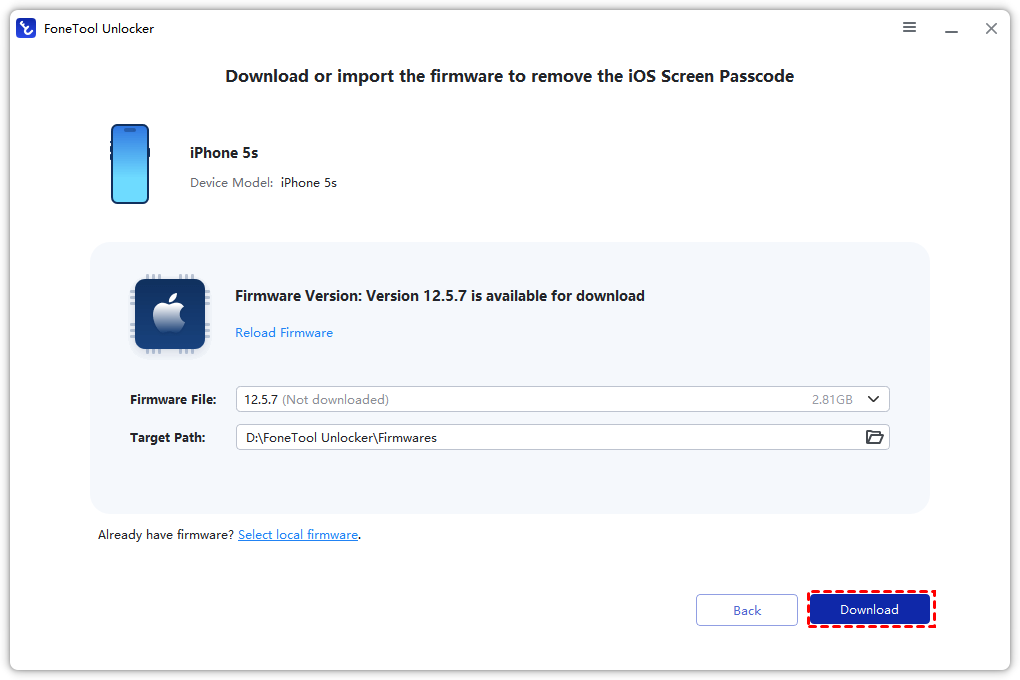
Step 3. Enter your iPhone into Recovery Mode, and then download the firmware that the software supports.
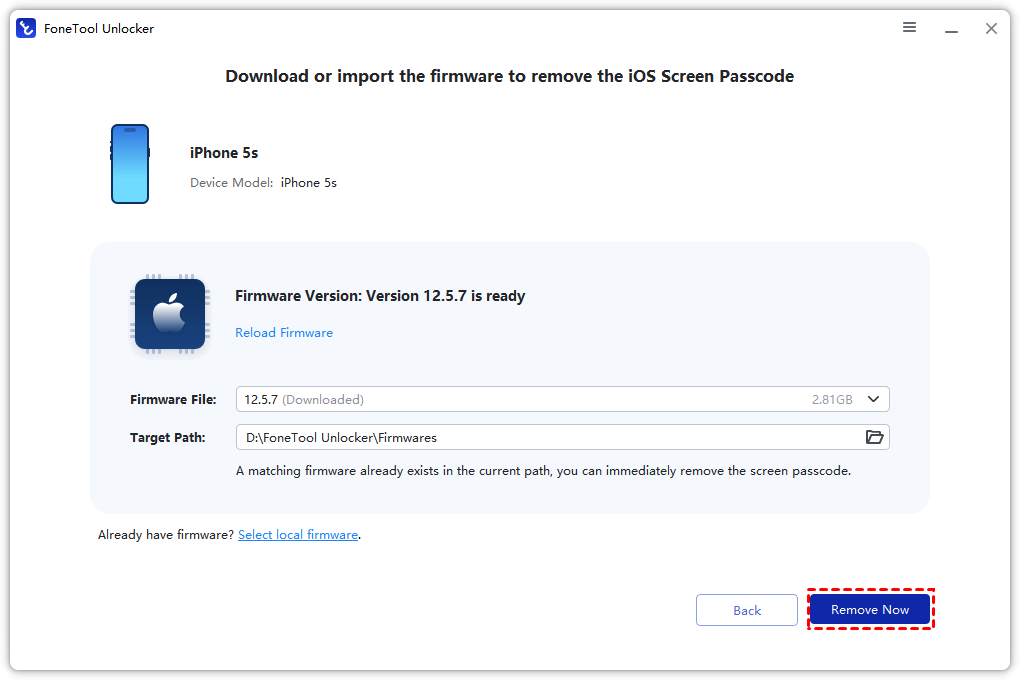
Step 4. Click the Remove Now button. The software will automatically start unlocking iPhone without password.
Frequently Asked Questions on iPhone Lockdown Mode
Conclusion
Turning off Lockdown Mode on your iPhone is a simple process through the Settings app. Remember that this feature is a powerful tool for specific high-threat scenarios, not for general use. If a forgotten screen passcode is preventing you from accessing your settings, tools like FoneTool Unlocker can help you regain entry to your device.
FoneTool Unlocker - 1-Click iPhone Unlock Software
Easily unlock all passcodes and restrictions on your iPhone, iPad, and iPod Touch.
-
 iOS 27 Compatible
 iPhone 17 Supported
100% Secure

Kelsey is an English editor at FoneTool, passionate about helping users solve tech issues. She specializes in iPhone data management, backup, and recovery. In her free time, she enjoys learning IT skills and spending time with loved ones.
Read author info >>



 as a preferred
source on Google
as a preferred
source on Google