Security Lockout on iPhone? How to Regain Access Easily
Locked out of your iPhone? This guide explains security lockouts and provides clear fixes: erase via iCloud, restore with Recovery Mode, or use FoneTool Unlocker for complex cases.


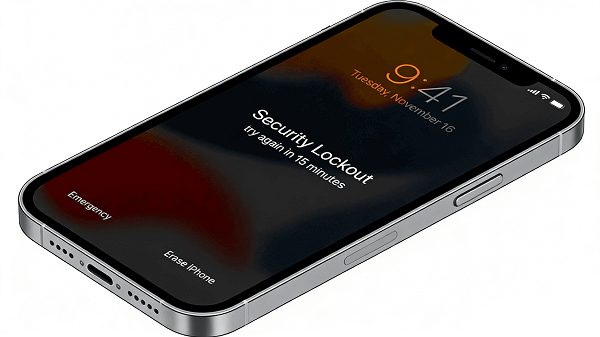
A "security lockout" on your iPhone means it's disabled due to too many incorrect passcode attempts. This critical security feature, which displays alerts like "iPhone Unavailable" or "Security Lockout," is designed to protect your data.
What is iPhone Security Lockout?
The security lockout is Apple's irreversible passcode failure counter. After several wrong entries (usually 6), your iPhone becomes temporarily disabled. With more mistakes, the lockout period increases from minutes to hours, and may eventually require you to connect to a computer. The device cannot be used until the correct passcode is entered or the device is completely erased.
Choose the Right Fix - A Quick Decision Guide
When facing a security lockout, the fastest path is to match your specific situation with the correct solution. Use the table below to identify your best course of action quickly.
| Your Situation | Recommended Solution | Key Point |
| You know your Apple ID & have a backup. | iCloud.com | Fast & remote, but requires Find My iPhone to be ON |
| You have access to a computer (Mac/PC). | Recovery Mode | Apple's standard method. Erases all device data. |
| Forgot passcode & Apple ID, or have a locked used phone. | FoneTool Unlocker | For complex cases where official methods don't work. |
| Lockout timer is active; you recall the passcode. | Wait and Retry | The simplest option-just wait for the timer to end. |
Method 1. Remote Erase iPhone via iCloud.com
This is the best option if you have "Find My iPhone" enabled and know your Apple ID credentials. It allows you to remotely erase your phone.
Step 1. On any computer or another device, visit icloud.com/find.
Step 2. Sign in with the Apple ID linked to your locked iPhone.
Step 3. Click "All Devices" at the top and select your locked iPhone.
Step 4. Click "Erase iPhone". This will remotely wipe the device and its passcode.
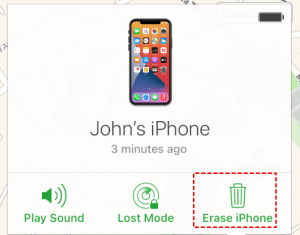
Step 5. After the erase, you can set it up again and restore your data from an iCloud backup.
Method 2. Factory Reset iPhone via Recovery Mode
This is Apple's universal method that works regardless of "Find My" status, but it requires a computer. Follow the steps to reset iPhone to factory settings:
Step 1. Connect your iPhone to a Mac or PC.
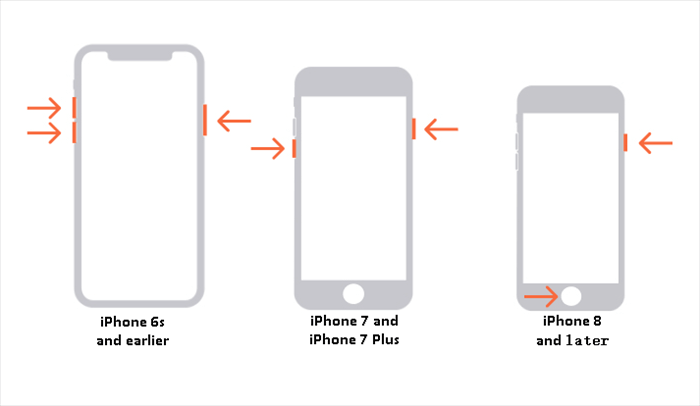
Step 2. Force restart it to enter Recovery Mode. The steps vary by model:
- iPhone 8/SE (2nd/3rd) or later: Press and quickly release the Volume Up button, then the Volume Down button. Then, press and hold the Side button until the Recovery Mode screen appears.
- iPhone 7/7 Plus: Press and hold the Side and Volume Down buttons.
- iPhone 6s/SE (1st) or earlier: Press and hold the Home and Side (or Top) buttons.
Step 3. On your computer, a prompt will appear. Choose "Restore”.
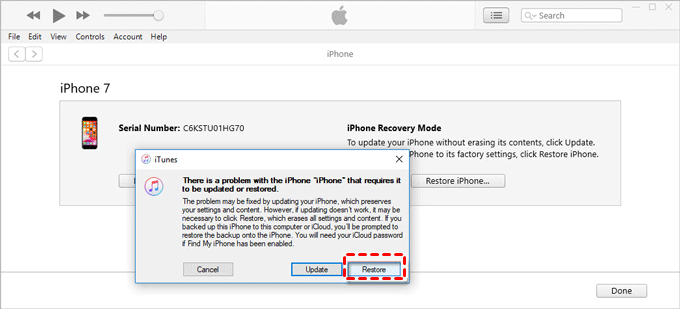
Step 4. The computer will download software and erase your iPhone. After it restarts, you can set it up.
⚠️ Important: Both Method 1 and 2 will completely erase all data on your iPhone. Your ability to recover photos, messages, and apps depends entirely on whether you have a recent iCloud or computer backup (It is highly recommended that you use a smart and free iPhone data manager- FoneTool).
Method 3. Using a Professional Tool to Bypass Security Lockout on iPhone
What if you've purchased a second-hand iPhone that's still locked to a previous owner's Apple ID (Activation Lock)? Or, what if you've simply forgotten your screen passcode and don't have access to a backup? In these complex scenarios where official methods are not an option, a professional tool can provide a solution.
FoneTool Unlocker is designed for situations where you are legitimately the device owner but have lost all access credentials. It bypasses the passcode by performing a deep system restore.
Remove forgotten screen passcodes, allowing you to regain device access.
Remove Apple ID without data loss, bypass Activation Lock from used devices).
User-friendly process with guided steps.
High success rate across various iPhone models.
Step 1. Download and install FoneTool Unlocker on a Windows computer, select the "Remove iOS Screen Passcode" function.

Step 2. Launch the software and connect your locked iPhone and follow the on-screen instructions.
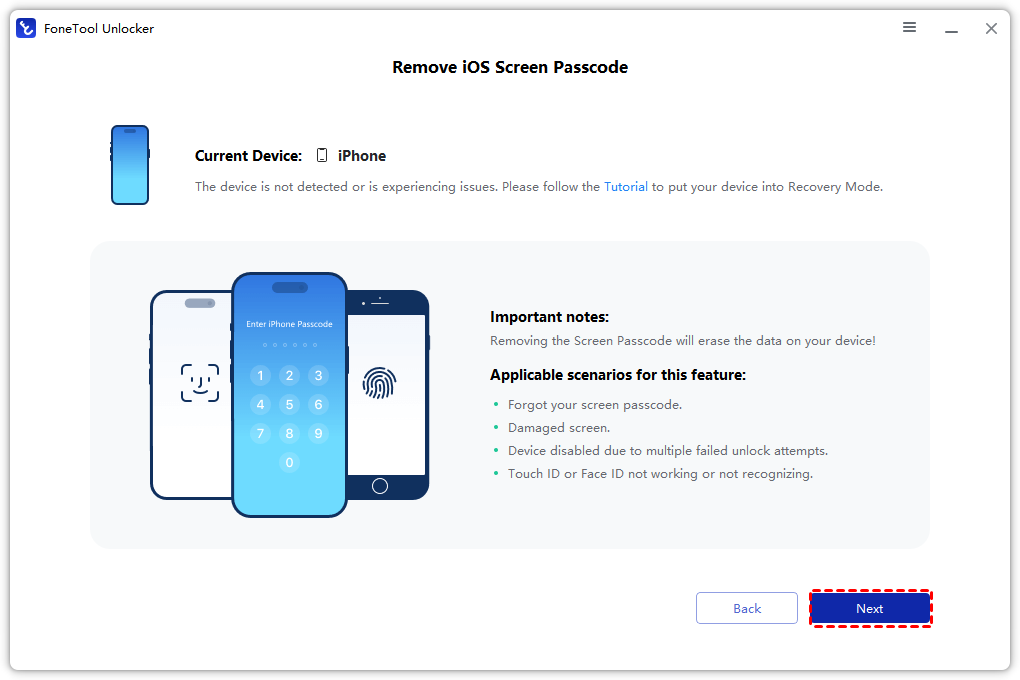
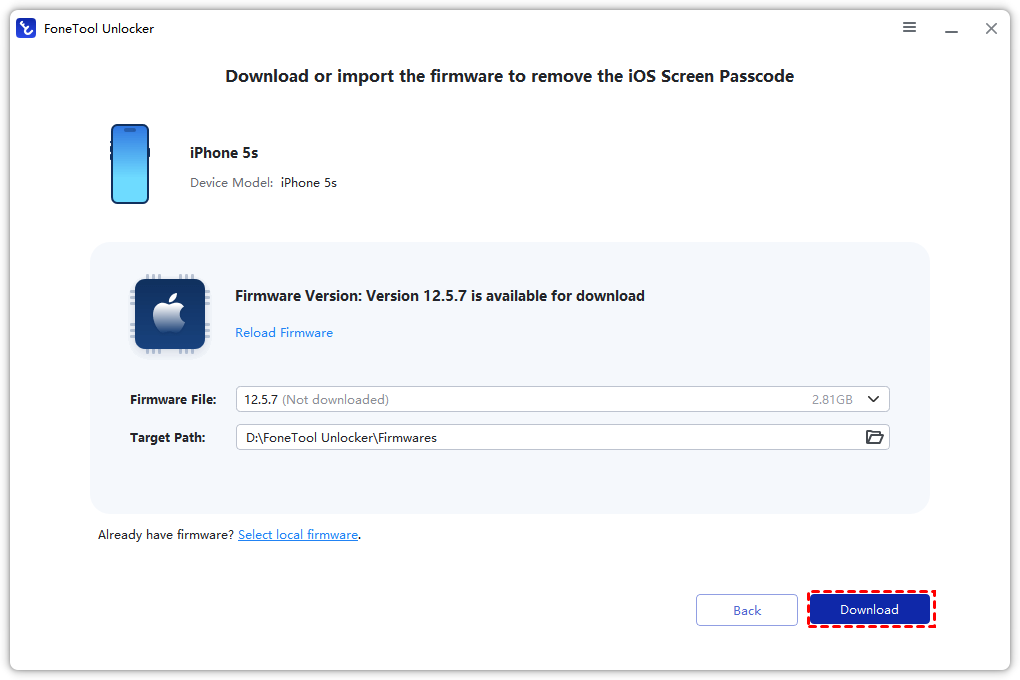
Step 3. Put your device into recovery mode and download the firmware.
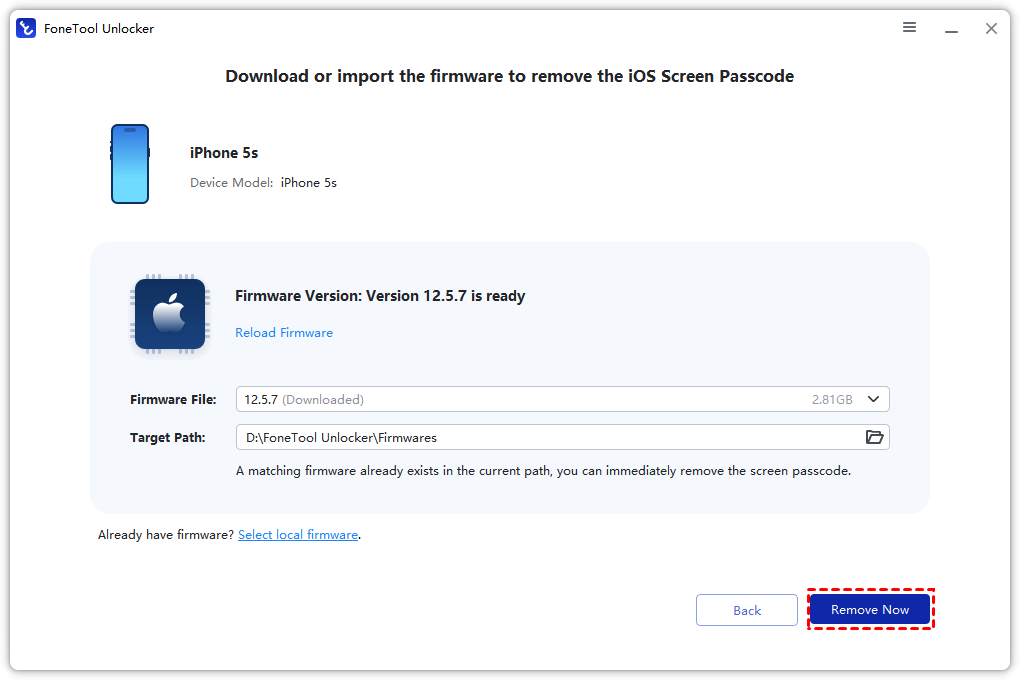
Step 4. Click “Remove Now”and wait for iPhone security lockout removal, and your iPhone will restart and be ready for setup.
Frequently Asked Questions on iPhone Security Lockout
Summary
A security lockout on your iPhone is a serious but solvable issue. For most users, using iCloud.com (if Find My is on) or Recovery Mode with a computer are the official, effective solutions. For more complex ownership issues like a stuck Activation Lock, professional software such as FoneTool Unlocker can offer a reliable path forward.
The key to a stress-free resolution is regular backups. Choose the method that fits your situation to regain access to your device.
FoneTool Unlocker - 1-Click iPhone Unlock Software
Easily unlock all passcodes and restrictions on your iPhone, iPad, and iPod Touch.
-
 iOS 27 Compatible
 iPhone 17 Supported
100% Secure

Kelsey is an English editor at FoneTool, passionate about helping users solve tech issues. She specializes in iPhone data management, backup, and recovery. In her free time, she enjoys learning IT skills and spending time with loved ones.
Read author info >>



 as a preferred
source on Google
as a preferred
source on Google