iPhone Stuck on Update Requested? 7 Proven Fixes
Learn why your iPhone gets stuck on "Update Requested" during iOS updates and discover 7 effective fixes. From basic checks to advanced tools like FoneTool Repair, this guide helps you complete the update smoothly and quickly.


Why Your iPhone Gets Stuck on Update Requested?
The "Update Requested" status appears when your iPhone sends a request to Apple's servers to begin downloading new software. This stage typically lasts just seconds, while several factors can interrupt the update process, leaving your iPhone update not working as expected. Understanding these common causes helps you prevent future occurrences and select the most appropriate solution:
- Weak or unstable internet connection: A poor Wi-Fi signal can prevent your iPhone from properly communicating with Apple's servers.
- Overloaded Apple servers: During major iOS releases, high traffic can delay update requests.
- Insufficient storage space: iOS updates require significant free space (often 5-8GB), and inadequate storage can halt the process.
- Software glitches: Temporary system bugs or conflicts can interrupt the update flow.
- Low battery level: If your iPhone isn't adequately charged (below 50%), the update may not proceed.
7 Fixes on iPhone Stuck on Update Requested
By using the following 7 effective solutions, you can quickly resolve the issue where iOS update requests get stuck.
Fix 1. Basic Troubleshooting Checks
Start with these simple verification steps before attempting more advanced solutions. These address the most common causes behind the iOS update stuck issue.
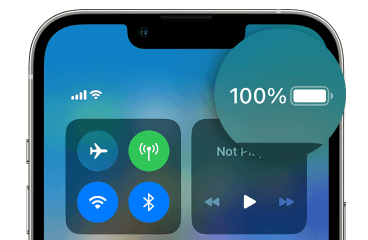
Step 1. Ensure sufficient battery
Connect your iPhone to a power source and make sure it's charged to at least 50% before updating.
Step 2. Verify Wi-Fi connection
Check that you're connected to a stable Wi-Fi network. Consider restarting your router or trying a different network if the connection seems weak.
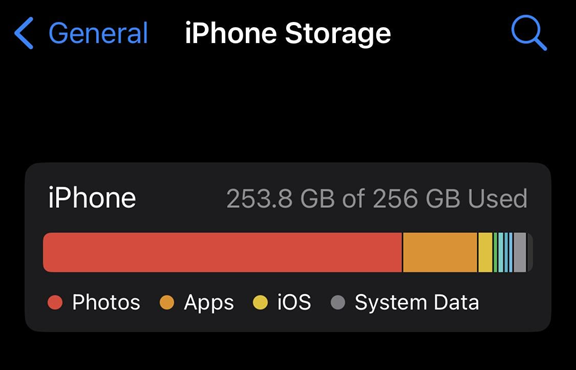
Step 3. Check available storage
Go to Settings > General > [iPhone] Storage to verify you have enough free space (5-8GB recommended for major updates). Delete unnecessary files or apps if needed.
Fix 2. Force Restart Your iPhone
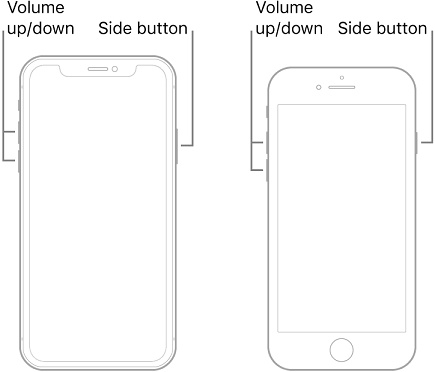
A force restart clears temporary glitches that may be preventing your update from proceeding. This simple process doesn't erase your data and can resolve minor software conflicts.
- For iPhone 8 or later: Quickly press and release the Volume Up button, then the Volume Down button. Press and hold the Side button until the Apple logo appears.
- For iPhone 7/7 Plus: Press and hold both the Side and Volume Down buttons simultaneously until the Apple logo displays.
- For iPhone 6 or earlier: Press and hold both the Home and Top (or Side) buttons until you see the Apple logo.
Fix 3. Reset Network Settings
Network configuration issues can block update requests. Resetting these settings can resolve connectivity problems preventing your iPhone from communicating with Apple's servers.
Step 1. Navigate to Settings > General > Transfer or Reset iPhone.
Step 2. Tap Reset, and select Reset Network Settings.

Step 3. Confirm your action and wait for the process to complete.
Step 4. Reconnect to your Wi-Fi network and attempt the update again.
📝Note: This action will erase saved Wi-Fi passwords and other network preferences.
Fix 4. Delete and Redownload the Update
Corrupted update files can cause hanging issues. Removing the downloaded file and starting fresh can resolve this problem.
Step 1. Open Settings and tap General.
Step 2. Select [iPhone] Storage, and scroll to find the iOS update file (it may be listed as iOS 26or similar).
Step 3. Tap on the update file and select Delete Update.
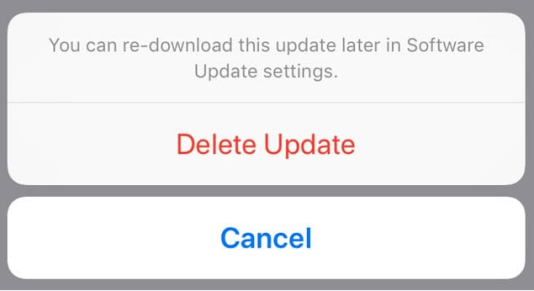
Step 4. Restart your iPhone and navigate back to Settings > General > Software Update to download the update again.
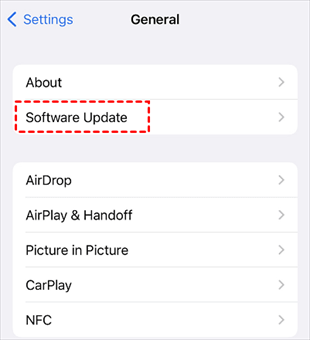
Fix 5. Update via iTunes or Finder
Bypass OTA update issues by using your computer to install the iOS update. This method is more reliable when Wi-Fi connectivity is problematic.
Step 1. Connect your iPhone to your computer using a USB cable. Open iTunes (Windows or macOS Mojave and earlier) or Finder (macOS Catalina and later).
Step 2. Select your device when it appears in iTunes or Finder.
Step 3. Click Check for Update in the Summary/General tab.
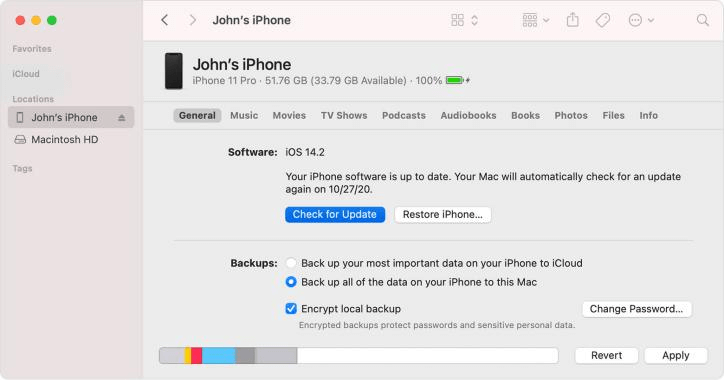
Step 4. If an update is available, click Download and Update. Please keep your iPhone connected until the process completes.
Fix 6. Use FoneTool Repair for System Issues
When standard methods fail, system-level problems might be the cause. FoneTool Repair specializes in resolving deeper iOS issues that can cause update failures, including persistent iPhone stuck on update requested errors.
This powerful iOS system repair tool is the best way to fix iOS/iPadOS issues without data loss
Steps to Use FoneTool Repair for Update Issues:
Step 1. Install FoneTool Repair on your Windows computer, launch the software and connect your iPhone via USB cable.
Step 2. Choose iOS System Repair from the interface.

Step 3. Select Standard Mode to preserve your data.

Step 4. Follow prompts to download the appropriate firmware package.
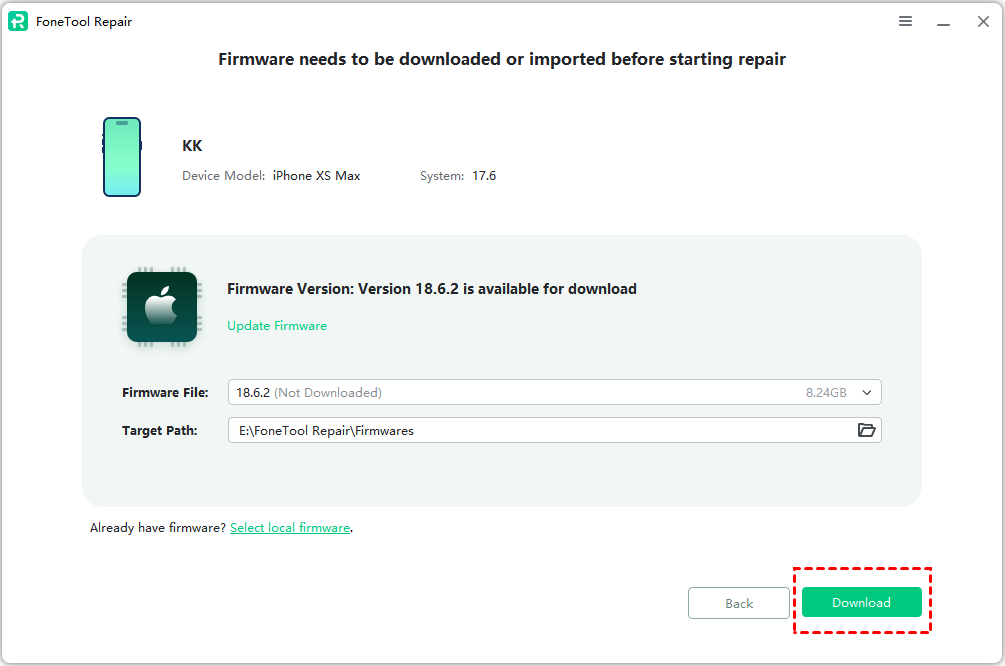
Step 5. Click Start Repair to begin resolving the system issues.

After completion, your iPhone will restart and should proceed with the update normally.
Fix 7. Restore via Recovery Mode
For persistent issues unresponsive to other solutions, recovery mode restoration can address deeper system corruption. Note that this method erases all data unless you have a backup.
Step 1. Connect your iPhone to a computer with iTunes/Finder open.
Step 2. Enter recovery mode based on your model:
- iPhone 8 or later: Press and quickly release Volume Up, then Volume Down, then press and hold the Side button until the recovery mode screen appears.
- iPhone 7/7 Plus: Press and hold both Side and Volume Down buttons until the recovery mode screen displays.
- iPhone 6 or earlier: Press and hold both Home and Top (or Side) buttons until the recovery mode screen shows.
Step 3. When iTunes/Finder detects a device in recovery mode, select Restore.
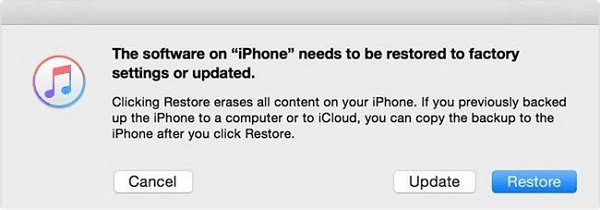
Step 4. Wait for the process to complete and set up your iPhone again.
Frequently Asked Questions on iPhone Update
Conclusion
When dealing with an iPhone stuck on update requested, start with basic troubleshooting like checking your internet connection and storage space, then progress to solutions like force restarting or updating via computer. For persistent system issues, FoneTool Repair offers an effective way to resolve deeper iOS problems while protecting your data. Remember to maintain regular backups and keep your iPhone updated to prevent future update issues.
Fixes 160+ iOS/iPadOS issues, boot loops, crashes, failed updates, with no data loss.
-
 iOS 27 Compatible
 iPhone 17 Supported
100% Secure

Kelsey is an English editor at FoneTool, passionate about helping users solve tech issues. She specializes in iPhone data management, backup, and recovery. In her free time, she enjoys learning IT skills and spending time with loved ones.
Read author info >>



 as a preferred
source on Google
as a preferred
source on Google