Yellow Dot on iPhone: What It Means & How to Fix It
This guide explains the iPhone's yellow privacy dot, its causes, and step-by-step fixes. Includes troubleshooting tips, FoneTool Repair for system errors, and FAQs to protect your privacy.


Notice a yellow dot on iPhone screens and wonder what it means? This small indicator is Apple's privacy feature showing when your microphone is active. While normal during calls or recordings, a persistent dot when no apps are running can be concerning. This guide explains exactly what triggers the iPhone privacy indicator and provides clear solutions to fix it when needed.

What Does the Yellow Dot Mean?
The yellow dot on iPhone (sometimes appearing as an orange dot) is Apple's visual alert that an app is accessing your microphone. Introduced in iOS 14, this privacy and security feature helps you monitor which applications use your device's inputs.
Common triggers include:
- Voice or FaceTime calls
- Using Siri or voice memos
- Apps with microphone permissions, like WhatsApp or Zoom
- Background processes using audio input
How to Fix Persistent Yellow Dot Issues
If the yellow dot remains visible without an obvious reason, it's time to take action. The following methods are organized from simplest to most advanced, offering a clear path to resolve this persistent yellow dot issue.
Way 1. Check Microphone Permissions
Control which apps can access your microphone to resolve the unnecessary yellow dot on iPhone appearances. Managing app permissions is the first step in addressing persistent iPhone privacy indicator issues.
Step 1. Open Settings on iPhone and select "Privacy & Security".
Step 2. Tap "Microphone" to view all apps with access.
Step 3. Toggle off permissions for apps that don't need the microphone.
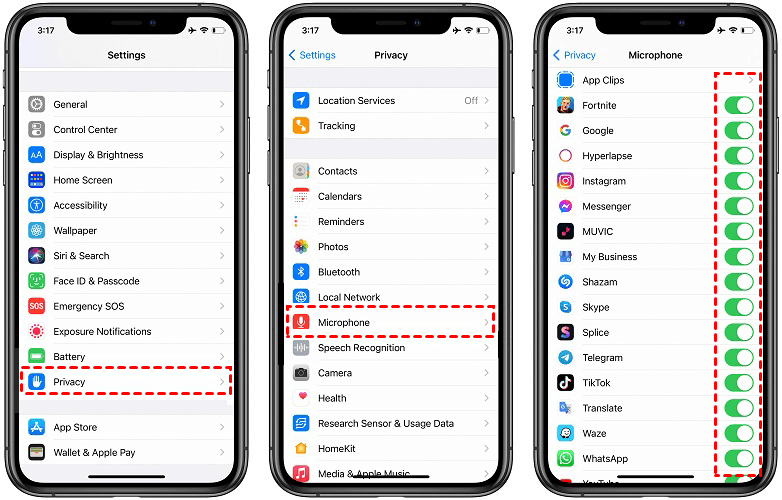
Step 4 . Return to the home screen and check if the dot disappears.
Way 2. Close Background Apps
Stop apps running in the background that might be triggering the microphone usage indicator. This simple method can immediately resolve the orange dot on iPhone when it appears unexpectedly.
Step 1. Swipe up from the bottom (or use a suitable gesture for your device).
Step 2. View all recently used applications.
Step 3. Swipe away apps that might use the microphone.
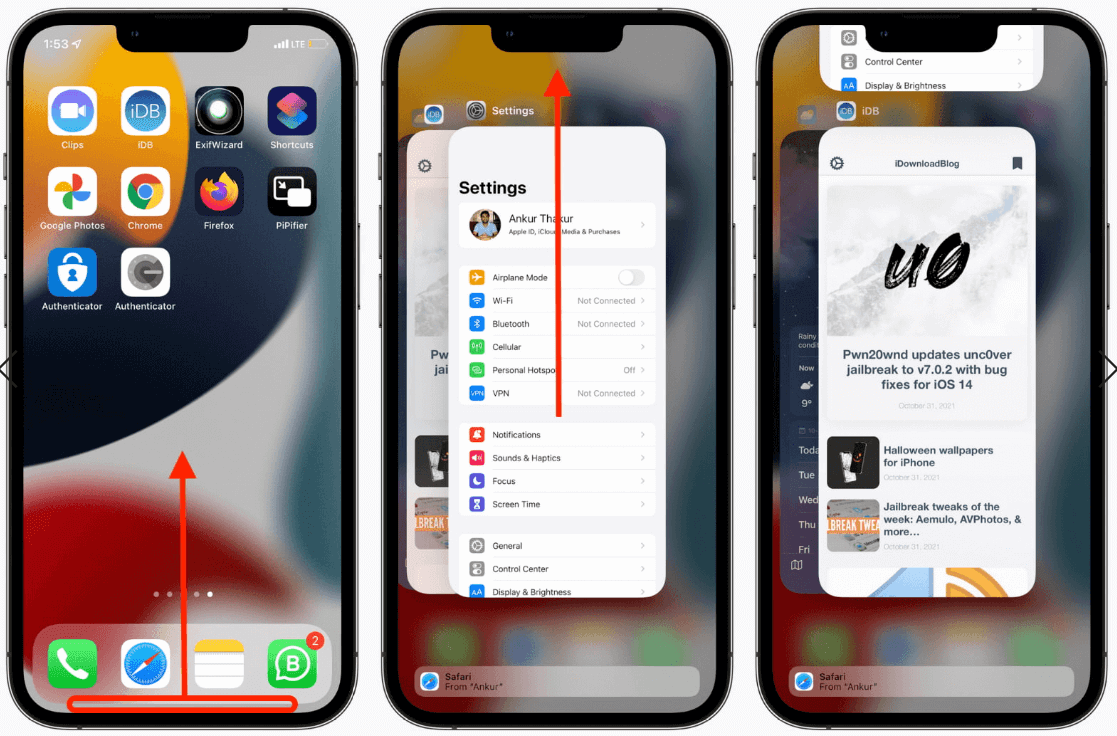
Step 4. Check if the yellow dot disappears.
Way 3. Restart Your iPhone
Clear temporary software glitches that can cause the iPhone yellow light to persist. A simple restart often resolves minor iOS system issues affecting privacy indicators.
Step 1. Press and hold the power and volume buttons simultaneously.
Step 2. Slide to power off when prompted.
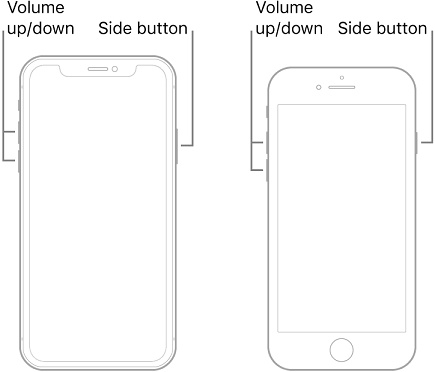
Step 3. Wait 30 seconds before turning the device back on.
Step 4. Check if the yellow dot issue is resolved.
Way 4. Update iOS Software
Install the latest iOS updates to fix bugs that might cause incorrect yellow dot on iPhone behavior. Apple frequently addresses system issues through software updates that can resolve persistent indicator problems.
Step 1. Go to Settings > General > Software Update on iPhone.
Step 2. Download any available updates.
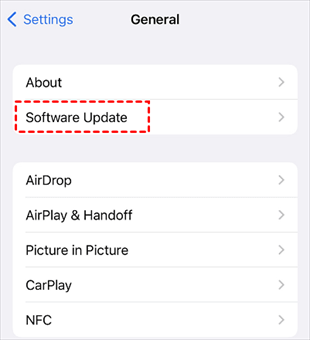
Step 3. Install update and restart your device.
Step 4. Verify if the microphone indicator functions properly.
Way 5. Identify the Responsible App
Use Control Center to detect which app is activating the microphone usage indicator. This method helps pinpoint the exact application causing the iPhone privacy indicator to appear.
Step 1. Swipe down from top-right to open Control Center.
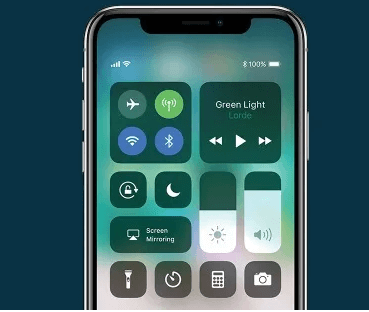
Step 2. Locate the yellow dot at the top.
Step 3. Touch and hold the dot area to see the app name.
Step 4. Force-close the identified app or adjust its permissions.
Way 6. Use FoneTool Repair for System Issues
Resolve deeper iOS system problems causing a persistent yellow dot on iPhone displays. When standard methods fail, FoneTool Repair offers specialized iOS system repair for persistent software conflicts, helping you resolve various system issues without data loss.
This powerful iOS system repair tool is the best way to fix iOS/iPadOS issues without data loss
Step 1. Download FoneTool from official website to your computer, connect iPhone via USB and launch the application.
Step 2. Select iOS System Repair from main interface.

Step 3. Choose Standard Mode to fix the issue without losing data.

Step 4. Download the recommended firmware package, and tap Start Repair to start the repair process and wait for completion.

- ★Tips:
- The Standard Mode fixes most system issues without affecting your personal data. Use Deep Mode only for more stubborn problems, but note that it will erase all data.
Way 7. Reset All Settings
Restore system settings to default when the yellow dot on iPhone persists despite other fixes. This method addresses configuration conflicts without erasing your personal data.
Step 1. Navigate to Settings > General > Transfer or Reset iPhone.
Step 2. Tap "Reset" and select "Reset All Settings".
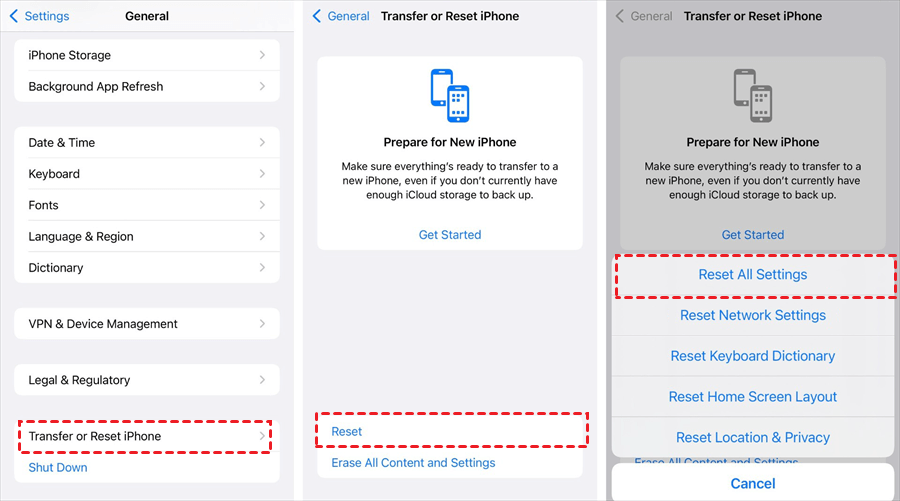
Step 3. Enter passcode when prompted to confirm.
Step 4. Wait for device to restart and reconfigure preferences.
Way 8. Force Restart Your iPhone
Clear the system cache and temporary files that might cause the iPhone yellow light to stick. A force restart can resolve deeper system glitches than a standard shutdown.
Step 1. Quickly press and release Volume Up button.
Step 2. Quickly press and release Volume Down button.
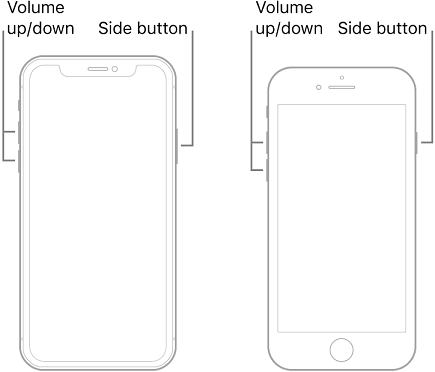
Step 3. Press and hold Side button until the Apple logo appears.
Step 4. Release when device begins restarting.
Frequently Asked Questions
Conclusion
The yellow dot on iPhone is normally a helpful privacy feature, not a problem. When it behaves unexpectedly, start with basic steps like checking app permissions and updating iOS. For persistent issues, FoneTool Repair provides an effective solution for system-related problems. Remember to regularly review which apps have microphone access in your Privacy settings to maintain your device's security and performance.
Fixes 160+ iOS/iPadOS issues, boot loops, crashes, failed updates, with no data loss.
-
 iOS 27 Compatible
 iPhone 17 Supported
100% Secure

Kelsey is an English editor at FoneTool, passionate about helping users solve tech issues. She specializes in iPhone data management, backup, and recovery. In her free time, she enjoys learning IT skills and spending time with loved ones.
Read author info >>



 as a preferred
source on Google
as a preferred
source on Google