How to Bypass Previous Owner Google Account on Android
Bought a secondhand Android phone locked by the previous owner's Google account? Learn legitimate FRP recovery methods to unlock it after a factory reset.


Why Does Android Ask for the Previous Owner’s Google Account?
Android asks for the previous owner's Google account mainly because of Factory Reset Protection (FRP), a security feature designed to prevent unauthorized access to a device after a factory reset. When someone resets an Android phone without first removing the Google account linked to it, the device may require the previously synced Google account credentials during setup.
This situation commonly occurs when you buy a second-hand Android phone, receive a used device from a friend or family member, or reset a phone without remembering to remove your Google account beforehand.
🌟 To learn more situations about bypassing Google verification, please refer to this complete guide: How to Bypass Google Verification.
How Do I Bypass Previous Owner of Google on Android?
Speaking of bypassing Google account after factory reset, there are three legitimate FRP recovery methods you can try.
Method 1: Ask the Previous Owner to Unlock the Device
The safest and most reliable way to resolve FRP is to ask the previous owner to help you complete the verification process. Two options are available:
👉 Option 1: Remote Unlock
If the previous owner cannot meet you in person, contact them and ask them to help you unlock your device remotely using Google Find Hub (formerly Find My Device).
Step 1. Ask the previous owner to install Google Find Hub app and sign in with the Google account previously linked to the Android phone.
Step 2. Tap the avatar in the top-right corner and select Manage your Google Account > Security & sign-in.
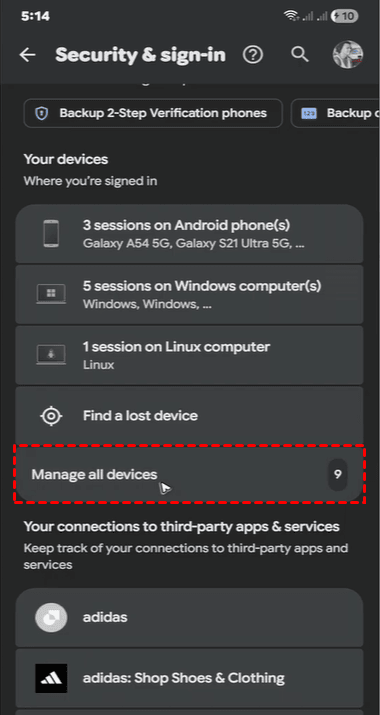
Step 3. Tap Manage all devices. Then select the correct device from the list and verify that it is the phone you purchased.
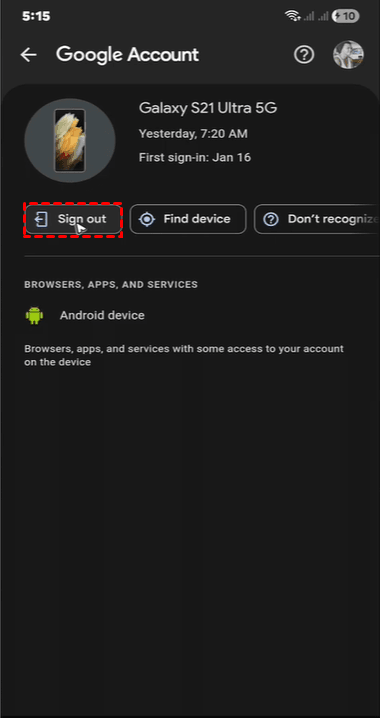
Step 4. Tap Sign out, then tap Sign out again to confirm.
Step 5. (Optional) In the pop-up window, tap Manage app access if some apps on the phone still have access to the previous Google account.
👉 Option 2: In-Person Unlock
If the previous owner lives nearby or can meet you, completing the verification process together is often more straightforward.
Step 1. Turn on the Android phone and connect it to a stable Wi-Fi network. Continue through the initial setup until you reach the Google account verification screen.
Step 2. Ask the previous owner to enter the Google email address and password that were previously synced with the device. They should enter their credentials themselves rather than sharing their password with you.
Step 3. Follow the on-screen instructions to complete the verification process. If the credentials are accepted, continue setting up the phone.
Step 4. Once you reach the home screen, open Settings and navigate to Accounts, Passwords & accounts, or the equivalent option on your Android device.
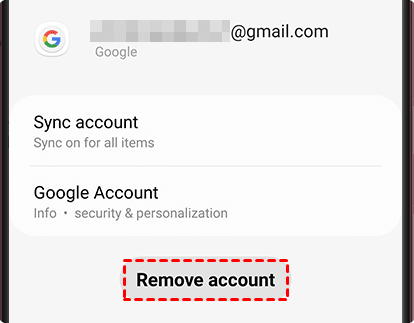
Step 5. Select the previous owner's Google account, tap Remove account, and confirm the action. The exact menu names may vary by Android version and manufacturer.
Method 2: Request an Official FRP Unlock
If you cannot contact the previous owner, you can contact the phone manufacturer or an authorized service center to ask for help removing the FRP lock.
Step 1. Note the manufacturer, model number, and serial number or IMEI of your device. You can find the information on packaging, receipt, or documentation.
Step 2. Visit the manufacturer's website (Samsung, Google Pixel, Xiaomi, Motorola, etc.) and explain that your phone is stuck on the Google verification screen after a factory reset.
Step 3. Have your purchase receipt, order confirmation, or other accepted documents ready for proof of ownership. Second-hand devices may require seller documentation. Requirements vary by manufacturer and region.
Step 4. Inquire whether the manufacturer or an authorized service center can verify ownership and assist with unlocking. Some may offer service options; others may direct you to recover the synced Google account or contact the original owner.
Method 3: Use a Reliable FRP Removal Tool
If you cannot reach the previous owner and the standard account recovery methods have not worked, you may consider using a dedicated FRP removal tool. FoneTool Unlocker is a Windows-based Android unlocking tool that provides a Samsung FRP bypass feature for supported devices.
- Key Features:
- ⭐Multiple unlock methods: Provides different methods for supported Android versions, MediaTek and Qualcomm chipsets, and certain U.S. models.
- ⭐USB-based workflow: The Samsung device can be connected directly to a Windows PC.
- ⭐Guided operation: The software displays instructions for the required actions on the phone.
- ⭐Broad Samsung support: Supports selected Galaxy S, A, M, Z, Fold, and Flip models, including newer supported models.
- ⭐iOS Device Unlock: Besides unlocking Samsung devices, it can also help you bypass iCloud Activation Lock, remove screen time passcode, find Apple ID password, and more.
Learn how to factory reset Google account with FoneTool Unlocker below:
Step 1. Connect the FRP-locked Samsung phone to a Windows PC using a reliable USB data cable.
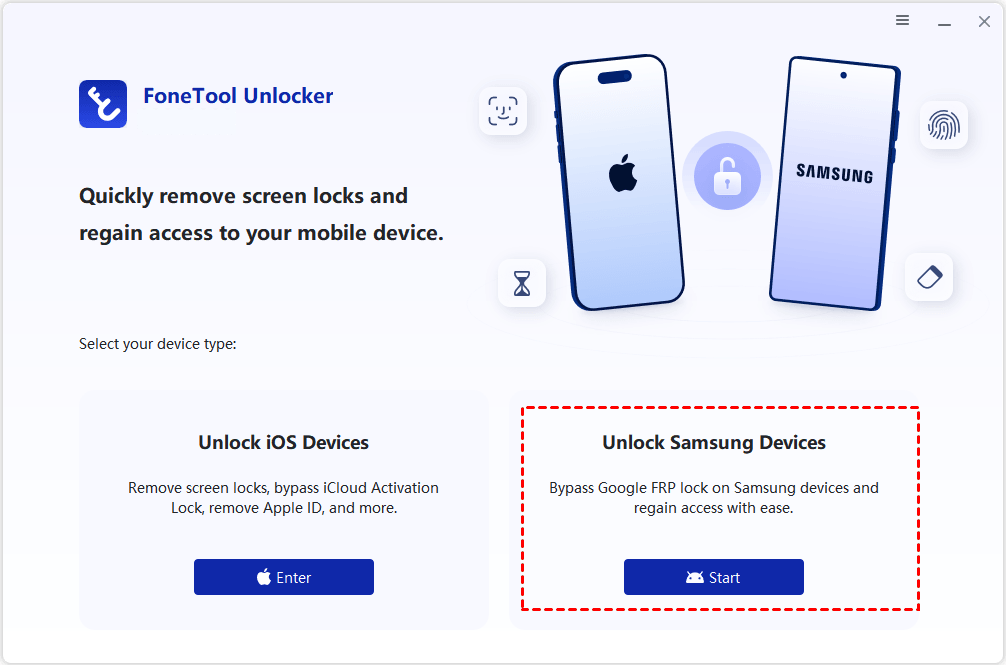
Step 2. Download, install and launch FoneTool Unlocker on the computer. Find Unlock Samsung Devices and click Start.
Step 3. Choose the removal method that matches your Samsung device's Android version and chipset. Click Remove Now.
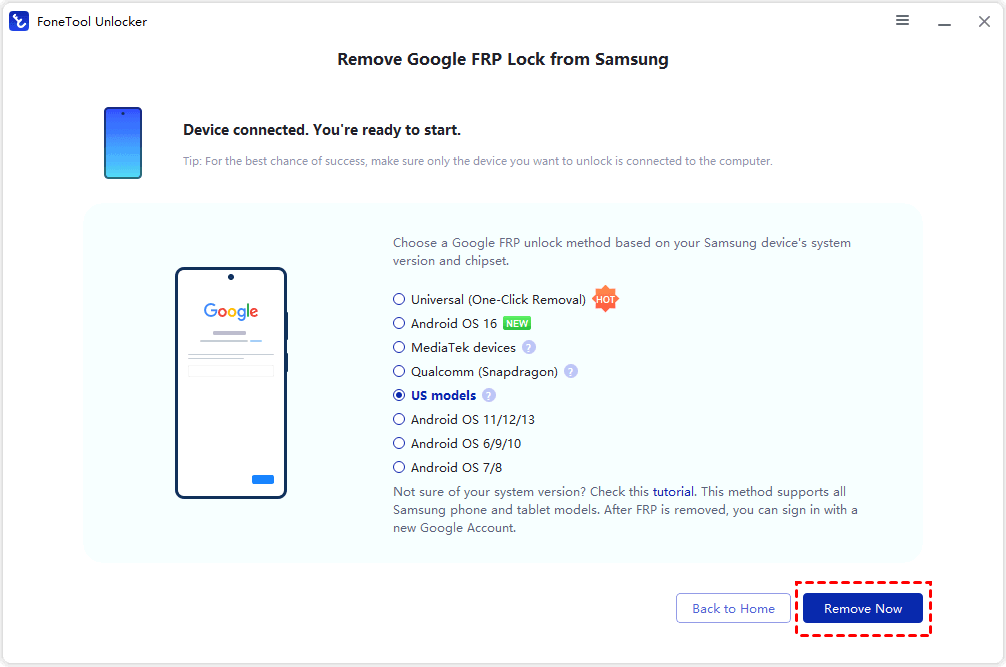
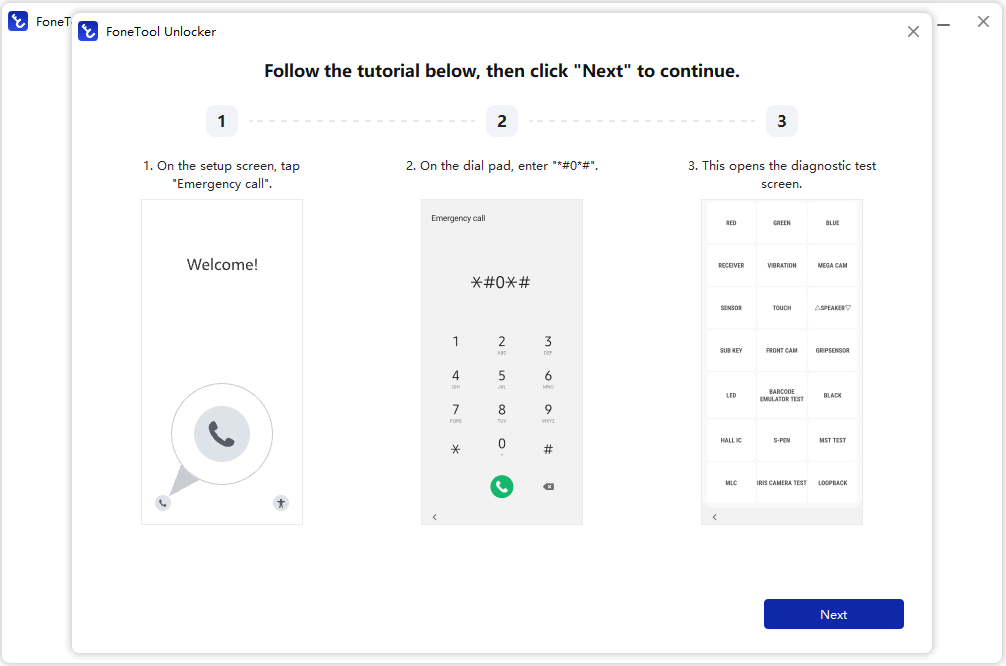
Step 4. Follow the on-screen instructions to tap Emergency call and enter a specified code, such as *#0*#, to access the device's test mode. Then click Next in FoneTool Unlocker.
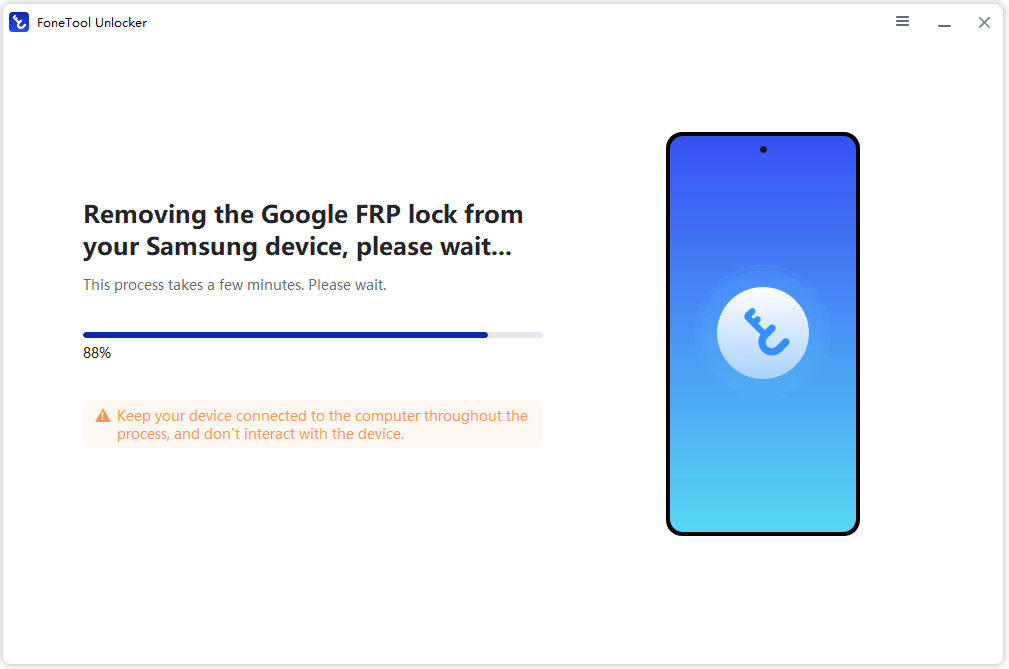
Step 5. The program will proceed with the supported FRP removal procedure. Keep the phone connected to the computer while the process is running and avoid disconnecting the USB cable.
Step 6. Once the process finishes, follow the remaining instructions shown by the software or on the phone to complete device setup.
How to Avoid Buying an FRP-Locked Phone
Buying a second-hand Android phone can save money, but you may encounter a device that is still protected by Factory Reset Protection (FRP). To avoid getting stuck at the Google account verification screen, take the following precautions before purchasing a used phone.
1️⃣ Ask the seller to remove their Google account – Before paying, have them remove it via Settings > Accounts (or Passwords & accounts). This prevents FRP from blocking setup for the next owner.
2️⃣ Factory reset in your presence – Ask the seller to reset the phone through Settings while you watch. Avoid devices already reset via Recovery Mode—FRP may still require the previous Google account.
3️⃣ Complete initial setup before paying – Connect to Wi-Fi and go through setup. Confirm it doesn't ask for the previous owner's Google account. If verification is required, have the seller resolve it first.
4️⃣ Verify ownership and history – Check the IMEI or serial number and request proof of purchase. Buy from reputable sellers or platforms with buyer protection. Avoid devices with unclear ownership or uncooperative sellers.
5️⃣ Keep a record of the transaction – Save the receipt, order confirmation, seller contact info, and any written agreement. If the device turns out to be FRP-locked, this documentation helps with refunds or assistance.
Verdict
Now you know how to bypass previous owner Google account verification on Android. This guide covers legitimate FRP recovery methods to help you unlock it after a factory reset.
For supported Samsung devices, FoneTool Unlocker offers a guided FRP removal process on Windows. What’s more, it is an iOS password recovery tool that can help you find Wi-Fi password on iPhone. Don’t hesitate to try it out!
FoneTool Unlocker - 1-Click Phone Unlock Software
Easily remove passcodes and restrictions from iPhone, iPad, iPod touch, and Samsung devices.
-
 iOS 27 Compatible
 iPhone 18 Supported
-
Samsung FRP Removal
100% Secure

Lily Green is dedicated to helping users protect their valuable mobile data and addressing issues that arise on mobile devices. She consistently stays vigilant about the latest trends in technology, guaranteeing that the given information aligns with the ongoing advancements in the field.
Read author info >>



 as a preferred
source on Google
as a preferred
source on Google