Play Services Hidden Settings on Android 11 [Complete Guide]
Play Services Hidden Settings on Android 11 can help you access Android activities and advanced settings that are not readily visible in the standard Settings app. This guide explains how to find them and how to perform the FRP unlocking without this tool.


What is Play Services Hidden Settings on Android 11?
Play Services Hidden Settings generally refers to Android settings or activities associated with Google Play Services that are not directly displayed in the ordinary Settings interface. Android contains many activities that are not necessarily visible as standalone Settings pages. A launcher application can sometimes expose these activities and provide a convenient way to open them. The concept is similar to Android's Developer options: the functions exist on the device, but the manufacturer does not necessarily put them in an obvious location.
A third-party application called Hidden Settings on Google Play is designed around this concept. Its current listing says that it supports device-specific hidden settings and can launch activities using advanced intent options. However, it is important to distinguish hidden settings from security bypasses:
- Hidden settings may provide shortcuts to configuration screens, but they do not automatically disable Android security mechanisms.
- Factory Reset Protection (FRP) is specifically intended to prevent an unauthorized person from setting up a device after a factory reset. If a Google account was previously associated with the phone, the setup process may require verification of that account after the reset.
How to Find Play Services Hidden Settings on Android 11
There is no single universal "Play Services Hidden Settings" menu on every Android 11 phone. Instead, you can access hidden or advanced functions through several approaches.
Method 1. Use Android's Developer Options
Android 11 includes a built-in Developer options menu. On many Android phones, the process is:
Step 1. Open Settings and go to About phone.
Step 2. Find Build number, then tap Build number seven times.
Step 3. Enter your screen-lock PIN, password, or pattern if requested. Return to the main Settings screen.
Step 4. Open Developer options.
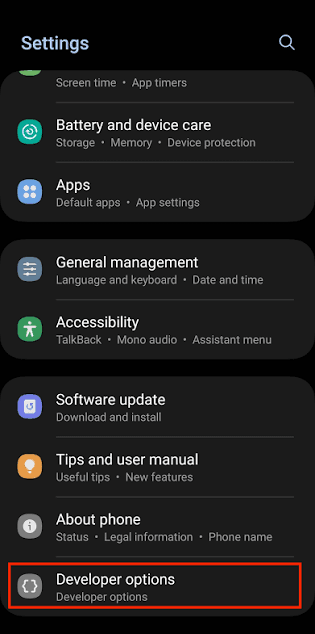
On Samsung phones, the path is generally Settings > About phone > Software information > Build number. Samsung's interface may place Developer options near the bottom of the main Settings menu after activation.
Developer options can expose functions such as USB debugging, animation controls, background-process settings, and other development-oriented options. But it should be noted that some advanced settings can affect performance, applications, or security when changed without understanding their purpose.
Method 2. Explore Manufacturer-Specific Settings
Android manufacturers frequently place advanced features in their own menus. For example, Samsung One UI can contain additional options under areas such as:
- Advanced features
- Display
- Battery and device care
- Security and privacy
- Software information
Samsung also provides experimental features through Labs and additional customization through Good Lock. This means that you may not actually need a third-party hidden-settings application for many advanced functions.
Method 3. Use a Hidden Settings Application
If a particular Android activity is not visible through the normal interface, an activity-launching application can sometimes provide access to it. The Google Play listing for Hidden Settings states that the application can:
- Discover device-specific hidden settings.
- Launch Android activities.
- Provide advanced intent options.
- Save frequently used activities as favorites.
- Create shortcuts on the home screen.
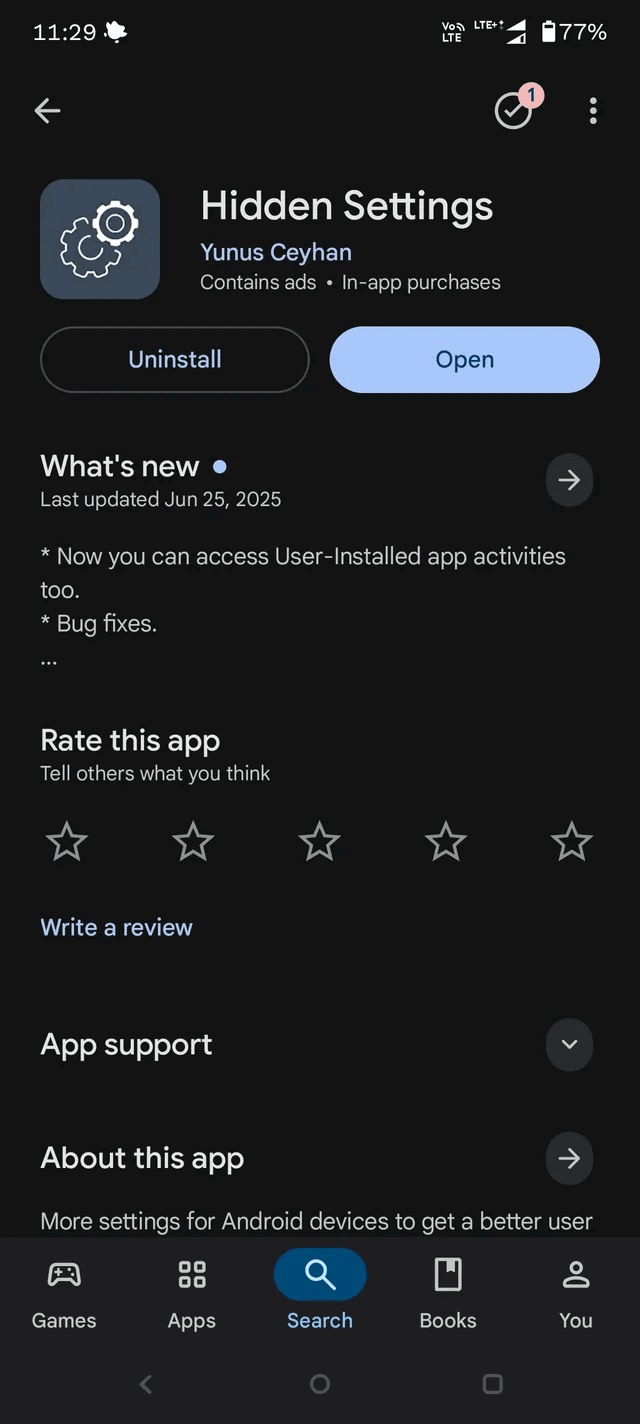
To use such an application on an Android 11 phone:
Step 1. Install the application from a trusted source, then open it.
Step 2. Browse the available categories or activities. Select the setting you want to investigate.
Step 3. Avoid changing system options whose function you do not understand.
What if Hidden Settings May Not Work on Android 11?
If a hidden-settings method does not work, there may be several possible reasons.
- First, the activity may not exist on your particular device. Second, the manufacturer may have restricted access to it. Third, an Android or security update may have changed the relevant activity.
- Even the current Hidden Settings Play Store listing notes that compatibility can change with manufacturer updates; one recent user review, for example, reports a behavior change after a HyperOS update, to which the developer responded that the team would investigate.
Therefore, there is no reliable universal list of hidden activities that works identically across all Android 11 devices.
How to Bypass Google FRP without Play Services Hidden Settings
If your real problem is Google FRP after a factory reset, hidden settings are not necessarily the appropriate solution. The safest solution is to verify ownership and recover the Google account previously associated with the device.
- If you purchased a used phone, ask the previous owner to remove their Google account from the device before completing the handover.
- If you own the device but cannot remember the credentials, use Google's official account-recovery process rather than trying to circumvent the security mechanism.
FoneTool Unlocker provides a dedicated Samsung FRP-unlocking function for supported Samsung phones and tablets. It is designed for situations where a Samsung device remains at Google verification after a factory reset across specified Android versions, including Android 11, and it also supports devices using Qualcomm or MediaTek chipsets.
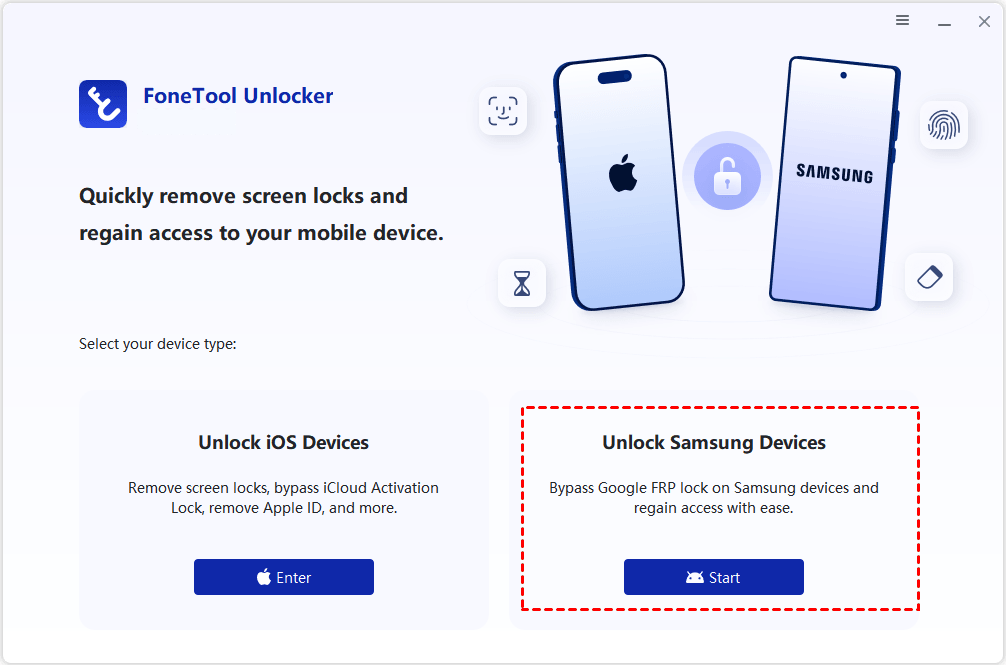
Step 1. Download and install FoneTool Unlocker on a Windows computer. Connect the FRP-locked Samsung phone to the computer using a compatible USB data cable. Launch the software and select Unlock Samsung Devices.
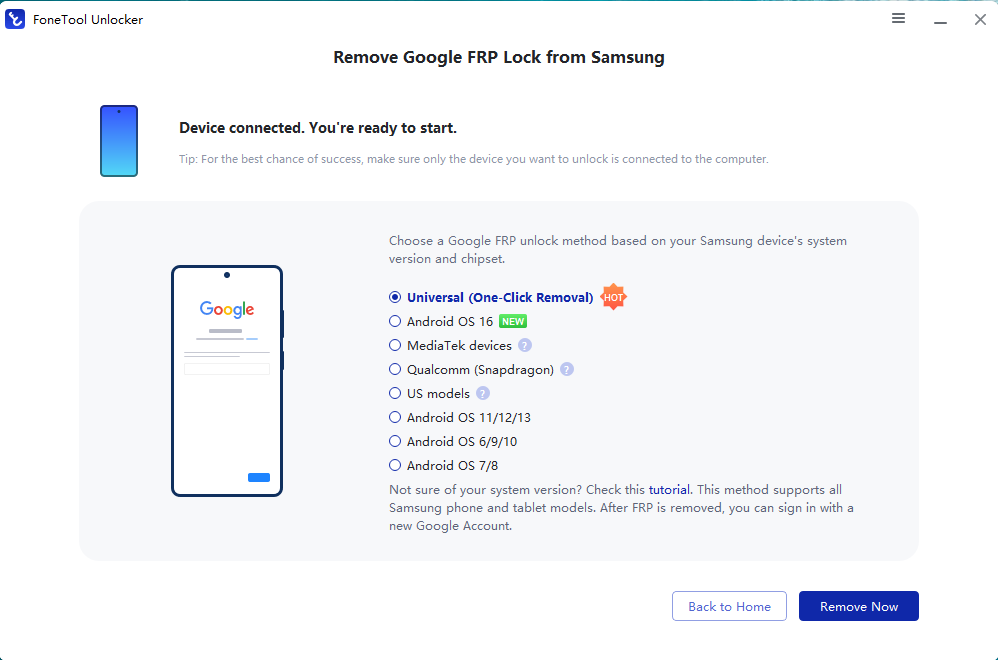
Step 2. Choose the Google FRP unlocking method that matches the device's model, Android version, and chipset. Then, click Remove Now.
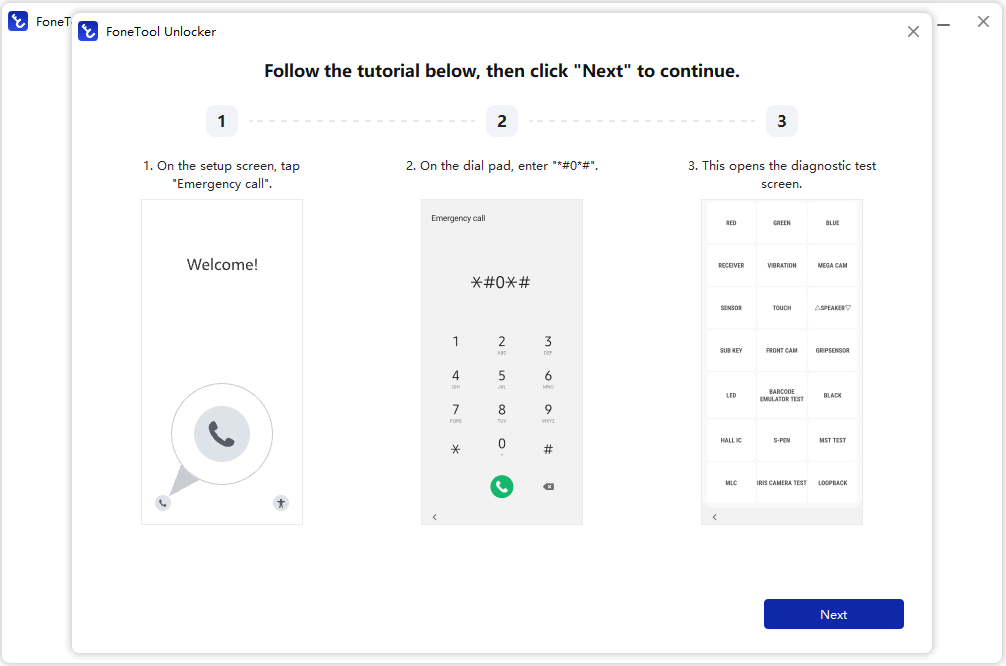
Step 3. Follow the on-screen instructions to tap Emergency Call and enter the specific code (e.g., *#0*#) to access the test mode. Then, click Next to begin the FRP removal process.
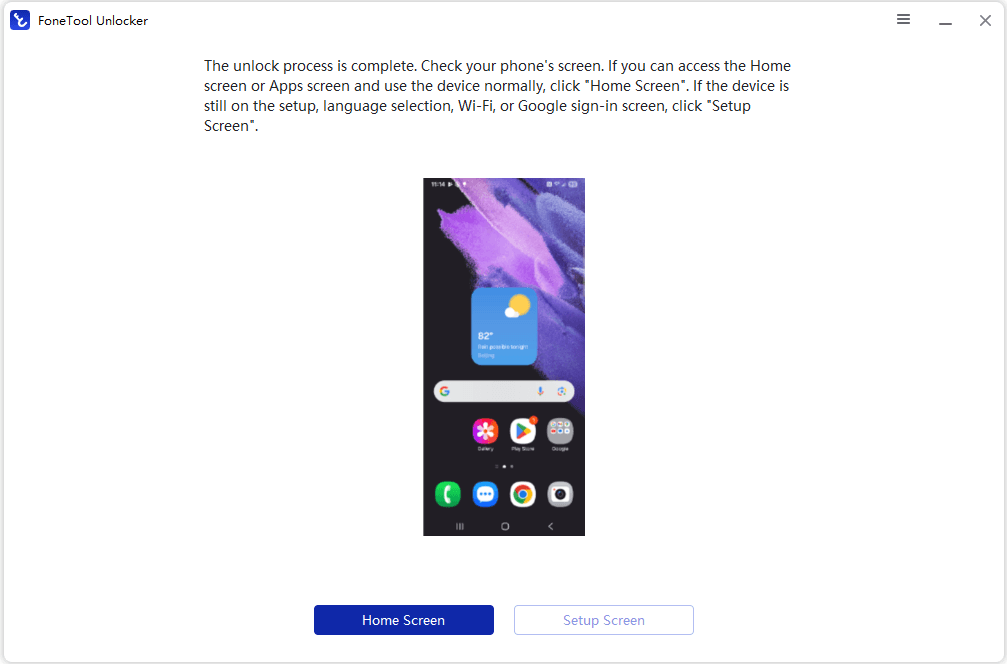
Step 4. When it’s done, check your Samsung phone. Click Home Screen or Setup Screen, and then sign in with a new Google account on the unlocked phone.
FAQs on Play Services Hidden Settings on Android
#1. Can Play Services Hidden Settings bypass FRP?
On some device, you may perform FRP bypass open setting through hidden settings, but it is not universal for all Samsung devices. Compatibility can change with device models, firmware, Google Play Services updates, and security patches.
#2. Is it safe to enable Developer options?
Enabling Developer options itself is generally not harmful, but individual options can have side effects. USB debugging, background-process controls, network options, and other technical settings should be changed only when you understand their purpose.
#3. Why does a hidden-settings tutorial work on one Android 11 phone but not another?
Android manufacturers customize the operating system, and different firmware builds expose different activities. Security updates can also change how system components behave. As a result, a method that worked on one Galaxy model or firmware version may not work on another.
Summary
Play Services Hidden Settings on Android 11 refers broadly to accessing Android activities and configuration options that are not prominently displayed in the normal Settings interface. On many Android 11 devices, the first places to look are Developer options, Settings search, and manufacturer-specific menus.
For Samsung phones, useful advanced controls can also be found within One UI's Advanced features, Display, Battery and device care, and Security and privacy sections.
If your actual goal is to deal with Google FRP, hidden settings should not be treated as a guaranteed solution. Compatibility can vary substantially between devices and software versions. For an authorized Samsung device, FoneTool Unlocker provides a dedicated FRP removal option for supported models, covering selected Android versions, Qualcomm and MediaTek devices, and certain U.S. models.
FoneTool Unlocker - 1-Click Phone Unlock Software
Easily remove passcodes and restrictions from iPhone, iPad, iPod touch, and Samsung devices.
-
 iOS 27 Compatible
 iPhone 18 Supported
-
Samsung FRP Removal
100% Secure

Jona is an expert in mobile data backup and transfer, phone unlocking, and resolving iPhone issues. She maintains a sharp insight into the latest technology trends, ensuring that the information she provides stays current with industry developments.
Read author info >>



 as a preferred
source on Google
as a preferred
source on Google