How to Unlock iPhone 8: Passcode, Disabled & Apple ID Fixes
Locked out of your iPhone 8? Whether you forgot the passcode, see "iPhone is disabled," or are stuck on an Apple ID, we provide clear, step-by-step solutions. Compare official methods and professional tools to regain access quickly.


Being locked out of your iPhone 8 is frustrating. Whether you’ve forgotten your passcode, see a “disabled”message, or are stuck on a previous owner’s Apple ID, this guide provides clear, step-by-step solutions to unlock your device and regain access.
Why Your iPhone 8 is Locked: Common Scenarios?
Understanding the lock type is the first step to fixing it:
- Forgotten Passcode: You simply can't remember your 4-digit or 6-digit passcode.
- Disabled iPhone: After several incorrect passcode attempts, your iPhone 8 will become temporarily or permanently disabled for security.
- Apple ID/iCloud Activation Lock: This lock appears if the device is still linked to a previous owner's account, often on second-hand phones.
- MDM or Screen Time Lock: Restrictions set by an organization, school, or forgotten Screen Time passcode can also block access.
Method 1.Unlock iPhone 8 with FoneTool Unlocker (Recommended Solution)
For users seeking a straightforward, guided, and highly effective solution to unlock a disabled iPhone 8 or remove an Apple ID lock, a professional tool like FoneTool Unlocker is often the fastest path to success. It bypasses the complexity of manual recovery mode and provides clear instructions for various lock scenarios.
- ★Highlights:
-
Effortlessly bypass a forgotten or unknown screen passcode on iPhone
Successfully remove a previous owner's Apple ID
Simple operation with clear, guided steps
Reliably supports the iPhone 8 and a wide range of iOS versions
Step 1. Download and install FoneTool Unlocker on PC, connect your disabled iPhone 8 to the computer via USB.
Step 2. Launch the program and select the “Remove iOS Screen Passcode”or “Remove Apple ID”function based on your need.

Step 3. Follow the on-screen instructions and click "Next".
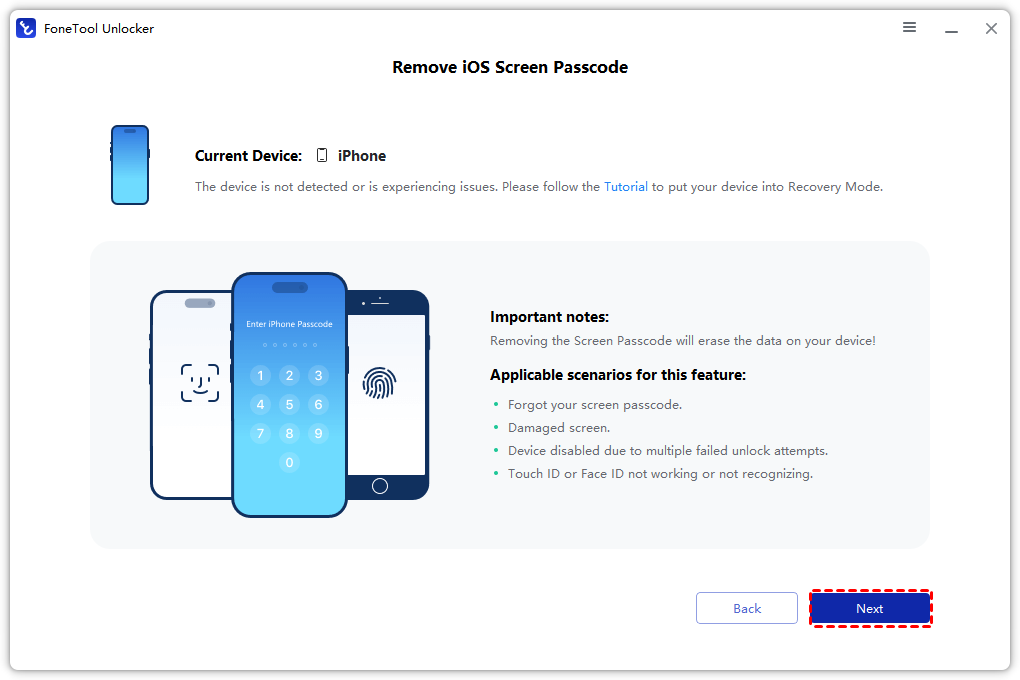
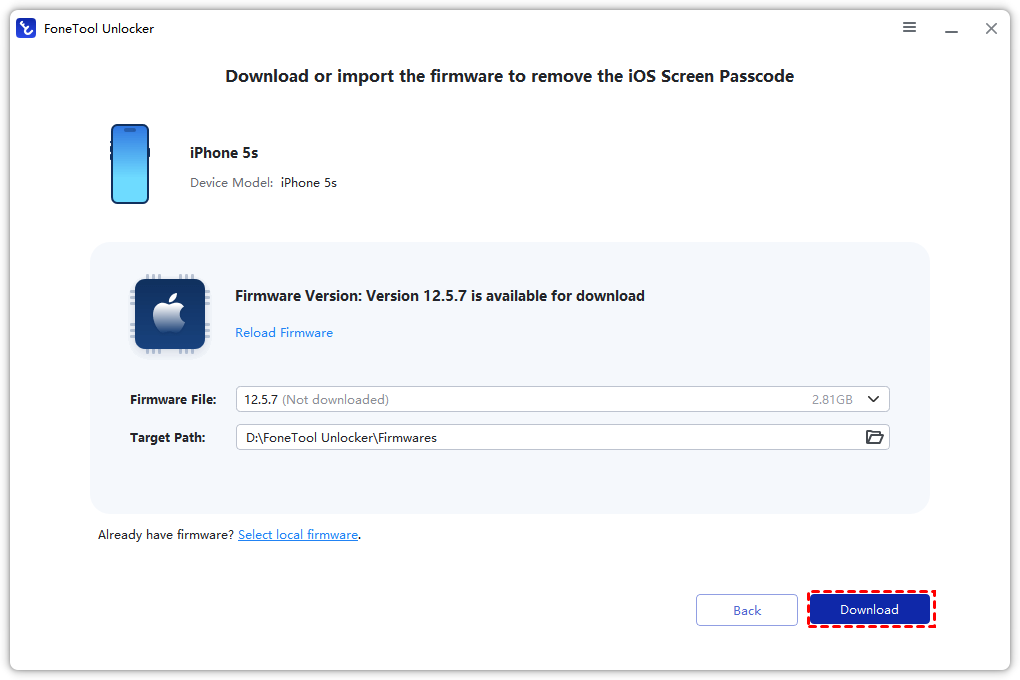
Step 4. The software will guide you to put the device into the correct mode and download the necessary firmware.
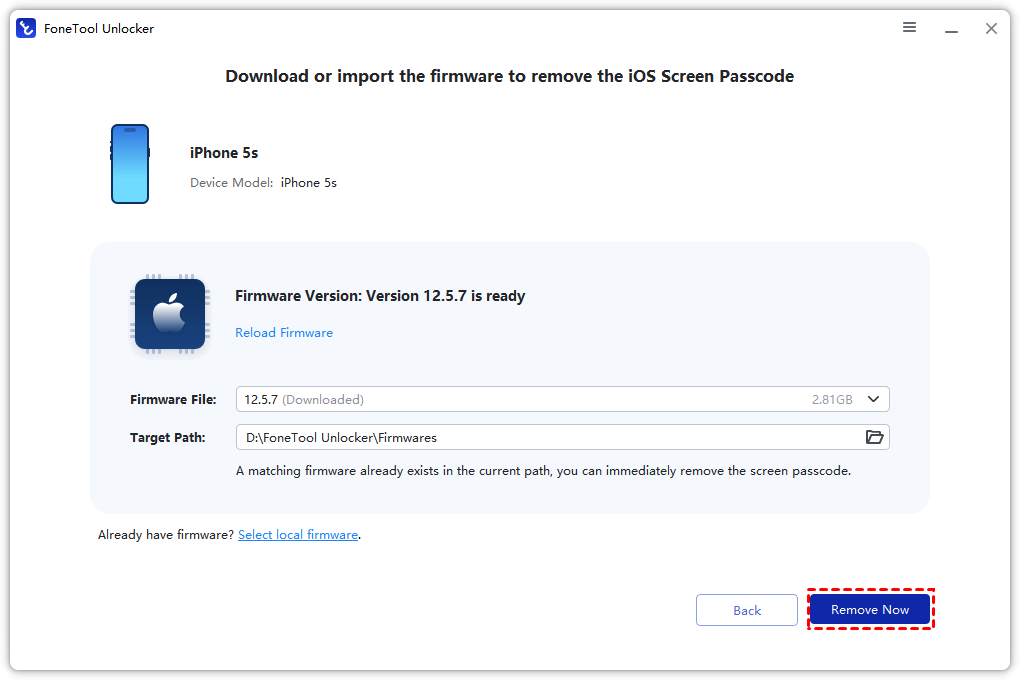
Step 5. Click “Remove Now” to begin the process. Once finished, your iPhone 8 will be ready for setup.
Method 2.Unlock iPhone 8 Using Recovery Mode
This is Apple's official method for a disabled iPhone. You’ll need a computer (Mac or PC with iTunes/Apple Devices) and a USB cable.
Step 1. Open iTunes (or Finder on Mac). Ensure you have the latest version.
Step 2. Enter Recovery Mode on iPhone 8:
- Press and quickly release the Volume Up button.
- Press and quickly release the Volume Down button.
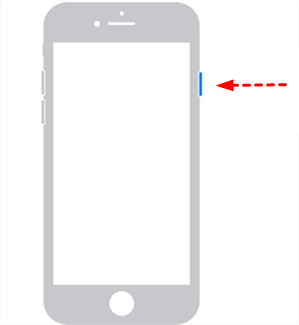
- Then, press and hold the Side button until you see the recovery mode screen (a cable pointing to a computer icon). Do not release when you see the Apple logo.
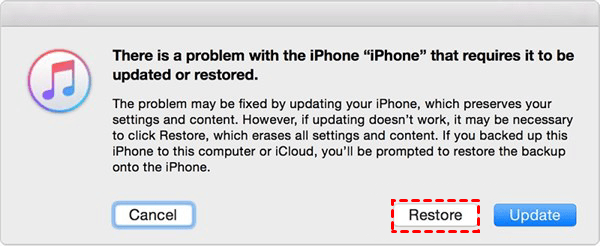
Step 3. On your computer, a prompt will detect your iPhone in recovery mode. Select “Restore”. Your computer will download the necessary software and erase your iPhone 8, including the passcode.
Step 4. After restoration, you can set up your iPhone 8 as new or restore it from a backup.
Method 3.Unlock iPhone 8 Remotely via iCloud
Use this method if “Find My iPhone” was enabled on your locked device and you know your Apple ID credentials.
Step 1. On a computer or another device, go to icloud.com/find.
Step 2. Sign in with the Apple ID linked to your locked iPhone 8.
Step 3. Click “All Devices” at the top and select your iPhone 8.
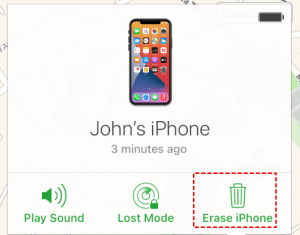
Step 4. Click “Erase iPhone”. This will remotely wipe your device and its passcode.
Step 5. Once complete, you can set up your iPhone 8 again and restore from an iCloud backup if available.
Frequently Asked Questions
Conclusion
Successfully learning how to unlock iPhone 8 depends on choosing the right method for your situation. For the most straightforward and guided experience, especially for Apple ID locks, starting with FoneTool Unlocker is a highly effective solution. For the official, no-cost approach, use iCloud (if Find My is on) or Recovery Mode with iTunes.
FoneTool Unlocker - 1-Click iPhone Unlock Software
Easily unlock all passcodes and restrictions on your iPhone, iPad, and iPod Touch.
-
 iOS 27 Compatible
 iPhone 17 Supported
100% Secure

Kelsey is an English editor at FoneTool, passionate about helping users solve tech issues. She specializes in iPhone data management, backup, and recovery. In her free time, she enjoys learning IT skills and spending time with loved ones.
Read author info >>



 as a preferred
source on Google
as a preferred
source on Google