iPhone Stuck on Do Not Disturb? Here's How to Fix It
Your iPhone's Do Not Disturb won't turn off? Learn why it happens and follow our definitive troubleshooting guide. Let’s solve this frustrating iOS issue for good.


It’s a common but frustrating experience: the crescent moon icon is stuck in your iPhone’s status bar, calls and notifications are silenced, and nothing you do seems to turn Do Not Disturb (DND) off. Your phone feels disconnected, and you might miss important alerts.
This guide will help you understand why this happens and walk you through a clear, step-by-step process to fix your iPhone stuck on Do Not Disturb mode, from the simplest checks to more advanced solutions.
Why Won't Do Not Disturb Turn Off on My iPhone?
Before diving into fixes, it helps to know what you're dealing with. The issue is rarely a hardware problem. Typically, it's caused by one of the following:
- Software Glitches: A temporary bug in iOS can cause settings to freeze.
- Hidden Automations: DND can be set to turn on automatically based on a schedule, your location, or even when you start driving, without an obvious notification.
- Focus Mode Syncing: If you use multiple Apple devices (iPad, Mac), a feature called "Share Across Devices" can sync your Focus mode. Turning off DND on your iPhone might not work if your iPad is still telling it to stay on.
- Driving or Sleep Focus: Specialized Focus modes for Driving or Sleep can activate DND-like silence and might not deactivate properly.
- Deeper iOS System Issues: Occasionally, corrupted system files can cause persistent settings problems that normal troubleshooting can't fix.
Step-by-Step Solutions to Fix iPhone Stuck on Do Not Disturb
Follow these methods in order, starting with the quickest and easiest fixes.
|
Method |
Best For |
Difficulty |
Data Risk |
|
First-step troubleshooting |
Easy |
None |
|
|
Hidden schedules or syncing issues |
Easy |
None |
|
|
Software bugs, corrupted settings, or seeking a clean reinstall |
Easy to Medium |
Low (Standard reinstall avoids data loss) |
|
|
Persistent, system-level glitches |
Medium |
Low (with Standard Mode) |
|
|
Severe software corruption; last option |
Hard |
Method 1. First Basic Checks
Often, the solution is simpler than you think. Let's rule out the obvious.
Step 1. Swipe to open Control Center. Long-press the Focus button (moon icon). Ensure Do Not Disturb is not highlighted. Tap to turn it off.
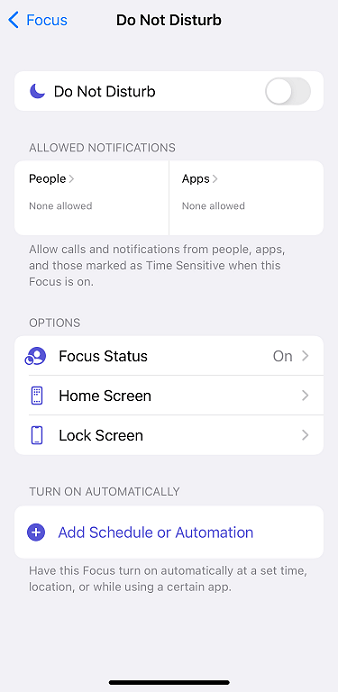
Step 2. Go to Settings > Focus > Do Not Disturb. Turn the top toggle OFF. Review and delete any rules under "Turn On Automatically."
Step 3. A simple restart clears temporary glitches. The method varies by model.
Method 2. Investigate Automations & Syncing
If the basic steps didn't work, a hidden rule or another device might be controlling your iPhone.
Step 1. Go to Settings > Focus. Disable Share Across Devices at the top. In Settings > Focus, review Driving, Sleep, and Work modes.
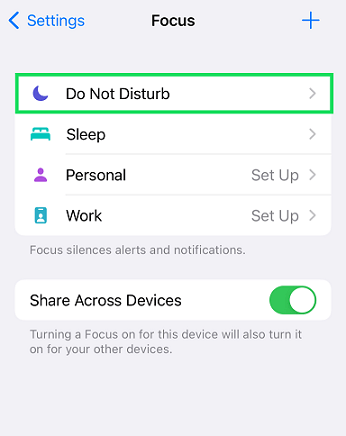
Step 2. Enter each and disable any "Turn On Automatically" triggers.
Step 3. Swipe up from the bottom and pause to enter the app switcher. Swipe up on any apps that might control Focus (like sleep or car apps) to close them.
Method 3. Reset Settings and Update iOS
This step addresses corrupted preferences or software bugs known to Apple.
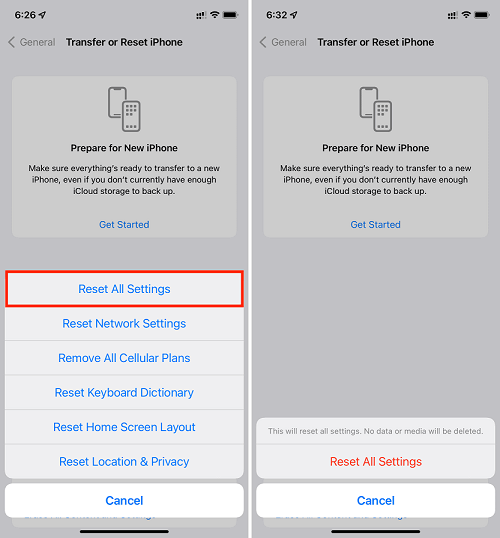
Step 1. This resets network, wallpaper, and display settings to default without erasing your personal data. Go to Settings > General > Transfer or Reset iPhone > Reset > Reset All Settings.
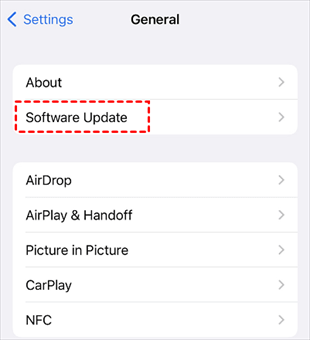
Step 2. Software updates often contain bug fixes. Go to Settings > General > Software Update and install any available update.
- ★Tip:
- If you suspect a deep system error but want to avoid a full erase, consider using a professional tool's upgrade/downgrade feature. For instance, FoneTool Repair offers a one-click iOS Upgrade/Downgrade function. You can use it to cleanly reinstall the same iOS version you're on. This can replace potentially corrupted system files that cause settings like DND to freeze, often without data loss, acting as a powerful refresh between a simple reset and a full restore.
Method 4. Repair iOS with FoneTool Repair
If the moon icon remains stubbornly stuck, the cause is likely deeper iOS system corruption. This is where standard fixes fail, and a professional tool like FoneTool Repair becomes the most effective solution.
FoneTool Repair is designed to fix the underlying iOS system errors that cause features like Do Not Disturb to malfunction, often without requiring a full data-erasing restore.
✅Fixes System-Level Bugs: Targets and repairs the deep iOS errors that cause settings to freeze.
✅Standard Repair for Data Safety: Its Standard Mode aims to resolve issues without data loss - ideal for problems like a stuck DND.
✅Comprehensive iOS Management: Beyond repair, it offers one-click iOS upgrades/downgrades, data backup & transfer, and system cleanup, making it a powerful all-in-one utility.
✅High Success Rate & Ease of Use: Provides a guided, one-click process with a high success rate for resolving persistent iOS issues.
Step 1. On a Windows PC, download and install FoneTool Repair from its official repair page.
Step 2. Launch it and connect your iPhone via USB. Select "iOS System Repair".

Step 3. Choose "Standard Mode" and follow the on-screen instructions.

Step 4. Let the tool download the necessary firmware and click "Start Repair".

Keep your device connected until the process completes and the iPhone restarts.
Method 5. Last Resort - Restore via Finder/iTunes
Warning: This will erase all content and settings on your iPhone. You must have a backup.
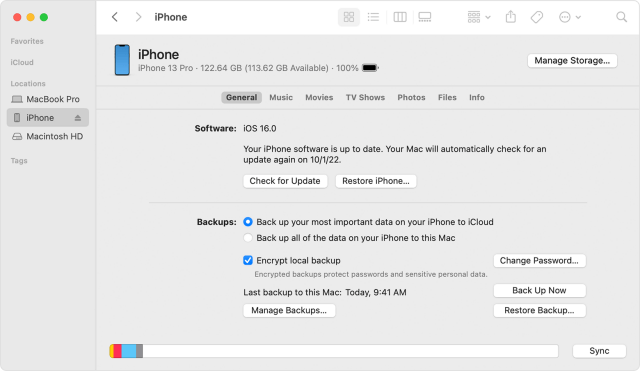
Step 1. Connect your iPhone to a computer and open Finder (macOS Catalina and later) or iTunes (older macOS/Windows).
Step 2. Put your iPhone into Recovery Mode (quickly press and release Volume Up, then Volume Down, then hold the Side button until the recovery screen appears).
Step 3. On the computer, you'll see an option to Restore your iPhone. This will install a fresh copy of iOS, which should clear any profound software corruption.
FAQs on iPhone Issues
Final Words
To fix an iPhone stuck on Do Not Disturb, follow this order: First, toggle DND in Control Center and check Focus automations. Second, disable "Share Across Devices" and update iOS. For persistent problems, a clean iOS reinstall via FoneTool's upgrade feature (Method 3 tip) or a direct system repair with FoneTool Repair (Method 4) are effective, data-safe solutions. Reserve a full factory restore as your absolute last resort.
Fixes 160+ iOS/iPadOS issues, boot loops, crashes, failed updates, with no data loss.
-
 iOS 27 Compatible
 iPhone 17 Supported
100% Secure

Kelsey is an English editor at FoneTool, passionate about helping users solve tech issues. She specializes in iPhone data management, backup, and recovery. In her free time, she enjoys learning IT skills and spending time with loved ones.
Read author info >>



 as a preferred
source on Google
as a preferred
source on Google